
MCP
Connect AI assistants to PaperFox using the Model Context Protocol
PaperFox provides a Model Context Protocol (MCP) server that allows AI assistants like Claude and ChatGPT to interact with your conference data securely.
With PaperFox MCP, your AI assistant can:
- List conferences you have access to
- Get conference and track statistics
- Monitor review progress
- Query submission data
- Read reviewer scores and comments to help shortlist or triage submissions
All actions respect your existing permissions—the AI can only access data you're authorized to see.
Privacy Notice
When you use MCP, data returned by PaperFox (including submission titles, abstracts, and author information) is sent to your AI provider as part of the conversation. Learn more →
Available Tools
| Tool | Description | Required Role |
|---|---|---|
list_conferences | List all conferences with your roles | Any authenticated user |
list_my_submissions | List your own submissions for a conference | Any author or submitter |
get_program | Get the published conference program (days, sessions, talks) | Any authenticated user |
get_conference_stats | Conference-level statistics (submissions, reviews, participants) | Conference Chair |
get_track_stats | Detailed track statistics | Chair or Track Chair |
create_track | Create a track, provisioned with default submission form, review form, and an initial phase | Conference Chair |
update_track | Edit a track's name, description, slug, submission deadline, or reviewer settings | Chair or chair of that track |
delete_track | Delete an empty track — returns a preview first and only deletes after you confirm | Conference Chair |
get_review_form | Read the review form — the conference-level default fields, a track's own additions, and the resolved form reviewers actually answer | Conference Chair (track-level: chair of that track) |
update_review_form | Edit review form fields at conference or track level — previews a field-level diff and writes only after you confirm | Conference Chair (track-level: chair of that track) |
get_review_progress | Review completion rates and status | Chair or Track Chair |
search_submissions | Search submissions by author name or email | Chair or Track Chair |
get_submission_info | Get details about a specific submission | Author, Chair, or Assigned Reviewer |
list_submissions | List submissions with optional decision/status/track filters, pagination, and optional per-submission review signals (includeReviewSignals=true) | Conference Chair |
get_submission_reviews | Get all completed reviews for one submission — reviewer scores, free-text comments, and the review form schema | Conference Chair or Track Chair |
get_program_schema | Get program schema, enums, conference dates/timezone/tracks | Conference Chair |
get_program_draft | Get the current program with stable IDs for editing | Conference Chair |
import_program_draft | Bulk-create (replace) or append to a program from an AI-generated plan — previews the plan and writes only after you confirm | Conference Chair |
upsert_program_day | Create or update a program day (child times move with a date change) | Conference Chair |
upsert_program_session | Create, update, reorder, or move a session between days | Conference Chair |
upsert_program_item | Create, update, reorder, or move an item (submissions, talks, breaks) | Conference Chair |
delete_program_entity | Delete a day, session, or item — previews what the deletion takes with it first (submissions are not touched) | Conference Chair |
Build your program by chatting
Conference chairs can use the program-building tools above to draft and refine the entire conference schedule through conversation with Claude or ChatGPT. See Build Program with MCP → for the full workflow.
Setup Instructions
PaperFox MCP URL:
https://www.paperfox.ai/mcpClaude Desktop
Paid Plan Required
Remote MCP servers require Claude Pro, Max, Team, or Enterprise plans.
Claude Desktop uses Connectors for remote MCP servers (the JSON config file is only for local servers).
- Open Claude Desktop
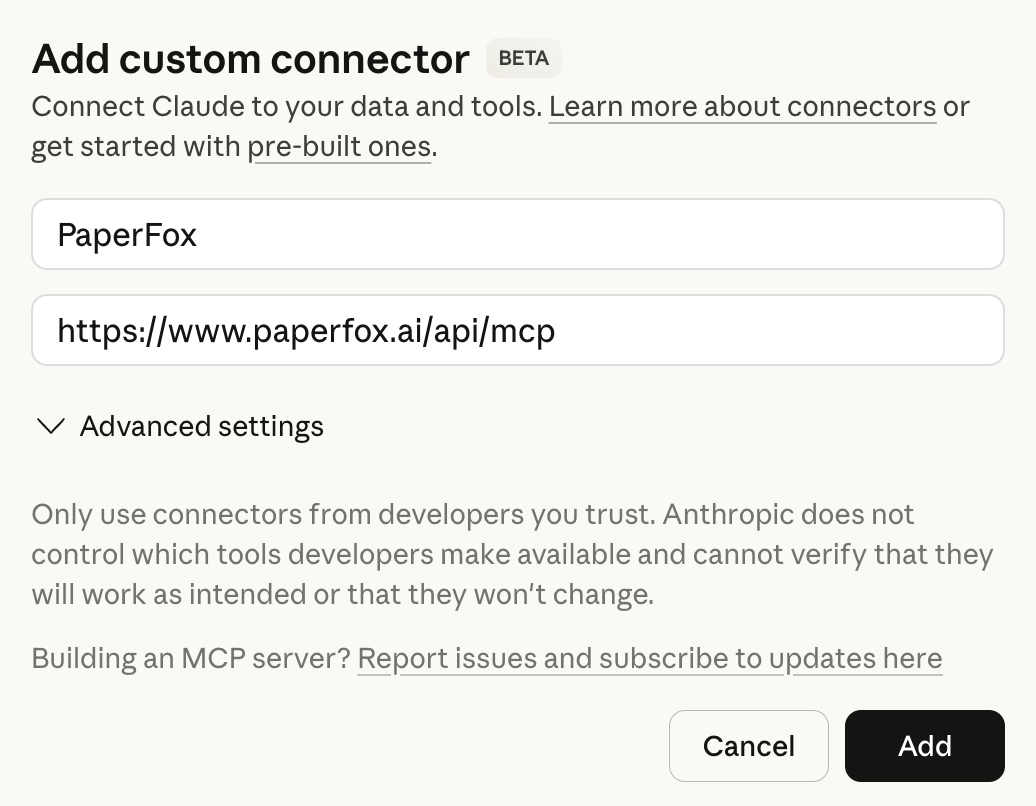
- Go to Settings → Connectors
- Click Add Connector or the + button
- Enter
PaperFoxas the name andhttps://www.paperfox.ai/mcpas the URL - Click Add
- When prompted, sign in to PaperFox and authorize access
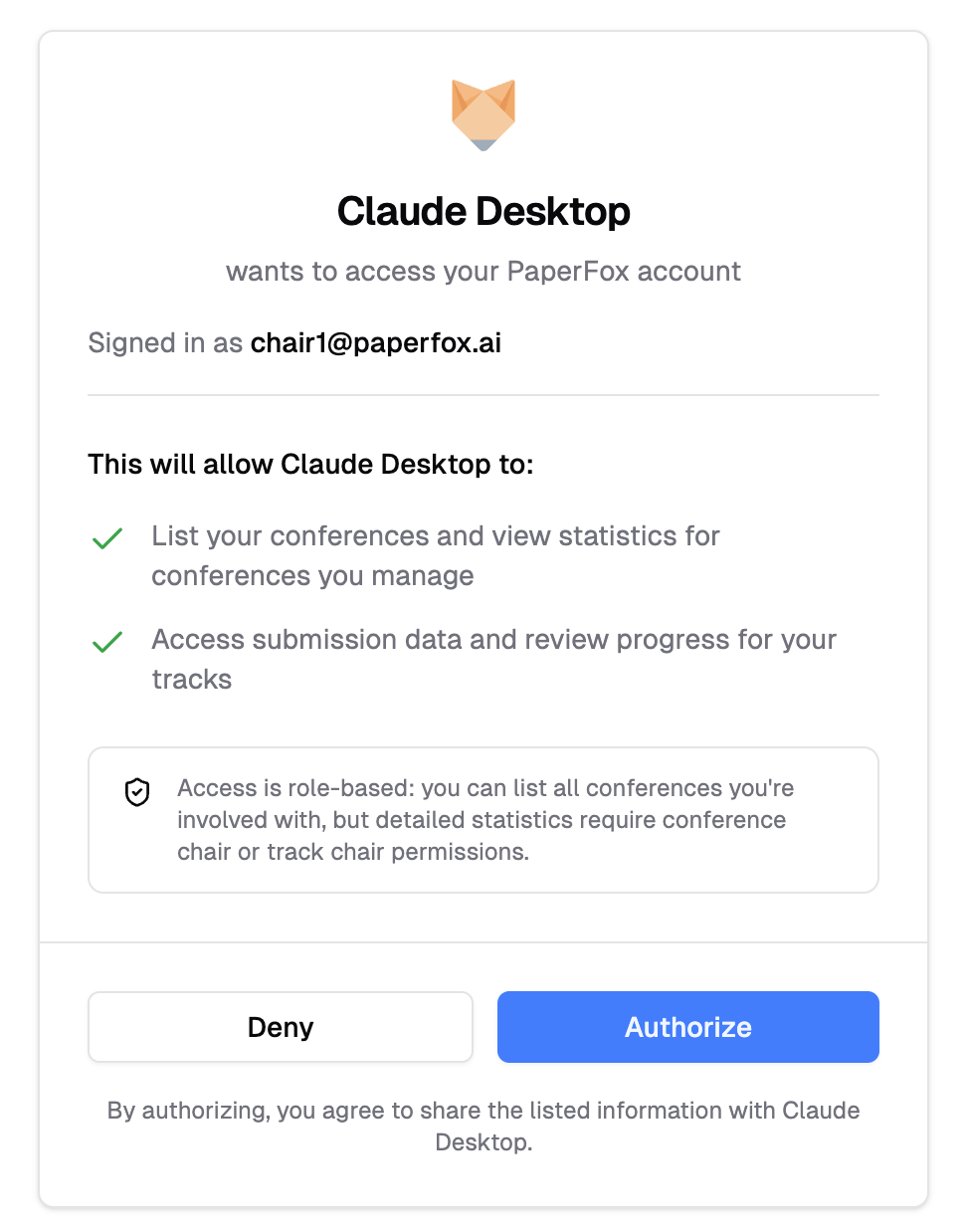
For more details, see Claude's Remote MCP documentation.
ChatGPT
Paid Plan Required
MCP support in ChatGPT requires Business, Enterprise, or Edu plans with Developer Mode enabled. This only works on chatgpt.com, not the mobile or desktop apps.
ChatGPT supports MCP through Developer Mode:
- Go to chatgpt.com and click your profile icon, then Settings
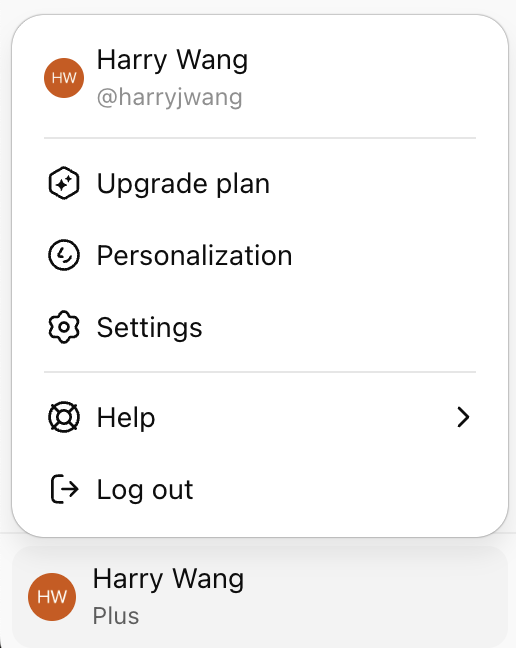
- Navigate to Apps and enable Developer mode
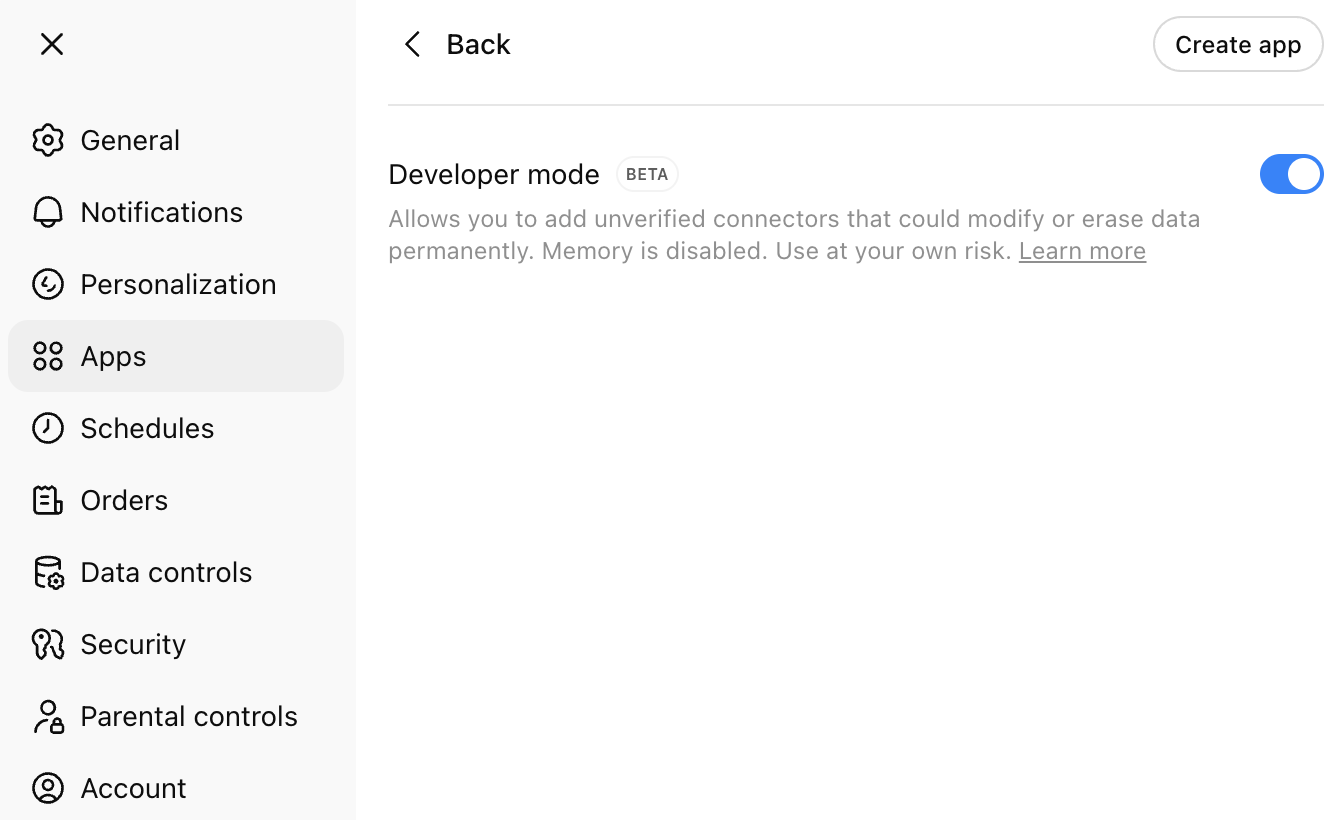
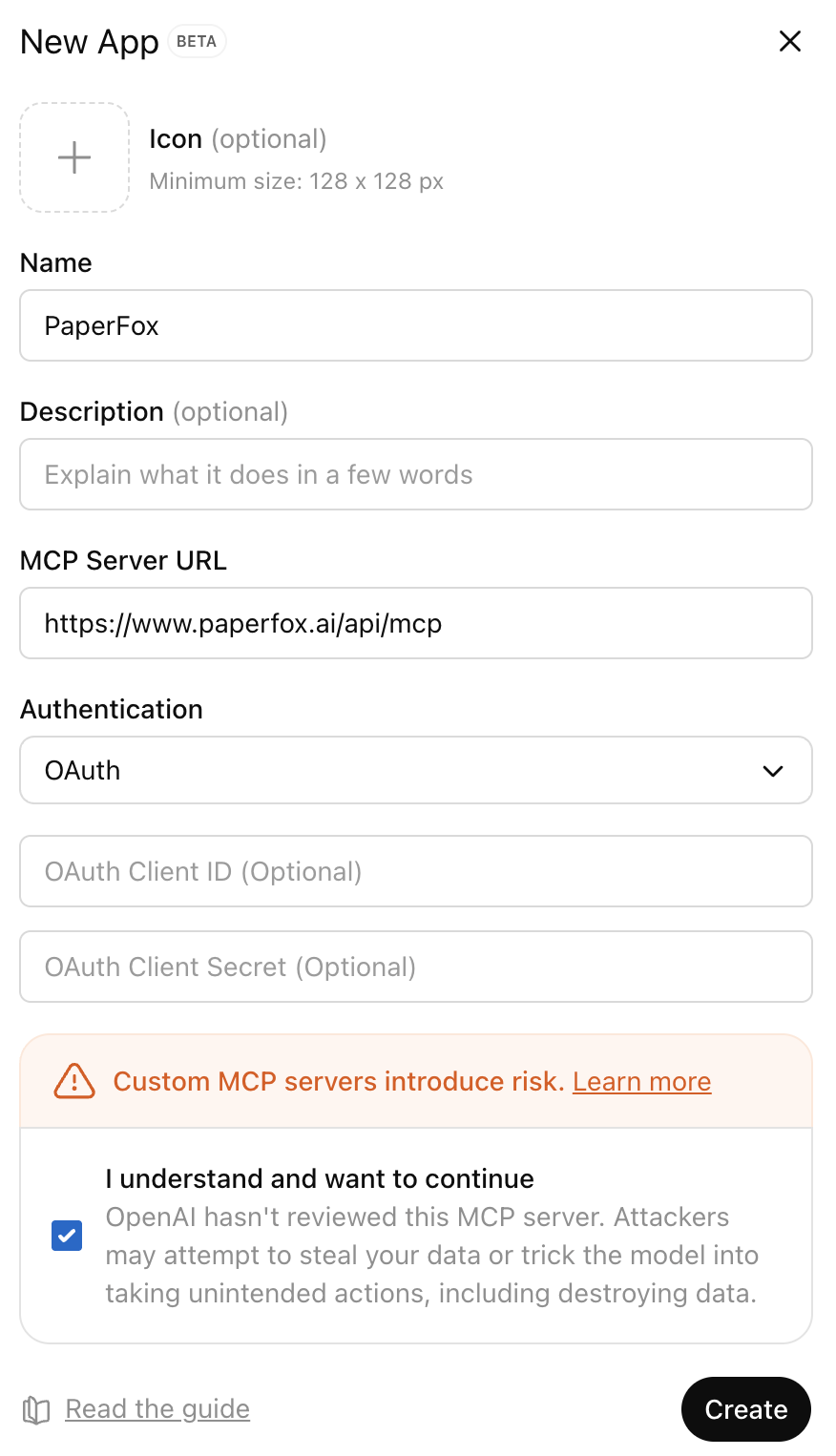
- Click Create app and fill in:
- Name:
PaperFox - MCP Server URL:
https://www.paperfox.ai/mcp - Authentication:
OAuth - Check the acknowledgment box and click Create
- Name:
- When prompted, sign in to PaperFox and authorize access
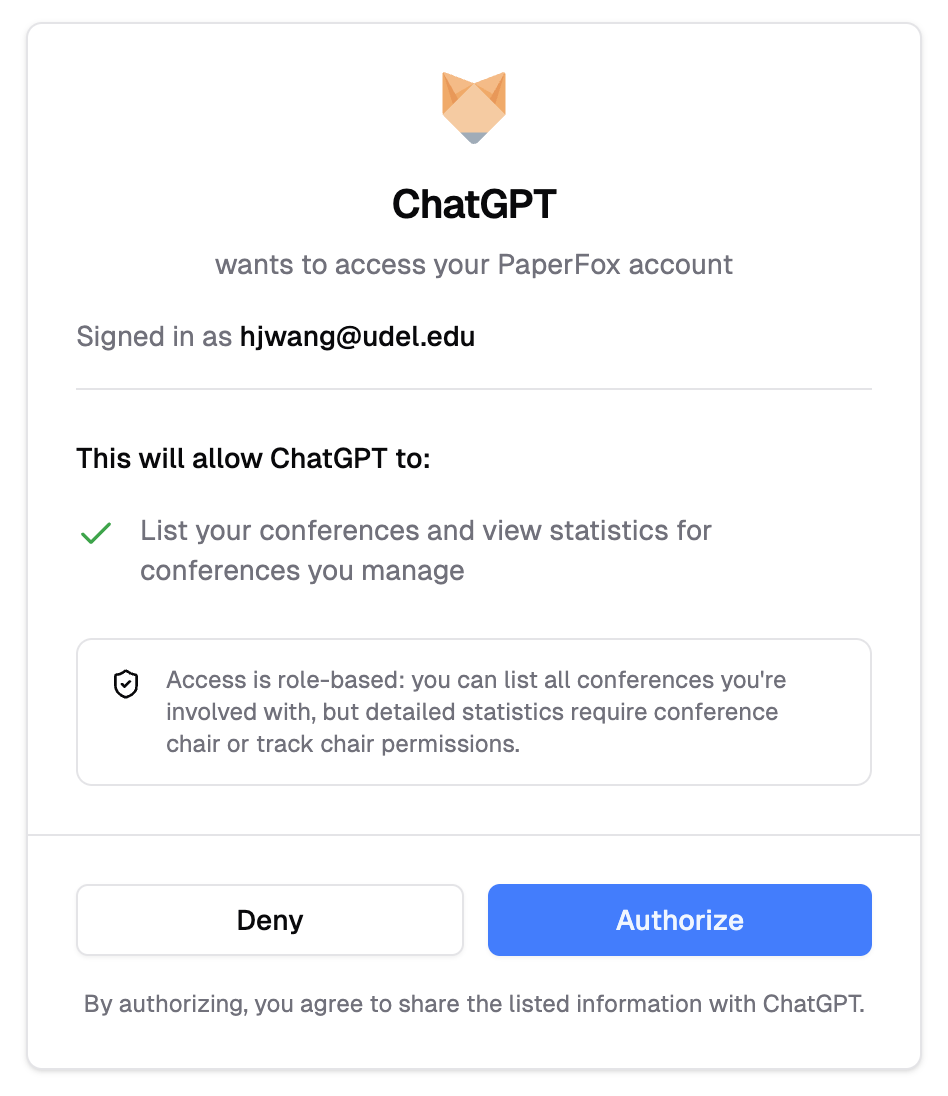
For more details, see ChatGPT Developer Mode documentation.
Cursor IDE
Add PaperFox to your Cursor MCP configuration (~/.cursor/mcp.json):
{
  "mcpServers": {
    "paperfox": {
      "url": "https://www.paperfox.ai/mcp"
    }
  }
}
After adding the configuration:
- Open Cursor Settings and navigate to Tools & MCP.
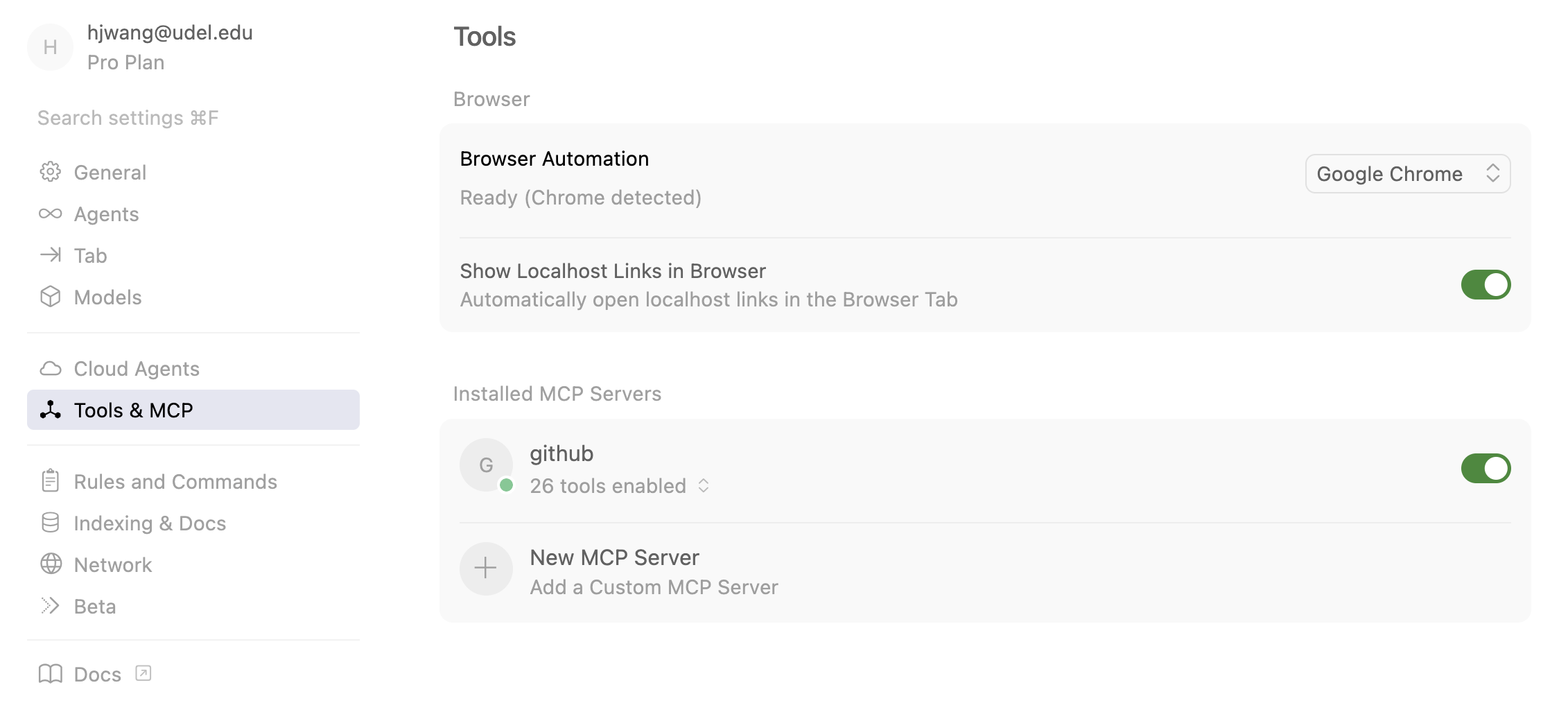
- PaperFox will appear with "Needs authentication". Click Connect.
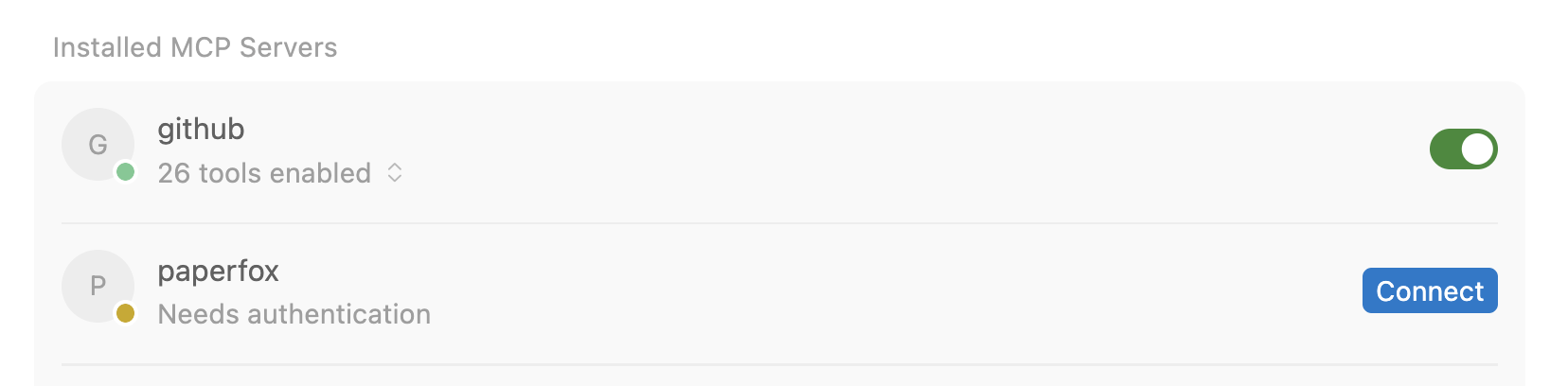
- When prompted to open the external website, click Open to authorize.
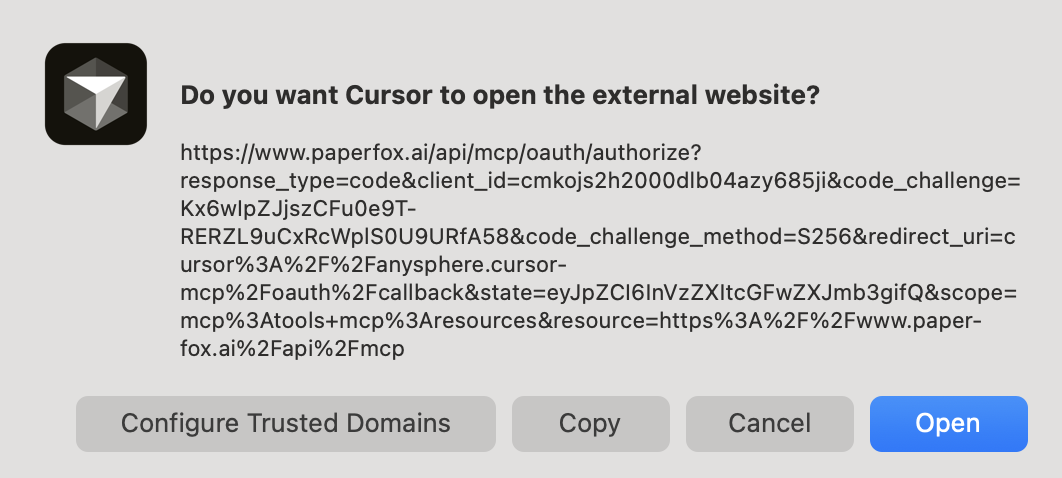
- Sign in to PaperFox and authorize access. Once connected, you'll see the PaperFox tools enabled.
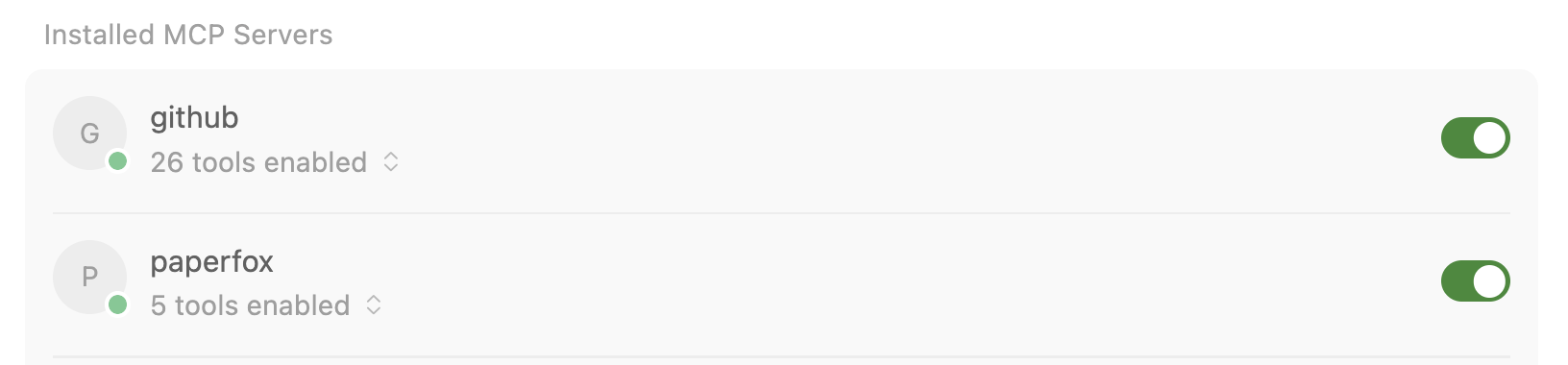
- Use Agent mode in the AI pane to access PaperFox tools.
For more details, see Cursor MCP documentation.
Other MCP-Compatible Clients
Any MCP-compatible client can connect using:
- MCP Endpoint:
https://www.paperfox.ai/mcp - Transport: Streamable HTTP
- Protocol revision:
2026-07-28. Clients on the 2025 revisions are still served from the same endpoint, so no client needs to upgrade to keep working. - Authentication: OAuth 2.1 with PKCE
- Scope:
mcp:tools
The client will automatically discover OAuth endpoints via:
https://www.paperfox.ai/.well-known/oauth-protected-resourcehttps://www.paperfox.ai/.well-known/oauth-authorization-server
Registering your own client
If you build a client that registers itself dynamically, application_type is optional — omit it and any redirect style is accepted. Send application_type: "native" when your client receives its authorization code on a local listener (http://localhost) or a custom scheme, which is what most desktop and CLI tools do. The one combination rejected is application_type: "web" together with a loopback or custom-scheme redirect, since a remote browser app has no local listener to receive the code.
Usage Examples
Example 1: Discover your conferences
Prompt: "What conferences do I have access to?"
What happens:
- PaperFox returns all conferences where you have a role (chair, reviewer, author, etc.)
- Shows conference name, dates, location, and your specific roles
- Use this to discover conference slugs needed for other tools
Example response:
You have access to 2 conferences:

1. DSW 2027 (Data Science Workshop 2027)
   - June 15–18, 2027 · Boston, MA
   - Your roles: Conference Chair

2. ICMR 2027 (International Conference on ML Research)
   - September 10–12, 2027 · London, UK
   - Your roles: Reviewer
Example 2: Check submission and review statistics
Prompt: "Show me the submission statistics for DSW 2027 and how reviews are going"
What happens:
- PaperFox retrieves conference-level stats: total submissions, status breakdown (submitted, under review, accepted, rejected), and reviewer counts
- Then fetches review progress: assignments completed vs. pending, completion rate, and reviewers with outstanding work
- Requires Conference Chair or Track Chair role
Example response:
DSW 2027 Statistics:
- 142 total submissions (28% of 500 limit)
  - 45 submitted, 67 under review, 18 accepted, 12 rejected
- 24 active reviewers, 89 registrations

Review Progress:
- 216 total assignments, 148 completed (68%)
- 3 reviewers with 5+ pending reviews
Example 3: Look up a specific submission
Prompt: "What's the status of submission dsw2027-42?"
What happens:
- PaperFox retrieves submission details: title, abstract, status, version history
- For chairs: shows authors, reviewer assignments, and review status
- For reviewers: shows submission content (authors hidden in double-blind review)
- For authors: shows their own submission with revision status
Example response:
Submission dsw2027-42: "Efficient Transformer Architectures for Edge Devices"
- Status: Under Review (version 1)
- Track: Main Track
- Submitted: March 1, 2027
- Authors: Jane Smith (MIT), John Doe (Stanford)
- Keywords: transformers, edge computing, model compression
- 2 of 3 reviews completed
Example 4: Shortlist submissions based on reviews
Prompt: "For CSWIM 2026, pick 5 accepted submissions that look strongest based on reviewer signal and content, and give me a short rationale for each."
What happens:
- The AI calls
list_submissionsonce withdecision=['ACCEPT','CONDITIONAL_ACCEPT']andincludeReviewSignals=true— this returns abstracts, keywords, and compact review aggregates (review count, avg/min/max scores, recommendation values) for every accepted submission in a single call. - The AI reasons over content + aggregate scores to pick a shortlist.
- For each shortlisted submission, it calls
get_submission_reviewsto read the full reviewer comments so its rationale cites specific reviewer language rather than hallucinating one. - Requires Conference Chair role (or Track Chair role for submissions in your track).
This pattern keeps the big scan cheap (one call, no long comment text) and reserves the expensive full-review reads for the N submissions you actually want to talk about.
Example 5: Read and adjust the review form
Prompt: "What are reviewers actually asked on ICMR 2027's review form? Add a question about ethics approval."
What happens:
- The AI calls
get_review_formto read the conference-level default fields — the questions every track inherits. Adding atrackSluginstead returns that track's own extra fields plus the resolved form reviewers actually see. - To make the change, it calls
update_review_formwith the complete field list (the existing questions plus the new one). The tool replaces the list it is given, so anything omitted is removed — which is why the AI reads the form first. - The first call returns a preview with a field-level diff (added / removed / modified / reordered) and writes nothing. The AI shows you that diff; only after you agree does it call again with
confirm: true. - Once reviews have been submitted, the conference-level form becomes append-only: you can add questions and reword existing labels, but existing questions can no longer be removed or reordered. The tool refuses those edits rather than silently invalidating reviews already written.
- A track-level edit can't add a question whose id is already inherited from the conference form — both would write to the same answer. The tool refuses the save and suggests either a different id for the track question or editing the conference form instead (omit
trackSlug).
You can make the same edits by hand — see Configure Review Forms →.
Usage Limits
Every authenticated user gets 50 free MCP tool calls per day. After that, each additional call costs 0.5 credits (at $1 = 300 credits, that's about $0.002 per call).
| Daily Usage | Cost |
|---|---|
| First 50 calls | Free |
| 51–2,000 calls | 0.5 credits each |
| Over 2,000 calls | Blocked (daily limit) |
A typical session uses 5–15 tool calls, so most users will stay well within the free tier.
If you run out of free calls and don't have enough credits, the AI will let you know and provide a link to purchase credits. Credit usage appears in your credit history as "MCP Tool Call" entries.
The daily limit resets at midnight UTC.
Authentication Flow
When you first connect an AI assistant to PaperFox:
- The client discovers the OAuth server automatically
- A browser window opens for you to sign in to PaperFox
- You review and approve the permissions requested
- The client receives secure tokens to access your data
- Tokens refresh automatically—you won't need to re-authenticate frequently
Your credentials are never shared with the AI assistant. Only secure, scoped access tokens are used.
Security
- OAuth 2.1 with PKCE: Industry-standard secure authentication
- Scoped Access: AI only accesses what you authorize
- Role-Based: Respects your existing PaperFox permissions
- Minimal Write Access: Most tools are read-only; write tools (track and program management) are chair-only
- Confirm-First Writes: Every write tool is two-step — without confirmation it only returns a preview, and nothing is created, changed, or deleted until you approve. MCP can never publish your program or make anything public; programs it creates are unpublished drafts
- Token Rotation: Refresh tokens are rotated for security
- Audience Validation: Every token is bound to PaperFox and rejected anywhere else (RFC 8707)
- Issuer Identification: Authorization responses name PaperFox as the issuer, so your client can prove which server answered before it redeems a code (RFC 9207)
Privacy
PaperFox MCP only provides access to data you already have permission to see in the PaperFox web interface. No additional data is collected or stored when using MCP. See our Privacy Policy for details.
Submission Data Is Sent to Your AI Provider
When you use MCP tools, the data returned by PaperFox is sent to the AI provider (e.g., Anthropic for Claude, OpenAI for ChatGPT) as part of your conversation. The following tools return submission-related content that will be shared with the AI provider:
get_submission_info— title, abstract, keywords, author names/emails/affiliations, review statuslist_my_submissions— titles, author names, submission status for all your submissions in a conferencelist_submissions— titles, abstracts, keywords, author names/affiliations, decision/status; whenincludeReviewSignals=true, also per-submission review scores (no comment text)get_submission_reviews— full reviewer comments, confidential comments, scores, and reviewer names for one submissionsearch_submissions— titles, author names/emails/affiliations, submission status for matching submissionsget_conference_stats/get_track_stats— aggregate submission and review statisticsget_review_progress— reviewer names and review completion status
If your conference has strict confidentiality requirements or your submissions contain sensitive unpublished research, do not use MCP to access that data. Use the PaperFox web interface directly instead — it does not share data with any third-party AI provider.
Troubleshooting
"Access Denied" errors
Ensure you have the required role for the tool you're trying to use. For example, get_conference_stats requires Conference Chair access.
Connection fails
- Check that you're signed in to PaperFox
- Verify the MCP URL is correct:
https://www.paperfox.ai/mcp - Try removing and re-adding the server configuration
- Check your network connection
Token expired
Most clients handle token refresh automatically. If you encounter persistent auth errors, remove the server configuration and re-add it to trigger a fresh authentication.
Claude Desktop: "Server not connecting"
Remote MCP servers must be added via Settings → Connectors, not the JSON config file. The claude_desktop_config.json file is only for local MCP servers.
ChatGPT: "MCP not available"
Ensure you have a Business, Enterprise, or Edu subscription and are using chatgpt.com (not the mobile or desktop apps). Go to Settings → Apps and enable Developer mode.