
Write and Update Reviews
How to write, submit, and revise your reviews in PaperFox
Finding Your Reviews to Write
- In the sidebar, click Reviews
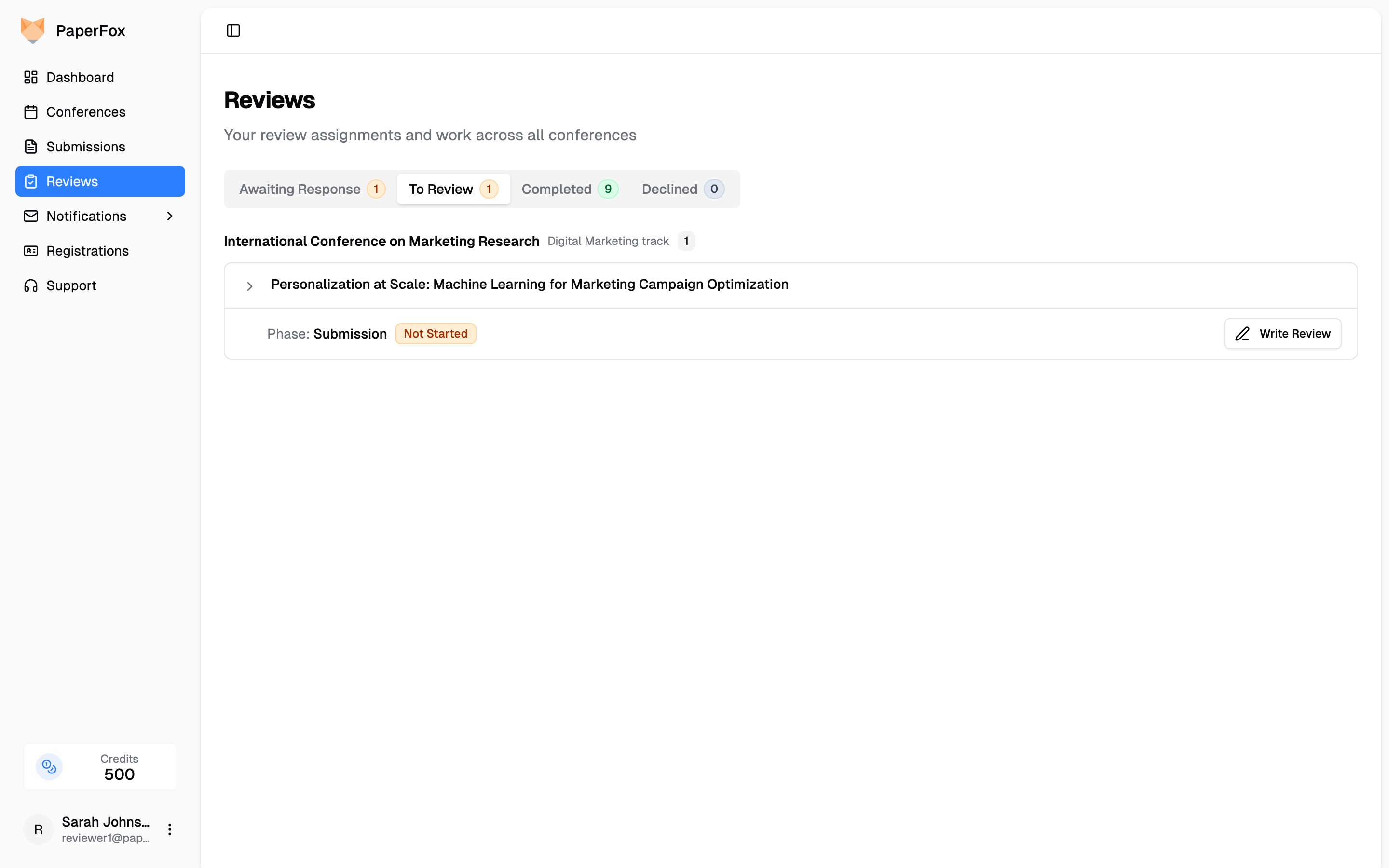
- The To Review tab shows accepted submissions waiting for your review, grouped by conference and track. On tracks with multiple review phases each row is labeled with its phase; on single-phase tracks the row simply reads Review
- Click "Write Review" to open the review editor. If you've already saved a draft, the button shows "Continue Draft" instead

Writing a Review
The review page has a two-column layout:
- Left column — Everything you read: the Submission card (title, abstract, keywords, and the submitted PDF), plus — when the track uses them — the chair-shared AI Review, Other Reviews, and the Discussion thread
- Right column — The My Review card with the review form configured by the track chair. It stays in view while you scroll the reading column
Each card collapses to its header with the chevron on the right, and the panel toggle in the page header hides the whole reading column when you want the form at full width.
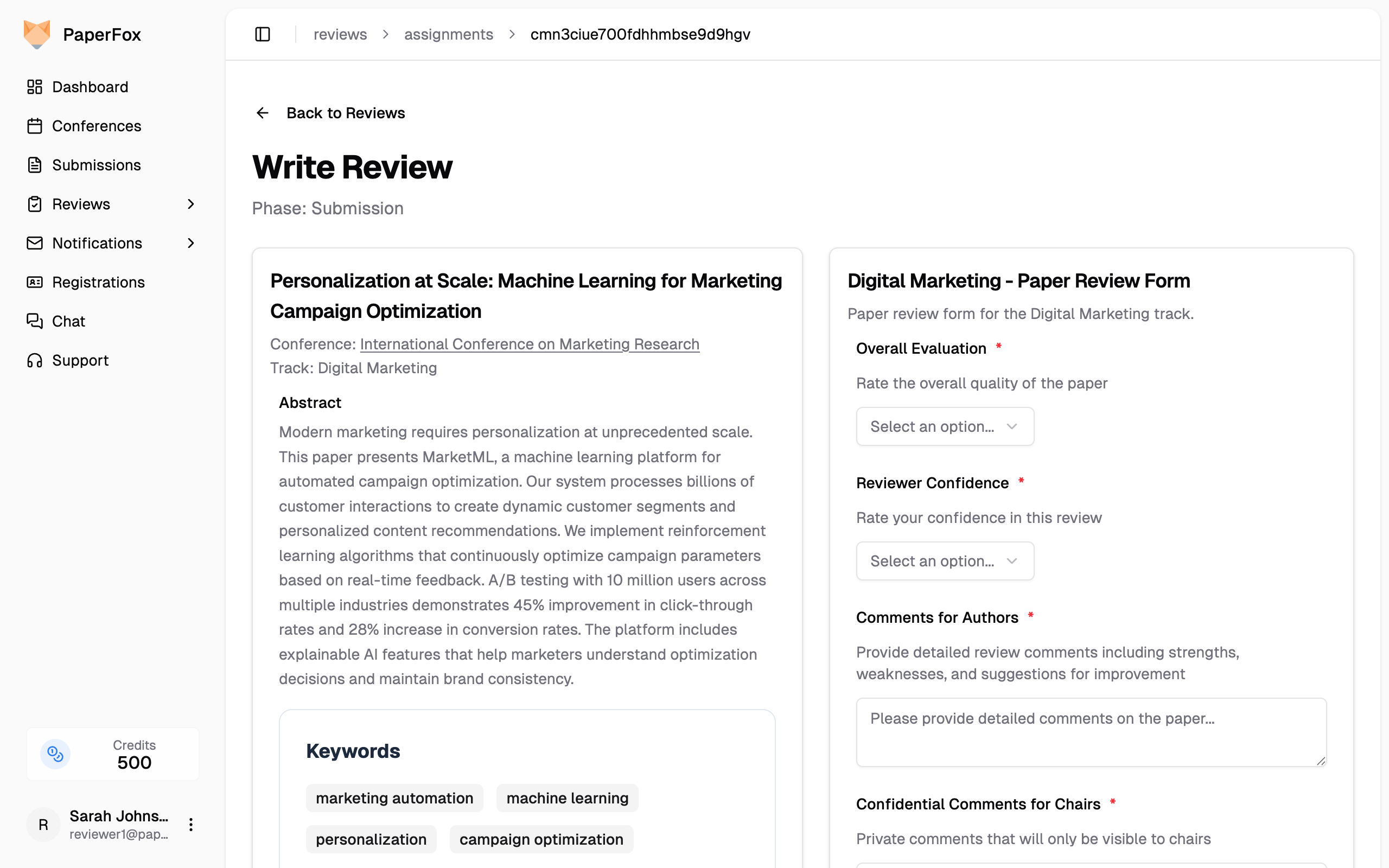
- Read the submission by clicking "View PDF" in the submission details
- Fill in all required fields (marked with a red asterisk):
- Rating fields — Select a value from each dropdown (e.g., Overall Evaluation, Reviewer Confidence)
- Text fields — Enter your comments (e.g., Comments for Authors, Confidential Comments for Chairs)
- File upload — Drag and drop a PDF or click "Choose File" (optional, depending on the form)
- Click "Submit Review" at the bottom of the form
LaTeX math in text fields
Multi-line text fields render LaTeX math wherever your review is displayed: write $O(n \log n)$ for inline math, or $$...$$ on its own line for display math. Two icons sit next to each of these field labels — Σ opens a syntax reminder, and the eye shows a preview of how your text will render, so you can check a formula before you submit. Dollar amounts in prose (like "$50 and $60") stay plain text.
Reviewing a revision round
On tracks with multiple review phases, the submission panel tells you whether the authors have updated the submission for your round, and submitting asks you to confirm when they haven't. See Reviewing a Later Round below.

File uploads
If you attach a file, wait for the upload to finish before clicking submit. The form will block submission while files are still uploading.
Saving a Draft
If you aren't ready to submit, click "Save as Draft" to store your in-progress review on the server. Drafts sync across devices — you can save on your laptop and finish on another machine later.

Drafts are private to you. Chairs and other reviewers cannot see draft content — only submitted reviews are visible to them.
Resuming a draft:
- Go to Reviews, on the To Review tab
- Submissions with a saved draft show a "Continue Draft" button
- Click "Continue Draft" to reopen the form with your data restored
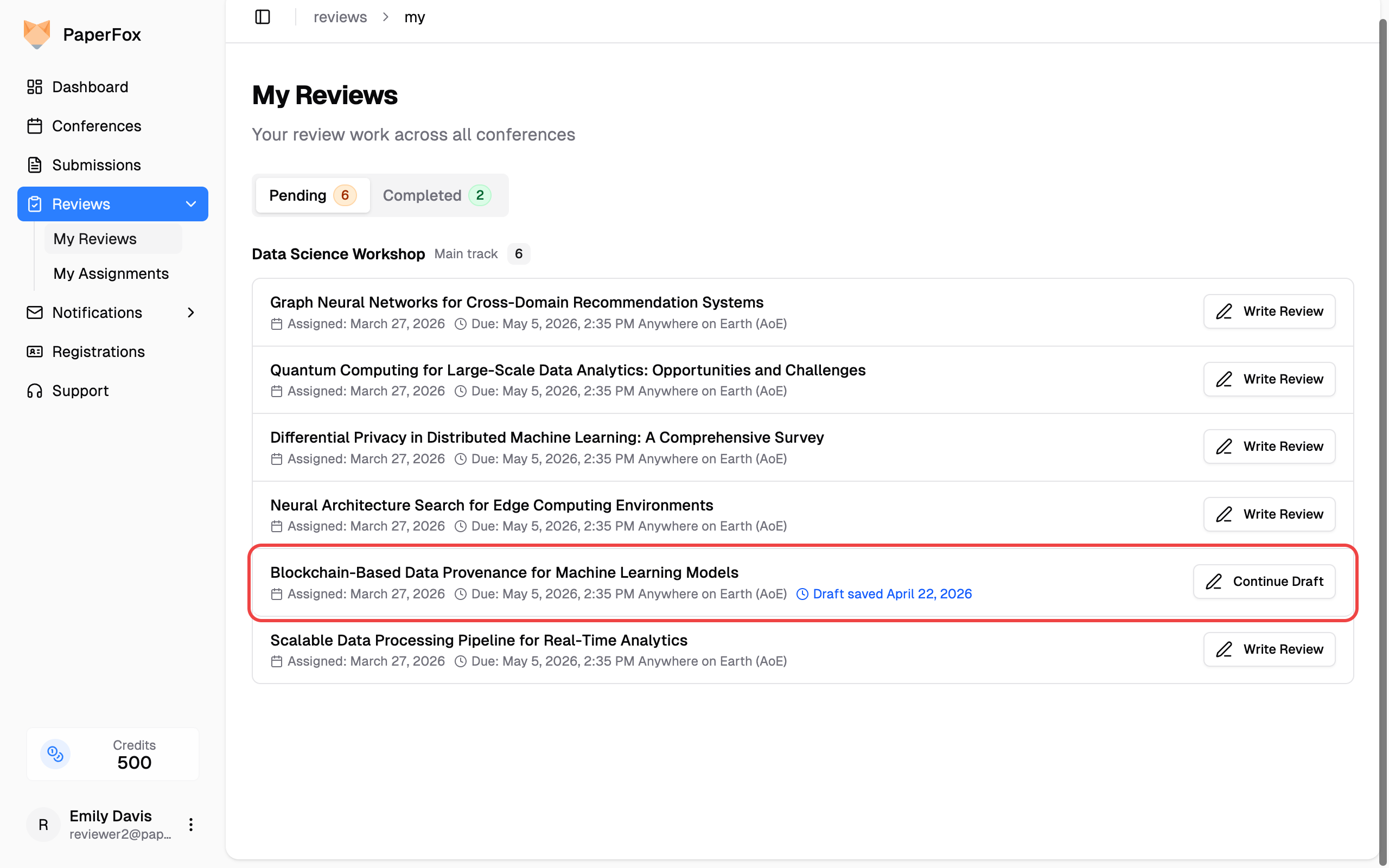
When you're done, click "Submit Review" to finalize. The draft becomes a submitted review and it moves to the Completed tab.
Unsaved changes protection
If you try to navigate away with unsaved changes, a dialog offers to save them as a draft before leaving, so your work isn't lost.
Reviewing a Later Round
When a submission reaches a revision or camera-ready round, PaperFox tells you at the top of the submission panel whether the authors actually submitted anything new for that round:
- "Revised for this round" — a new version landed, with the date it arrived.
- "No revision has been submitted for this round" — you're reading the version from the previous round. If you reviewed this submission before, the notice says so.
Chairs often assign the next round's reviewers before the authors have finished revising, so the second notice is common and does not mean anything is wrong.
If you click "Submit Review" while that notice is showing, PaperFox asks you to confirm first:
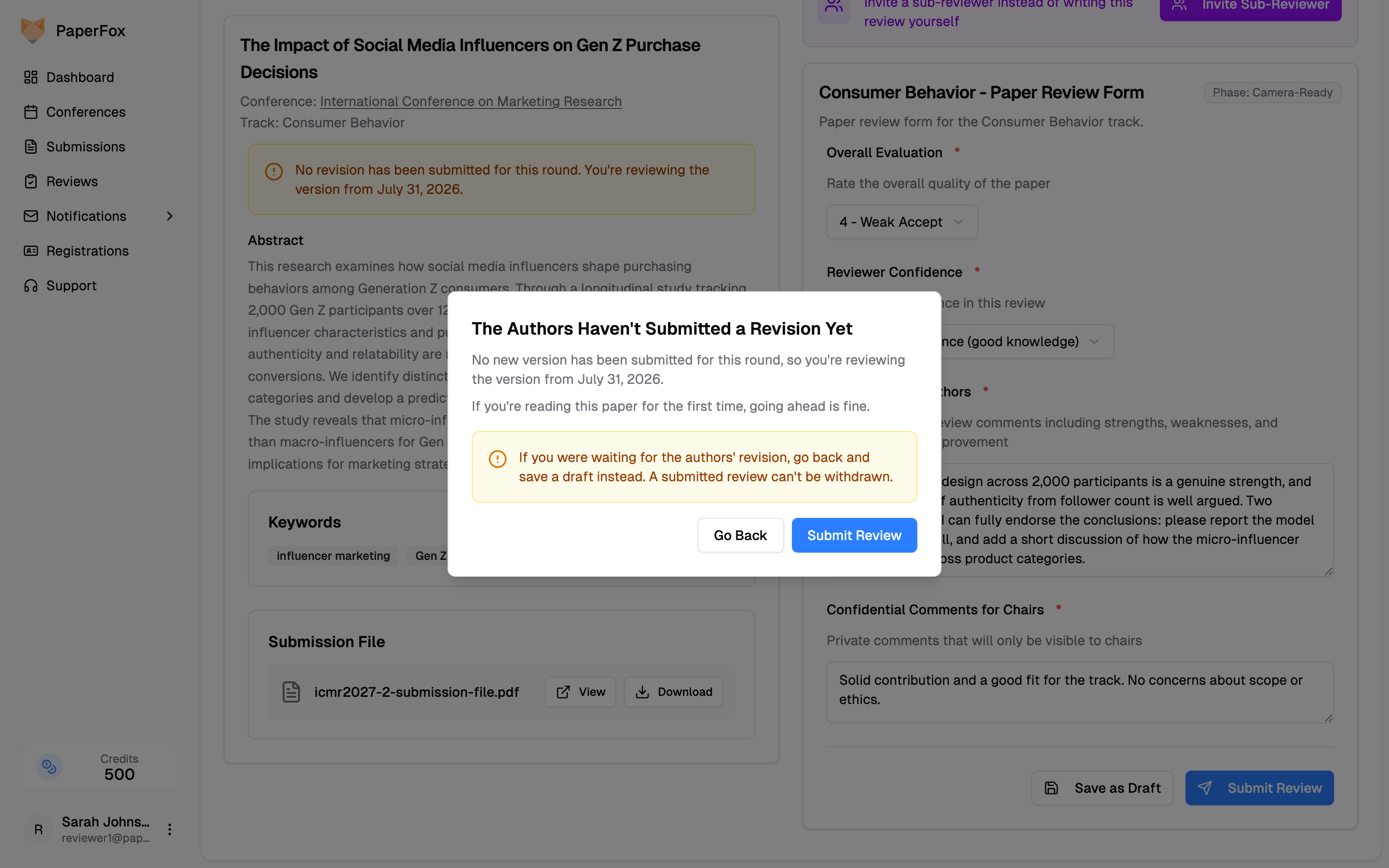
- Reading the submission for the first time this round? Click "Submit Review" — reviewing the current text is exactly what you were asked to do.
- Waiting for the authors' revision? Choose "Go Back" and click "Save as Draft" instead. You can finish once the new version arrives — a submitted review cannot be withdrawn.
Either way, the authors are never blocked from submitting their revision, even if reviews have already come in for the round.
Missing the Review Deadline
If a review's deadline passes before you submit, the To Review row shows an amber Past due marker, and a banner at the top of the review page tells you where you stand:
- "The review deadline passed ⟨date⟩ — you can still submit your review." — the chairs accept late reviews for this phase; finish and submit as usual.
- "Review submissions are closed for this phase." — the chairs enforce the deadline, so "Submit Review" is disabled. Contact the chairs if you still need to submit; they can reopen it.
Either way, "Save as Draft" always works — a deadline never blocks saving, so work you've already typed is never lost.
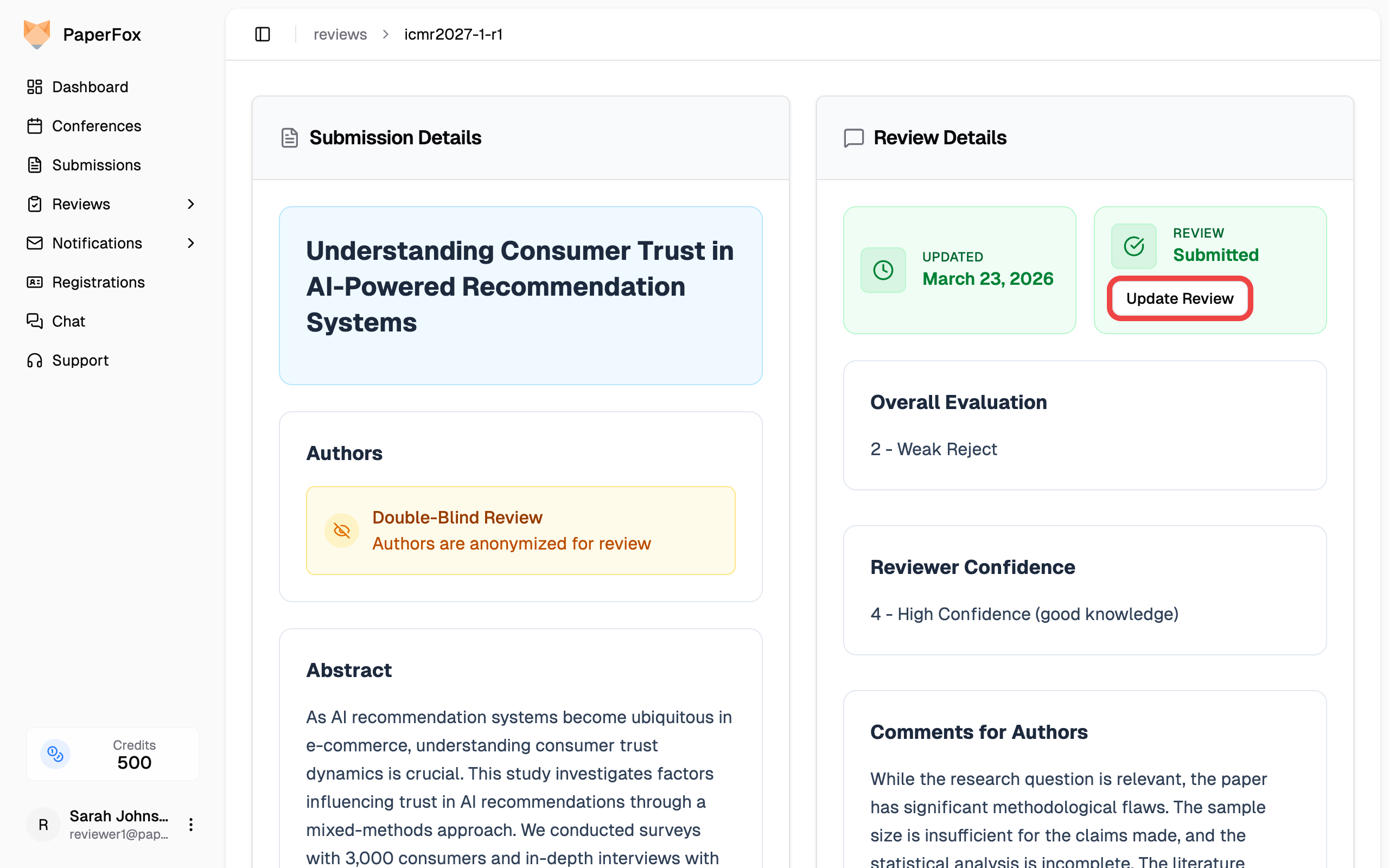
Viewing a Submitted Review
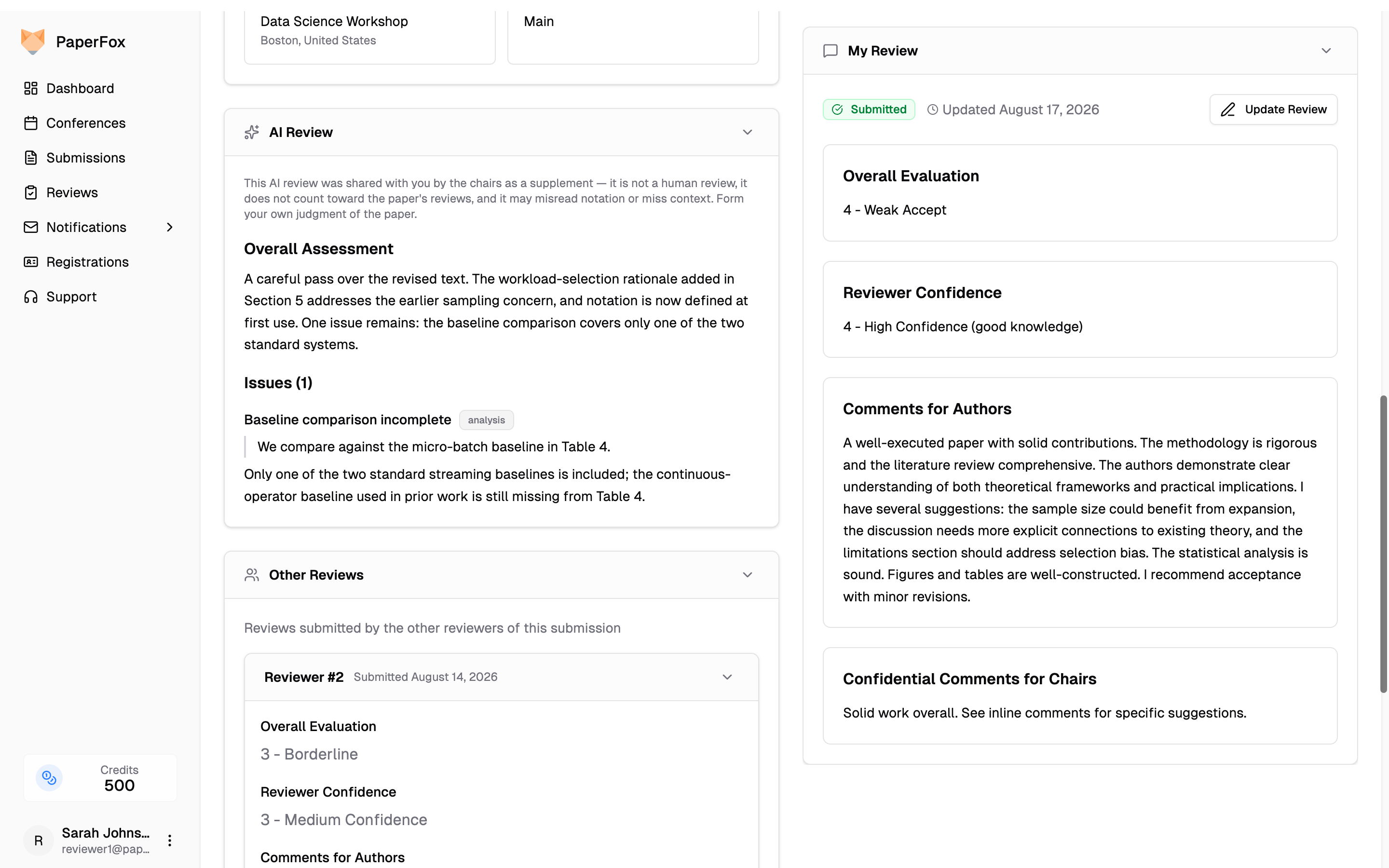
After submitting, you are redirected to the review view page. It mirrors the review editor's layout — the reading cards on the left, your review on the right:
- Submission — The submission details (authors are hidden in double-blind reviews)
- My Review — Your submitted ratings, comments, and status, with the "Update Review" button
- AI Review — If the chairs shared the submission's AI-generated review with you, it appears as its own card below the submission, led by an AI disclaimer; it is a supplement, not a human review
- Other Reviews — On tracks where the chairs share reviews between reviewers, the other reviewers' submitted reviews appear in the left column once your own review is in, labeled "Reviewer #1", "Reviewer #2", and so on
- Review History — Previous versions if you've updated your review
As in the editor, each card collapses to its header, and the panel toggle in the page header hides the reading column to give your review the full width.
Scroll the left column to read everything the chairs have shared with you — the AI review, the other reviewers' reviews, and the discussion — while My Review stays in view on the right.
You can also reach this page from the Completed tab on Reviews.
Copy or Download Everything You See
The two buttons in the page header (highlighted above) export the whole page as one document — your review, the other reviewers' reviews, the AI review, and every response thread and discussion comment you can see.
- Click the copy icon to put the document on your clipboard, or the download icon to save it as a file
- Choose Markdown or Plain Text
The document contains exactly what the page shows you and nothing more — a co-review you can't see yet isn't in it, and the AI review carries no chair-only details. Committee-only notes you're allowed to read are marked "hidden from authors" so you don't paste one somewhere the authors can see. The buttons only appear once there's something to export.
Updating a Review
To revise a submitted review:
- Open the review from the Reviews → Completed tab, or from the review view page
- Click "Update Review"
- Edit any fields you want to change
- Optionally, add a Revision Note describing what changed — this helps track chairs understand the update
- Click "Update Review" to save
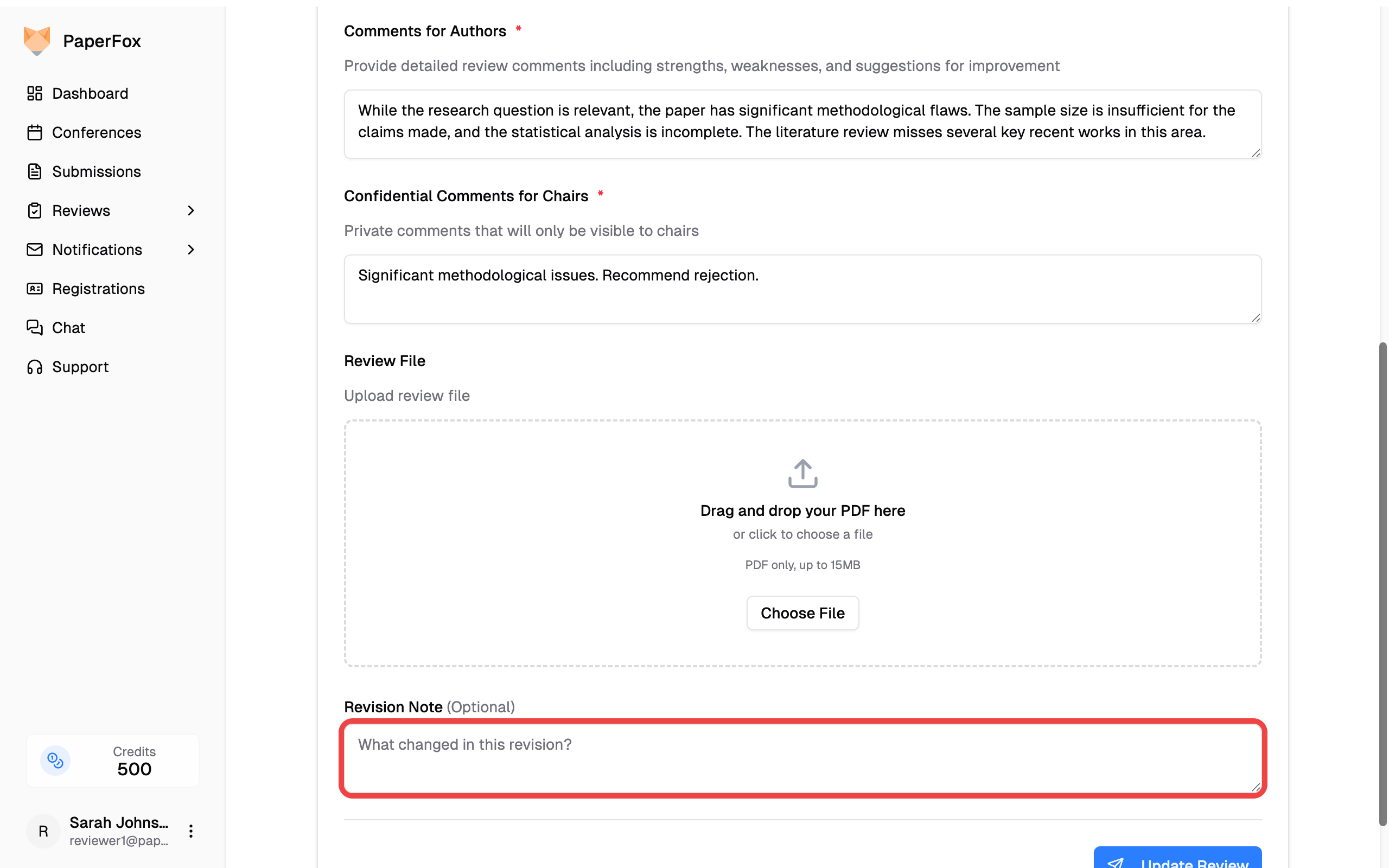
Each update creates a new version visible in the Review History section.