
Managing Invitations
Understand being added to a conference role, and how to accept, decline, or remove yourself
Two Ways You Join a Conference
Organizers can bring you onto a conference in one of two ways, and the email you receive tells you which:
| Added directly | Invited | |
|---|---|---|
| Email subject | "Added as …" | "… Invitation" |
| Do you have to do anything? | No — your access is already active | Yes — you join only after accepting |
| Buttons in the email | Go to PaperFox · Remove Me from This Role | Accept Invitation · Decline Invitation |
Any role can arrive either way — the organizer chooses per person. Direct adds are most common for reviewers, associate editors, and senior editors, usually because a chair already asked you by email and is now entering you into the system. Chair, track chair, and forum moderator roles usually arrive as invitations you accept.
If You Were Added Directly
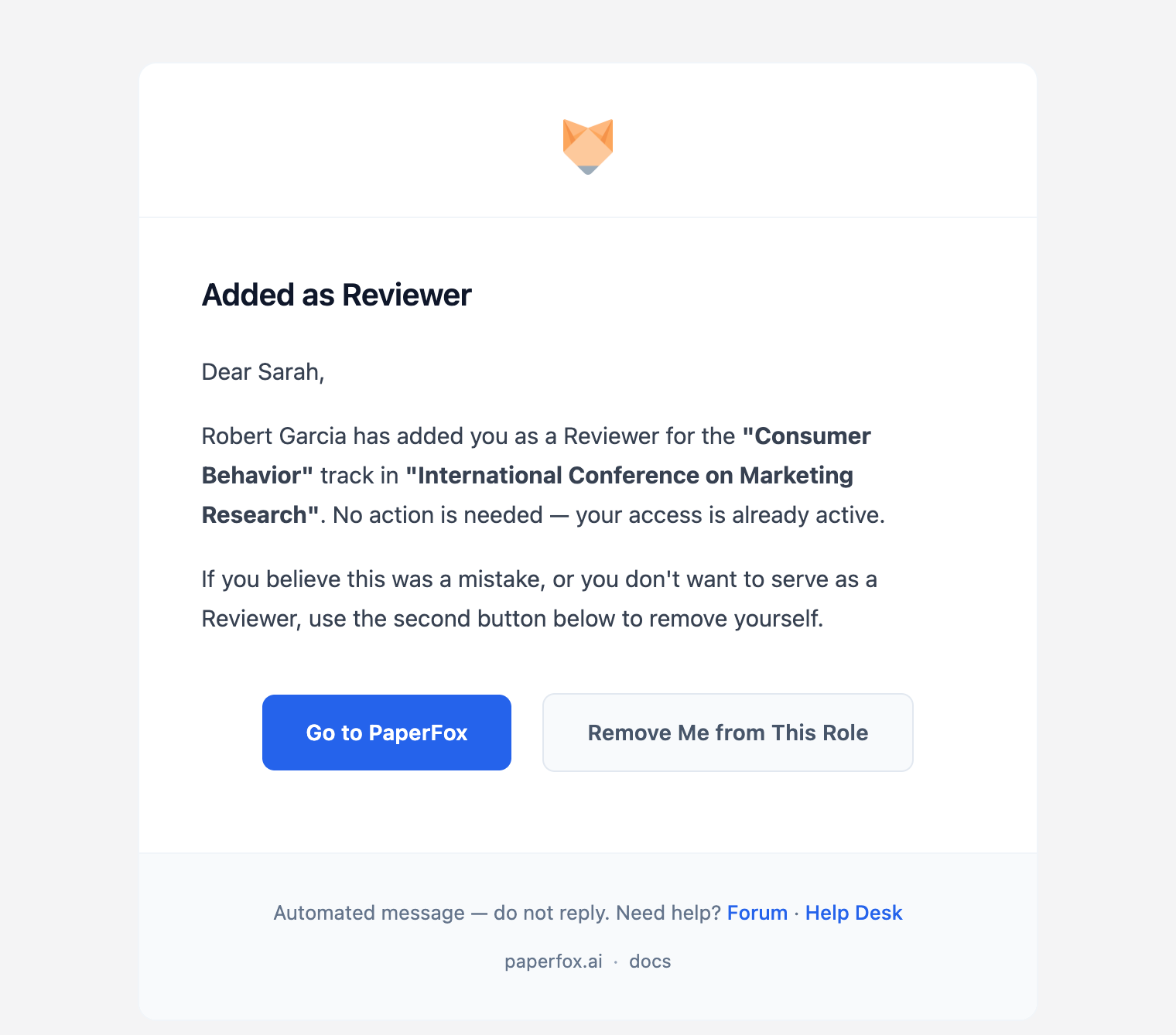
If you already have a PaperFox account, nothing is required — the role is live. Sign in and you'll find the conference under Conferences, with any review assignments under Reviews.
If the address is new to PaperFox, the email asks you to create an account first. The link opens this page:
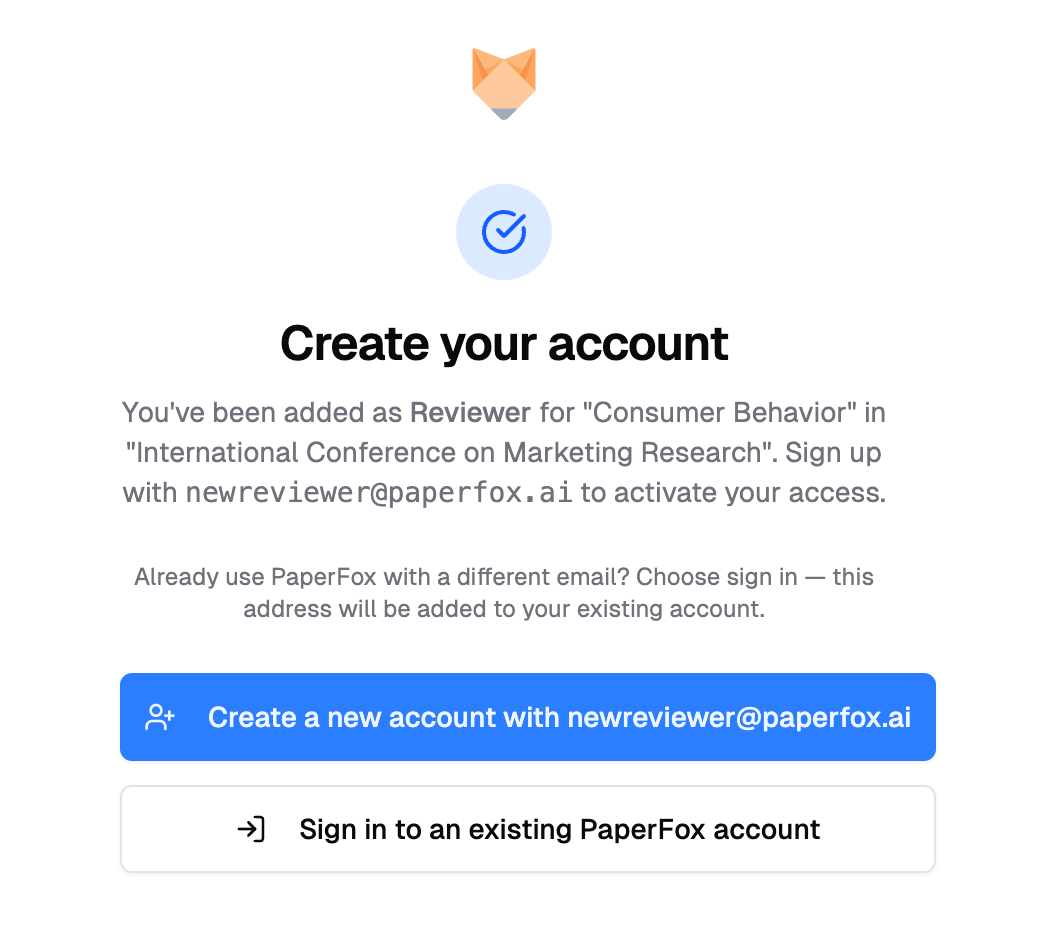
Sign up with the address the organizer used and click the link in the verification email — your role activates the moment the address is verified, with nothing to accept afterwards.
Already use PaperFox with a different email?
Choose "Sign in to an existing PaperFox account" instead of creating a second one. The new address is added to your existing account, so all your conferences stay in one place.
Removing Yourself
If a role was added by mistake, or you'd rather not serve, click "Remove Me from This Role" in the email and confirm. Your access is removed and the organizers are notified. The link works for 30 days after you were added — or after the most recent copy of the notice email was sent — and can't remove you once you have assigned submissions. Past either point, contact the conference chairs to be removed.
Once submissions have been assigned to you, self-removal is turned off — contact the conference organizers instead, so nothing in progress is lost.
If You Were Invited
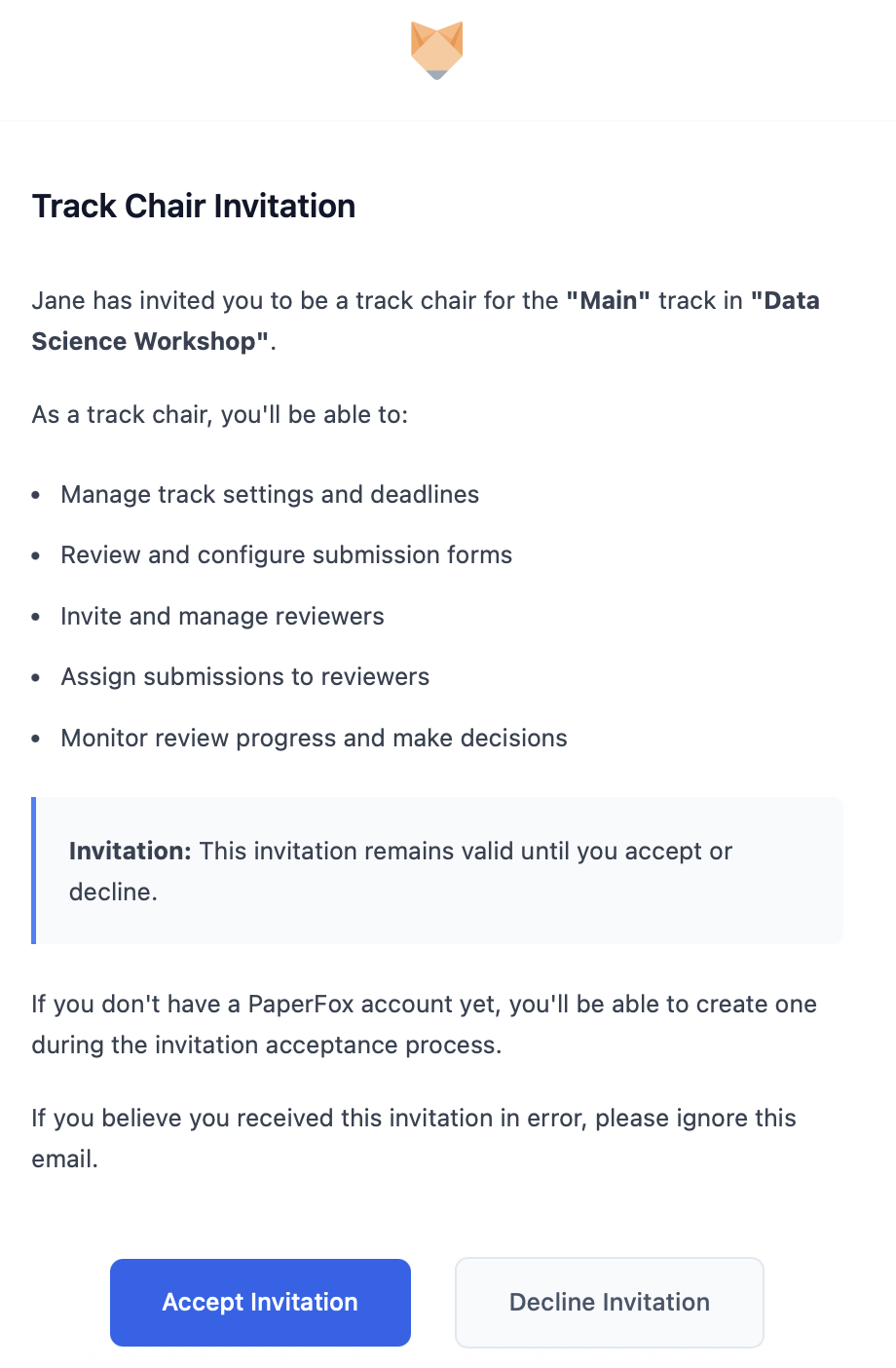
To accept: click "Accept Invitation". You'll land on a confirmation page where you sign in first — or create a PaperFox account if you don't have one yet — and then confirm. If you're signed in under a different address than the invitation was sent to, the page offers to attach that address to your current account so you keep a single login.
To decline: click "Decline Invitation". The invitation is marked declined and the organizers are notified. No account is created if you don't have one.
Invitations expire after 30 days
The Accept and Decline links stop working 30 days after the invitation is sent. If yours has lapsed, ask the organizers to resend it — that issues a fresh link with a new 30-day window.
Responding Inside PaperFox
Invitations awaiting your response also appear in your account, so you don't need to find the email:
- From your Dashboard — pending invitations appear at the top
- From the sidebar — click your avatar, then "My Invitations"
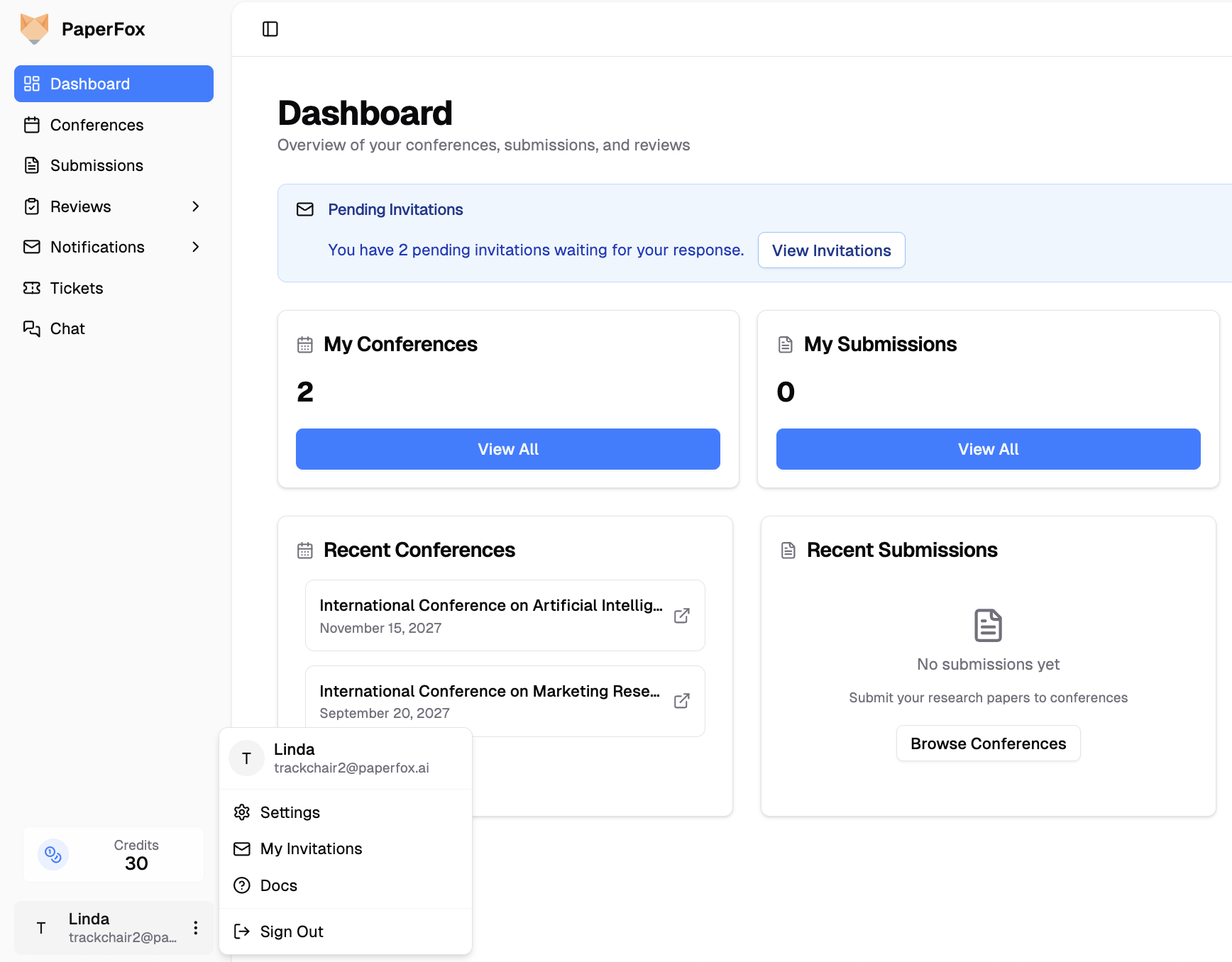
Each card shows the conference, the role, who invited you, and the date. Use Accept or Decline right there.
Roles you were added to directly don't appear here as pending — there's nothing to respond to. They show under Accepted once active.
Invitation Status
| Status | What it means |
|---|---|
| Awaiting Response | An invitation is waiting on your Accept or Decline |
| Accepted | You joined the conference in this role (direct adds land here too) |
| Declined | You declined, or removed yourself from a role you were added to |
All invitations stay in your history for reference — unless the conference or track itself is deleted, in which case its invitations are removed along with it.