Using the PaperFox App
Browse conferences, save favorites, and manage your schedule
Access PaperFox on mobile, tablet, and desktop with full functionality across all devices.
Download the App
Download the PaperFox mobile app for iOS or Android. There are three ways to download:
Method 1: Scan QR Codes
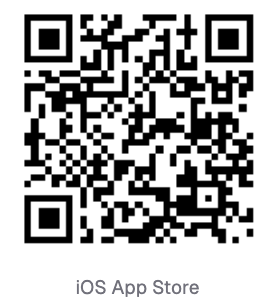
Scan the QR code to download the app directly:
iOS App Store:
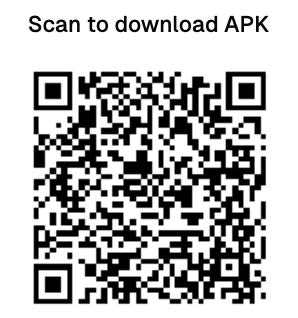
Android APK:
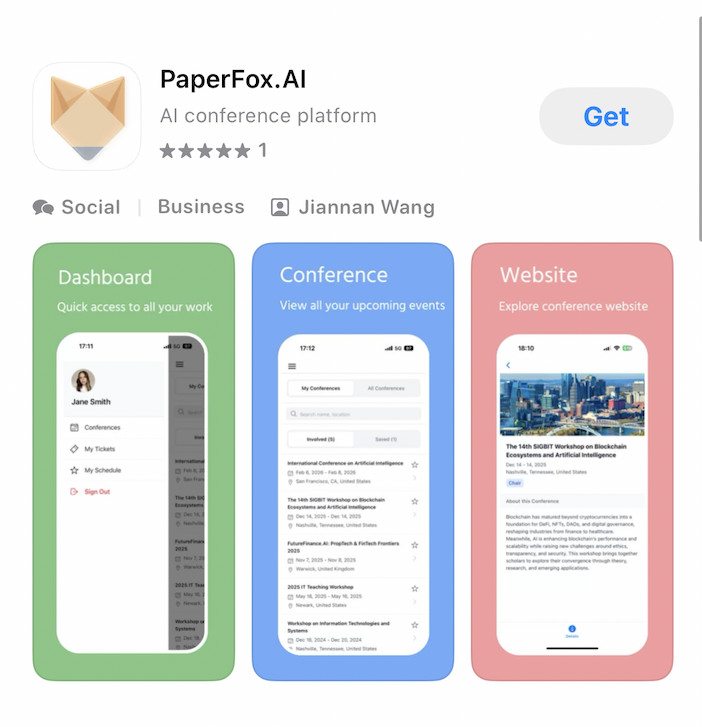
Method 2: Search in App Store
Search for "PaperFox.AI" in your app store:
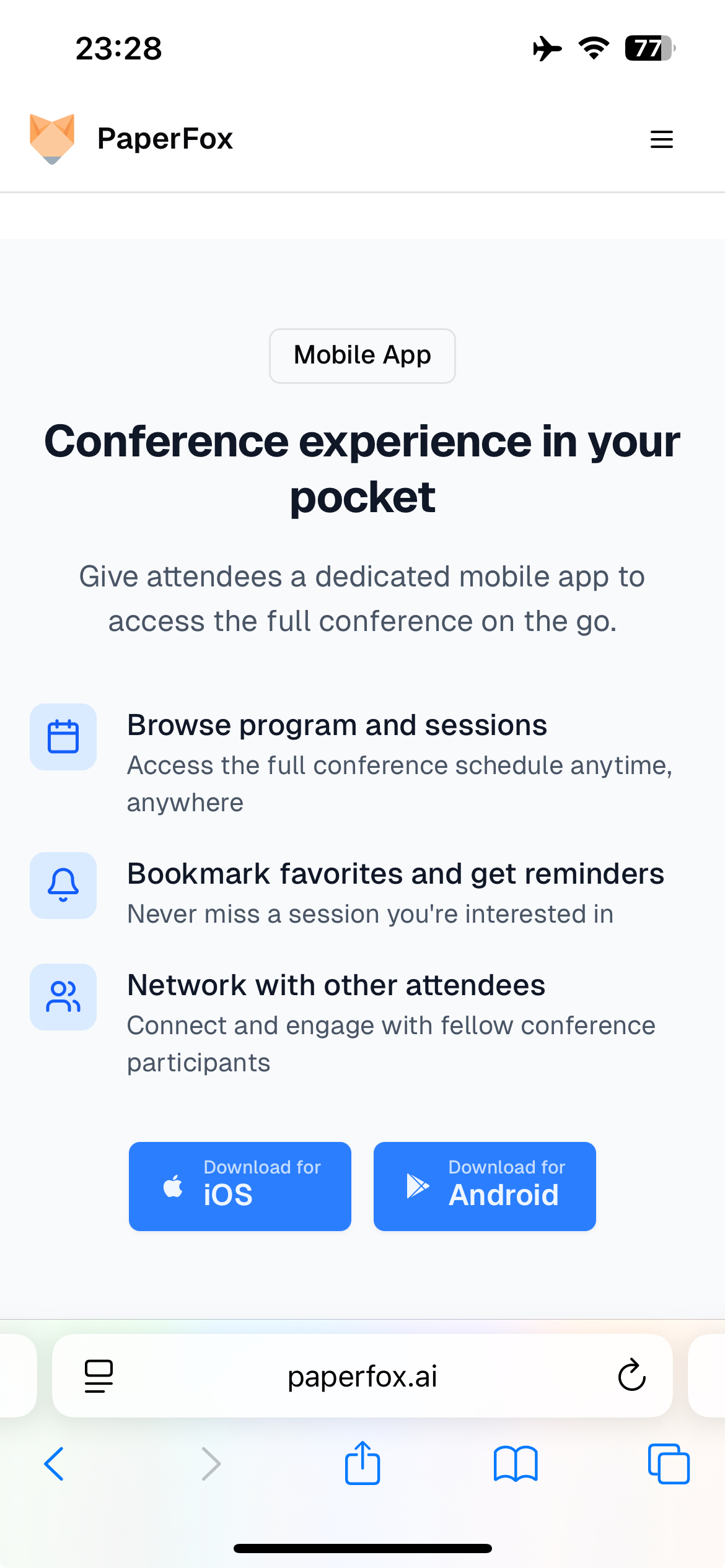
Method 3: Click Download Buttons
Visit our website and click the download buttons:
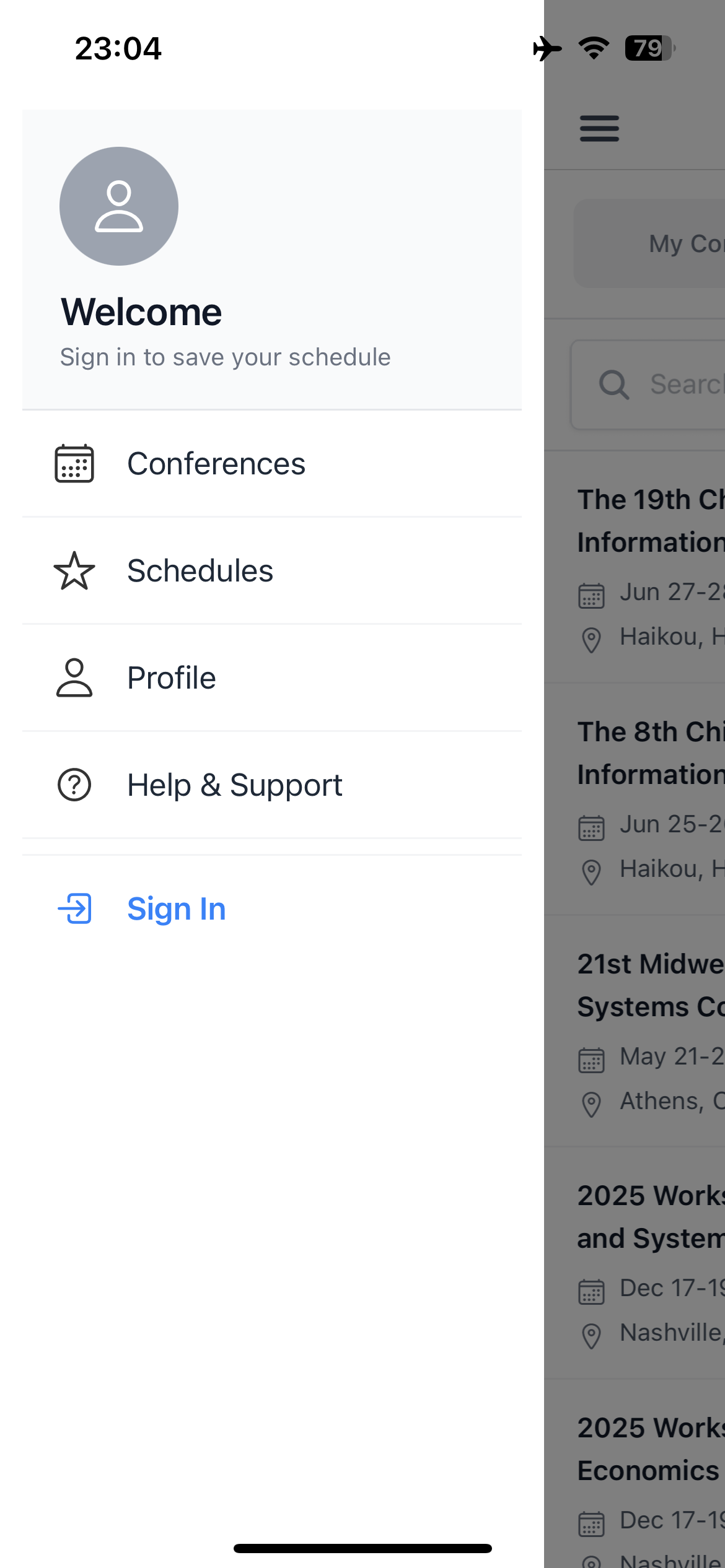
Sign In
Sign in to access your personalized dashboard, save conferences, and manage your schedule. You can browse public conferences without signing in.
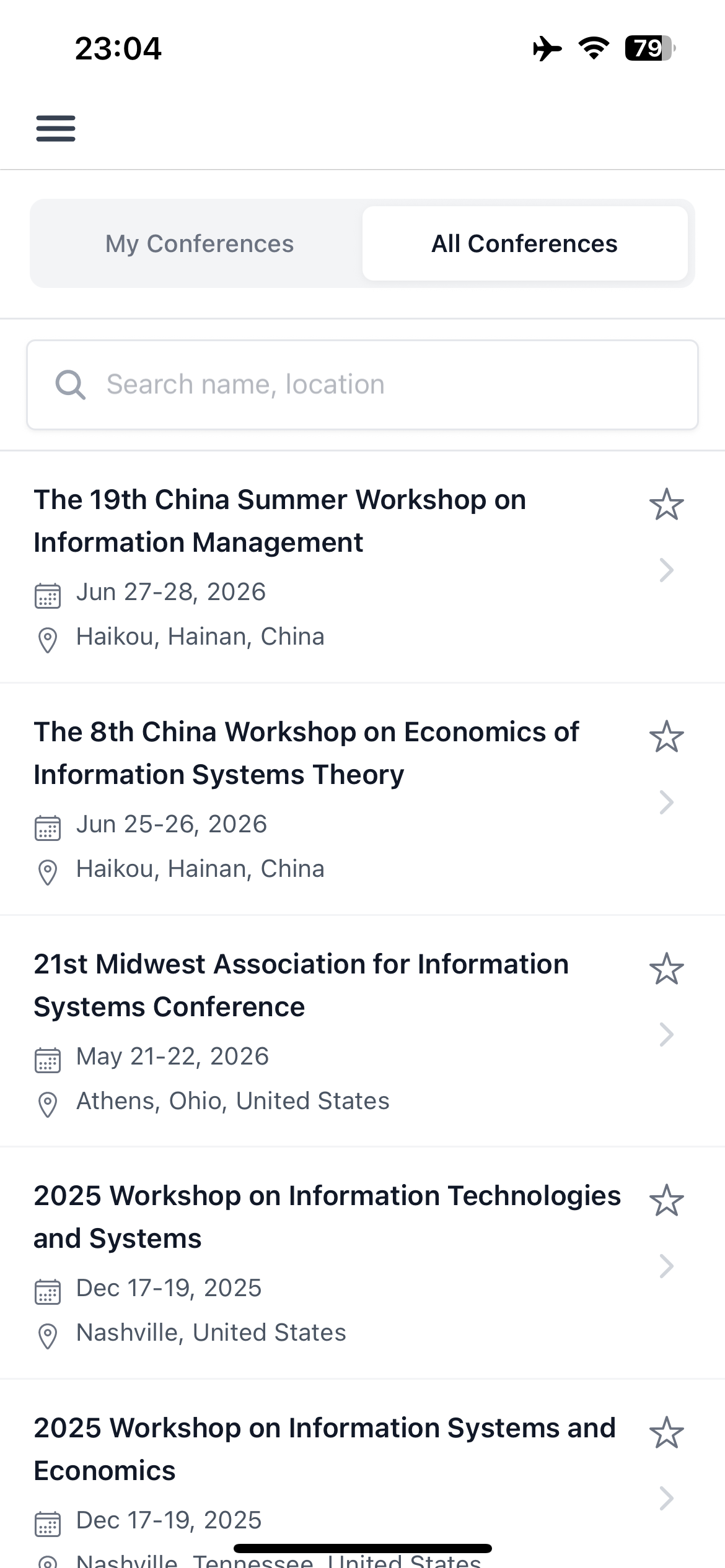
After signing in, you'll see your personalized dashboard:

Browsing Conferences
Browse conferences without signing in, or sign in to save favorites and access additional features. The All Conferences tab shows conferences whose organizers have enabled mobile app listing — if you can't find a conference, ask its organizers to turn on mobile app listing. Conferences where you have a role always appear under My Conferences, regardless of listing.
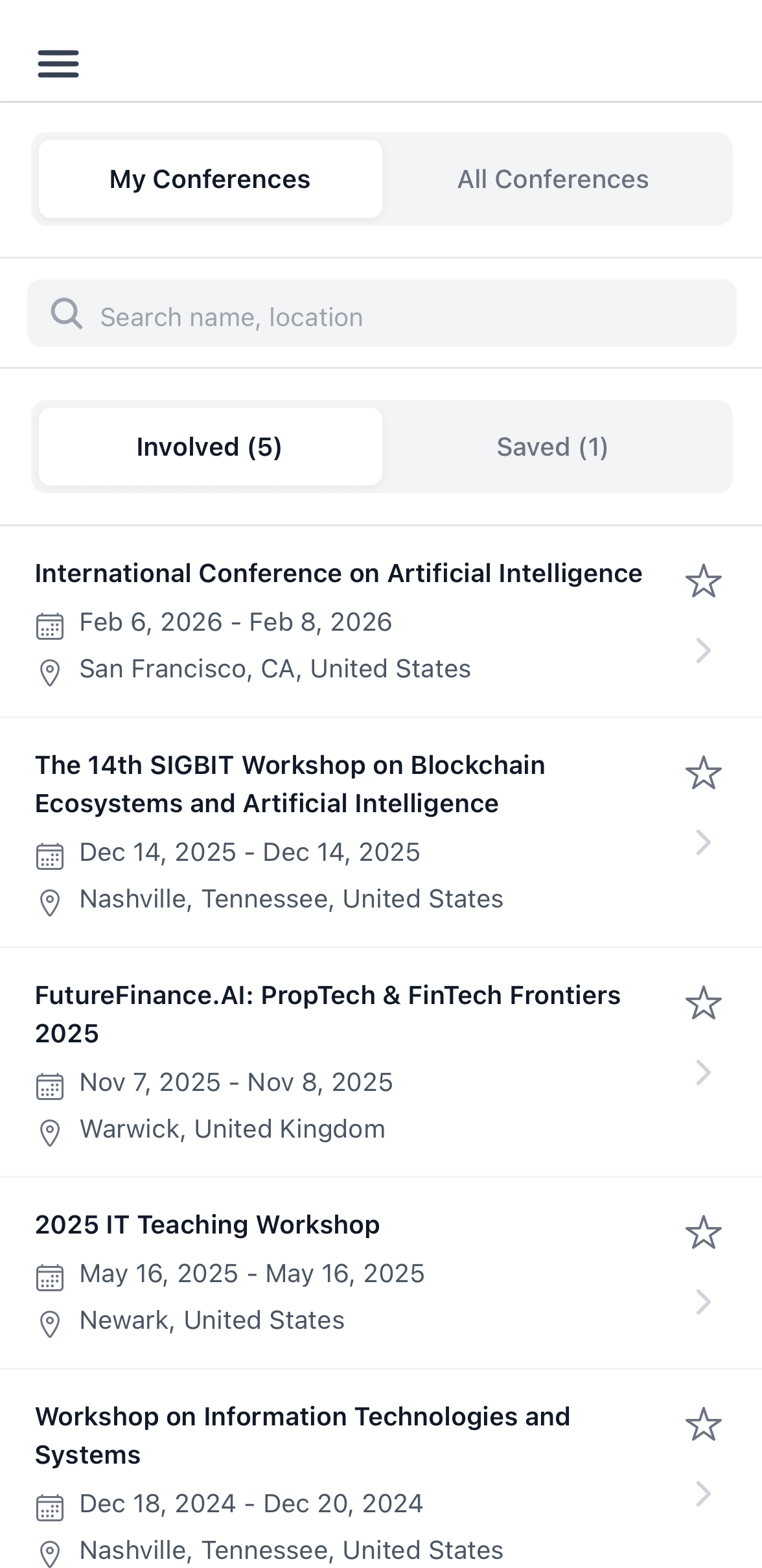
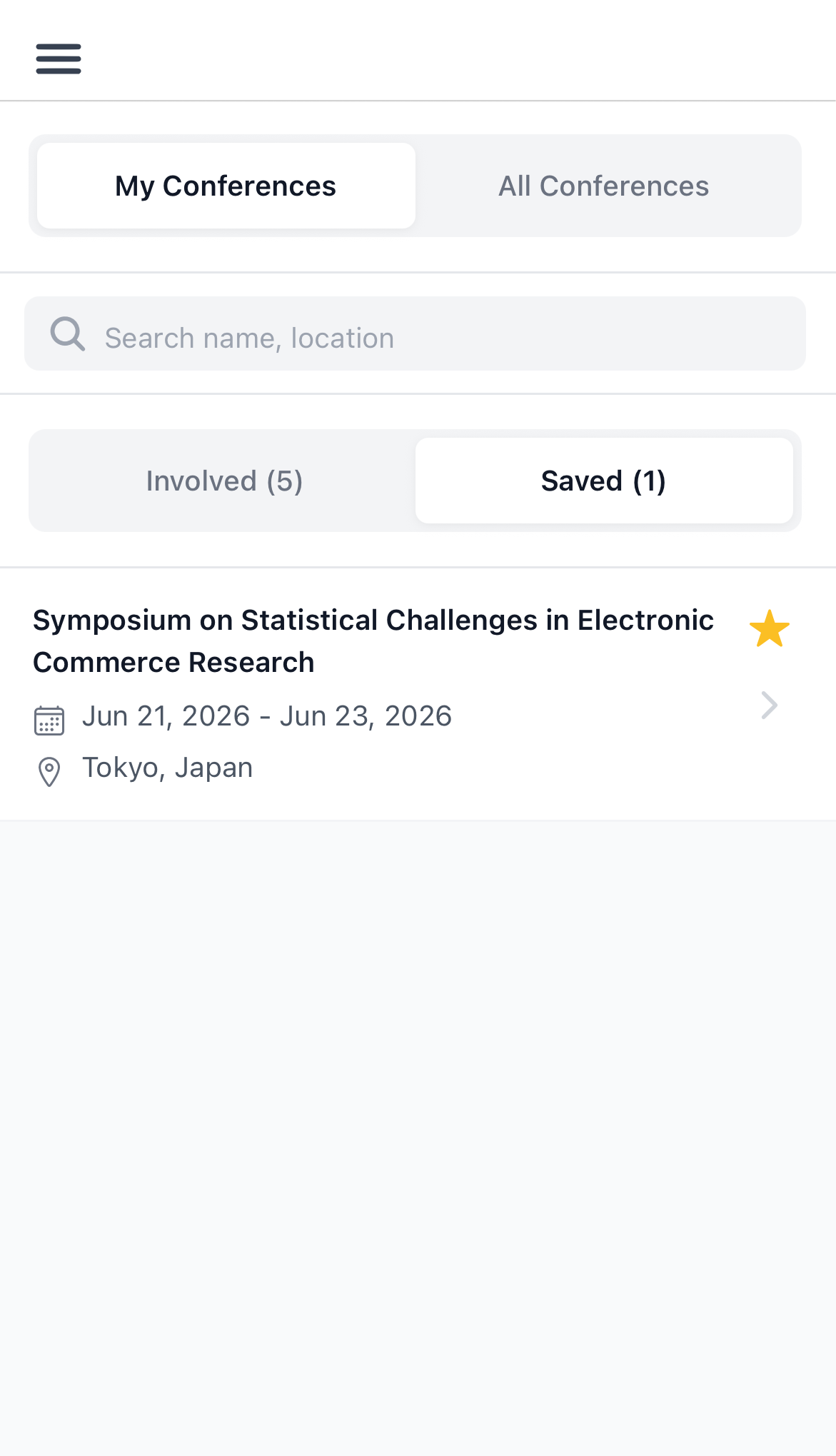
Access your conferences through two organized tabs:
Involved
- Conferences where you have a role (chair, track chair, reviewer, author)
Saved
- Click the star icon on any conference to save it
- Access saved conferences from this tab
- Click the star again to remove
Conference Details
Each conference page displays:
- Basic information and dates
- Published program schedule
- Forum discussions (when enabled)

Conference Programs
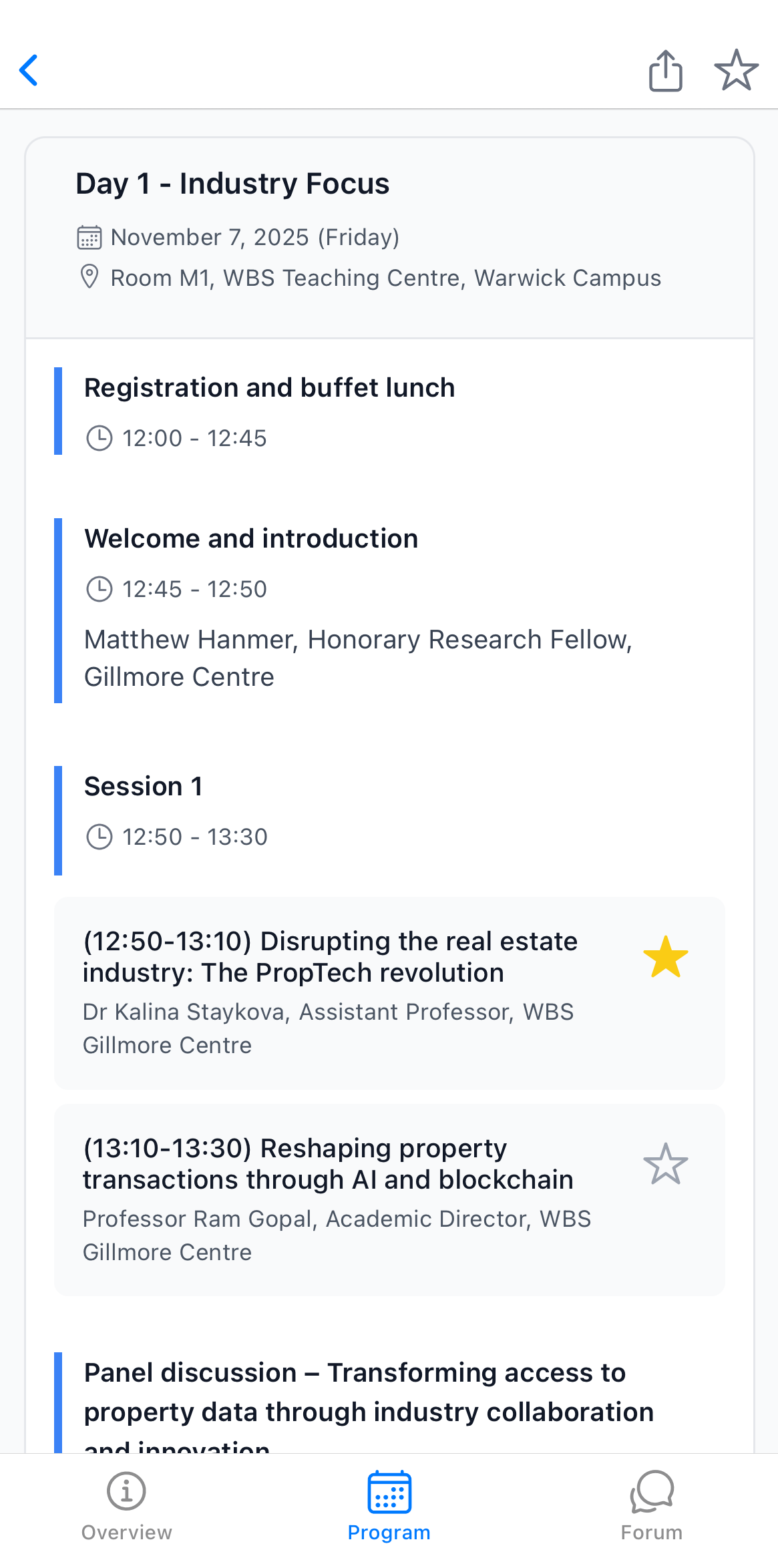
View published schedules organized by day and session:
- Session times and locations
- Program items with presenters and authors
- Click the star icon to save items to your personal schedule
My Schedule
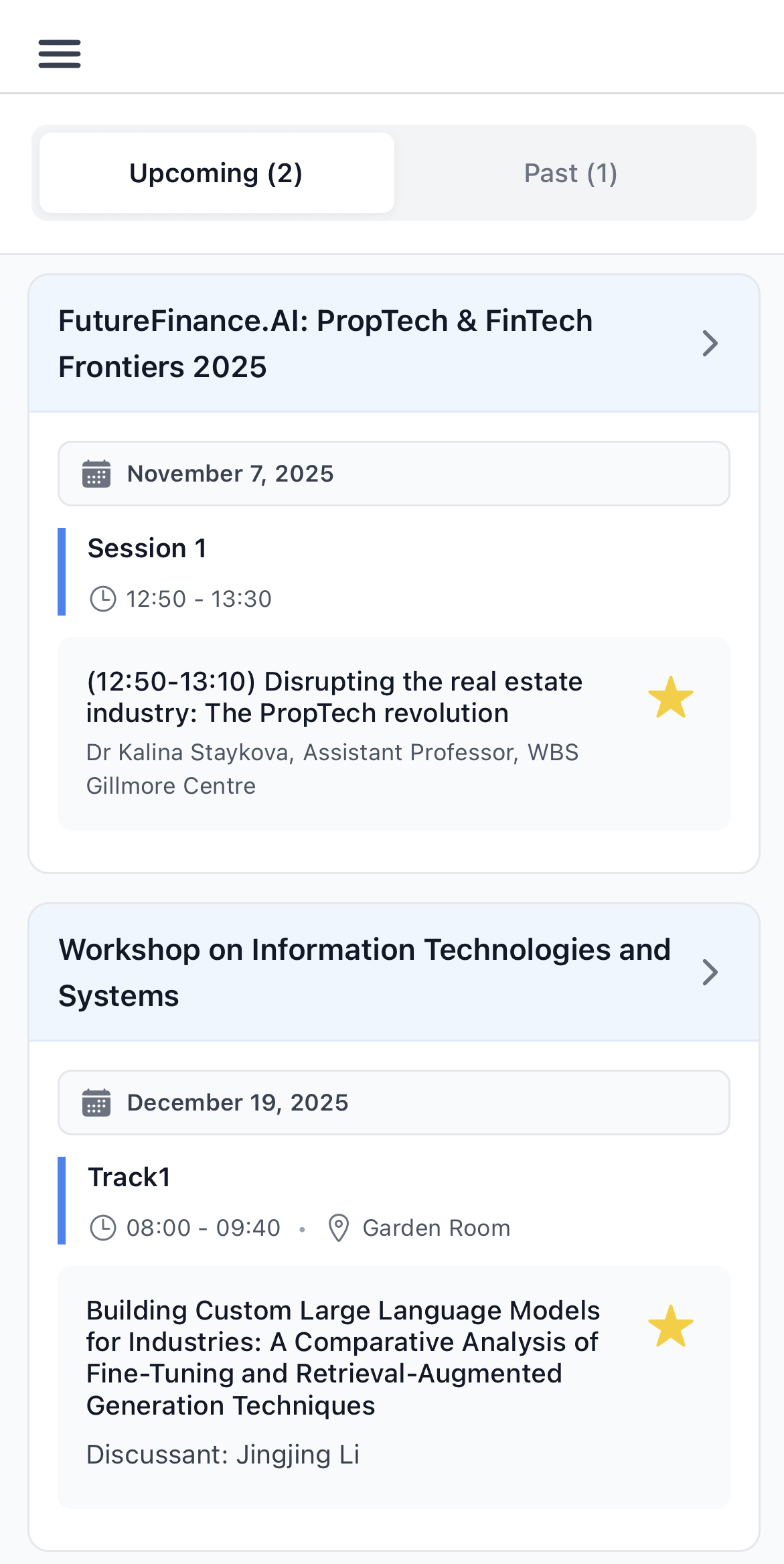
Build your personal conference schedule:
- View any conference program
- Click the star icon on sessions you want to attend
- Access "My Schedule" to view all saved items
- Toggle between "Upcoming" and "Past" conferences
- Click the star again to remove items
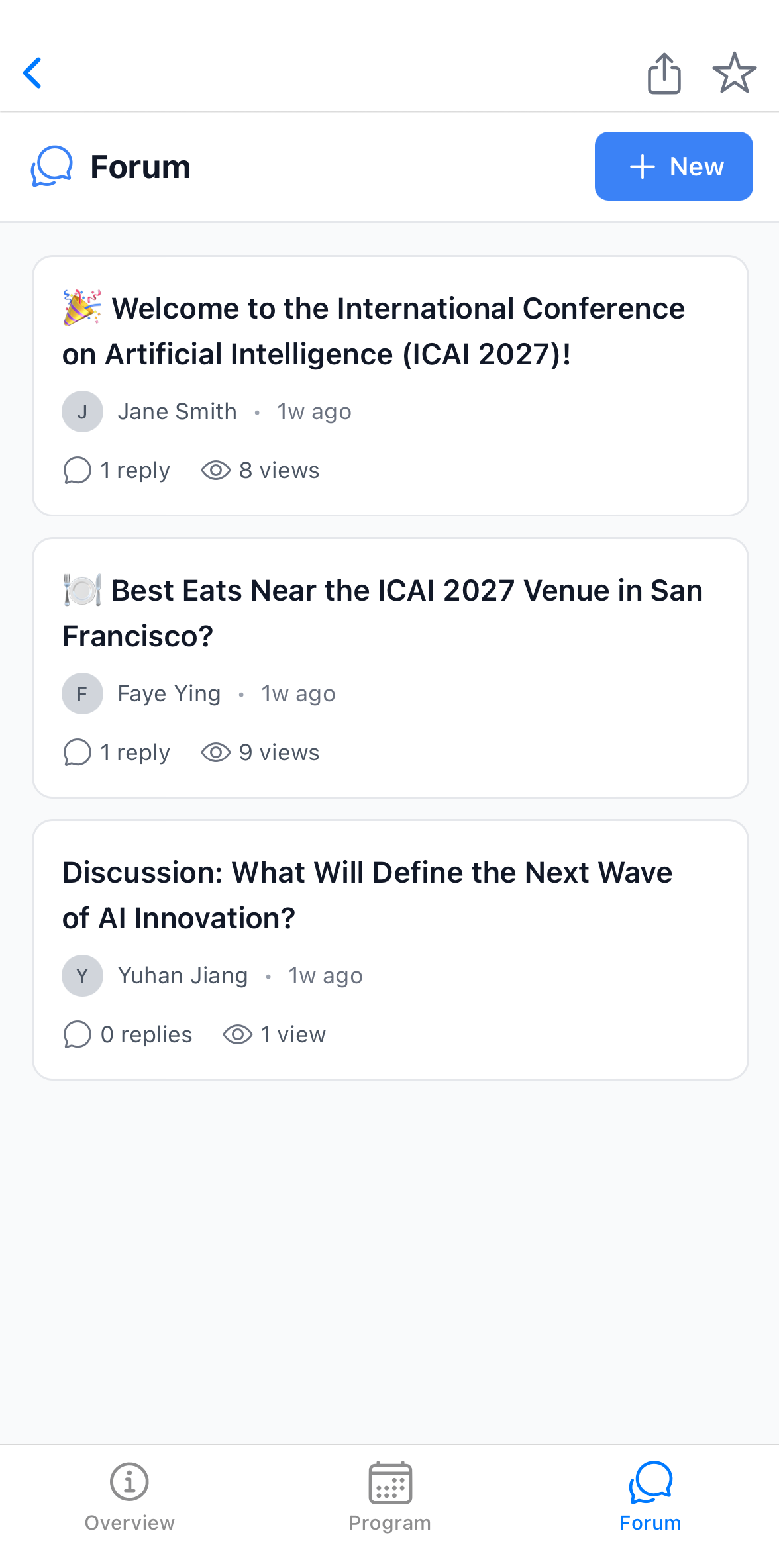
Forums
Participate in conference discussions when forums are enabled:
- Navigate to the conference forum tab
- Browse existing threads and pinned posts
- Click "New Post" to start a discussion (requires sign-in)
- Reply to posts using the text editor