
One-Click MCP for Claude and ChatGPT
In March we launched PaperFox MCP as an experiment: paste a server URL into your AI assistant, fill in the OAuth settings, and ask about your conference in plain language. A lot has changed since then. The Model Context Protocol has a new revision, both Claude and ChatGPT now have directories of reviewed connectors, and PaperFox is listed in both. Installing it is now one click, and it can do far more than it could in March.
That makes the chat window a first-class way to work with PaperFox. The web app is still where you assign reviewers and make decisions, but for checking on a conference, answering a committee question, or drafting the program, asking is now often faster than clicking.
PaperFox MCP in one minute
Install in a Minute
No URL to copy and no OAuth settings to fill in.
Claude: open the PaperFox listing in Claude's Connectors Directory, add it, sign in to PaperFox, and click Authorize. Then enable PaperFox from + → Connectors in any conversation.
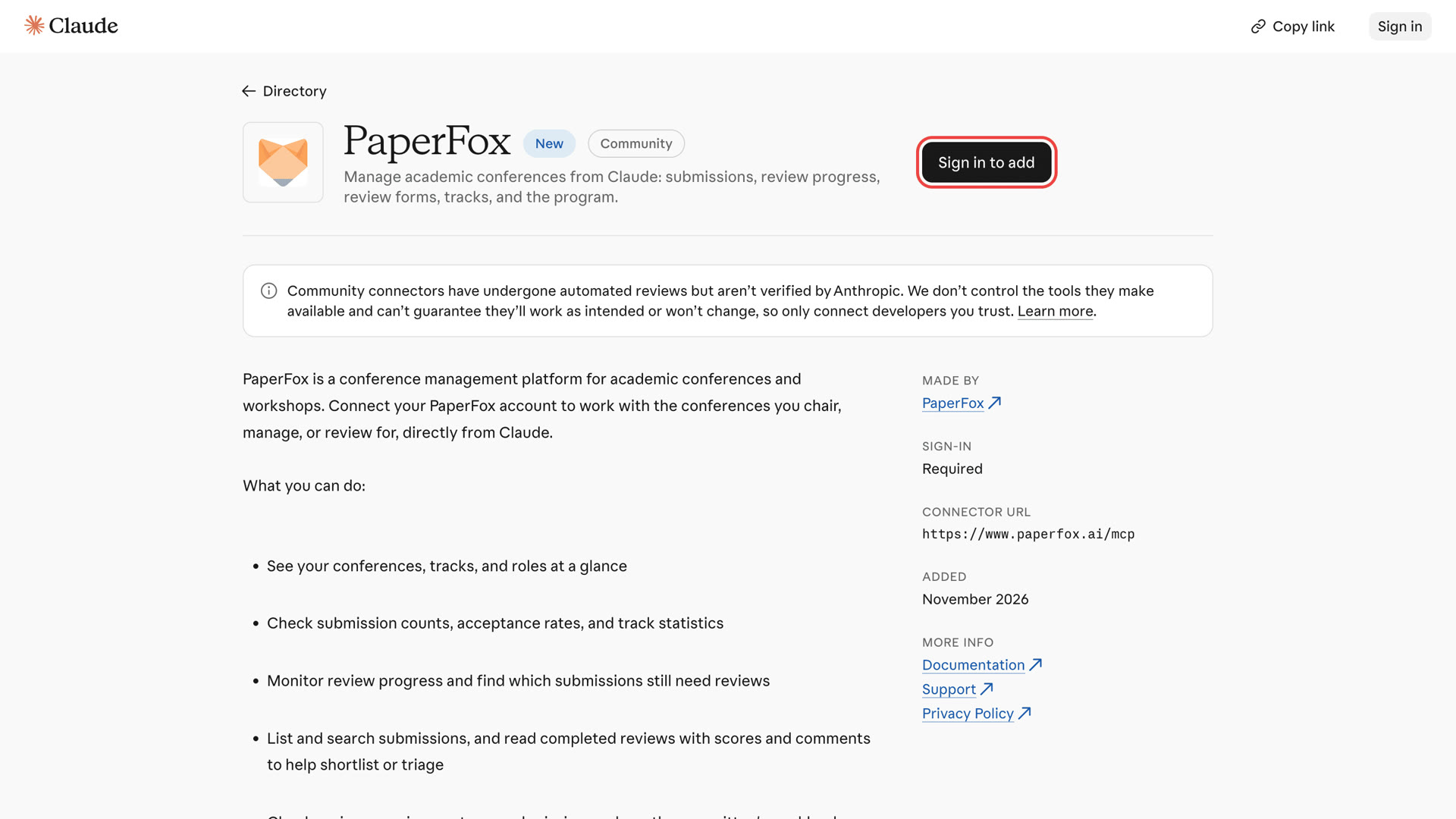
PaperFox in Claude's Connectors Directory
ChatGPT: open the PaperFox plugin, click Install plugin, sign in to PaperFox, and click Authorize. Then type @ in a conversation and pick PaperFox.
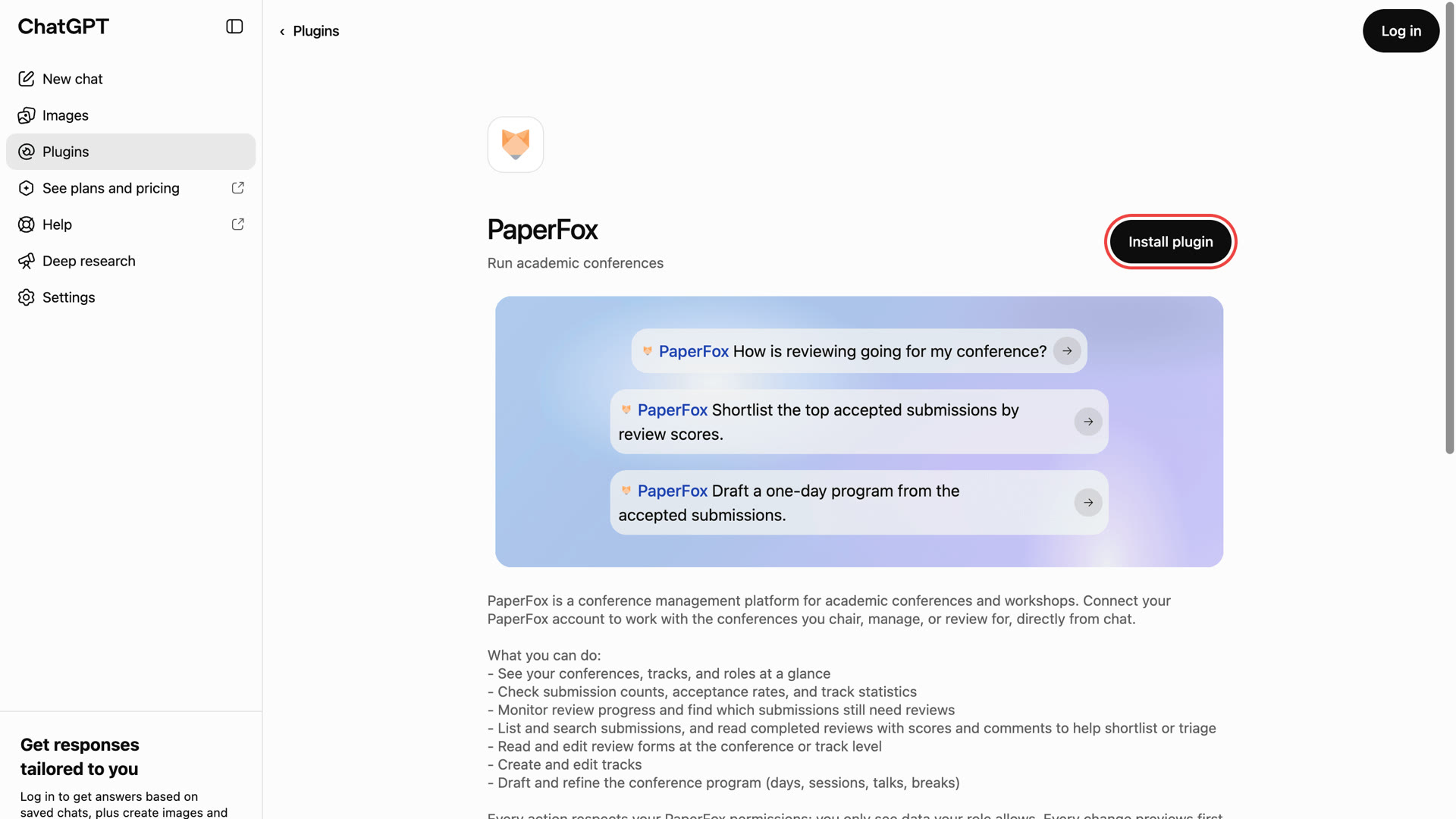
The PaperFox plugin in ChatGPT
Your PaperFox password is never shared with the assistant, and the assistant sees only what your PaperFox roles already let you see. Other MCP clients can still connect by URL; the MCP docs have the details.
What You Can Ask Now
The first release answered a handful of lookups. Today it covers most of what a chair checks during a review cycle:
- "How are reviews going for my conference?" Completion rates and the reviewers who still owe reviews.
- "Who on the committee can take two more submissions, and who never accepted the invitation?" Each member's load and spare capacity, plus pending and declined invitations. Ask for declared conflicts of interest before you assign anyone.
- "Shortlist the top submissions in this track by review scores." The assistant reads completed reviews, scores and comments to help you triage.
- "Which accepted submissions have no registered author yet, and did any fail the formatting check?" Registration coverage and the latest compliance-check findings, ahead of the camera-ready deadline.
And it can now make changes, not just read:
- Create and edit tracks, including deadlines and reviewer limits.
- Read and edit the review form, at the conference level or for one track.
- Draft the whole program by chatting, even from last year's program PDF.
You stay in control of every change. A routine edit you ask for, like renaming a track, is applied directly. When the assistant proposes a change itself, it should show you a preview and wait for your approval, and before a deletion or a program import it shows you what would change, including anything that would be removed. A new program starts unpublished, and only the PaperFox web app can publish it. Authors can check their own submissions, and everyone can browse a conference's published program.
Assigning reviewers, recording decisions, and emailing authors still happen in the web app. If you ask for something PaperFox can't do through the assistant, it tells you so instead of guessing.
Privacy, and Your Conference's AI Policy
When you use PaperFox in Claude or ChatGPT, whatever PaperFox returns becomes part of your conversation with that AI provider. For chairs, that can include submission titles and abstracts, author and reviewer names and emails, review scores and comments (including confidential comments to chairs), and declared conflicts of interest. What the provider does with it is governed by its own terms and your account settings with that provider. Our Privacy Policy explains exactly what a connected assistant receives, and the MCP docs list it by data type.
Chairs: before you or your committee use AI assistants with conference data, check your conference's policy. Many conferences restrict sharing confidential submissions and reviews with AI tools, and some forbid it outright for reviewers. If your conference has strict confidentiality rules, or its submissions contain sensitive unpublished research, keep that work in the PaperFox web app. If your conference has no AI policy yet, this is a good moment to write one and share it with your committee.
Get Started
Every PaperFox user gets 50 free tool calls a day, which is plenty for everyday questions. Install PaperFox from Claude or ChatGPT, and see the MCP docs for setup help, usage limits, and privacy details.
Tell us what you'd like to ask next on the Community Forum or at support@paperfox.ai.