
Submit a Revision
How to read reviewer feedback and submit a revised version of your submission
When a track chair makes a revision decision (Minor Revision or Major Revision) on your submission and moves it to a revision phase, you will receive an email notification. Log in and follow the steps below.
Step 1 — Open Your Submission
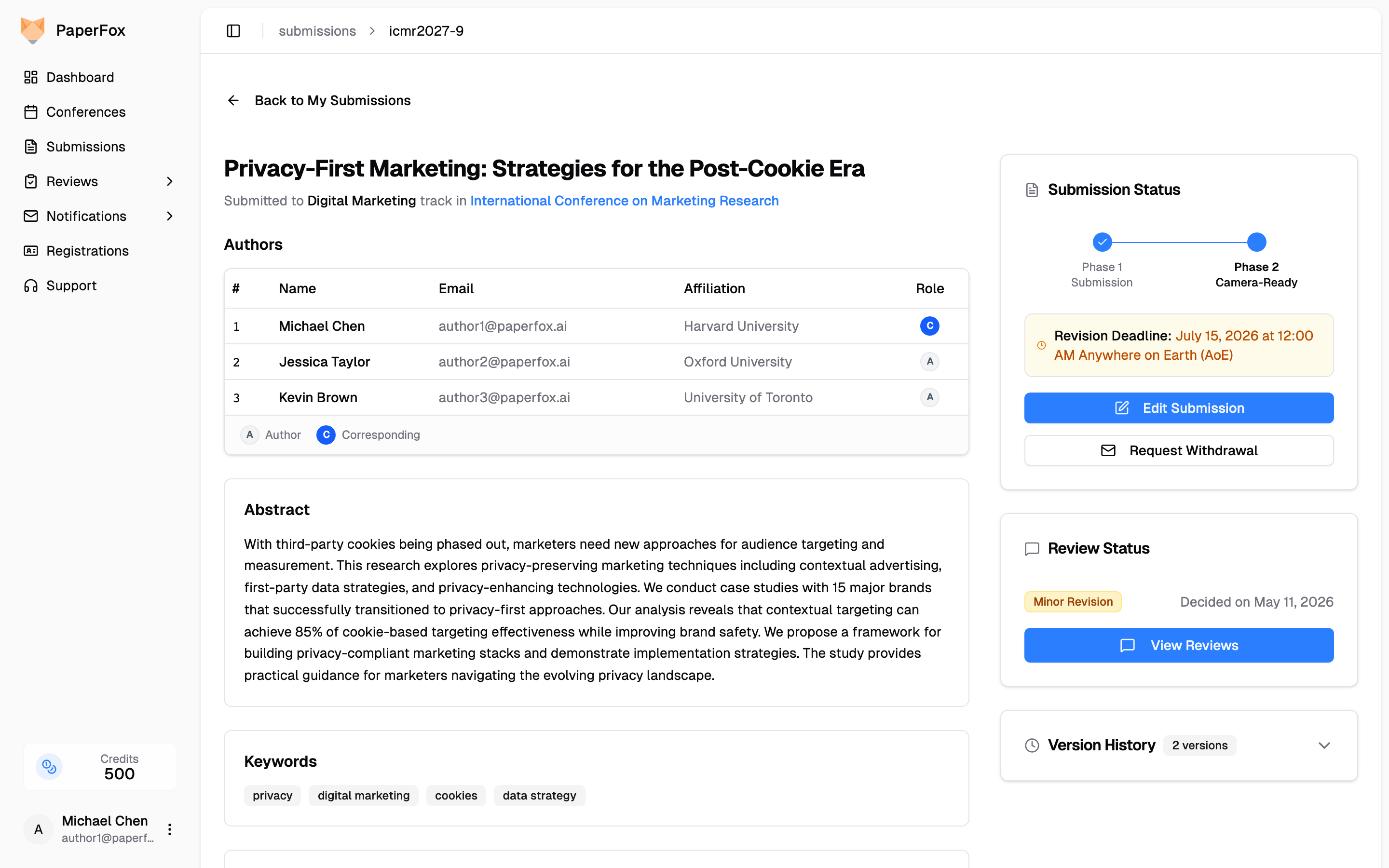
Click "Submissions" in the sidebar, find your submission, and click "View Details". The Submission Status panel on the right shows everything you need:
- Revision Deadline — the date by which your revised submission must be submitted
- Edit Submission button — click this when you are ready to submit your revision
Just below it, the Review Status panel shows the Decision — e.g. Minor Revision — with a "View Reviews" button. If your submission has moved through more than one phase, this section lists each phase it has reached with that phase's decision, so you can tell an earlier decision from the current one.
Step 2 — Read the Reviewer Feedback
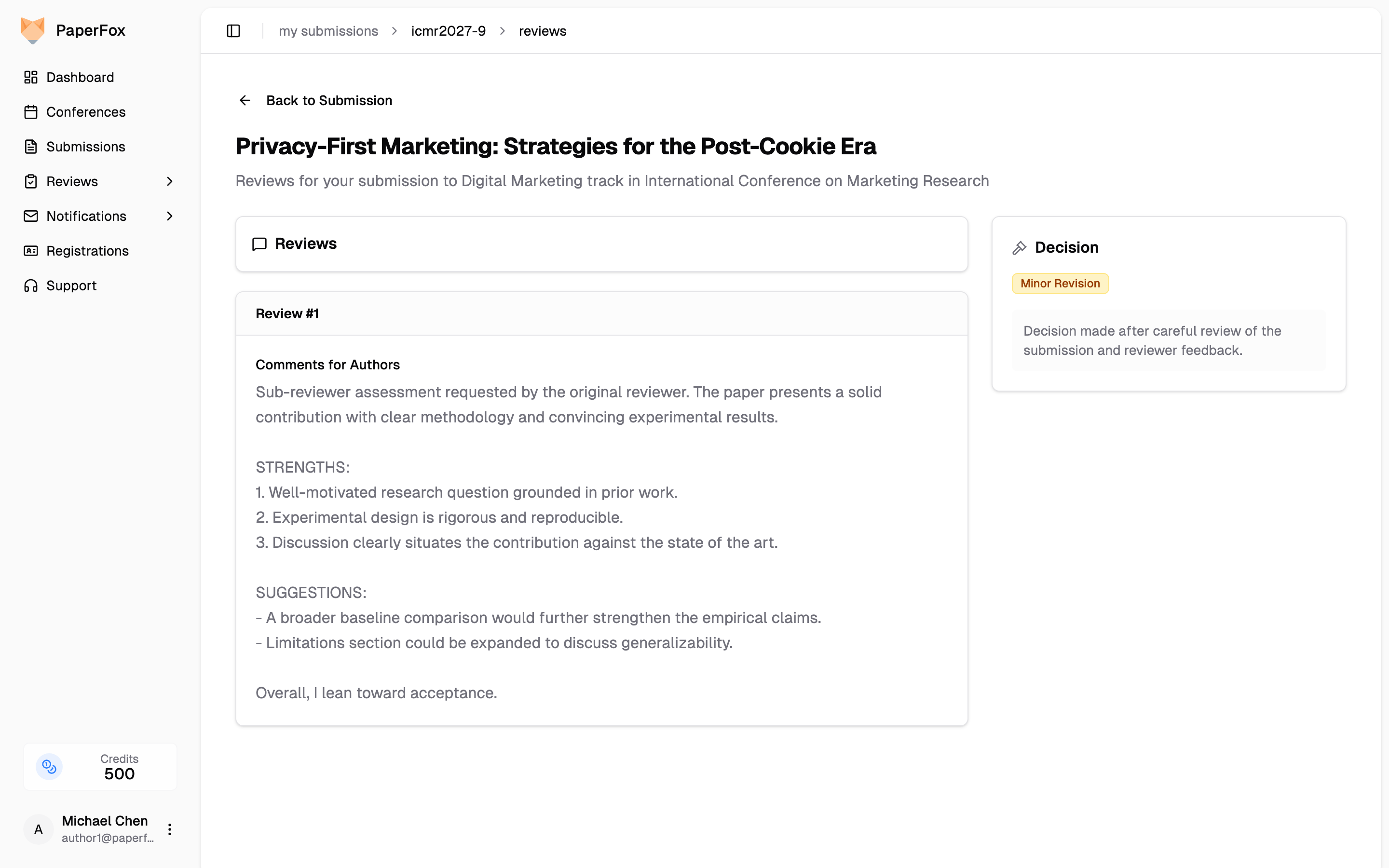
Click "View Reviews" to open the reviews page. Each reviewer's comments are listed, along with the chair's decision summary in the right panel. If your submission has been through more than one phase, the reviews are grouped under the phase they were written in, so the round that produced your revision decision stays distinct from any later round.
Read all reviews carefully before starting your revision — most chairs expect a point-by-point response to reviewer comments.
If a review has a Responses section, you can reply to that reviewer directly from this page — see Respond to Reviews.
Step 3 — Edit and Resubmit
Back on the submission detail page, click "Edit Submission". The form opens pre-filled with your current submission, with every field configured for the phase you are in.
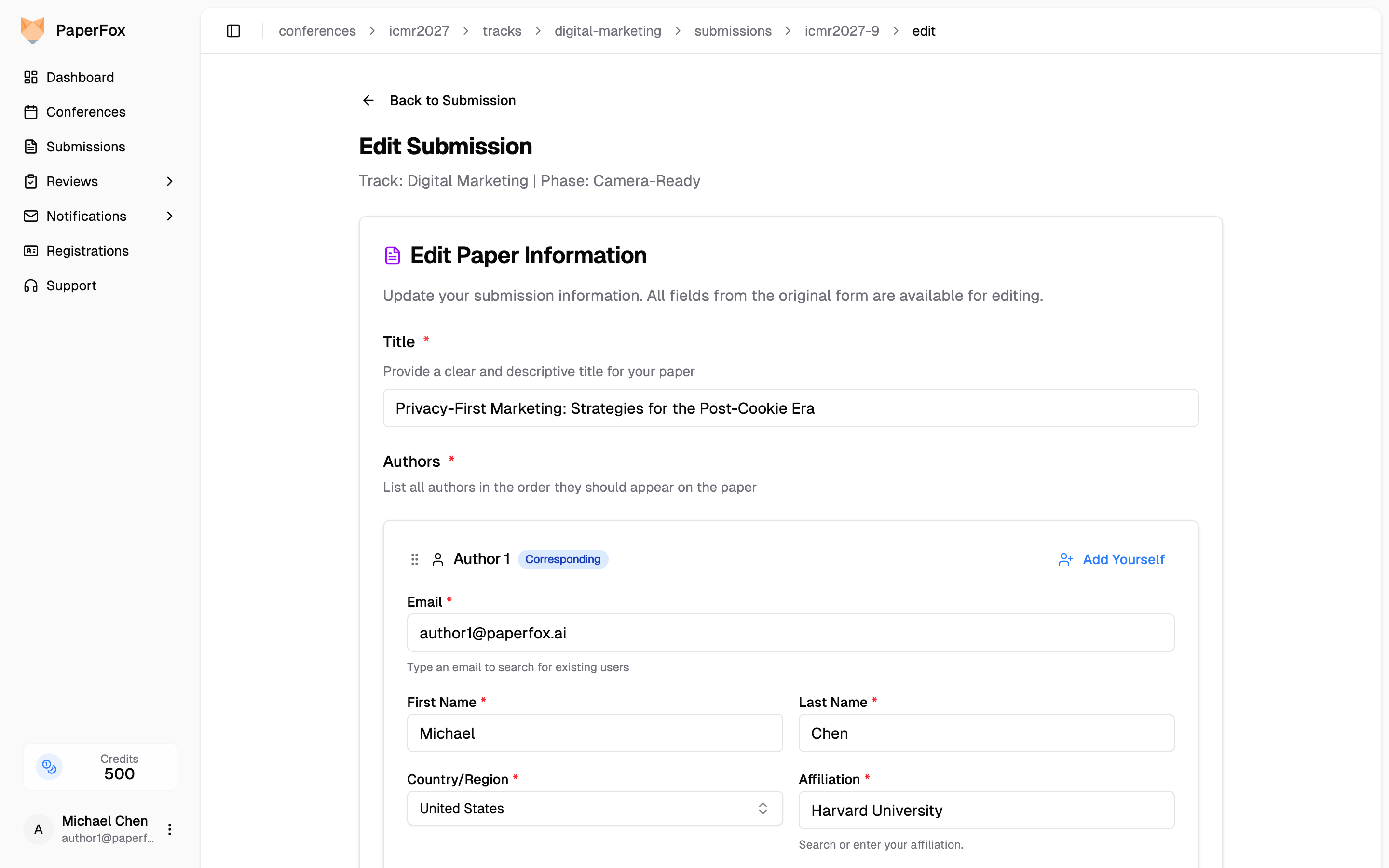
All original fields are editable. The clearest sign of which round you are in is the fields themselves: chairs often add phase-specific fields for a revision round, and a Camera-Ready PDF field that was not there when you first submitted only appears once the camera-ready phase begins.
Update what changed in your submission:
- Title, Abstract, Keywords — if your revisions affect them
- Submission File — click "Replace" to upload your revised PDF
- Camera-Ready PDF (if shown) — upload the final publication-ready version with author names and affiliations included
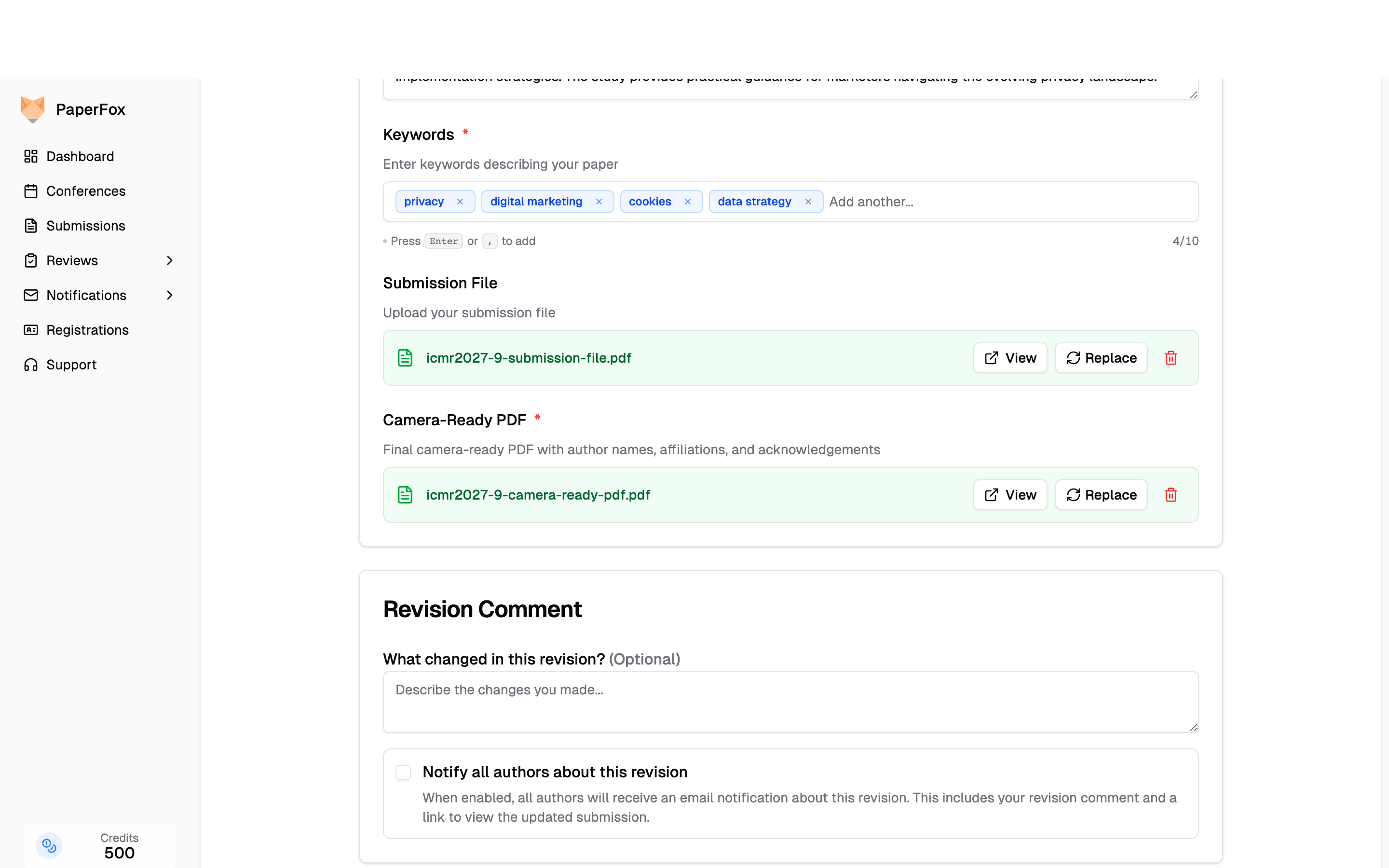
At the bottom:
- Optionally describe your changes in the Revision Comment field — track chairs can see this
- Optionally check "Notify all authors about this revision" to email all co-authors
- Click "Save Revision"
Each save creates a new version. Your previous version is preserved in the Version History on the submission detail page and remains downloadable at any time — see Open an Earlier Version of the File.
When the Edit Button Is Disabled
The Edit Submission button may be temporarily disabled if reviewers have active assignments in the current phase. This usually means the chairs are still processing the round — the button becomes available once assignments are resolved. If you are past the revision deadline, contact your track chairs directly.
Need more help with the edit form?
See Edit a Submission for a full walkthrough of every field, including how to replace files and manage co-author information.