
Managing Your Email Addresses
Link multiple verified email addresses to one PaperFox account so you can sign in with any of them and never miss an invitation sent to the wrong inbox
Overview
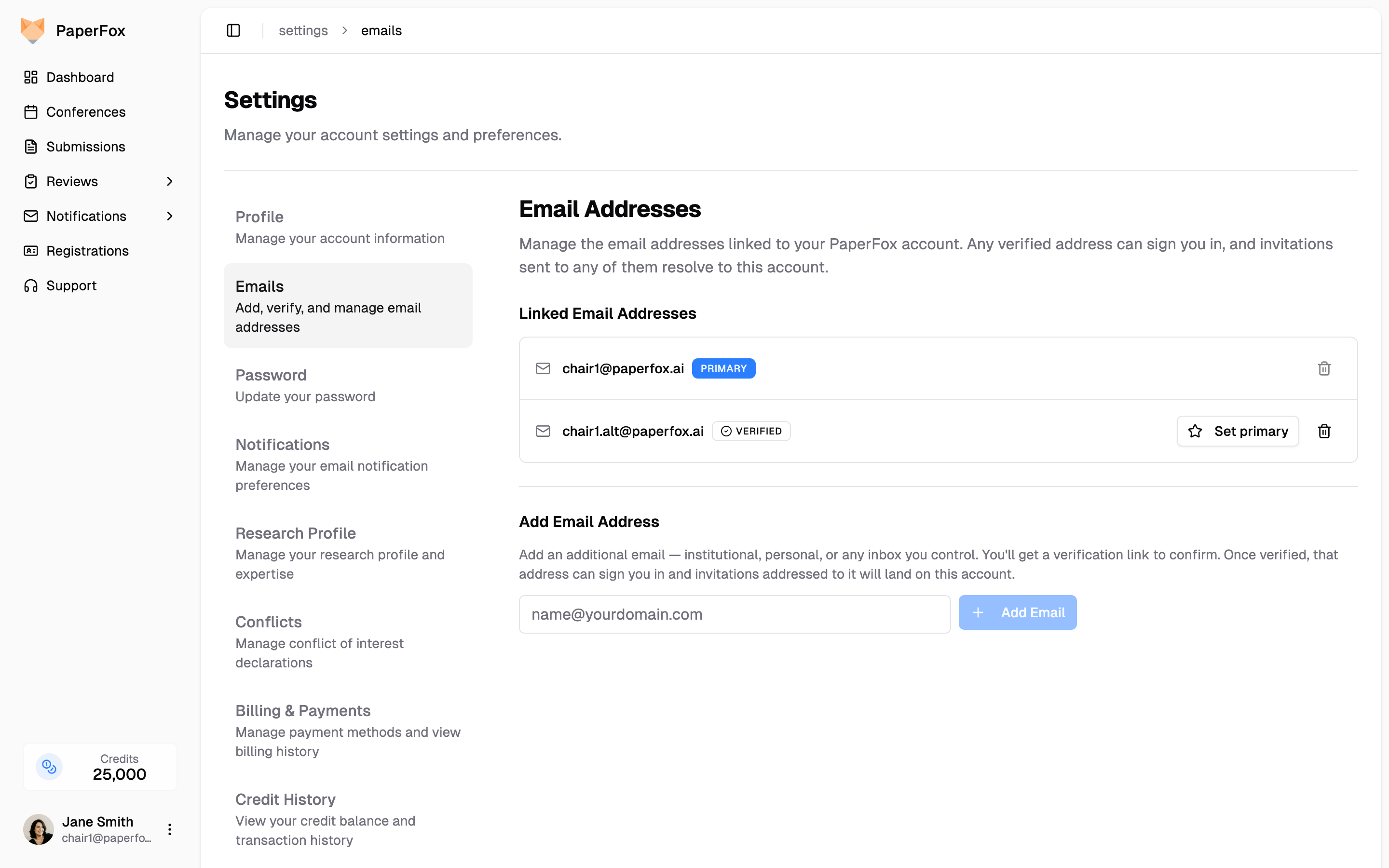
You have one PaperFox account but can link multiple verified email addresses to it — for example, your institutional and personal email together. Any verified address can sign you in, and invitations sent to any of them land on the same account.
Manage your linked addresses at Settings → Emails.
When You'd Want More Than One Email
- Institutional + personal. You sign up with your university email, but a colleague invites you to review under your gmail. Add both — either lands on this account.
- Changing institutions. You're moving from one university to another. Add the new address now, and any invitation chairs send under the old address still reaches you while you transition.
- Multiple roles, multiple inboxes. You're a chair under one address and a reviewer under another. One PaperFox account, two inboxes — no juggling separate logins.
- You missed an invitation that went to the wrong inbox. Add that address as an alias, and any future invitation to it (including ones still pending) resolves to this account.
Adding an Email Address
- Go to Settings → Emails
- Type the new address into the Add Email Address field
- Click "Add Email" — a verification link is sent to that inbox
The new address appears in your list immediately with a Pending verification badge:
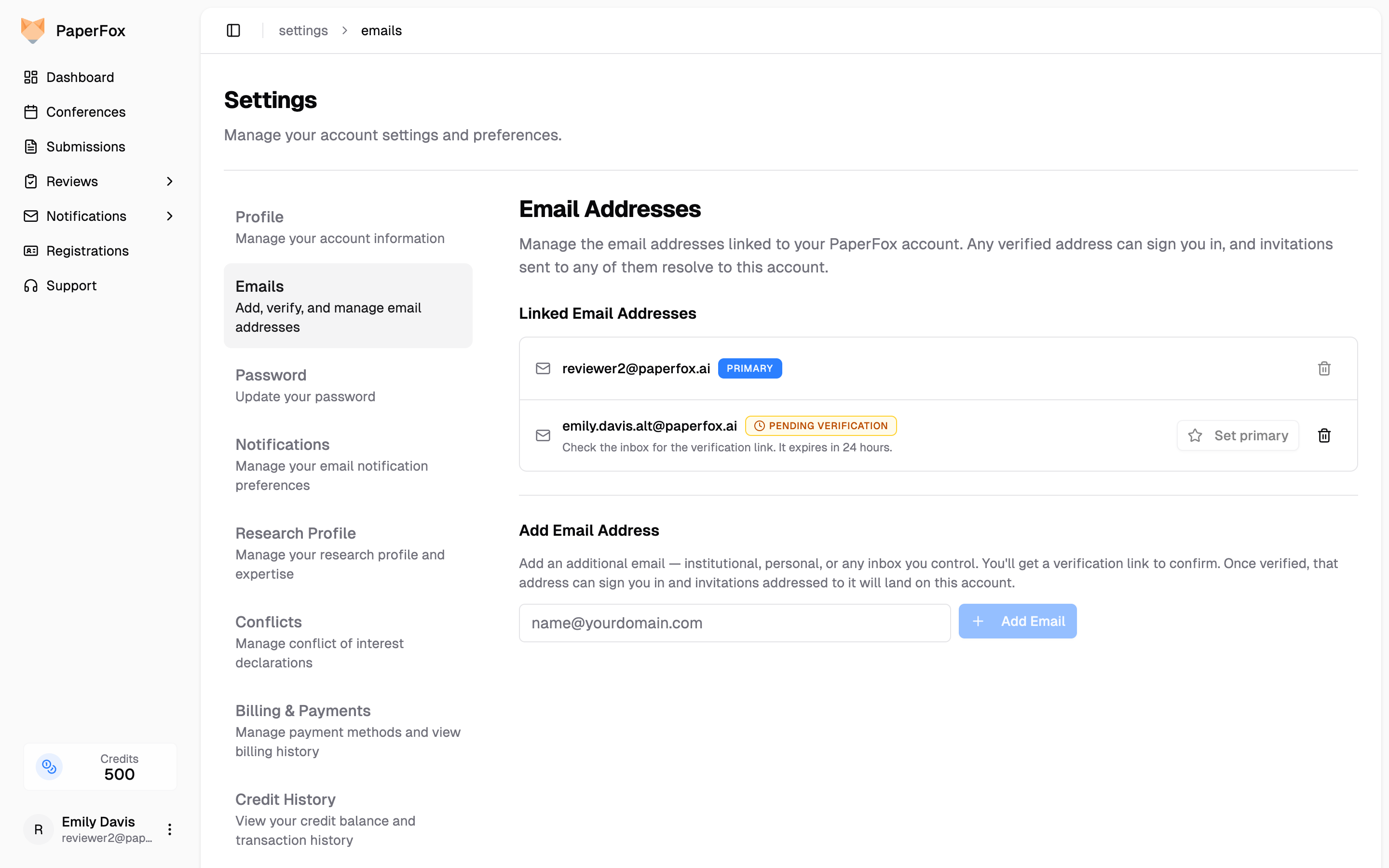
- Open the verification email from the new inbox and click the link
- The badge changes to Verified — the address can now sign you in
The verification link expires in 24 hours. If it expires, just add the address again from the same page to send a fresh link.
Signing In with Any Verified Email
Once an address is verified, you can sign in with it on the Sign In page using your existing password — no separate account or password to remember. The session shows your primary email at the top of the sidebar regardless of which address you used to sign in.
Invitations Land on Your Account No Matter Which Address
This is the core benefit. When a chair invites you to review, chair, or moderate, they invite by email. If they use any of your verified addresses, the invitation appears on your dashboard automatically.
You don't have to tell every chair which address you prefer — add your common addresses once, and PaperFox routes incoming invitations to the right account on its own.
Setting Your Primary Email
Your primary email is the address shown on your profile and where PaperFox sends notifications (review reminders, decision letters, password resets, etc.). To switch:
- Verify the address first (add it and click the verification link if you haven't already)
- Click "Set primary" next to the verified address
Your previous primary stays on the account as a verified secondary so any pending invitations or co-authorship under that address still resolve to you. Past submissions, reviews, and registrations are unaffected — they're tied to your account, not to a specific address.
Notifications go to your primary only
PaperFox sends notifications to your primary email address only — we don't double-email the same person at multiple addresses. Sign-in, invitations, and author matching work across all your verified addresses, but outbound notifications target the primary.
Removing an Email
Click the trash icon next to any non-primary address to remove it. The primary address cannot be removed directly — if you want to retire your current primary, switch primary to a different verified address first, then remove the old one.
Removing an email means:
- That address can no longer sign you in
- New invitations sent to it will not resolve to this account (they'll either bounce, or — if a different account has it — go there)
- Past submissions, reviews, and registrations are unaffected
Merging Two Accounts
If you end up with two separate PaperFox accounts — for example, you signed up with your gmail address years ago and forgot, then a conference chair later invited you under your institutional email and a new account was auto-created — you can merge them into one.
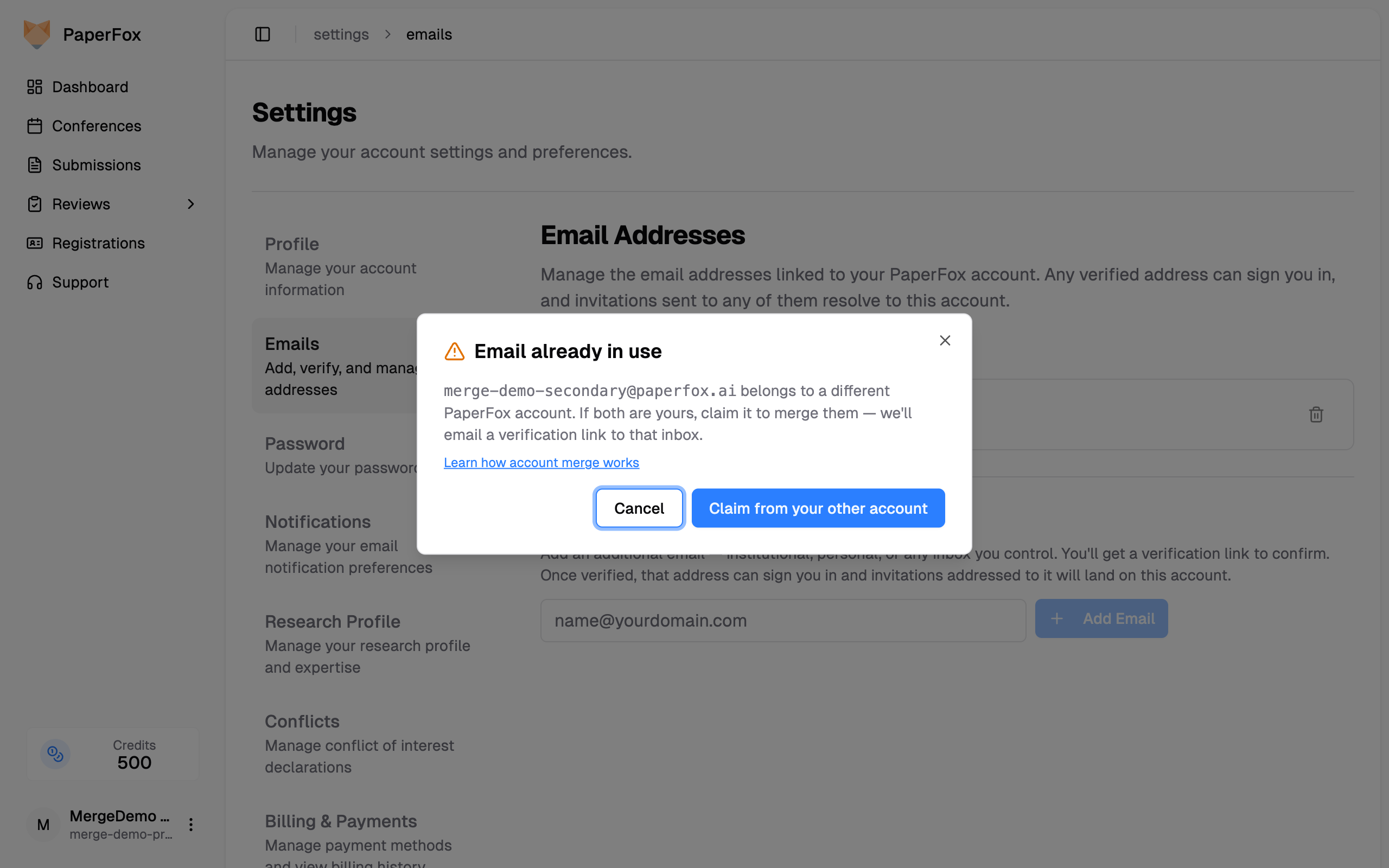
The flow lives at Settings → Emails: add the other account's address as you would any new email. When PaperFox detects the address belongs to a separate account, you'll be offered a Claim from your other account option.
A verification email goes to the other address, and clicking the link in that inbox brings you to a confirmation page summarizing what will move:
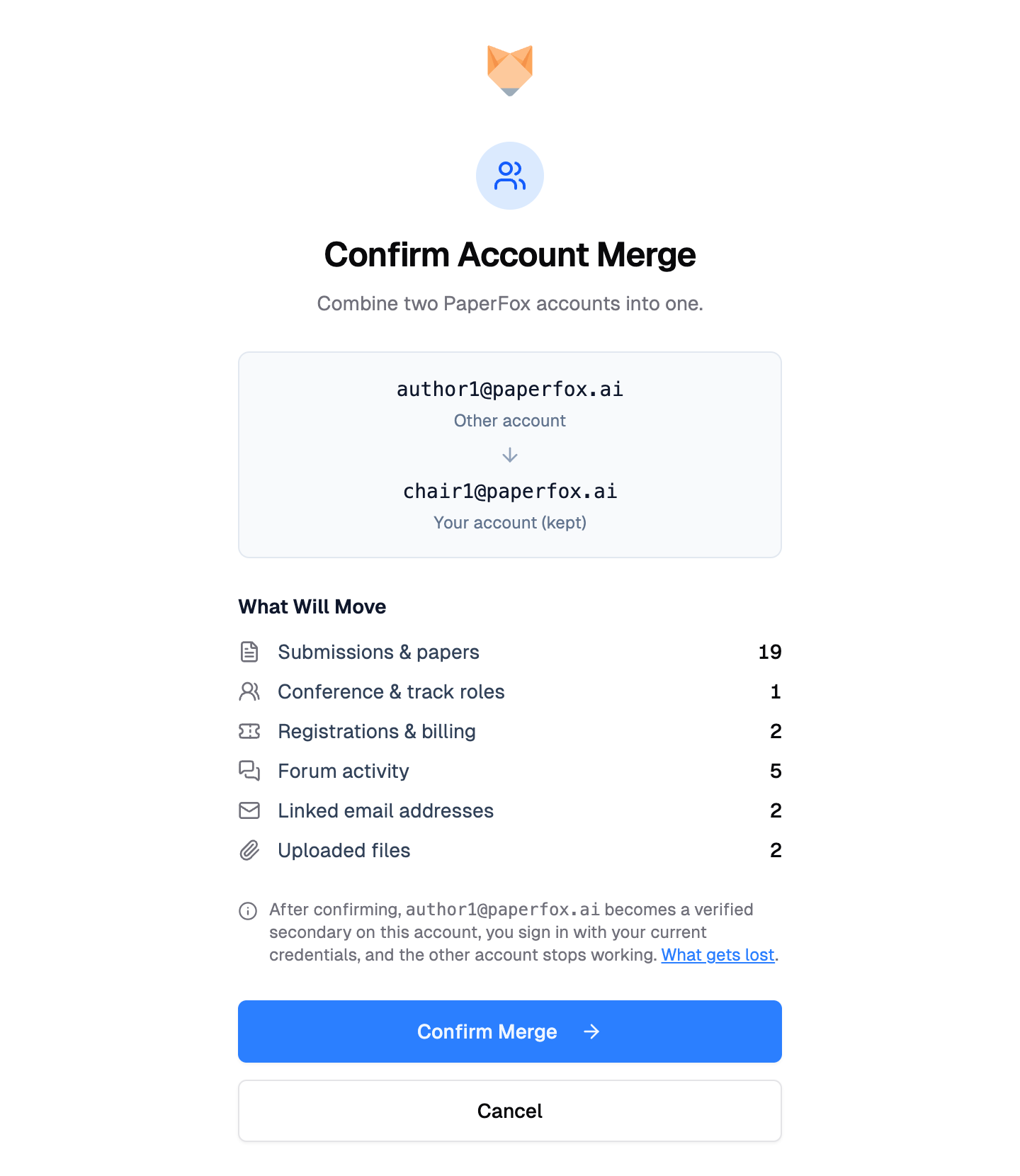
Click "Confirm merge" to run the merge — the other account is absorbed into your current one and its address is added as a verified secondary.
What Moves to the Surviving Account
All of the absorbed account's PaperFox history follows you to the surviving account:
- Submissions you authored or submitted
- Reviews you wrote (and their version history)
- Conference, track, reviewer, AE, and SE memberships
- Registrations (except where they conflict — see below)
- Pending and accepted invitations
- Activity log entries and audit trail
- AI conversations and credit-history transactions
- All verified email addresses (added to the surviving account as aliases)
After the merge, the surviving account is your only account. You sign in with its credentials, and the absorbed account's addresses continue to receive new invitations on your behalf — same multi-email behavior as if you had added them as aliases all along.
What Doesn't Carry Over
A few things from the absorbed account are dropped — the surviving account's versions are the canonical ones:
- Profile fields — name, affiliation, country, image. The surviving account's profile stays as-is. If you'd rather use the absorbed account's name or affiliation, update your profile after the merge.
- Password from the absorbed account — discarded. You sign in to the merged account with the surviving account's password (or magic link).
- Credit balance from the absorbed account — credit-history rows move over for audit, but the absorbed account's spendable balance does not add to the survivor's. If this matters, contact support before initiating the merge.
- Active sessions and social logins on the absorbed account — anyone signed in there is logged out. Google or other social sign-in bindings on the absorbed account are removed; you'd need to re-link them on the surviving account.
Conflicts that block or trim the merge
A merge is blocked if both accounts have a paid registration in the same conference — one would need to be refunded or cancelled first. Duplicate role memberships are silently de-duplicated — for example, if both accounts are reviewers on the same track, the absorbed account's reviewer row is dropped and the surviving account's keeps the position.
Removing a Merged-In Email
After a merge, the absorbed account's address lives on your account as a verified secondary. You can remove it like any other alias — but think twice, because it's the only remaining link between that address and your account.
When you click the trash icon next to a merged-in address, the confirmation dialog shows an extra warning:
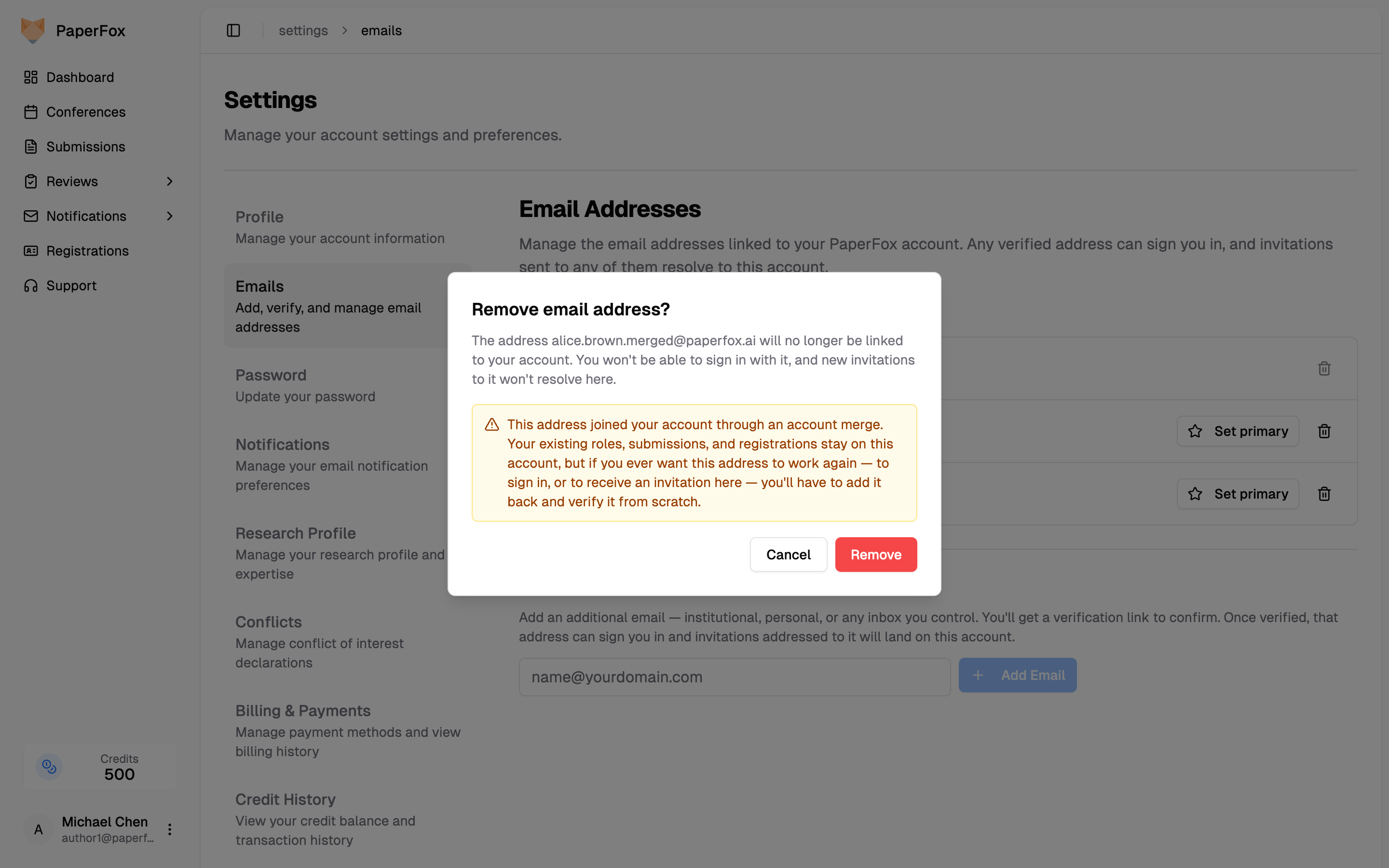
Here's what removal does and doesn't touch:
- Your history stays put. Roles, submissions, reviews, and registrations that came over in the merge are tied to your account identity, not to the email — they're unaffected.
- The address stops working. You can no longer sign in with it.
- Future invitations to it won't find you. Because nothing links the address to your account anymore, an invitation a chair later sends to it won't resolve here — it would spin up a brand-new, separate account, re-splitting the identity you just consolidated.
To use the address again, you'd have to add it back from the Add Email Address field and verify it from scratch.
Privacy and Security
- Only verified addresses (those where you clicked the verification link) can sign you in or resolve invitations. An unverified pending address is inert until verified.
- Adding an email sends a verification link only to that new address — your existing inboxes aren't notified.
- We rate-limit verification-email sends to prevent abuse (currently 5 per hour per account).
- If you suspect someone added an email without your permission, sign in and remove it from Settings → Emails, then change your password.