Send Notifications
Guide for track chairs to send email notifications to authors, reviewers, and track chairs
Email a Submission's Authors
You can email the authors of a specific submission directly from the submission detail page.
- Open a submission in your track
- Next to the Authors heading, click "Email Authors"
This opens the notification composer pre-filled with the submission's details:
- Recipients are pre-loaded from the submission's author list
- Subject is pre-filled with the submission slug (e.g.,
[ICAI2027-5]) - Choose All Authors or Corresponding Author Only using the radio buttons
- The selected authors are listed below so you can confirm before composing
Compose your message and click "Send Notification". The email is sent through the standard notification system with branded formatting.
Who can see this?
The "Email Authors" link only appears for conference chairs and track chairs. Authors and reviewers do not see it.
Bulk Notifications
Track chairs can send customized email notifications to authors, reviewers, and other track chairs for their managed tracks.
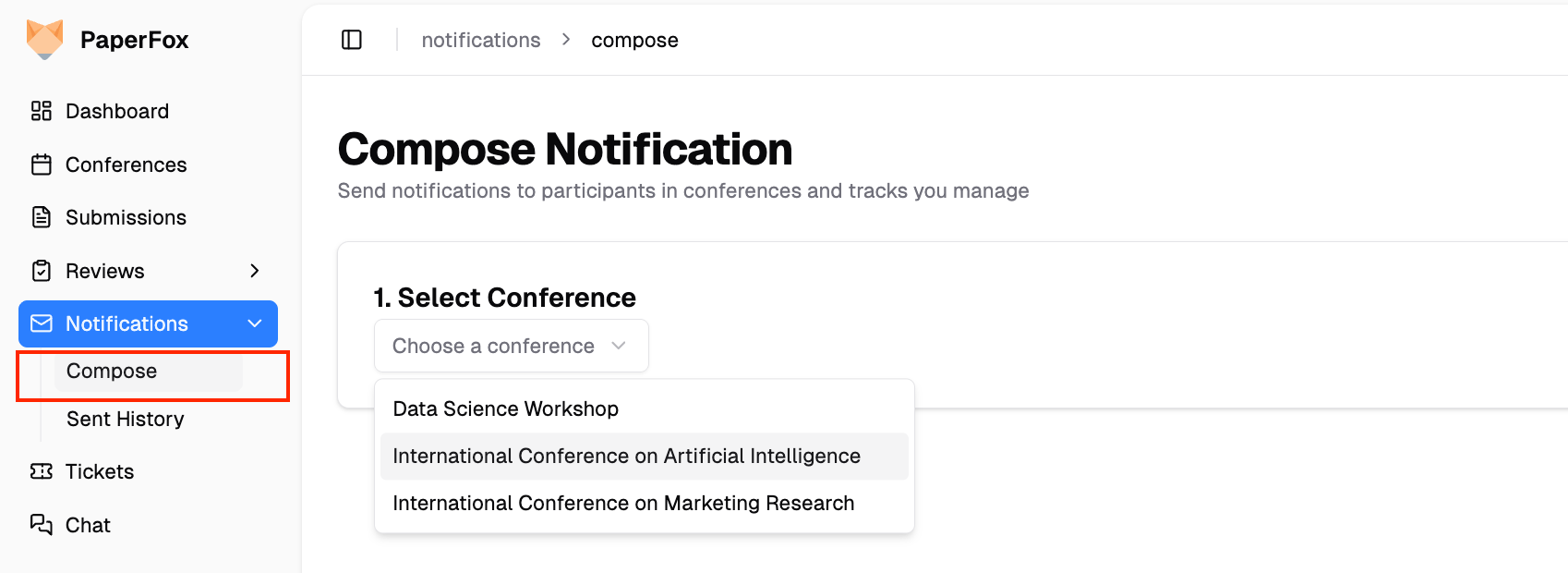
1. Access Compose Notification
- Click Notifications in the sidebar
- Click Compose
This opens the notification composer at /notifications/compose.
2. Select Conference and Track
Choose the conference and track you want to send notifications for. You can only send to tracks you manage.
3. Select Recipients
Choose the recipient role:
- Authors — Paper authors in the selected track
- Senior Editors — Senior editors assigned to the track
- Associate Editors — Associate editors assigned to the track
- Reviewers — Reviewers assigned to the track
- Track Chairs — Other track chairs
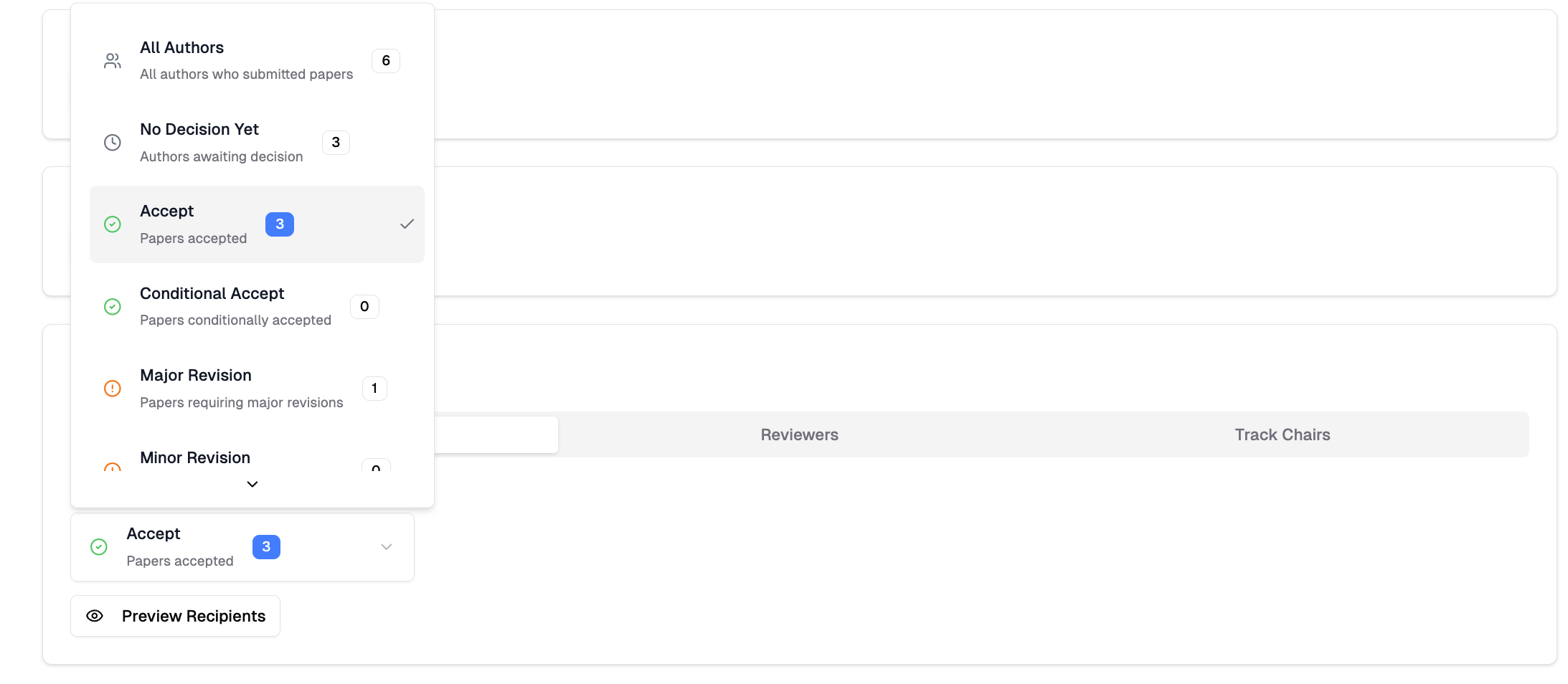
4. Filter by Status
Filter recipients by status to target specific groups:
- For authors: filter by decision type (Accept, Reject, etc.)
- For reviewers: filter by review status (Pending Invitations, Not Started, Completed, Declined, Overdue, Incomplete Profile)
The Incomplete Profile filter targets reviewers who accepted their invitation but haven't logged in to complete their profile. This is useful for sending reminders to set up their name, affiliation, and research keywords.
The system displays recipient counts for each filter.
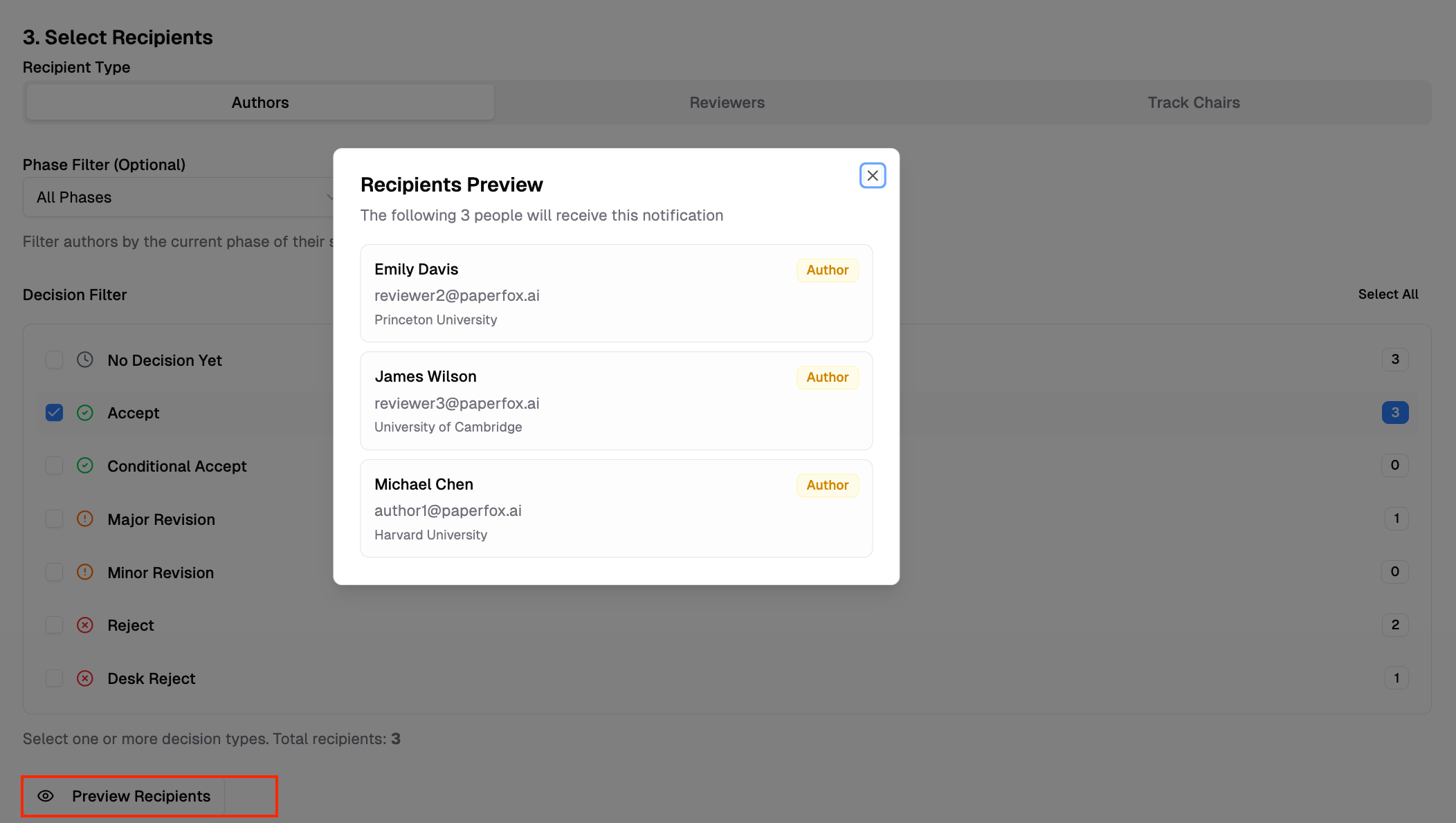
Click Preview Recipients to see the list of recipients before sending.
5. Choose Template (optional)
Select a pre-built template or create a custom message. Templates include common notifications like acceptance letters, review reminders, and deadline notices.
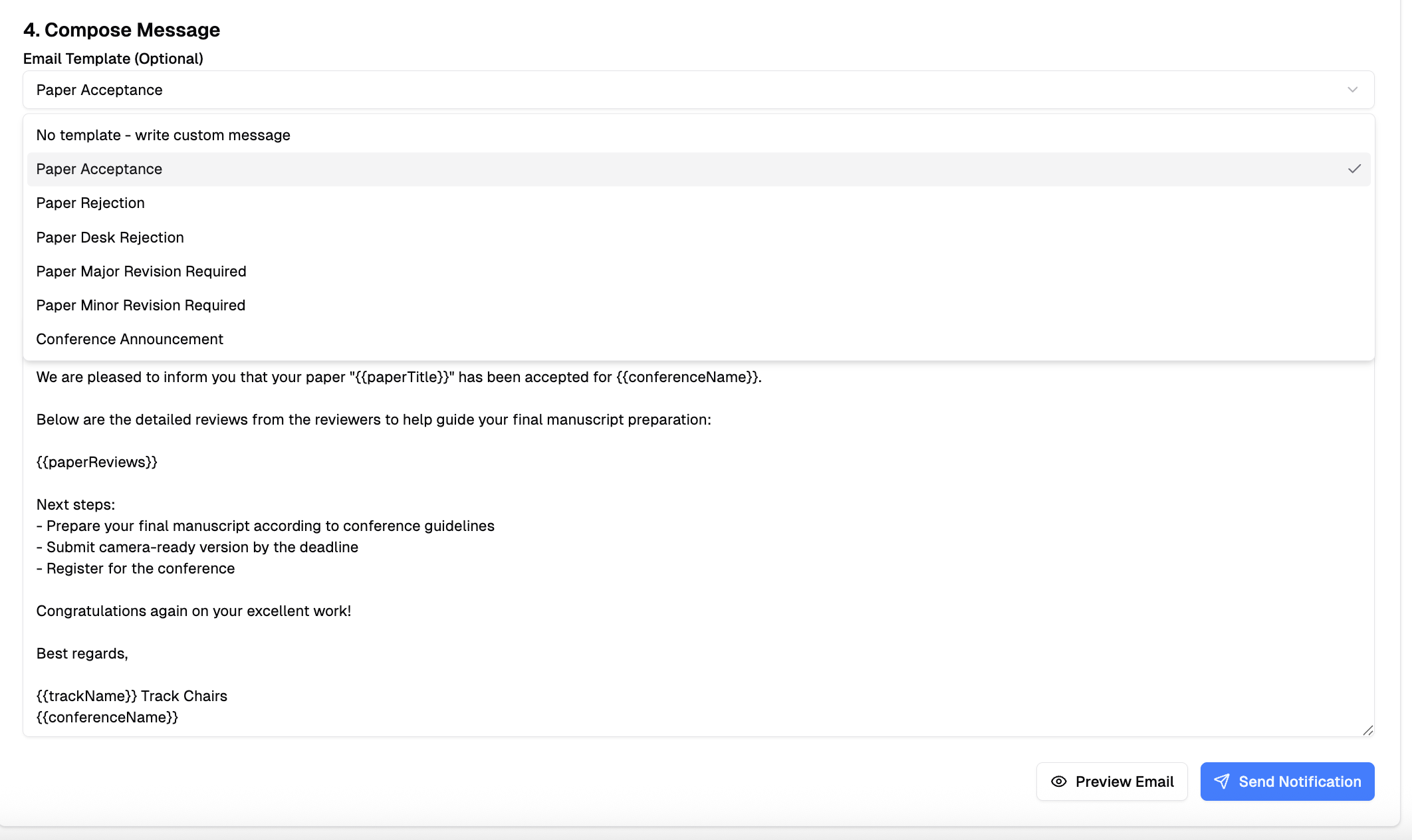
6. Compose Message
Write your subject and message content. Use variables to personalize each email:
{{recipientName}}— Recipient's name{{conferenceName}}— Conference name{{paperTitle}}— Paper title{{trackName}}— Track name
7. Preview and Send
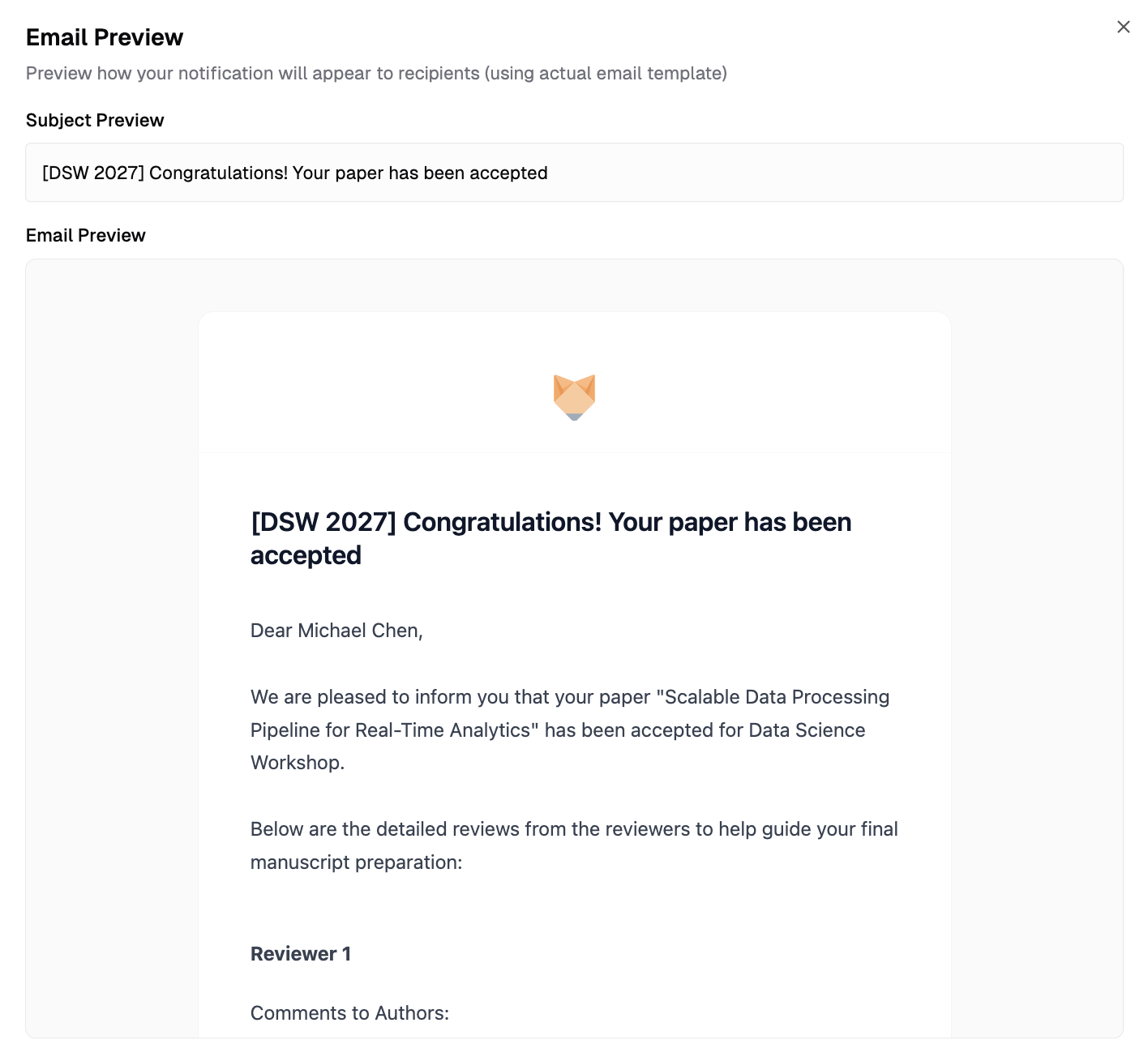
Click Preview Email to see the rendered message with variables replaced. Review the recipient count and click Send to [X] Recipients to send.