
Check Submission Compliance
Automatically verify that submissions meet formatting and content requirements
PaperFox can automatically check all submissions in a track against your formatting and content rules — page limits, margins, font size, anonymization, and more. All checks run programmatically on the PDF files, with no data sent to external services.
How It Works
- Configure rules — Pick from predefined rule types (Page Limit, Font Size, etc.) and set parameters
- Run the check — PaperFox downloads each submission's PDF and verifies every rule
- Review results — See pass/fail/warn status per submission, with detailed evidence
- Notify authors — Select non-compliant submissions and send notification emails
Supported Check Types
All checks are programmatic — they analyze the PDF structure and text directly.
| Type | What It Checks | Parameters |
|---|---|---|
| Page Limit | Number of pages | Max pages, optional "excluding references" |
| Page Size | US Letter or A4 | Size selection |
| Margins | Minimum margin width | Inches (with 0.15" tolerance) |
| Font Size | Dominant body font size | Point size (with 1pt tolerance) |
| Column Layout | Single or two-column | Column count |
| Line Spacing | Single or double spacing | Spacing type |
| File Size | PDF file size | Max MB |
| Language | Primary language of text | Language selection |
| Anonymization | Author identifying info must not appear (double-blind) | Automatic (uses submission author data) |
| Author Information | Author names must appear (camera-ready) | Automatic (uses submission author data) |
Configuring Rules
- Go to Conferences in the sidebar, then click on your conference
- Navigate to your track and click "Compliance"
- Click "Add Rule" and select a type from the dropdown
- Set the parameters (e.g., max 8 pages) and severity (Must or Should)
- Click "Save Rules"
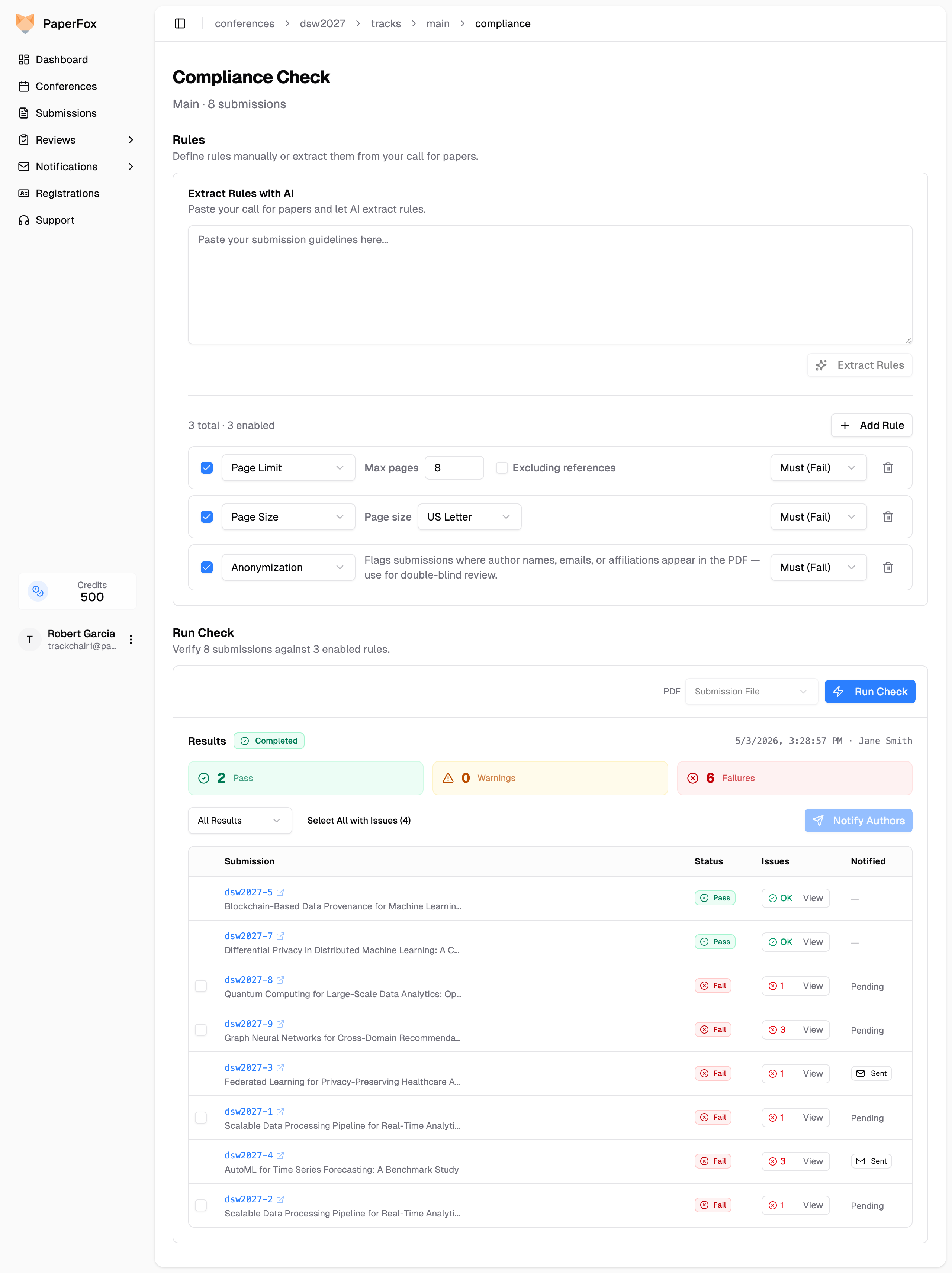
Extract Rules with AI
Instead of adding rules manually, paste your call for papers or submission guidelines into the Extract Rules with AI box and click "Extract Rules". AI maps the text into the predefined rule types above with pre-filled parameters. Review and adjust them before saving.
Severity Levels
| Severity | On Violation |
|---|---|
| Must | Marked as Fail |
| Should | Marked as Warn |
Page Limit — Excluding References
Enable the "Excluding references" checkbox to count only content pages before the References section. PaperFox detects the References heading in the PDF and counts pages up to that point.
References detection
If PaperFox cannot find a "References" heading in the PDF, it falls back to counting all pages and notes this in the evidence.
Anonymization Check
The anonymization check verifies that submissions do not contain author-identifying information — important for double-blind review.
It searches the PDF text for:
| What | Where |
|---|---|
| Full author name (first + last) | Entire document |
| Email address | Entire document |
No external services
The anonymization check uses keyword matching against the submission's author data. No text is sent to any external AI service.
Author Information Check
The Author Information check is the inverse of Anonymization — use it for the camera-ready phase, where authors are expected to add their names back to the submission.
For each author on the submission, PaperFox searches the PDF text for the full author name (first + last). The check passes when every author's name is found anywhere in the document. It fails and lists any missing names so you can flag submissions where someone forgot to de-anonymize before camera-ready.
Names only — emails don't count
Author Information checks names, not emails. A camera-ready PDF that only includes contact emails without bylines is flagged as missing the authors.
Typical setup
Add an Anonymization rule active for your initial Submission phase, then add an Author Information rule for the Camera-Ready phase. Use the Phase dropdown when running the check to scope each run to the right phase.
Running a Compliance Check
Once rules are saved, click "Run Check" to check submissions against your enabled rules. Every run checks all in-scope submissions from scratch, so you always get up-to-date results — even if you just changed a rule (e.g., updated the page limit).
The check runs in the background. A progress bar shows how many submissions have been processed. When complete, results appear below.
Phase and PDF Field Selectors (Multi-Phase Tracks)
If your track has more than one phase (e.g., Submission and Camera-Ready, or a Revision phase), two cascading dropdowns appear next to "Run Check":
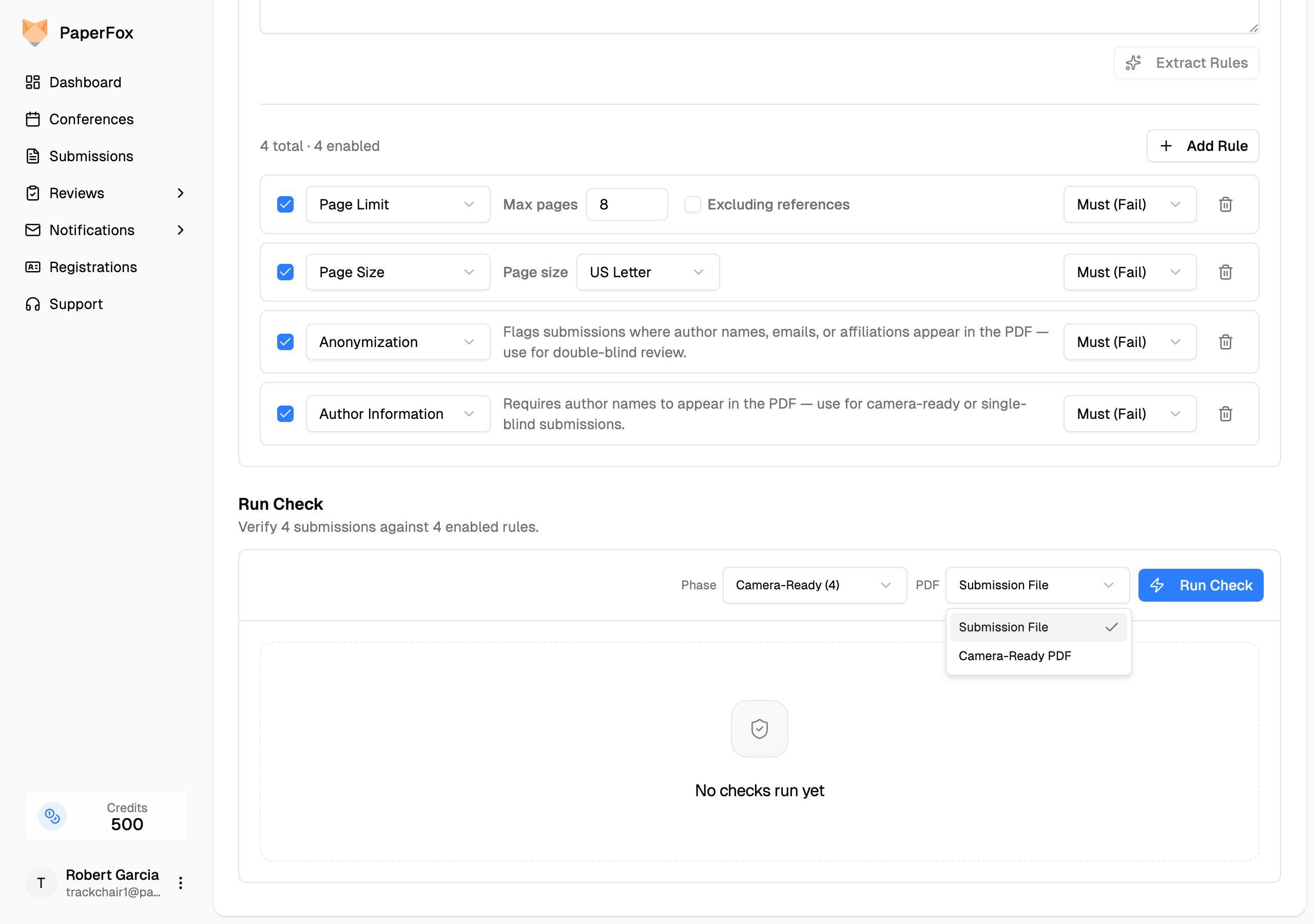
| Selector | What It Picks |
|---|---|
| Phase | Which phase's submission version to check. Defaults to the track's current phase — the furthest phase holding submissions — so once you've moved submissions to Camera-Ready the check targets that phase automatically. The count next to each option is the number of submissions with a version in that phase. |
| Which file field on the form to scan. The list is filtered by the selected phase: fields with no phase tag appear in every phase, phase-tagged fields (e.g., a Camera-Ready PDF) only in their phase. Disabled when there's only one option. |
Single-phase tracks hide the Phase dropdown — there's only one phase, so the choice doesn't apply. The PDF selector is shown but disabled when the form has just one file field.
Submissions outside the selected phase are skipped
Only submissions that have a version in the chosen phase are included. For example, if you scope a check to Camera-Ready but only 20 of 50 submissions have been moved to that phase, the run checks those 20 — the other 30 are not in the candidate set and don't appear in results.
Reviewing Results
Results are shown in a table with pass/fail/warn status for each submission. If a check fails partway through, any partial results collected before the failure are still displayed. You can:
- Filter by status (Pass, Warn, Fail)
- Click "View" on any row's status chip to see detailed findings with evidence for each rule
- Select non-compliant submissions and click "Notify Authors" to email them
Each finding includes:
- Status: Pass, Fail, or Warn
- Message: What was checked and the result
- Evidence: Specific measurements or text found (e.g., "Page count: 10, limit: 8")
Notifying Authors
Selecting one or more rows and clicking "Notify Authors" hands the selection to the standard PaperFox notification composer with the "Notify Authors of Compliance Issues" preset pre-selected. The composer pre-fills the subject and body using the compliance-issues template, and each recipient's email automatically includes their submission's specific failed rules. Edit the message if needed, preview a recipient, then click "Send Notification".