
Auto Assign Reviewers
Automatically match submissions with reviewers using Smart Matching
Auto Assign uses Smart Matching to find the best reviewers for each submission. It scores reviewer-submission compatibility using text similarity and keyword overlap, then finds the globally optimal assignment across all submissions simultaneously.
Getting Started
- Go to Submissions → Assignments for your track
- Click "Auto Assign" in the toolbar
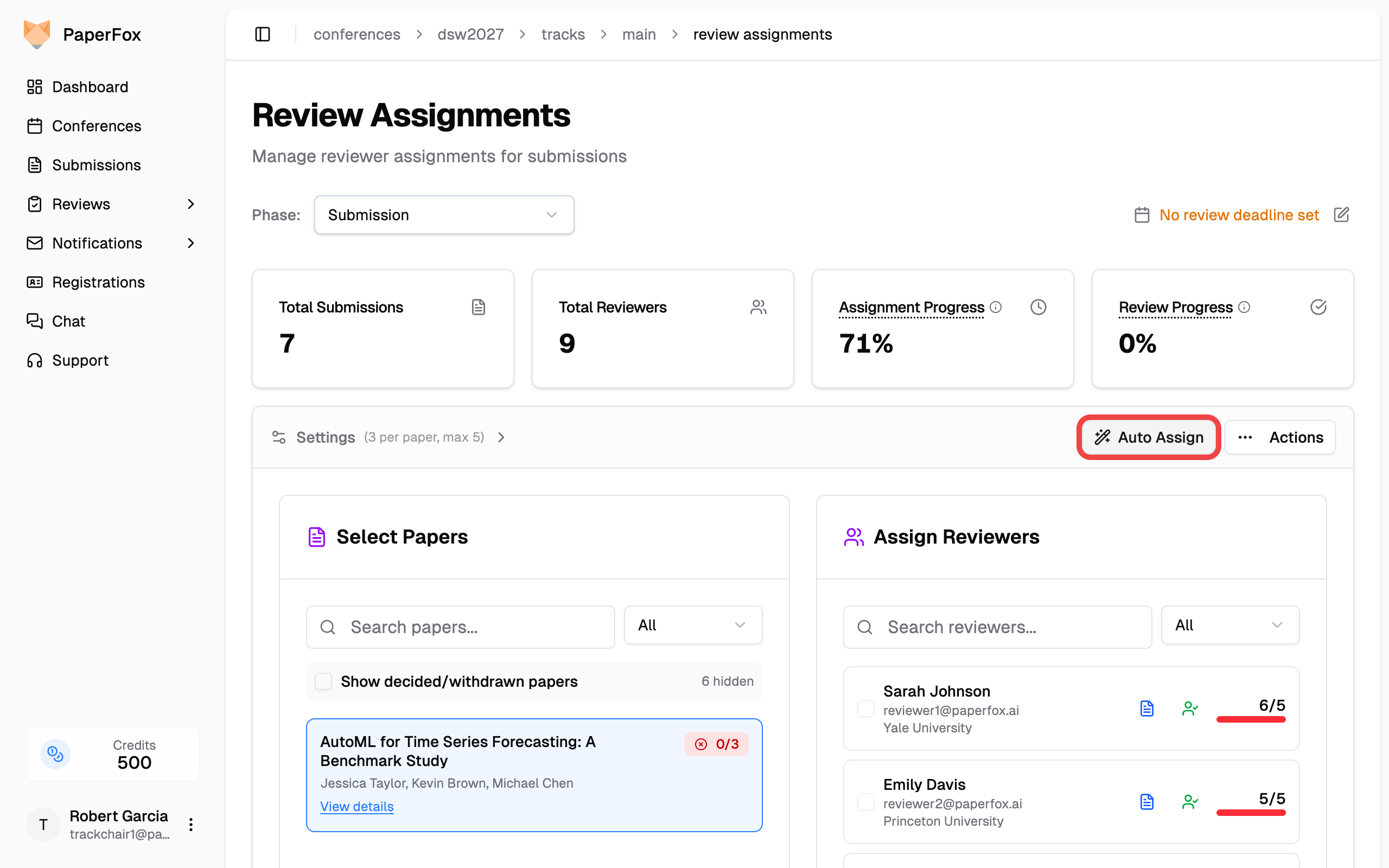
This opens the auto-assignment page where you configure matching settings.
Settings
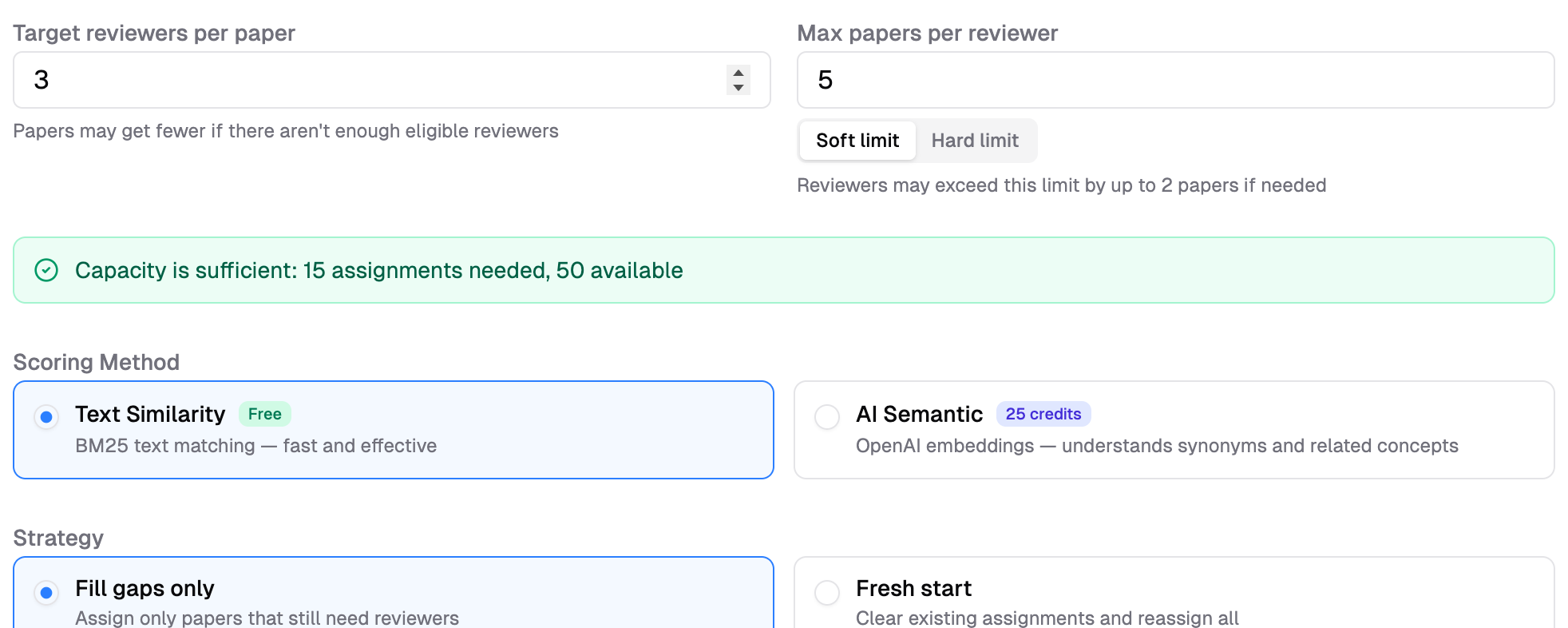
Target Reviewers per Submission
How many reviewers to assign to each submission. Default: 3. This is a target — submissions may receive fewer reviewers if there aren't enough eligible reviewers available (due to COI filtering or capacity limits).
Max Submissions per Reviewer
Upper limit on submissions assigned to a single reviewer. Default: 5. Use the toggle to choose how strictly this limit is enforced:
| Mode | Behavior |
|---|---|
| Soft limit (default) | Reviewers may exceed the limit by up to 2 submissions if needed to ensure all submissions get assigned |
| Hard limit | Strict cap — no reviewer will exceed this number, even if some submissions get fewer reviewers as a result |
Use Soft limit when full coverage matters most — you want every submission to get reviewers, even if a few reviewers go slightly over capacity. Use Hard limit when reviewer workload is the priority — no one should be overloaded, even if it means some submissions get fewer reviewers than the target.
Feasibility Indicator
Below the settings, a color-coded banner shows whether your current configuration is feasible:
- Green — Capacity is sufficient. All submissions can be assigned the target number of reviewers.
- Amber — Capacity is tight. Soft mode will allow overflow to fit, but hard mode may leave gaps.
- Red — Insufficient capacity. Some submissions will get fewer reviewers than the target. Consider adding more reviewers or increasing the max submissions per reviewer.
Scoring Method
Choose how text similarity between submissions and reviewer expertise is computed.
| Method | How It Works | Cost | Speed |
|---|---|---|---|
| Text Similarity | BM25 text matching against submission titles and abstracts | Free | Seconds |
| AI Semantic | OpenAI embeddings — understands synonyms and related concepts | Credits (based on submission count) | Seconds |
Both methods also use phrase-level keyword matching (comparing submission keywords with reviewer expertise tags) in addition to text similarity.
How scoring works
Each reviewer-submission pair gets a score from 0–100: up to 70 points from text similarity (BM25 or AI embeddings) and up to 30 points from keyword overlap. The system then uses network flow optimization (Min-Cost Max-Flow) to find the assignment that maximizes the total score across all submissions — not just one submission at a time.
When to use AI Semantic
Select AI Semantic when you need the algorithm to understand that related concepts match — for example, "NLP" and "natural language processing", or "deep learning" and "neural networks". Submission titles, abstracts, and reviewer expertise tags are sent to OpenAI for embedding. Use Text Similarity instead if data privacy is a concern.
Strategy
Fill Gaps Only (Default)
Only assigns reviewers to submissions that don't have enough reviewers yet. Existing assignments are preserved — no existing reviewer-submission pairs are changed.
Use when: You've already made some manual assignments and want to fill in the rest.
Fresh Start
Generates new assignments for all submissions, replacing the ones reviewers haven't answered yet. When you apply the suggestions:
- Existing invitations the reviewer hasn't responded to (status Invited) are removed and replaced with the new suggestions
- Every assignment a reviewer has already accepted, declined, or reviewed is kept — the system never pulls an assignment out from under a reviewer who has responded, even if their review isn't submitted yet
The confirmation dialog shows exactly how many invitations will be removed and how many assignments will be kept before you apply.
Use when: Starting over or regenerating all assignments from scratch.
Fresh start is greyed out once the phase is released to reviewers — once reviewers can see their assignments, auto-assign only fills gaps. To start over in a released phase, remove assignments by hand first.
Options
COI Enforcement
By default, reviewers who have conflicts with submission authors are automatically excluded before the matching algorithm runs. Three rules are checked: self-conflict, co-author conflict, and declared conflict. If the track has turned COI enforcement off, co-author and declared conflicts stay in the pool and their suggestions carry a warning instead — self-conflicted reviewers are always excluded.
See Conflict of Interest Enforcement for full details on COI rules and how to encourage reviewers to declare their conflicts.
Balance Workload
When enabled, the algorithm favors distributing submissions evenly across reviewers, even if it means slightly lower expertise matches.
Use when: You want to avoid overloading some reviewers while others have few submissions.
Reviewers Without Research Profiles
Reviewers who haven't completed their research profile cannot be matched by expertise. They will be assigned to fill remaining slots after all profiled reviewers are placed.
If you see a warning about reviewers without profiles:
- Go to the reviewers page
- Send reminder emails to reviewers without profiles
- Wait for profiles to be updated, then run auto-assign again
See Research Profiles for details on what reviewers should include.
Running Auto Assign
- Adjust Target reviewers per submission and Max submissions per reviewer if needed
- Choose a constraint mode (Soft limit or Hard limit) — check the feasibility indicator to make sure capacity is sufficient
- Select a scoring method (Text Similarity or AI Semantic)
- Choose a strategy (Fill gaps only or Fresh start — greyed out once the phase is released to reviewers)
- Toggle options (Enforce COI, Balance workload)
- Click "Generate Assignments"
After generation completes, you'll see a suggestions page where you can:
- Review each proposed assignment
- See match scores and reasoning
- Accept or reject individual suggestions
- Apply accepted assignments in bulk
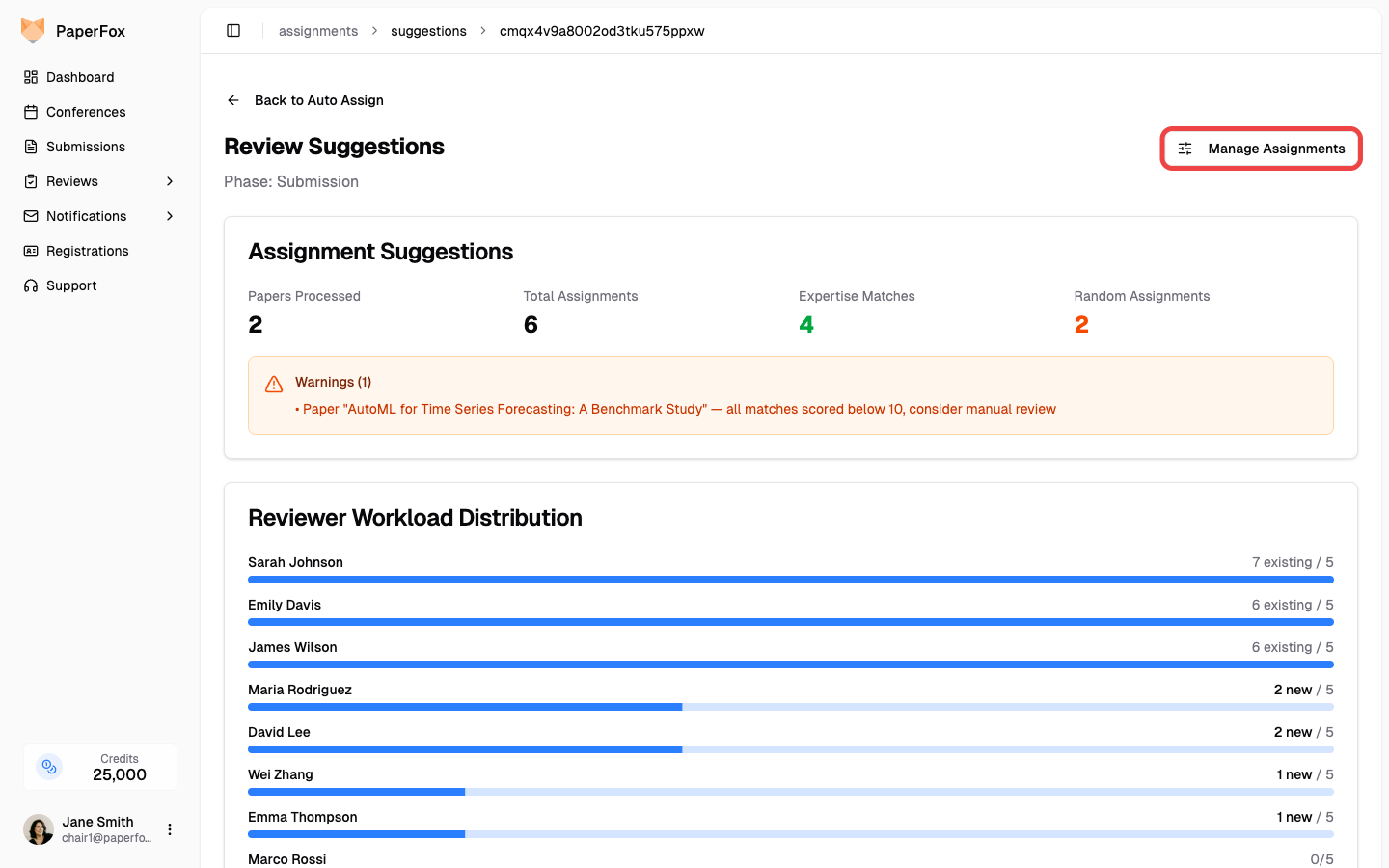
Each suggested reviewer has a checkbox — clear any you don't want, or use "Deselect All" / "Select All" to start from scratch. The Reviewer Workload Distribution chart shows how many submissions each reviewer would end up with so you can spot anyone getting overloaded before you commit.
When you're happy with the selection, click "Apply Selected". A confirmation dialog summarizes the impact — for Fill gaps, it confirms that existing assignments are preserved; for Fresh start, it shows how many unanswered invitations will be removed and how many assignments reviewers have already responded to will be kept.
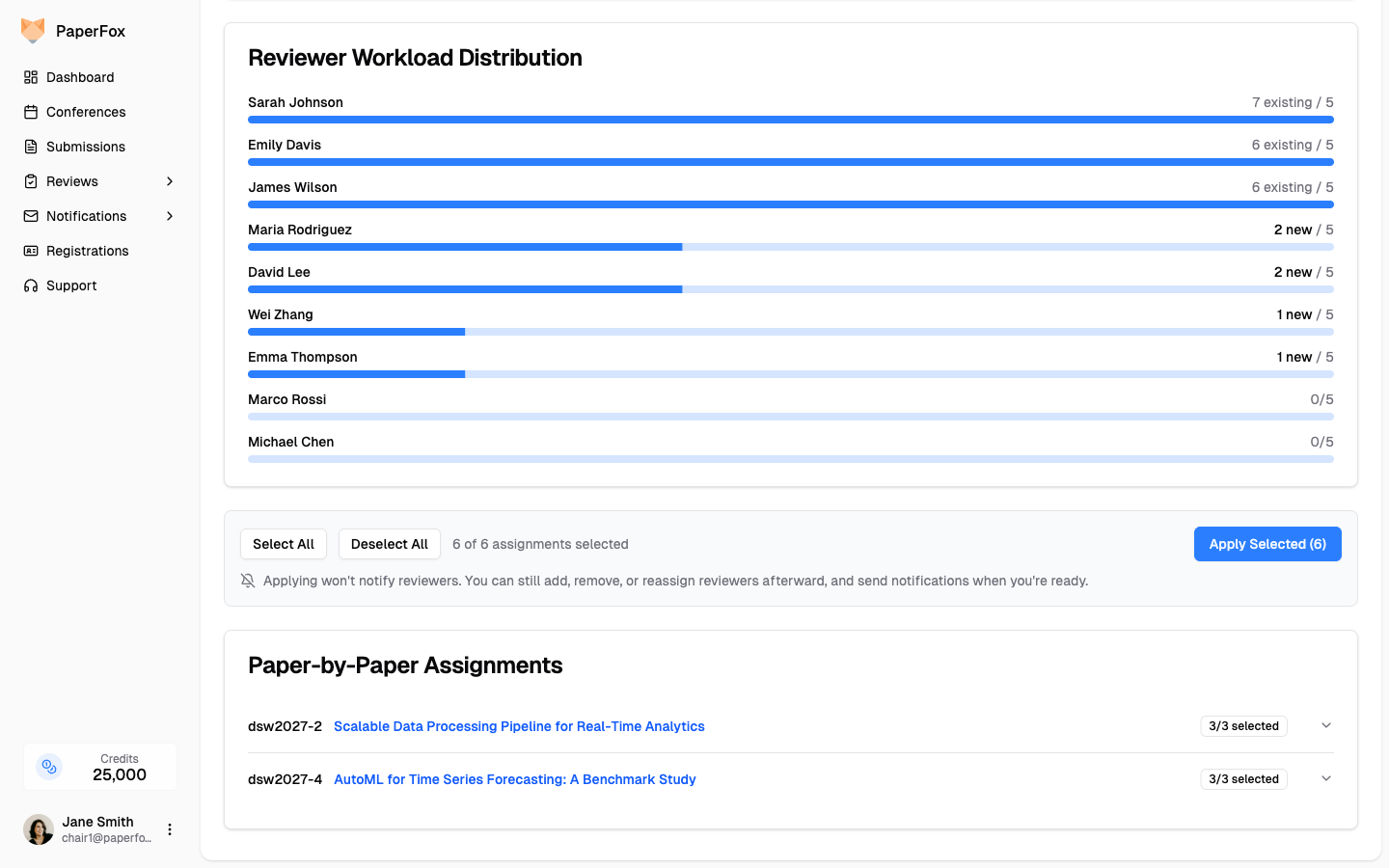
Applying keeps assignments private until you release the phase
Applying records who is assigned to each submission. Nothing reaches a reviewer until you release the phase from the banner on the assignments page — until then you can add, remove, reassign, or re-run auto-assign freely. Once a phase is released, applied assignments are visible to reviewers immediately (the confirmation dialog says which case you're in); reviewers are emailed only when you use Notify Reviewers. See Release to Reviewers, Then Notify.
Adjusting Assignments After Applying
The applied assignments aren't final. To fine-tune them by hand, click "Manage Assignments" in the top right of the suggestions page (or go to Submissions → Assignments for your track). There you can add or remove reviewers submission by submission, then release the phase to reviewers and send the notification once everything looks right.
Tips for Best Results
- Ensure reviewers have profiles — The more complete the research profiles, the better the matching quality
- Use keywords on submissions — Submissions with topic keywords get better matches than those with only titles
- Start with Text Similarity — It's free and fast, so you can iterate quickly
- Try AI Semantic for final round — When you need the highest quality matches and have credits available
- Check feasibility first — If the indicator is red, adjust your settings before generating