
Add Reviewers
Guide for track chairs to add and manage reviewers for submission evaluations
Accessing Reviewer Management
Navigate to your track's reviewer management page:
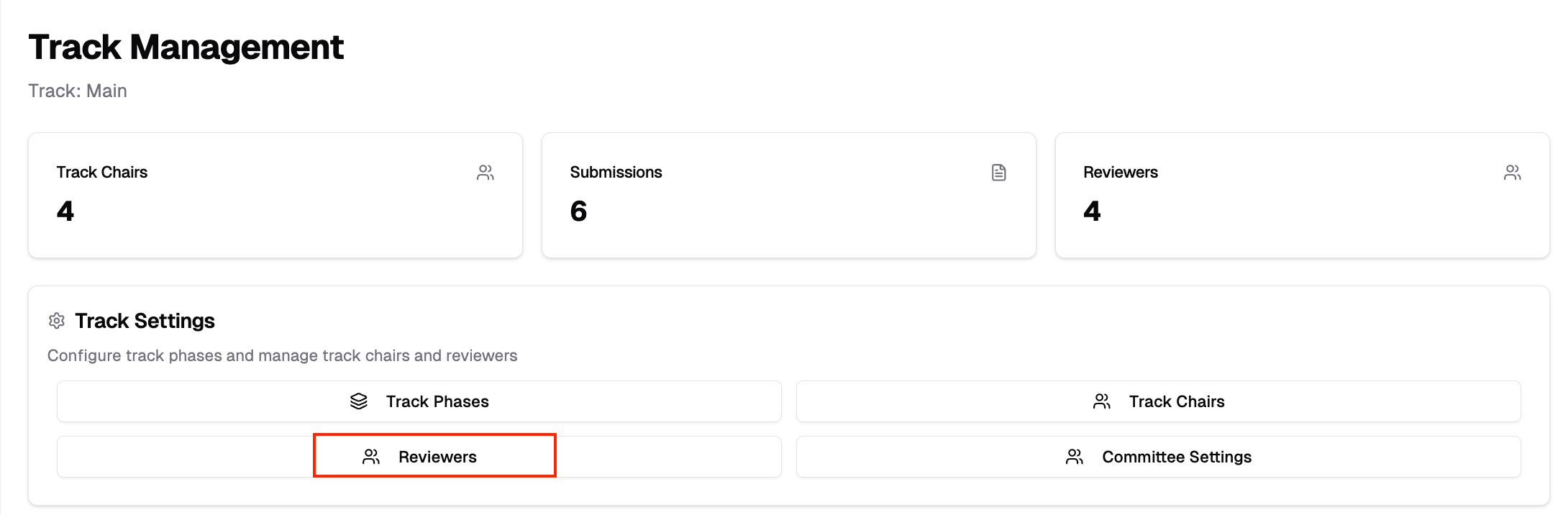
- From your Dashboard, select the conference and click "Manage Track"
- Click "Reviewers" in the track navigation menu
Direct Add vs. Invitation
By default, PaperFox adds reviewers directly — no acceptance step:
- Existing PaperFox users get reviewer access immediately. They receive a "you've been added" email with a link to remove themselves if it was a mistake.
- New email addresses show as Awaiting Account. The person receives an email asking them to create a PaperFox account, and their reviewer access activates automatically as soon as they sign up with that address and verify it (the click in the verification email is what attaches the role).
Check "Require acceptance" in any add dialog to use the classic invitation flow instead: the person receives an Accept / Decline email and only joins the track after accepting.
Every add dialog also has a "Preview Email" button that renders exactly what the current lane will send — including your chair intro and signature — before you commit. For the recipient's side of both flows, see Managing Invitations.
| Direct add (default) | Require acceptance | |
|---|---|---|
| Existing user | Active immediately | Joins after accepting |
| New email address | Awaiting Account — activates once they sign up and verify | Creates an account, then accepts |
| Best for | People who already agreed to review | Cold outreach where the answer is unknown |
A recorded decline is never overridden
If someone previously declined for this track, adding them again always sends an invitation — they are never force-added, even in direct-add mode.
Adding Reviewers
Method 1: Add Individual Reviewer
Use this to add a single reviewer:
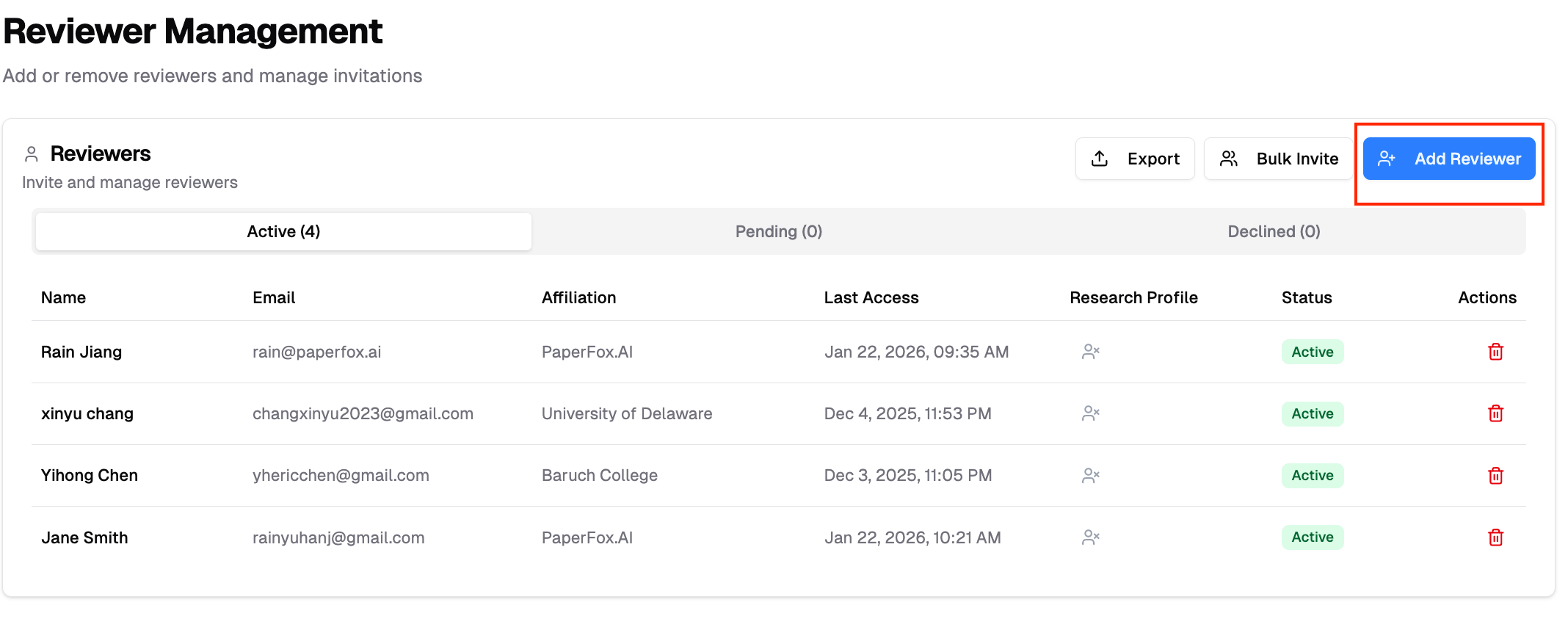
- Click "Add Reviewer", then choose "Add a reviewer" from the menu
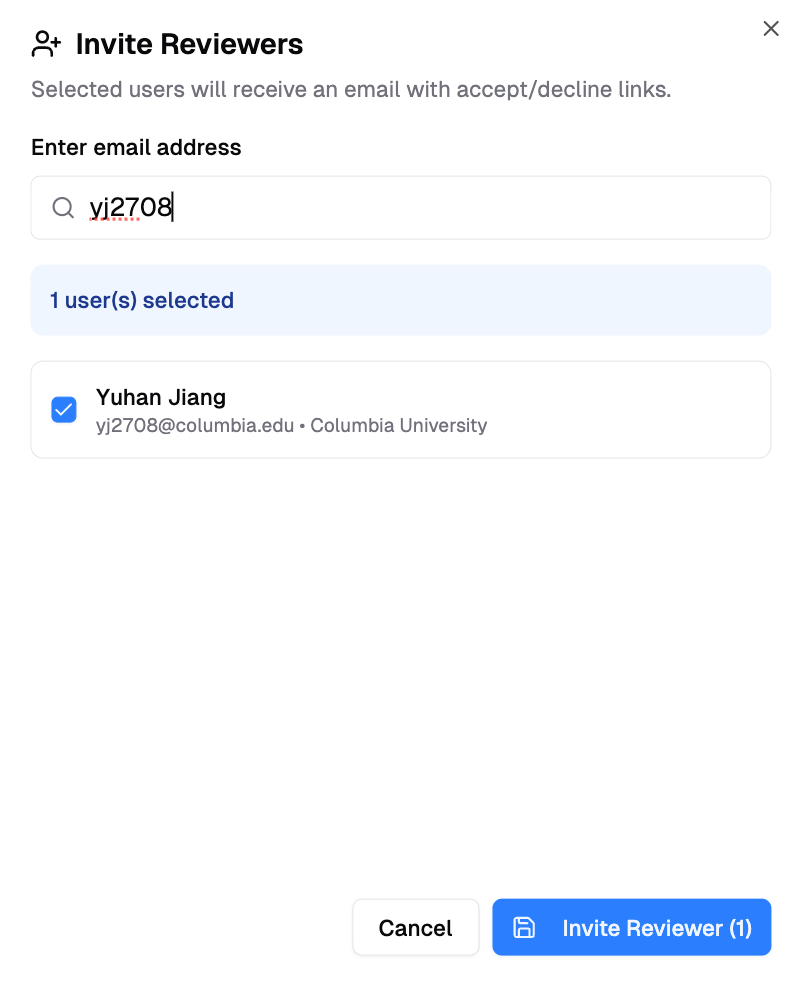
- Search by name, email, or affiliation
- For existing users: Select from search results and click "Add Reviewer"
- For new users: Enter their full email address, click "Add <email>", and fill in their name — they'll be emailed a link to create an account
Method 2: Bulk Add
For adding multiple reviewers at once:
-
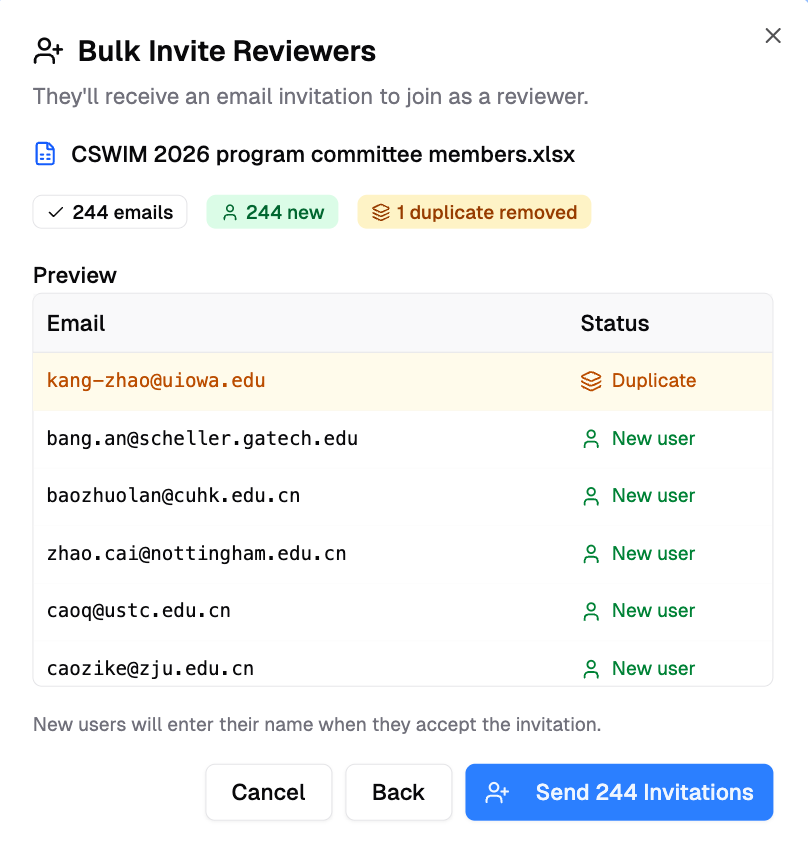
Click "Add Reviewer", then choose "Bulk add reviewers" from the menu
-
Choose your input method from the two tabs:
Upload / Manual
File Upload:
- Drag and drop a CSV or Excel file containing email addresses
- The system automatically extracts all valid email addresses from any column
Manual Entry:
- Click "or enter emails manually"
- Type or paste email addresses, one per line
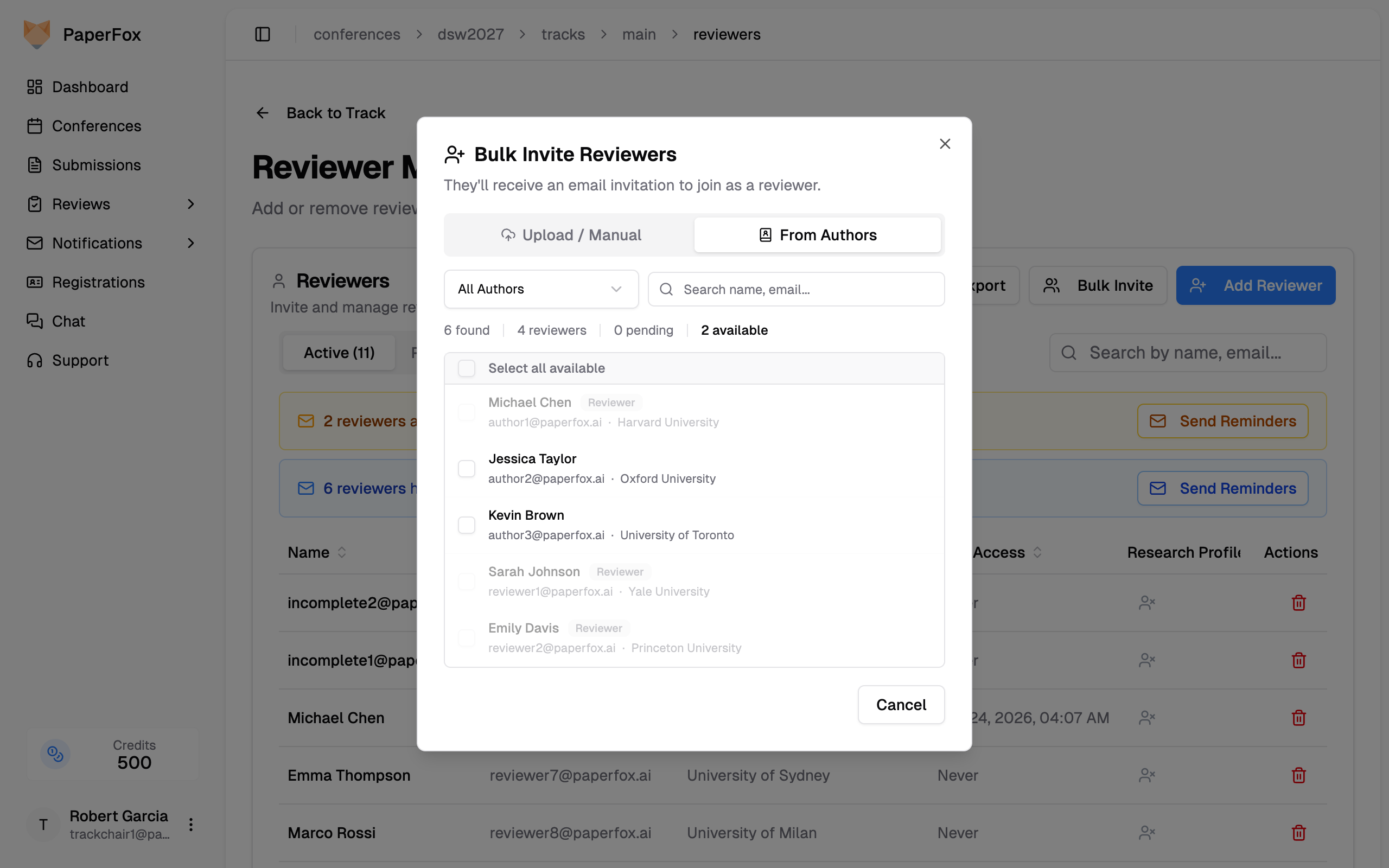
From Authors
Add submission authors directly as reviewers — useful when authors in your track have relevant expertise.
- Click the "From Authors" tab
- The system lists all authors from non-withdrawn submissions in the track, showing their name, email, and affiliation
- Use the dropdown to filter by All Authors or Corresponding Authors Only
- Use the search box to find specific authors by name, email, or affiliation
- Authors who are already reviewers or have pending invitations are shown as disabled with a badge
- Select authors using the checkboxes, or click "Select all available" to select everyone who can be added
- Click "Continue with N Authors" to proceed to the preview
Confirming
-
Review the extracted emails in the preview
-
Click "Add N Reviewers" (or "Send N Invitations" when "Require acceptance" is checked)
After the call completes, a summary reports exactly what happened: how many people were added (access active now), how many are awaiting account creation (emailed a signup link), and how many were invited (must accept). Any addresses that failed are listed right in the message.
The Reviewer List
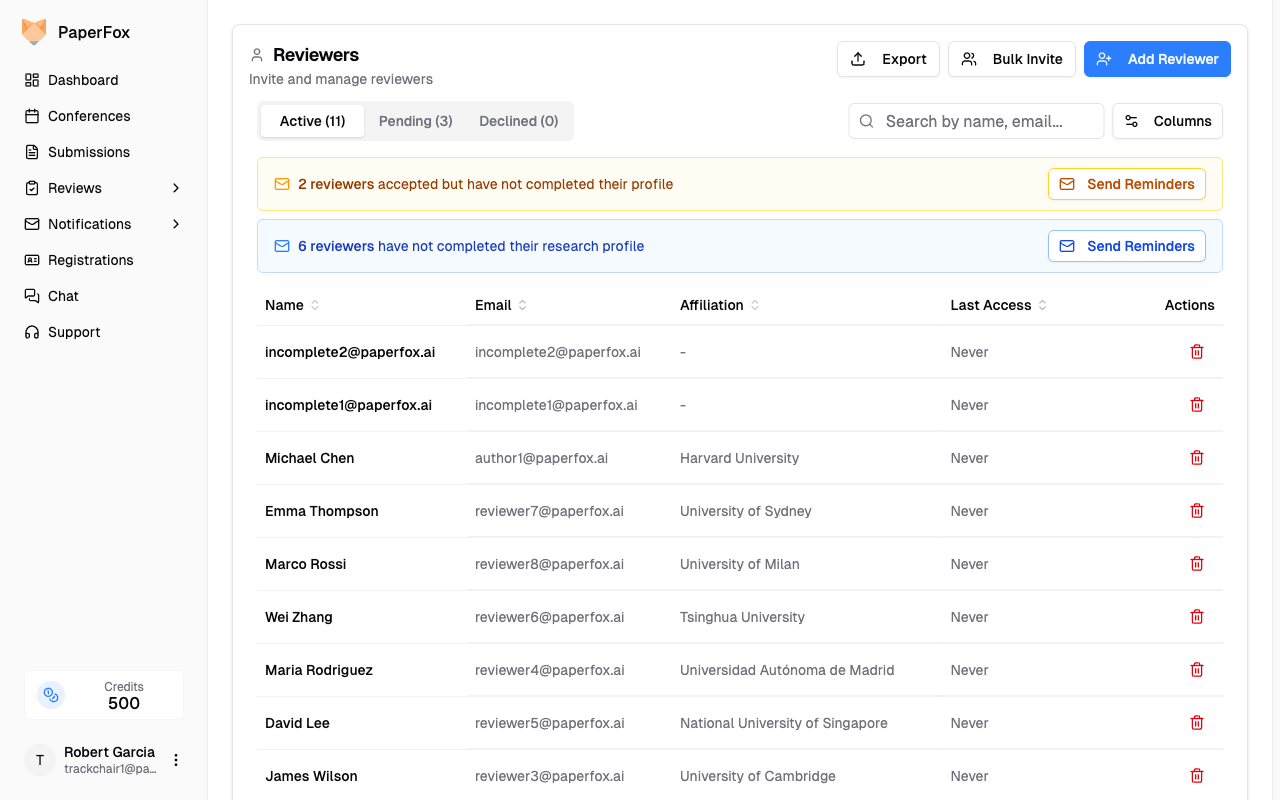
The reviewer list is organized into three tabs:
- Active — Reviewers with access to the track
- Pending — People who aren't active yet, with a chip explaining why (see below)
- Declined — People who declined or removed themselves
Reading the Pending Tab
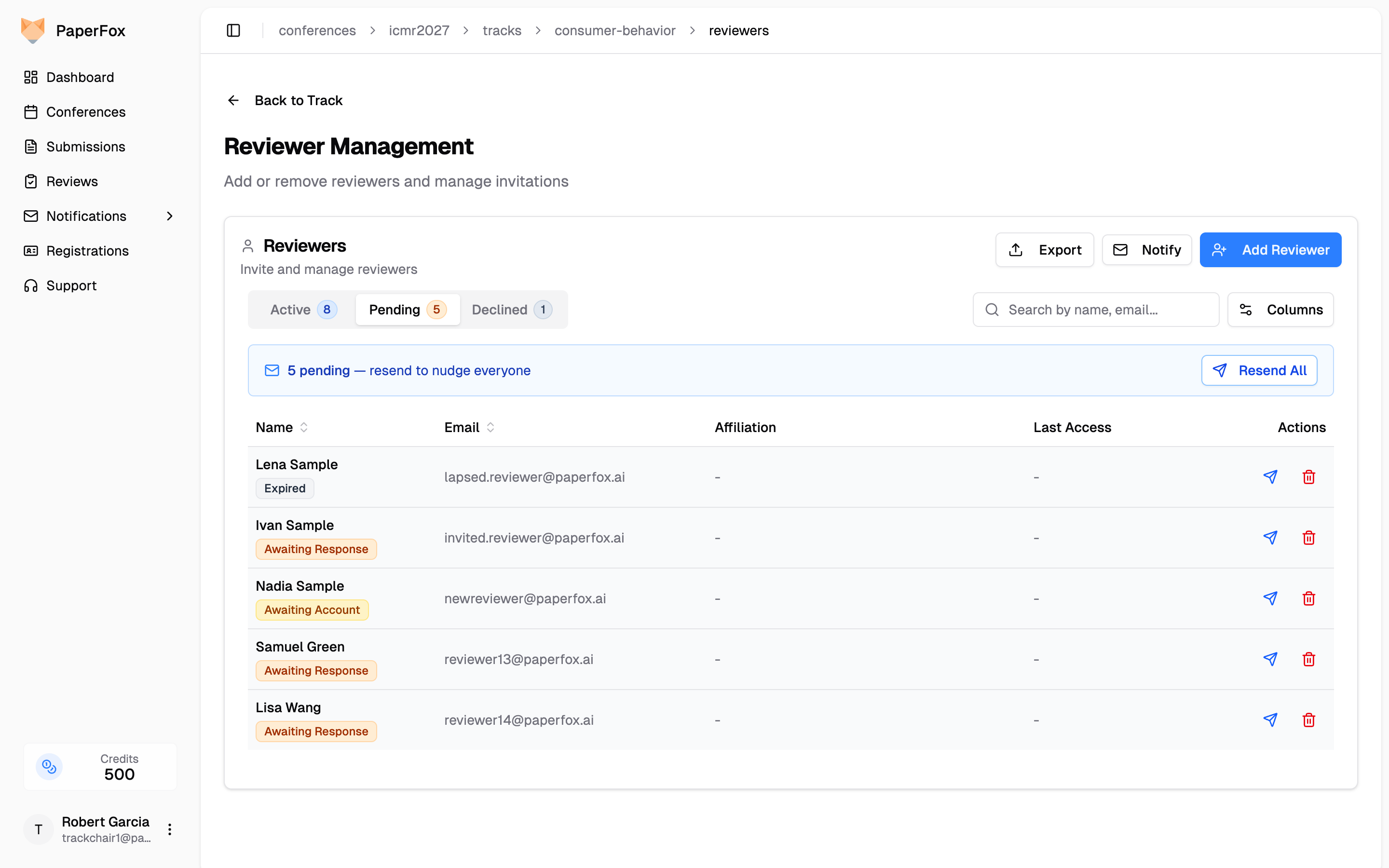
Each pending row's status chip tells you whose move it is — click a chip for a short explanation:
| Chip | Meaning | What to do |
|---|---|---|
| Awaiting Account (amber) | Direct-added, but they haven't created their PaperFox account yet. Access activates automatically once they sign up and verify the address. | Nothing — or Resend to nudge them |
| Awaiting Response (orange) | Invitation sent; they haven't accepted or declined. | Wait, or Resend |
| Expired (gray) | The invitation lapsed (30 days) and its links no longer work. | Resend to issue a fresh 30-day window |
If Postmark cannot deliver to an address (it previously hard-bounced), an inline Undeliverable badge appears next to the email — that person never received anything, so fix the address and add them again rather than waiting.
Awaiting Account reviewers can't be assigned yet
People awaiting account creation appear greyed out in the review assignment picker — they become assignable automatically once they sign up and verify.
Invitation Expiry
Invitations that require acceptance expire 30 days after they're sent, so the Pending tab can't silently accumulate stale asks across conference cycles. Resending an invitation (per-row Resend or the Resend All button) restarts the 30-day window and revives an expired one. Resend All has a one-hour cooldown after the last send to the pending list — it re-emails everyone, so back-to-back sweeps would just spam the same inboxes. Direct adds never expire — an Awaiting Account entry stays valid until the person signs up and verifies, or you cancel it.
Getting Emailed When Someone Responds
To be emailed as invitations are answered, open the track page, expand Review Settings, and switch on "Notify on Reviewer Pool Invitation Response". Every track chair is then emailed when someone accepts or declines an invitation to join the pool.
If the track has no track chairs of its own, conference chairs receive these instead — but that needs the track switch above as well as the matching setting in Settings → General. The conference setting only permits conference chairs to stand in; on its own it sends nothing.
This is about joining the pool, not about a paper
This setting covers invitations to become a reviewer at all. It says nothing about a reviewer accepting or declining a specific assigned submission — that is a separate setting, Notify on Review Assignment Response, described in Assign Reviewers.
Customizing Columns
The Active tab shows Name, Email, Affiliation, Last Access, and Actions by default. Three additional columns can be toggled on via the Columns dropdown next to the Search input:
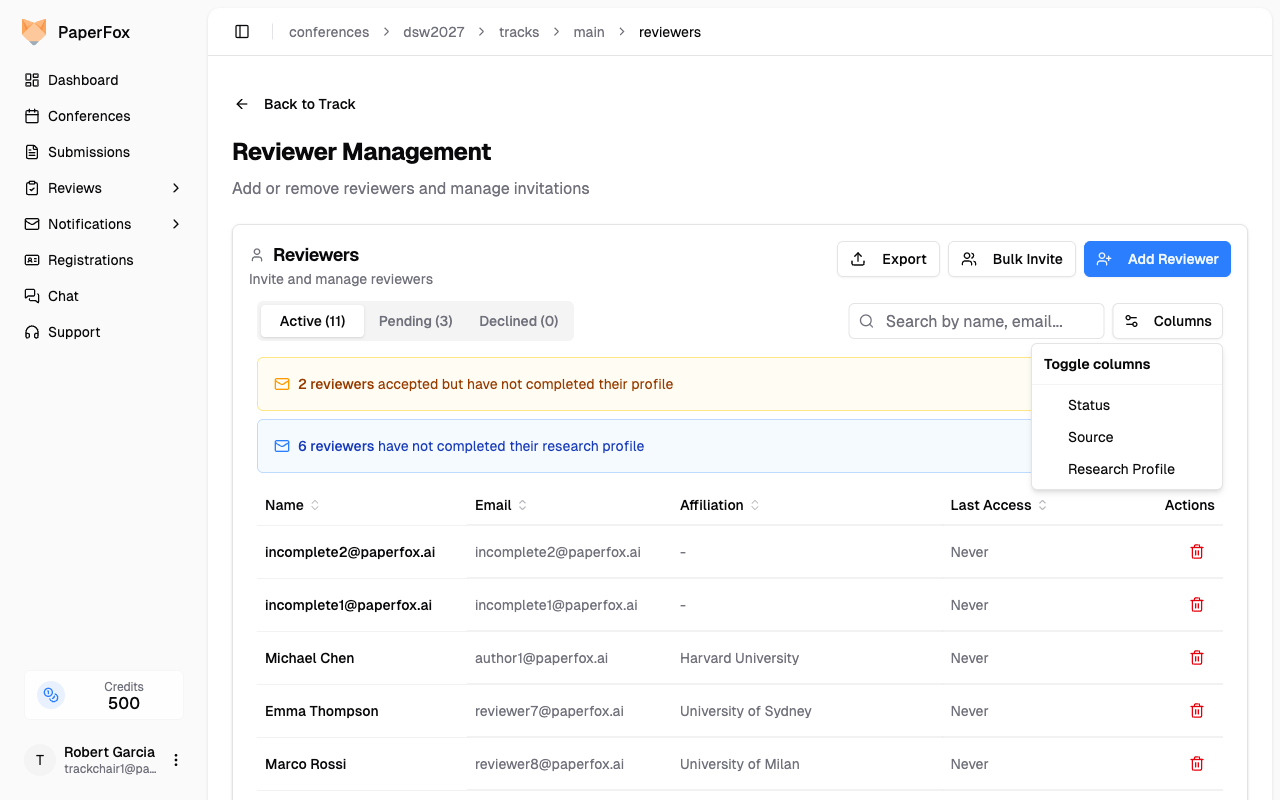
- Status — Shows Active (green) when a reviewer's profile is complete, or Incomplete Profile (amber) when they've joined but haven't logged in to fill out their name, affiliation, and other profile fields. Reviewers with incomplete profiles cannot be assigned submissions. The amber notification banner at the top of the Active tab surfaces this same information.
- Source — Shows how each reviewer was added to the track (see next section)
- Research Profile — Shows whether each reviewer has completed their AI-discovered research profile (see Research Profiles & Submission Matching)
Your column choices are remembered per role (reviewers, associate editors, senior editors), so each list keeps its own preferences across sessions.
Reviewer Source
When the Source column is enabled, it shows how each reviewer was added to the track — useful for auditing your reviewer pool and distinguishing delegated sub-reviewers from your core committee.
| Source | When it applies |
|---|---|
| Committee | Added directly by a track or conference chair via Add Reviewer or the Upload / Manual bulk-add flow. This is the default for most reviewers. |
| Author | Added through the From Authors tab in Bulk Add — these reviewers are submission authors from your track who were promoted into the reviewer pool. |
| Delegation | Added as a sub-reviewer when an assigned reviewer delegated one of their submissions. Only appears when the track has sub-reviewers enabled. |
Click the Source column header to sort reviewers by source. You can also export the full reviewer list (including Source) as CSV or JSON via the Export button.
Managing Reviewers & Invitations
Each row in the reviewer list has an action button in the Actions column. Available actions depend on the tab:
| Tab | Action | What it does |
|---|---|---|
| Active | Remove | Removes the reviewer from the track (revokes their access) |
| Pending | Resend | Sends the email again (and restarts the 30-day expiry for invitations) |
| Pending | Cancel | Withdraws the pending entry |
| Declined | Re-invite | Sends a new invitation after a prior decline — this always requires acceptance |
Reviewers can also remove themselves: the "you've been added" email carries an opt-out link, which works as long as they have no assigned work. Self-removals appear in the Declined tab.
Removing Active Reviewers
When you click Remove on an active reviewer, what happens depends on their review activity:
| Review Activity | Can Remove? | What Happens |
|---|---|---|
| No assignments or reviews | Yes | Removed immediately |
| Only Invited or Accepted assignments (no started reviews) | Yes | A warning dialog lists the assignments that will be deleted — click "Remove Anyway" |
| Any started or submitted review | No | Blocked — started and submitted reviews are part of the permanent record and cannot be deleted |
Reviews are permanent
A reviewer who has started or submitted any review cannot be removed. To stop them from doing further work, cancel their pending assignments individually from the assignment list. See Remove Reviewers for the full flow.
Research Profiles & Submission Matching
When a reviewer joins your track, PaperFox automatically runs AI Profile Discovery — it searches the web for their publications and extracts expertise keywords. These keywords are used by Auto Assign Reviewers to match reviewers with relevant submissions.
Each reviewer's profile combines three types of keywords:
- System Keywords — Auto-extracted from submissions they've submitted in PaperFox
- AI-Discovered Tags — Found via web search of their recent publications
- User Expertise Tags — Added manually by the reviewer
Encourage reviewers to verify
After AI discovery runs, reviewers receive an email asking them to verify their profile. Remind reviewers to review their keywords and add any missing expertise areas — better profiles lead to better submission-reviewer matches.
Checking Profile Status
Enable the Research Profile column via the Columns dropdown (see Customizing Columns) to see whether each reviewer has completed their profile.
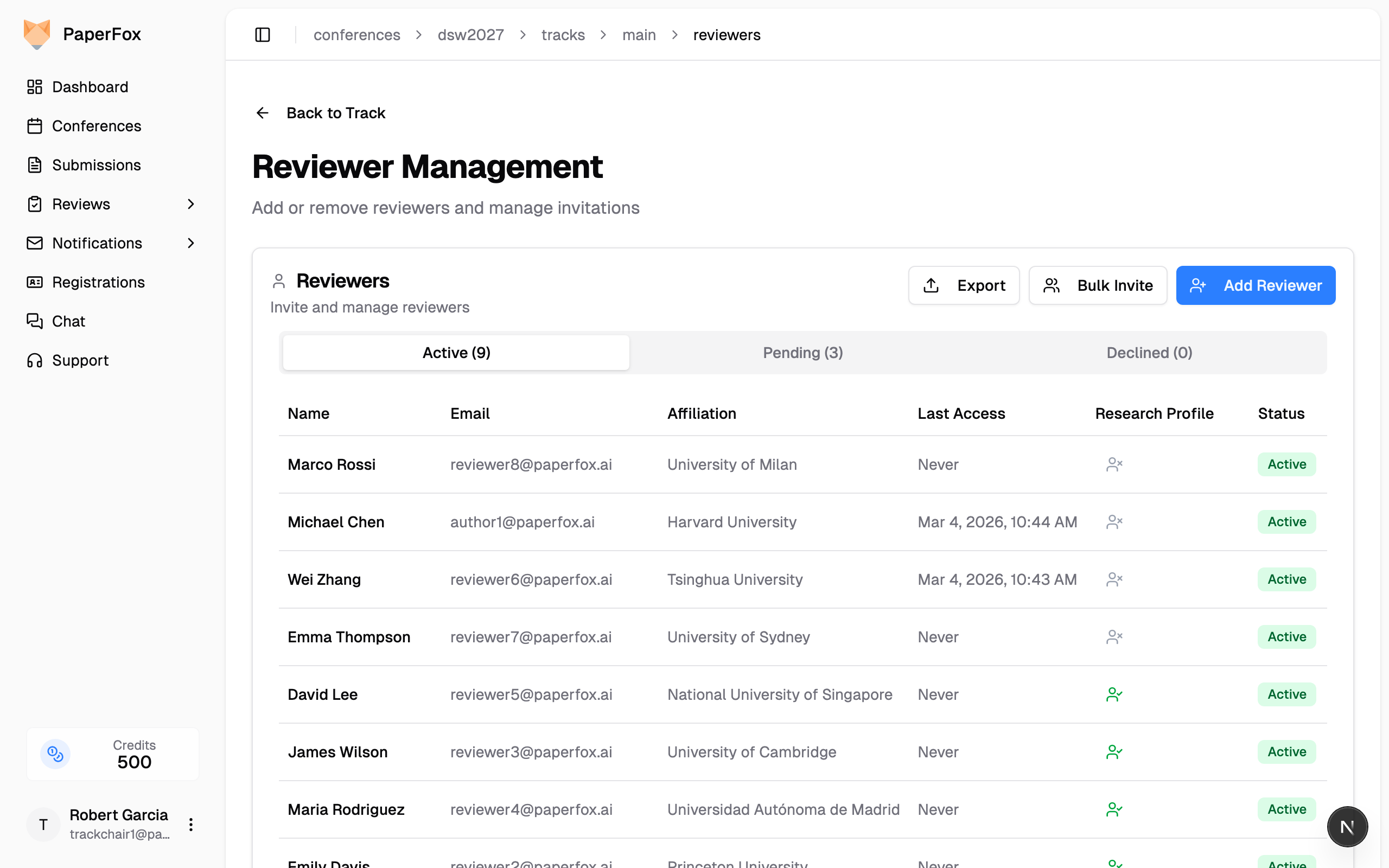
Profile icons indicate:
- Green check — Reviewer has a complete profile with expertise tags
- Gray icon — Reviewer hasn't completed their profile yet
Click the profile icon to view details or send a reminder.
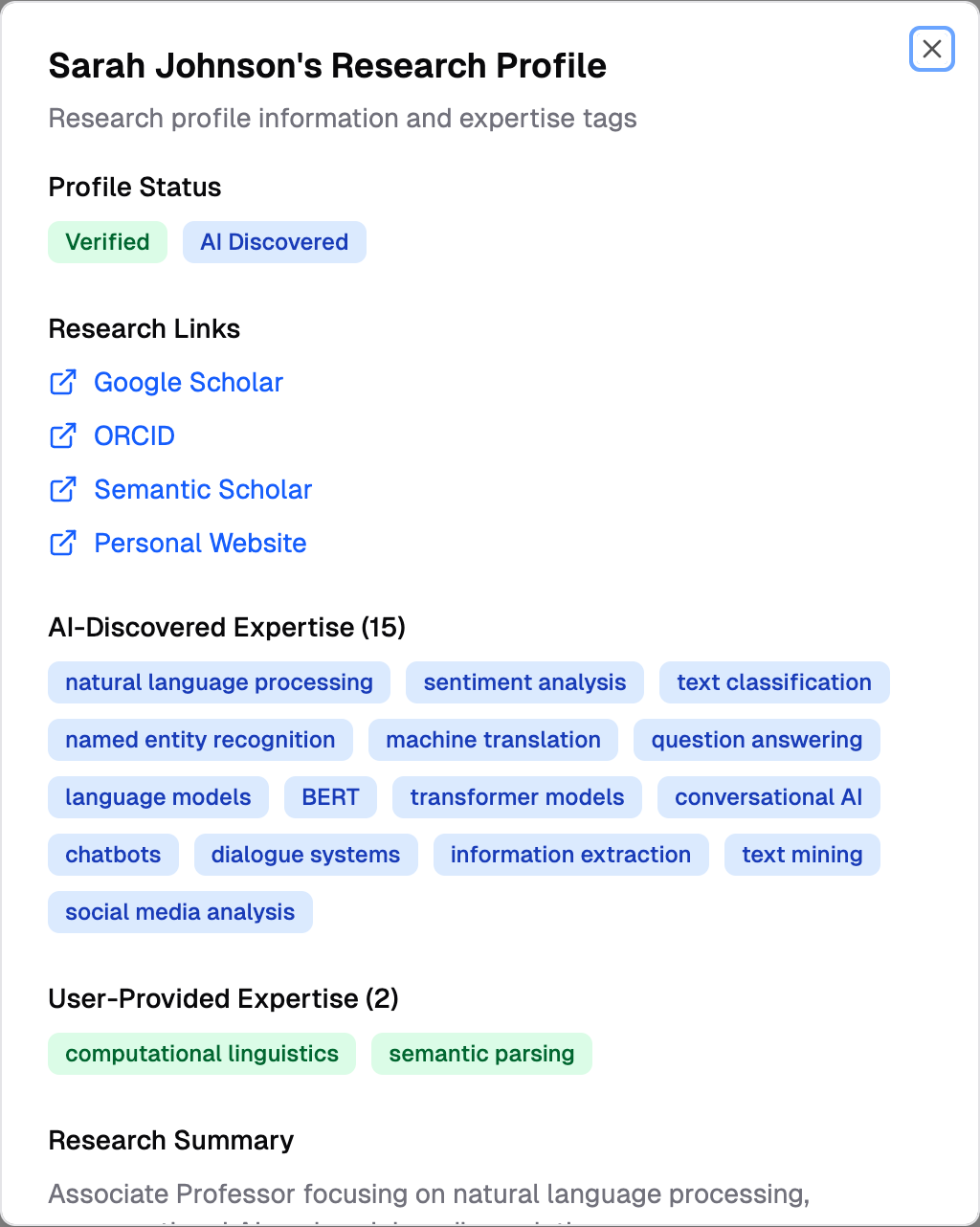
Viewing Reviewer Profiles
Click a reviewer's profile icon to see their expertise tags, research links, and publications summary.
Sending Profile Reminders
When reviewers have incomplete profiles or missing research profiles, notification banners appear at the top of the Active tab:
- Amber banner — Shows the count of reviewers with incomplete basic profiles (haven't logged in to set their name/affiliation). Click "Send Reminders" to open the notification composer with the Complete Profile Reminder template pre-selected.
- Blue banner — Shows the count of reviewers without research profiles. Click "Send Reminders" to open the notification composer with the Research Profile Reminder template pre-selected.
Both buttons open the notification composer where you can preview and customize the email before sending.
You can also send individual reminders by clicking a reviewer's profile icon:
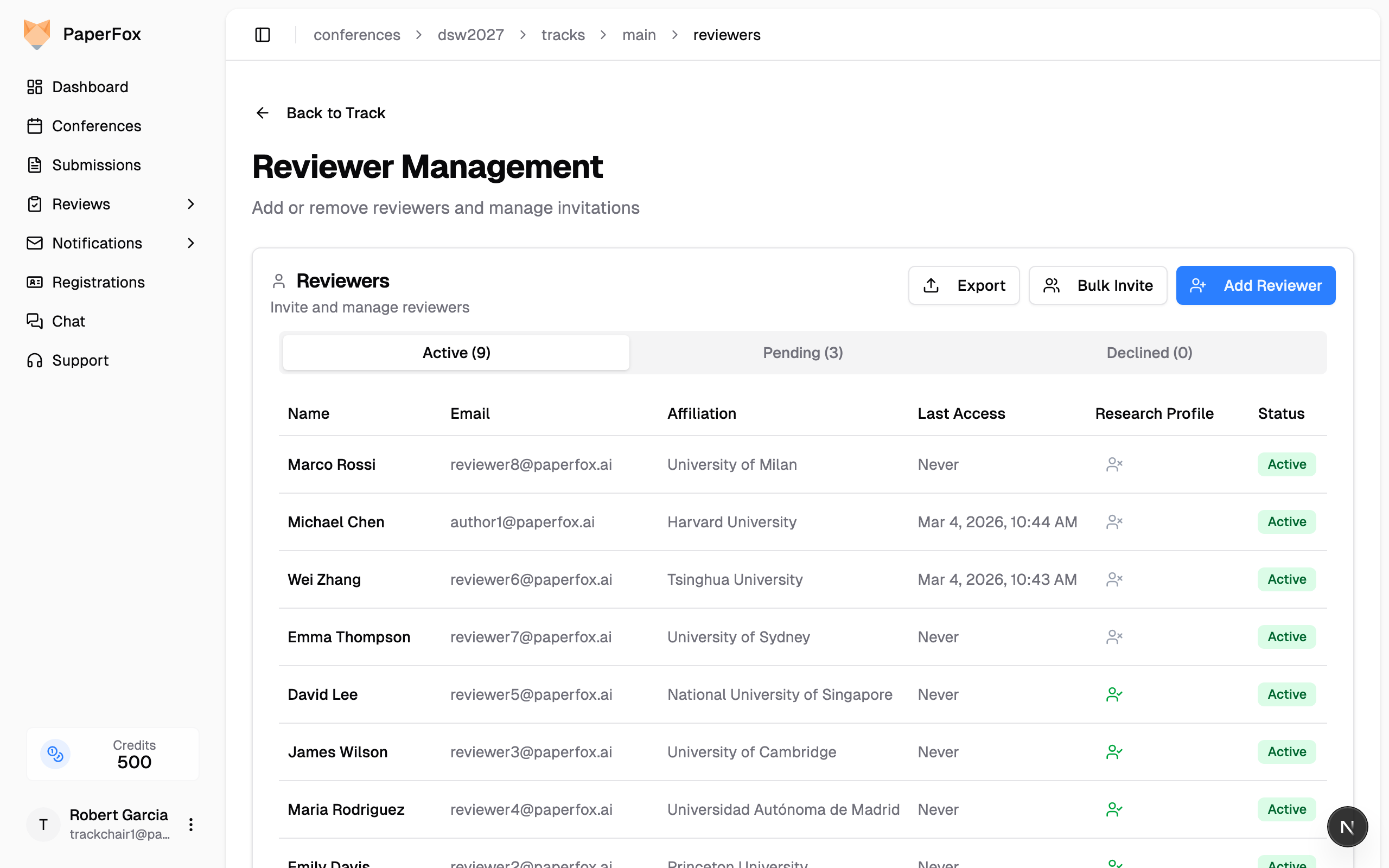
- Remind This Reviewer — Send an email to just this reviewer
- Remind All — Send emails to all reviewers without profiles
Customizing the Emails
Both the invitation email (Accept / Decline buttons) and the direct-add notice ("you've been added" / "create your account") open with a system body explaining the role. Conference chairs can add a personal intro (after the greeting) and signature (before the buttons) so the emails read in their voice rather than as a generic system notice. Each track can override the conference default with its own intro and signature.
See Customize Committee Emails for the conference-level default and the per-track override, plus a breakdown of which parts of these emails are yours to edit and which are fixed.
Renaming the Reviewer Role
If your committee doesn't use the word "Reviewer", rename it — the invitation follows the new label. A track that calls them Program Committee Members sends [ICMR2027] Program Committee Member Invitation, and the body reads "You have been invited to be a Program Committee Member for …".
- Go to your track's management page, then click "Committee Settings"
- Either pick a Terminology Preset to rename the whole committee at once, or set the Reviewer label under Custom Role Names
The new name follows through the chair-facing surfaces too — the reviewer list, the Associate Editor and Senior Editor pages, and the recipient tabs in the notification composer. Names are per track, so tracks in the same conference can use different terminology.