
Set Up Program Chat
Enable, sync, and manage AI-powered chat for your conference program
Chat with Program
Enable AI-powered chat for your conference program to help attendees quickly find sessions, speakers, and schedule information.
1. Prerequisites
- Your conference program must be published
- At least one program day with sessions must be created
- You must be a conference chair with program builder permissions
2. Enable and Sync Program Chat
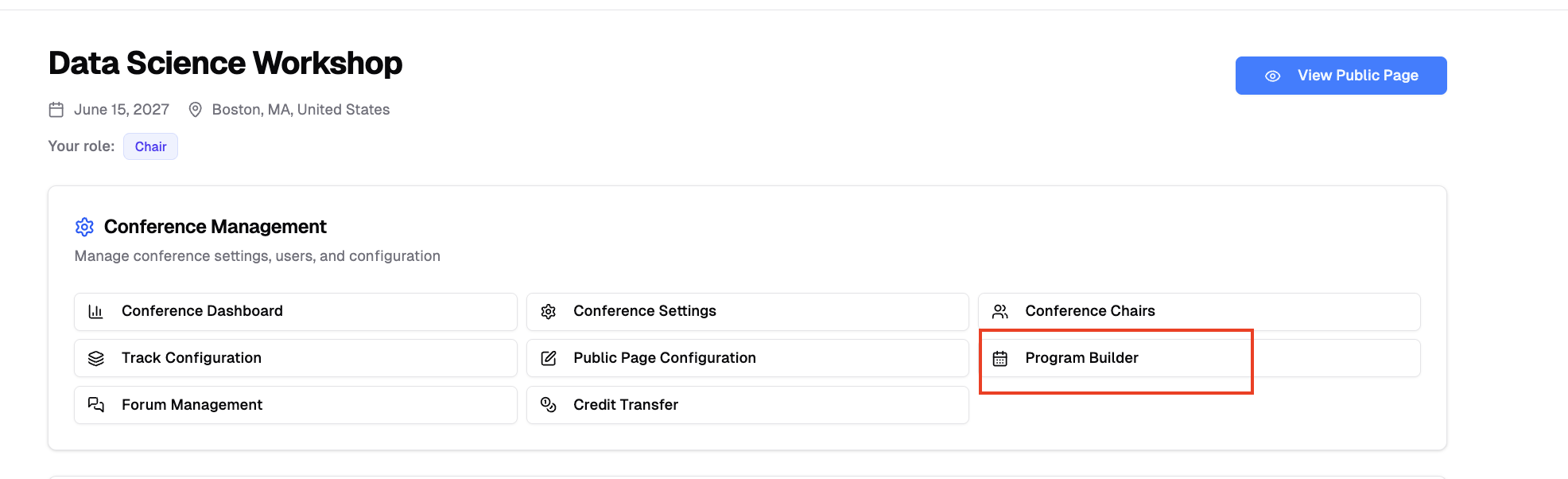
- Navigate to your conference dashboard Program Builder
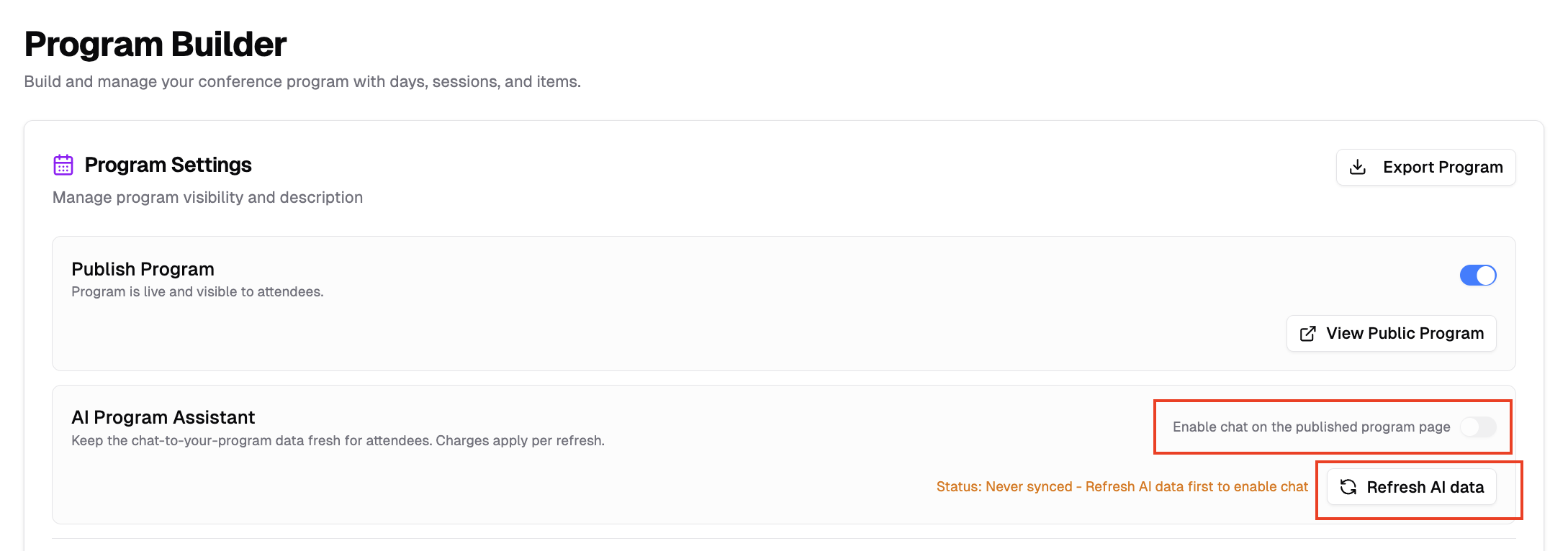
- Publishing your program runs the first AI data sync automatically — or click "Refresh AI Data" to run it manually
- Toggle "Enable Program Chat" to ON
- Wait for the background sync to complete
The system processes your program schedule, sessions, speakers, and locations. This may take a few minutes depending on program size.
3. Chat Button on Program Page
Once enabled, the chat button will appear on your public program page:
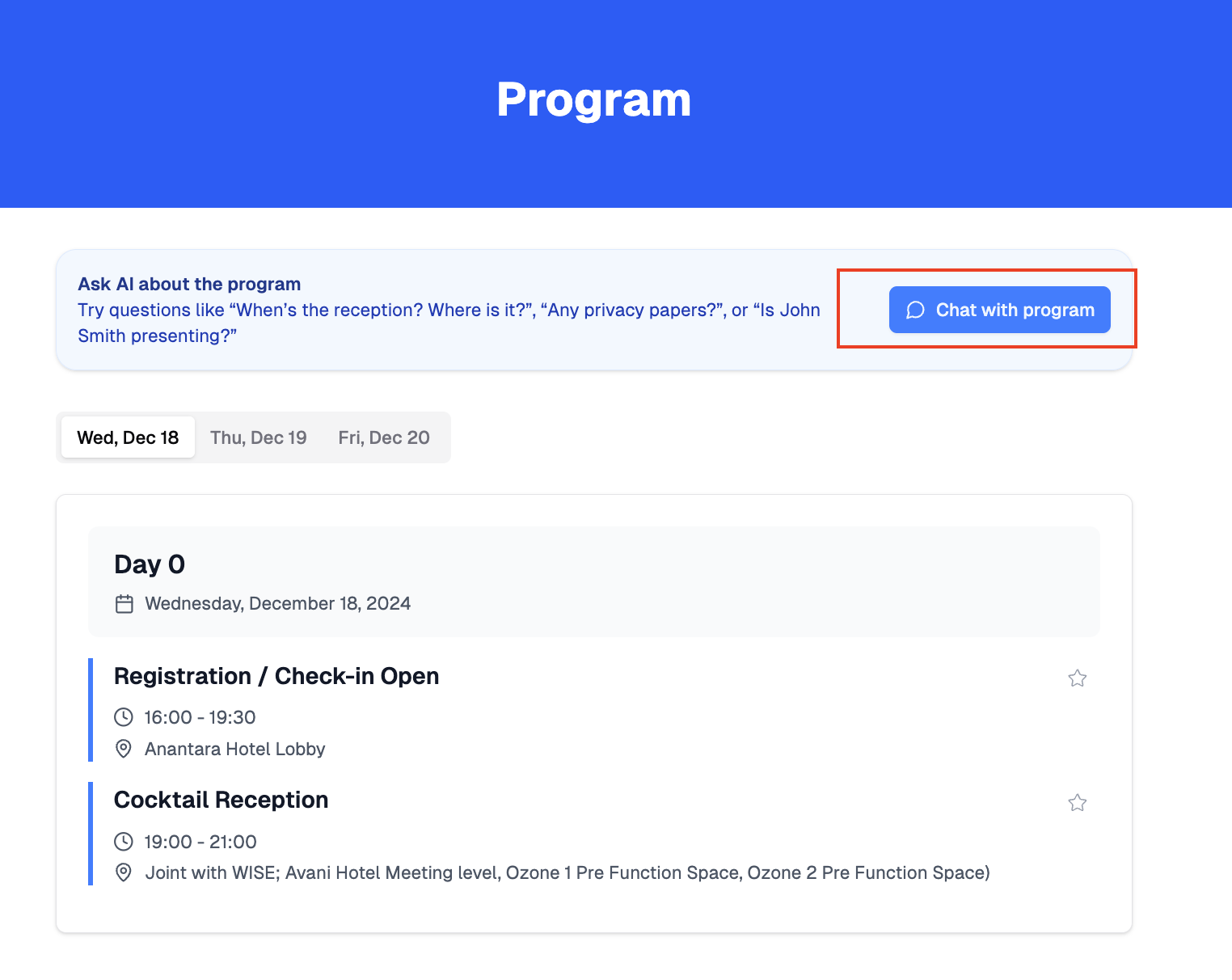
Attendees can now use the AI assistant to explore your program.
4. How Attendees Use Chat
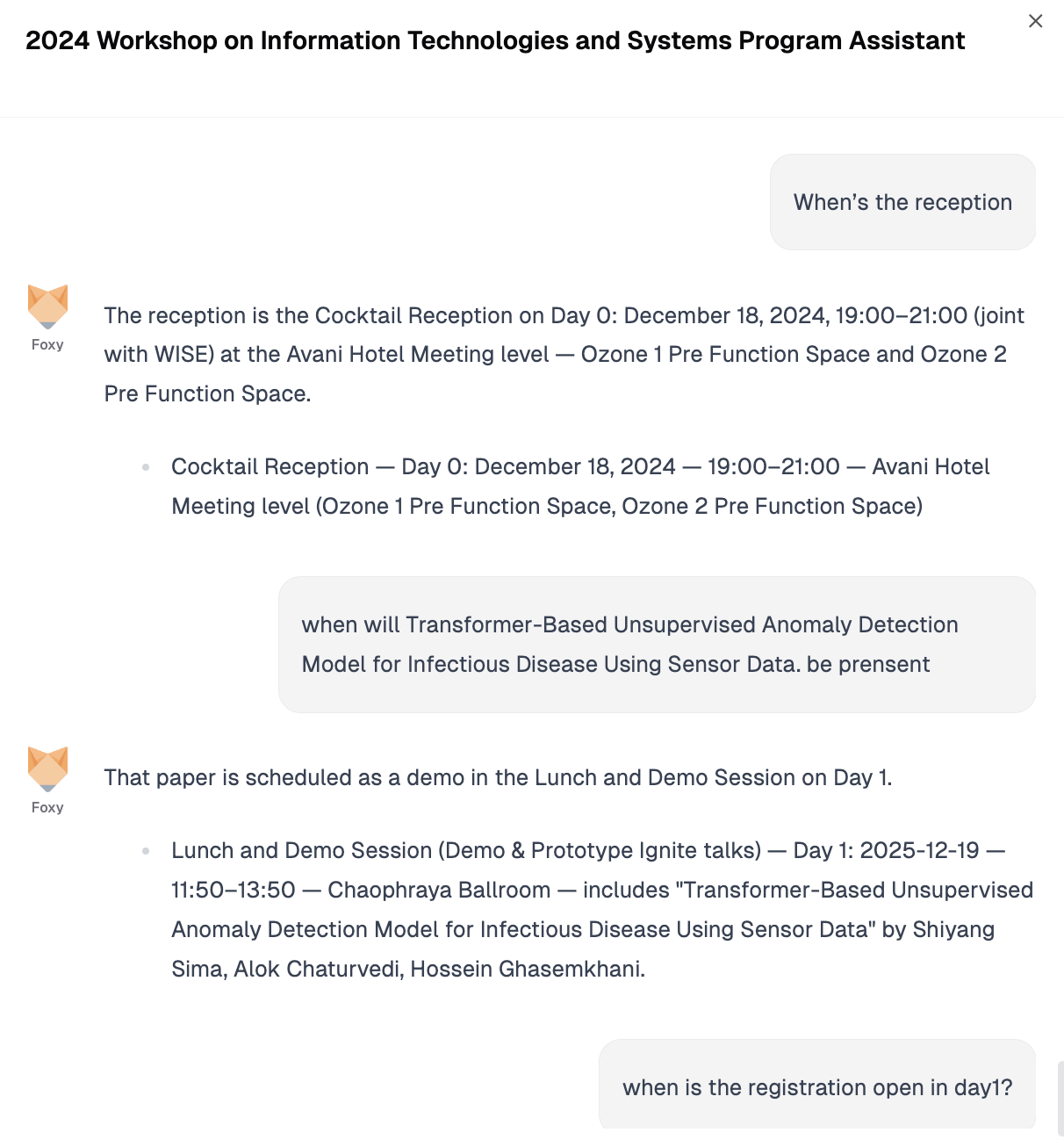
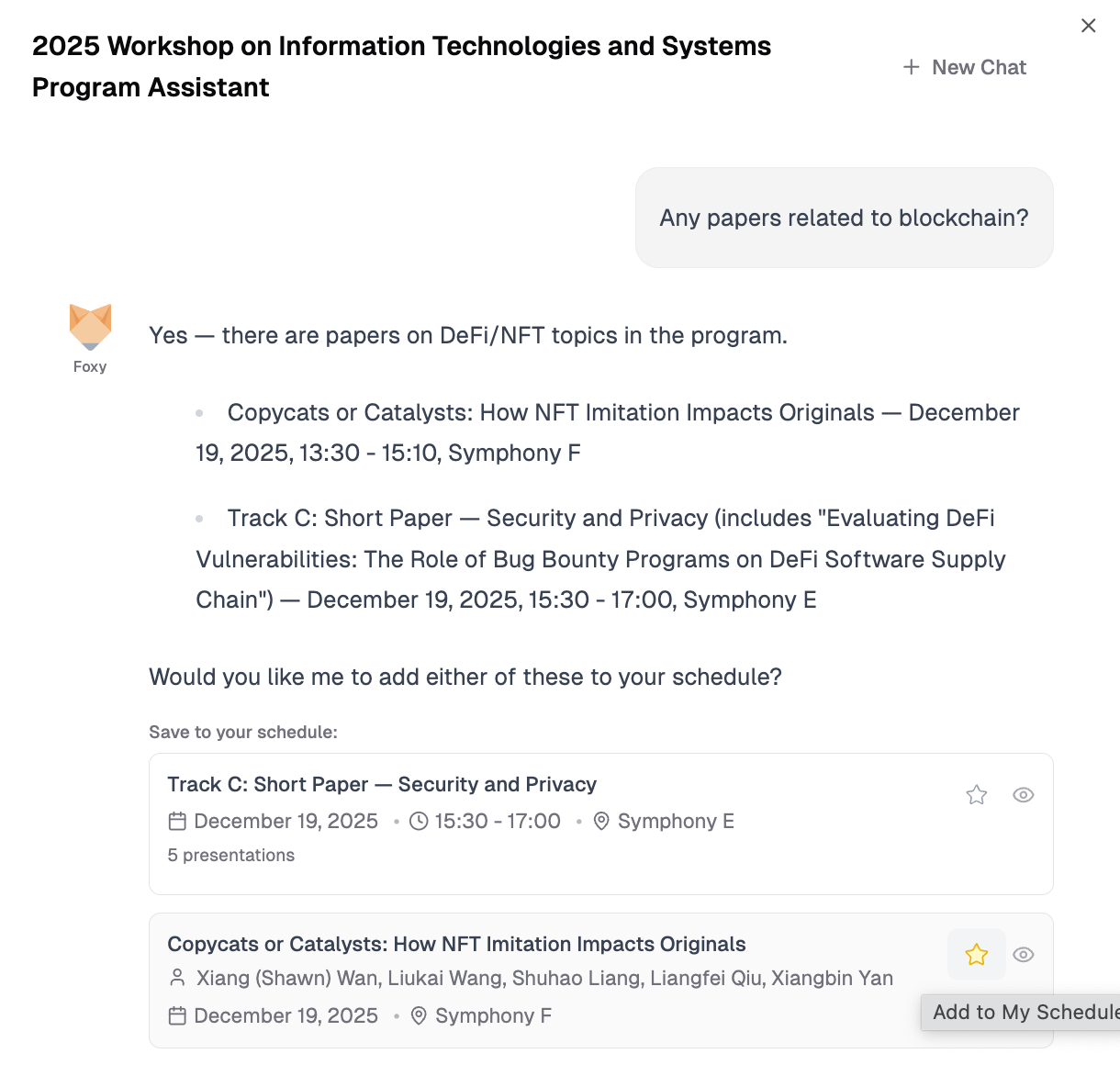
Attendees can ask the AI assistant about sessions, speakers, topics, schedule, and logistics.
Here is an example:
5. Add Items to Favorites via Chat
Attendees can add sessions or program items to their favorites directly through the chat interface:
- Ask the AI assistant about specific sessions, speakers, or topics
- Click "Add to Favorite" button that appears with relevant results
- The item will be saved to their personal favorites list for quick access
Favorited items will appear in the attendee's personalized schedule view:
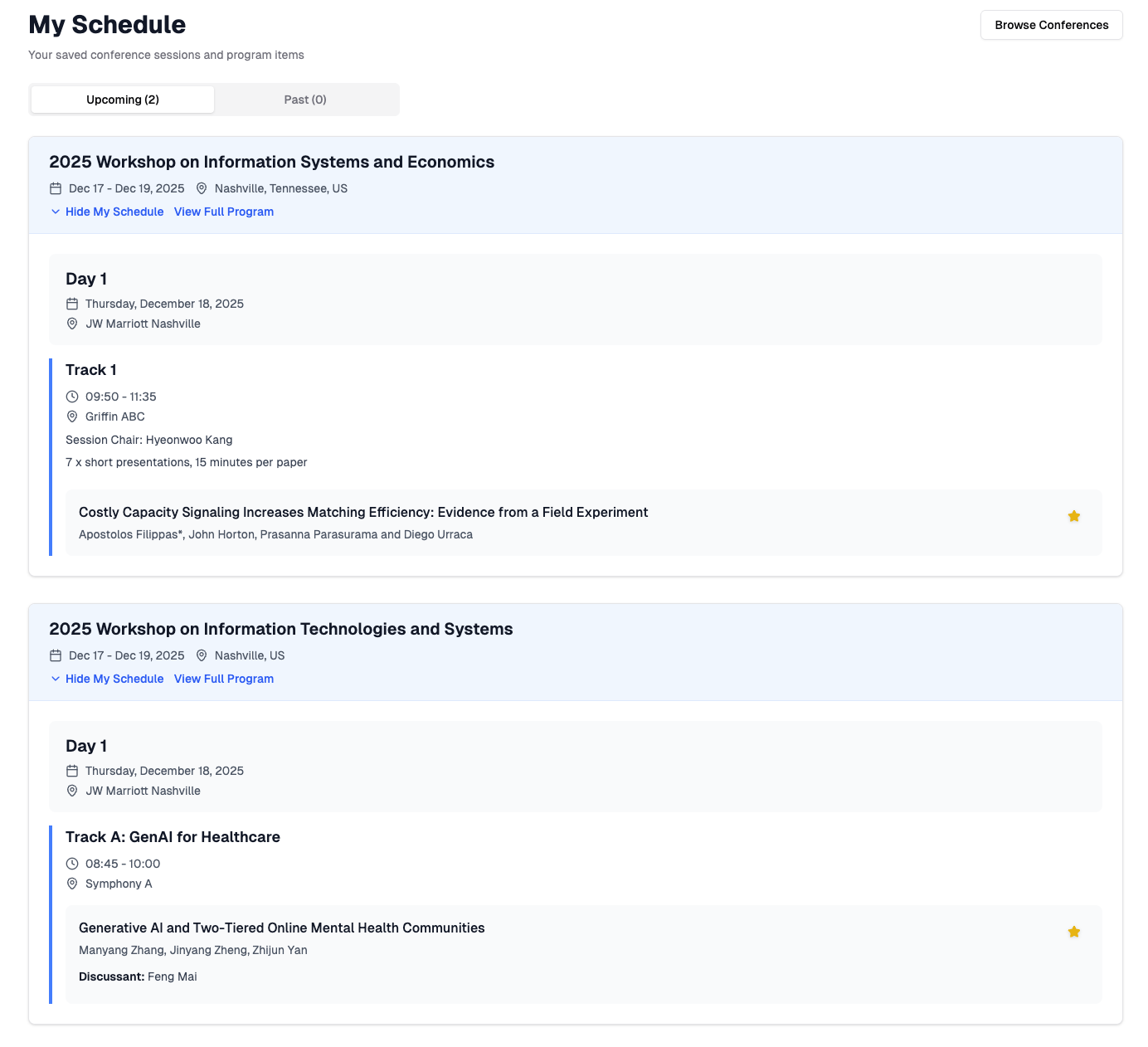
This feature helps attendees build their personalized conference schedule while exploring the program.
6. Updating Program Data
While your program is published and chat is enabled, any change to it — editing in the Program Builder, importing, or editing through MCP chat — automatically re-syncs the AI data in the background. No manual step is needed.
You can still click "Refresh AI Data" at any time to force an immediate re-sync. The chat feature remains enabled during updates.