
Forum Management
Enable and manage discussion forums for your conference
Conference forums provide a space for attendees to discuss topics, ask questions, and engage with the community. As a conference chair, you can enable forums and assign moderators to help manage discussions.
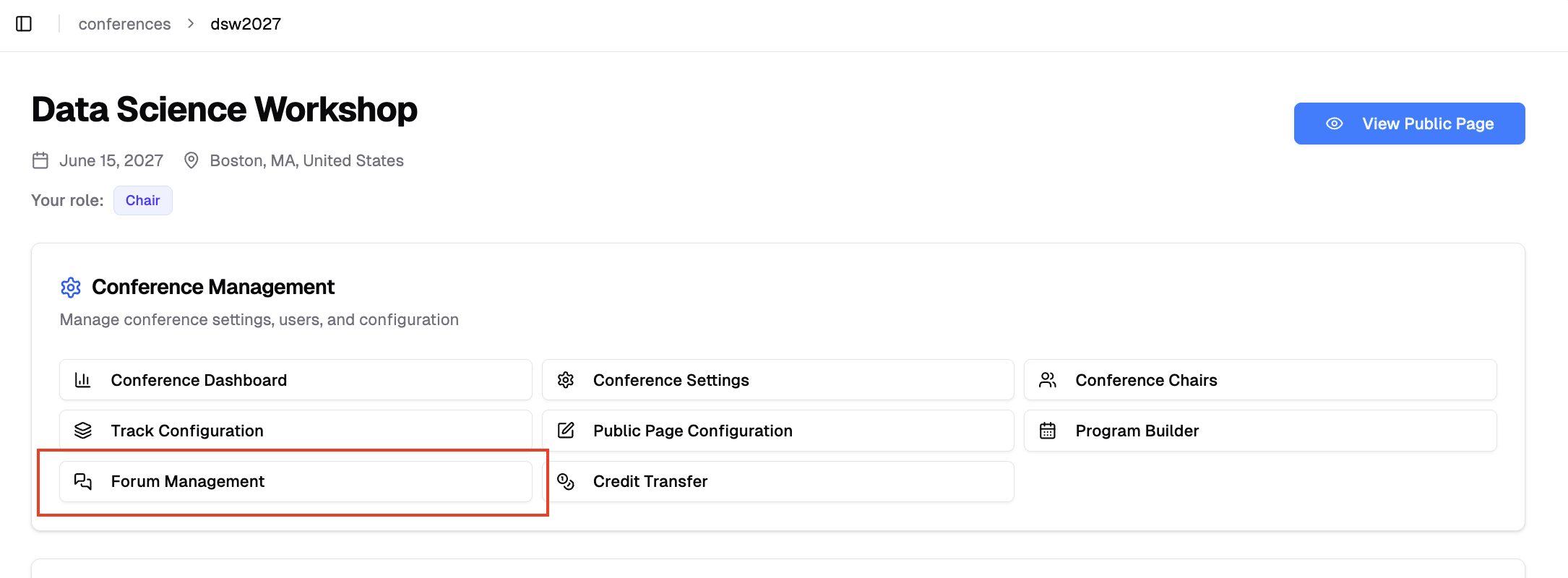
Accessing Forum Management
- Log in to your PaperFox account
- Go to your conference dashboard
- Click "Forum Management" in the Conference Management section
Enable or Disable Forum
You can enable or disable the forum at any time:
- Navigate to Forum Management page
- Toggle "Enable Forum" switch
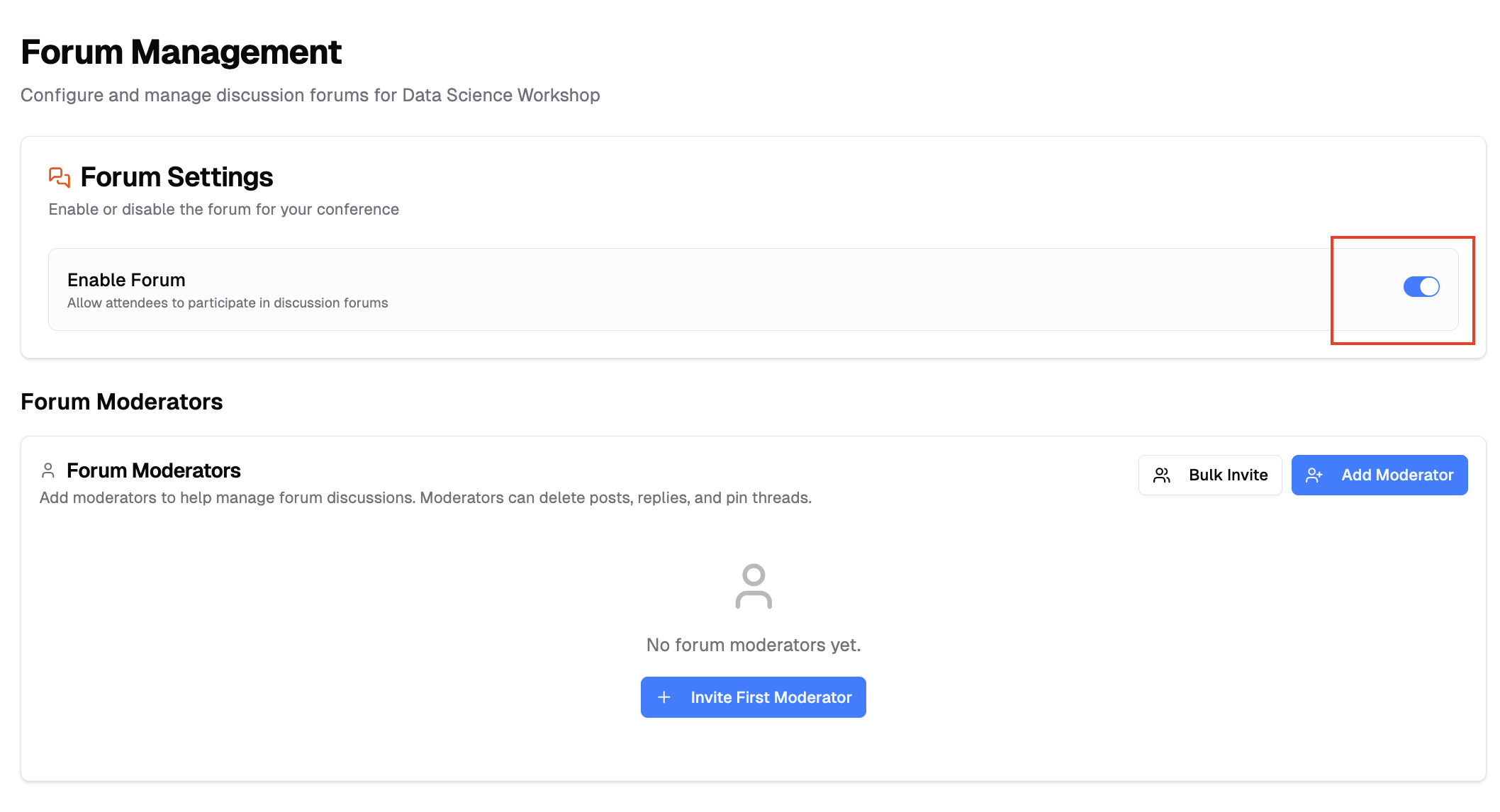
When enabled: The forum becomes immediately accessible to attendees
When disabled: The forum is hidden from attendees and no new posts can be created
Accessing the Forum
Once enabled, the forum appears on your conference public website. Attendees can access it by clicking the "Forum" tab in the navigation menu.

Managing Forum Moderators
Conference chairs and creators automatically have moderator permissions. You can add additional moderators to help manage discussions.
Adding Moderators
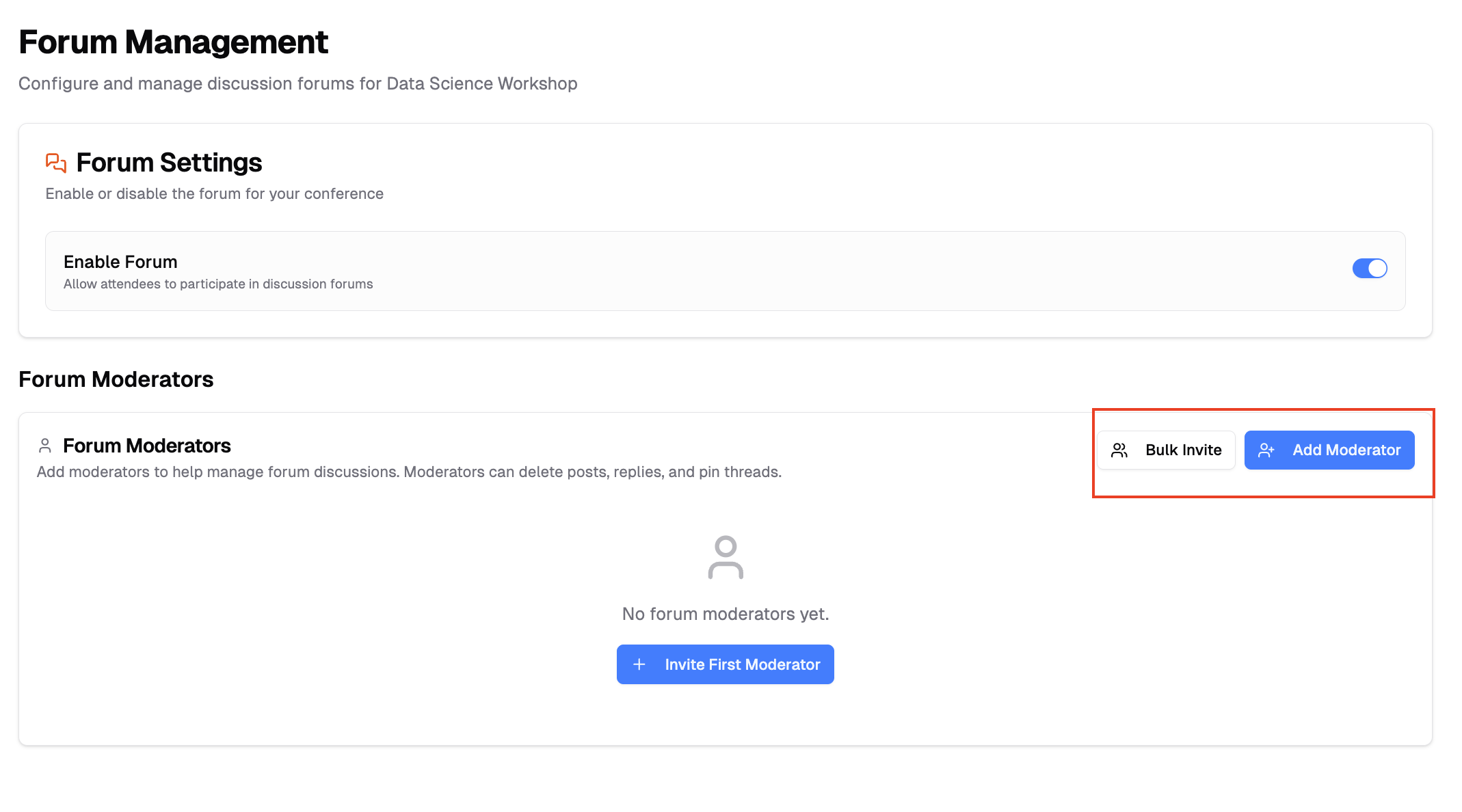
Method 1: Add One Person
- Click "Add Moderator", then "Add a moderator"
- Search for the person by name or email — or type a new email address to invite someone without a PaperFox account
- Select them and click "Add"
By default, "Require acceptance" is checked, so the person receives an invitation and becomes a moderator after accepting. Uncheck it to grant moderator access immediately (they get a notice email with a self-removal link). Click "Preview Email" next to the checkbox to see exactly what the current choice will send.
Method 2: Bulk Add
- Click "Add Moderator", then "Bulk add forum moderators"
- Enter multiple emails (one per line or comma-separated), optionally with names in the format
email, firstname, lastname - Click send — the same "Require acceptance" choice applies to the whole batch
Viewing Moderators
The "Active Members" tab shows all current forum moderators with their name, email, affiliation, and who added them.
Removing Moderators
- Find the moderator in the Active Members list
- Click "Remove" button
- Confirm the removal
- Moderator access is revoked immediately
Managing Invitations
- Pending Tab: View all sent invitations awaiting response
- Declined Tab: See invitations that were declined
- Resend: Click resend icon to send reminder email
- Cancel: Click cancel icon to revoke pending invitation
Moderator Permissions
Forum moderators can:
- Pin/unpin posts to highlight important discussions
- Delete posts and replies
- Manage forum content
Moderators cannot access conference settings, submissions, or other administrative features.
Using the Forum
Viewing the Forum
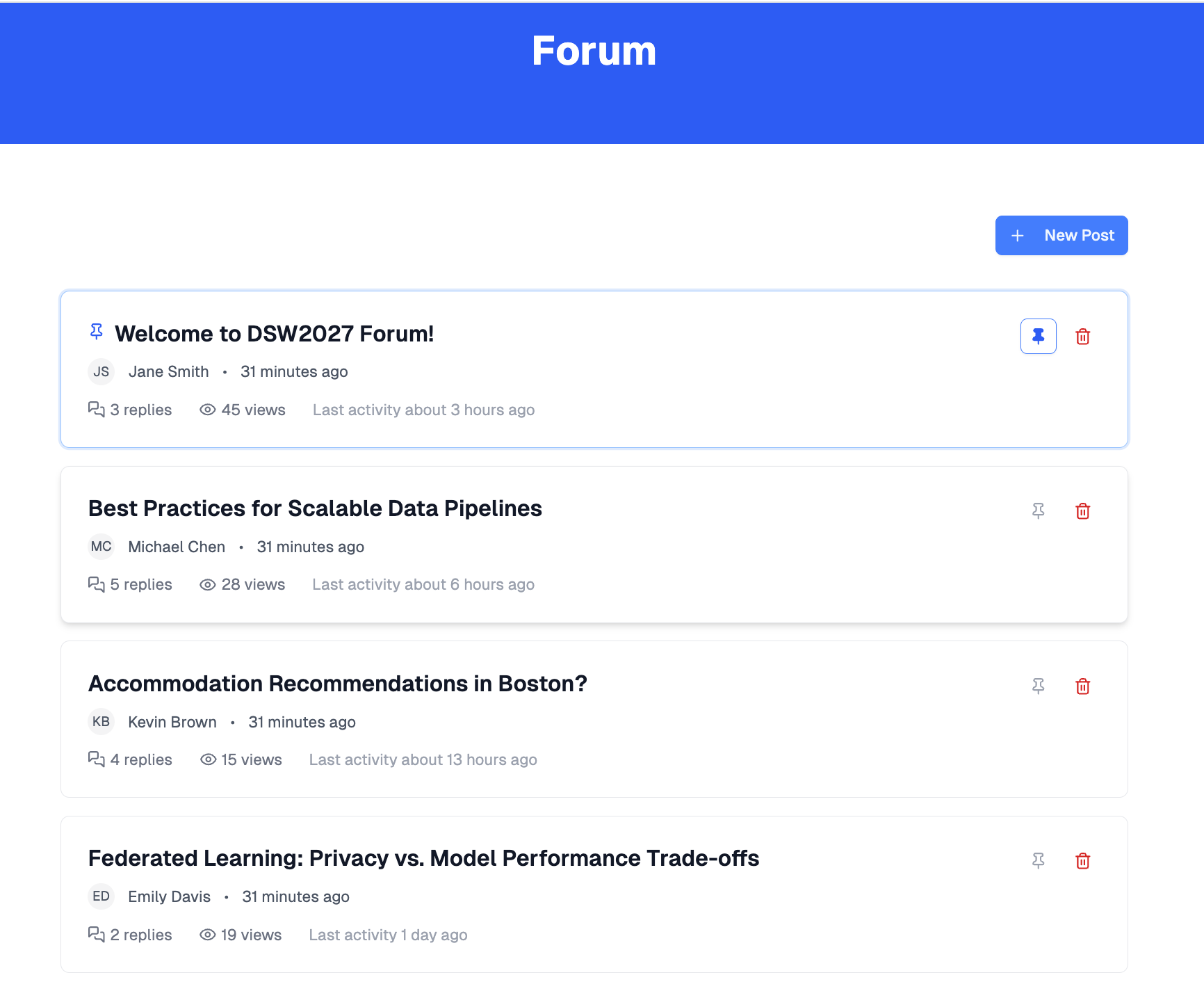
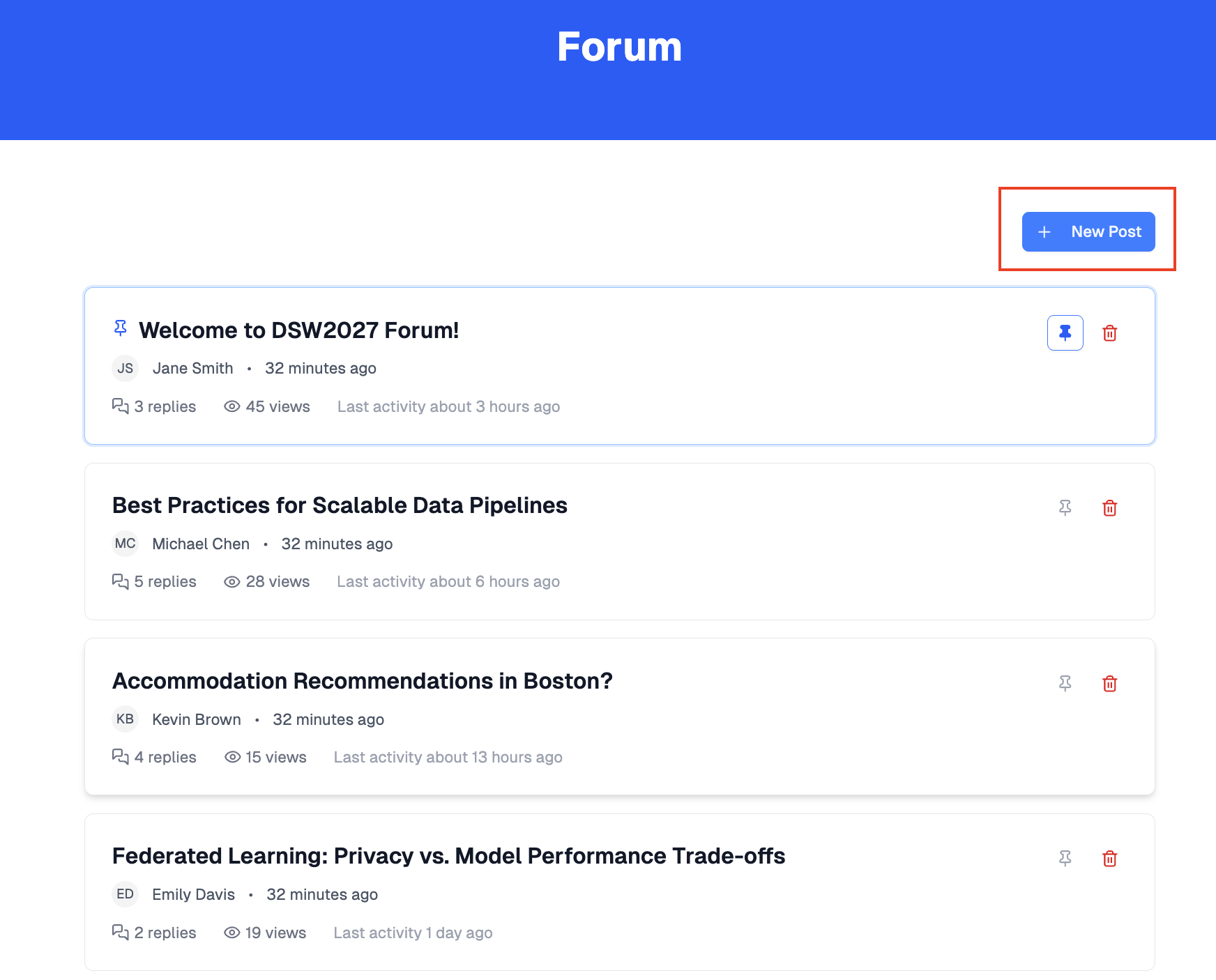
The forum displays:
- Pinned posts (shown first with pin icon)
- Recent posts sorted by last activity
- Post title, author, view count, and comment count
Creating Posts
- Navigate to the forum page
- Click "New Post" button
- Enter post title
- Write content using the rich text editor
- Click "Create Post"
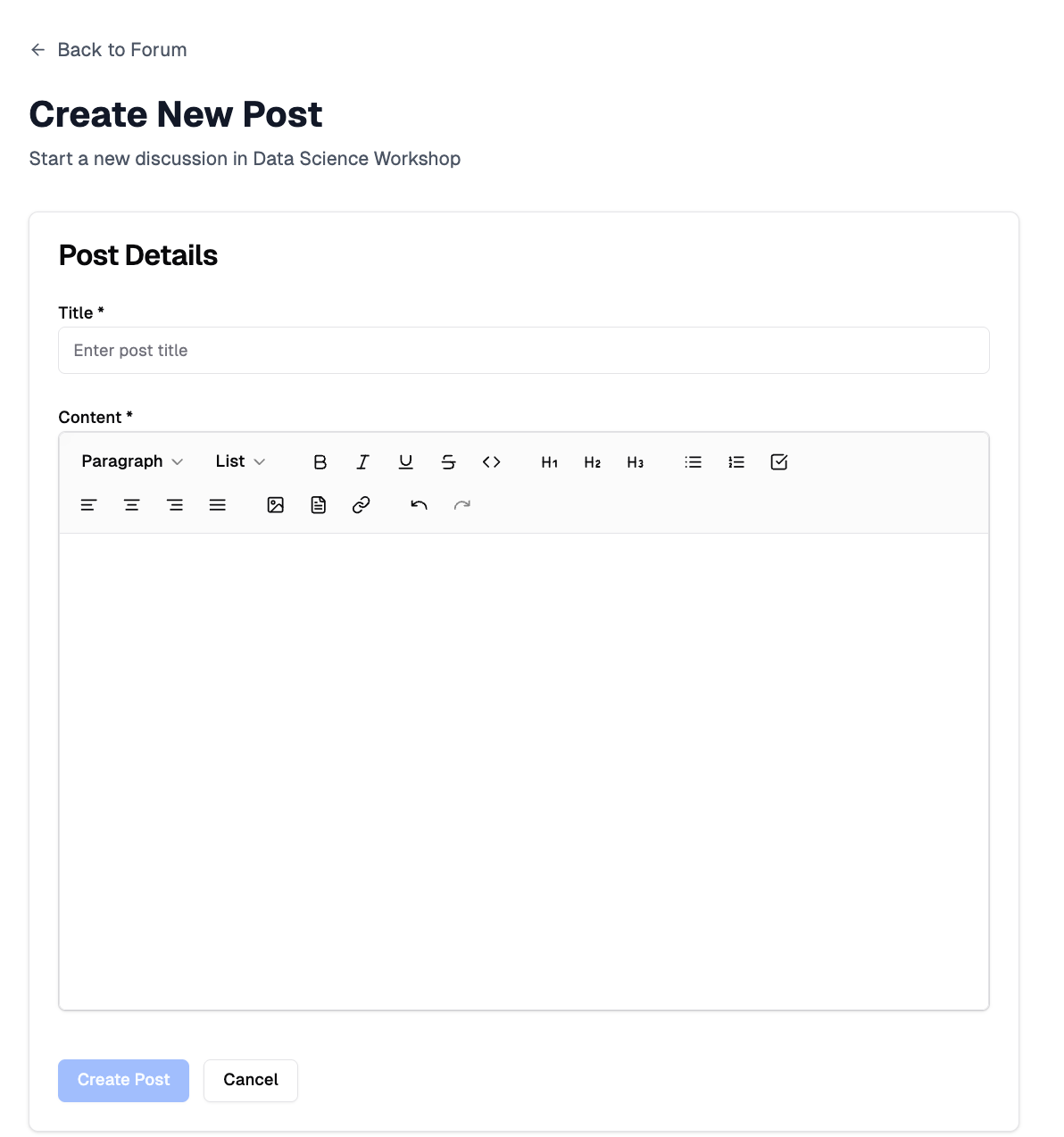
The rich text editor supports text formatting, headings, lists, links, images, and file attachments.
Replying to Posts
- Open a post by clicking its title
- Scroll to the comment form at the bottom
- Write your comment using the rich text editor
- Click "Post Comment"
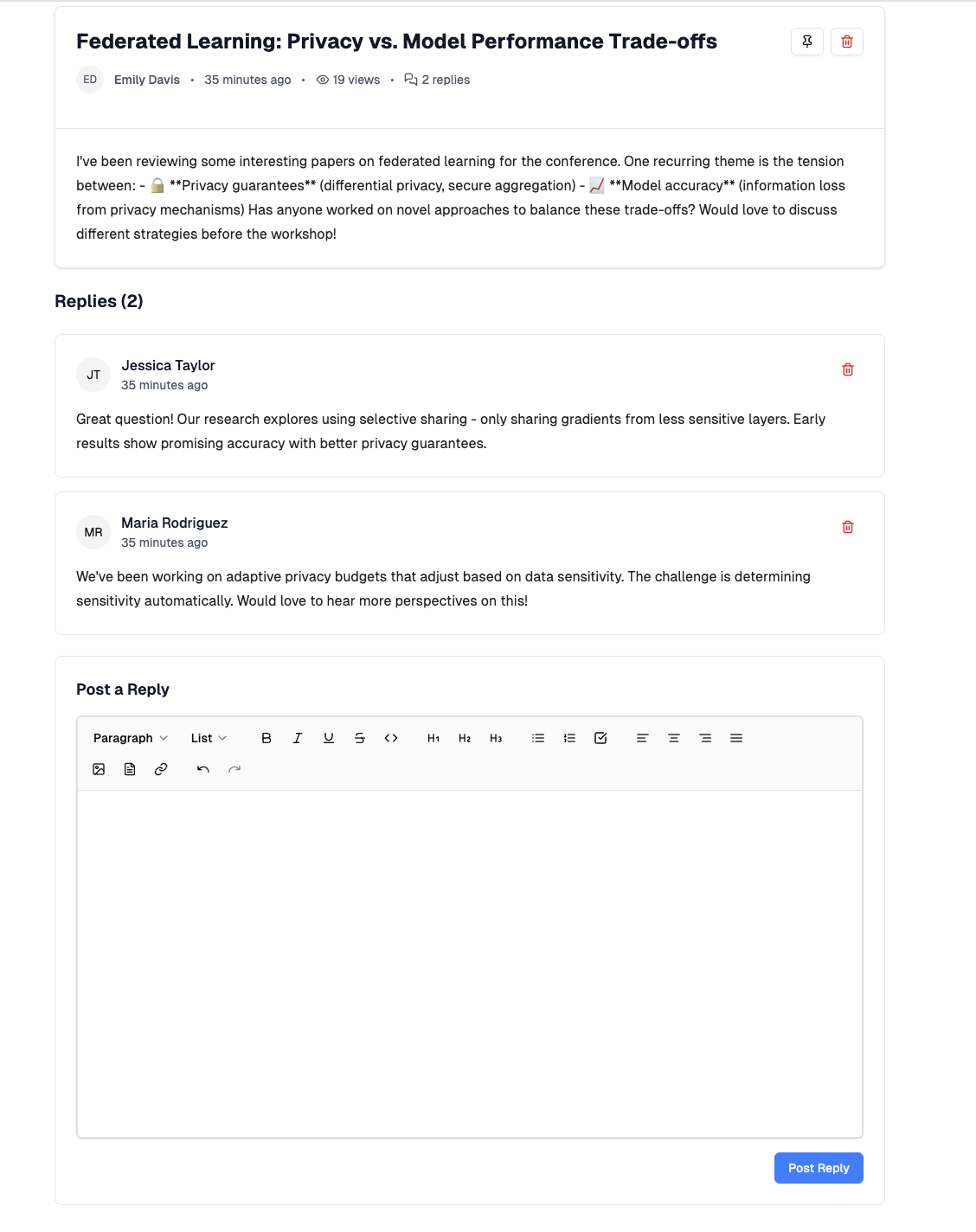
To respond to a specific comment, click "Quote reply" on that comment. A reply form opens with the original comment quoted, and your reply is shown with a "Replying to" reference.
Pinning Posts (Moderators Only)
- Open the post or view it in the forum list
- Click the pin icon button
- Post moves to the top of the forum
- Click again to unpin
Pinned posts appear first in the forum list with a blue pin icon.
Deleting Content
Delete Posts:
- Open the post
- Click the delete (trash) icon button
- Confirm deletion in the dialog
Delete Replies:
- Open the post containing the reply
- Find the reply to delete
- Click the delete icon on the reply
- Confirm deletion in the dialog
Moderators can delete any post or reply. Post authors can also delete their own posts and any replies on their own posts, and comment authors can delete their own comments. Deleting is not permanent — content is hidden from the forum but retained for moderation records.