
Enable Conference Submissions
Open your conference tracks for submission submissions
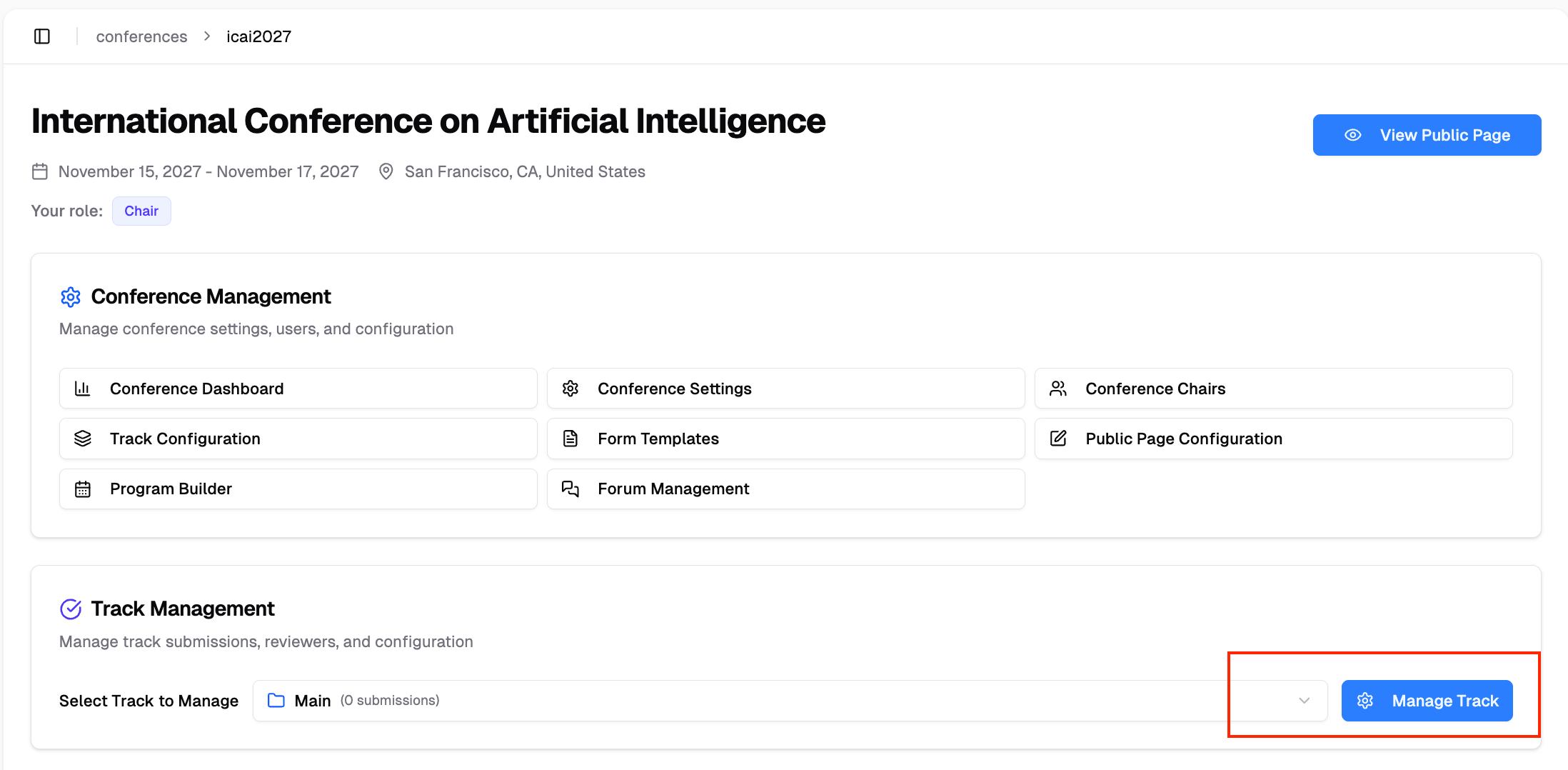
Accessing Track Settings
- Go to your conference dashboard
- Select the track you want to open for submissions
- Click Manage Track
Enable Submissions
In the track management page, locate the Submission Management section and click "Submission Settings" to expand it — the collapsed row shows a one-line summary of the current status and deadline:
- Toggle Accept Submissions to enable
- Set a Submission Deadline (optional)
- Select the deadline Timezone
- Optionally set a Late Submission Until date to allow a grace period after the deadline (see Manage Submission Deadline for details)
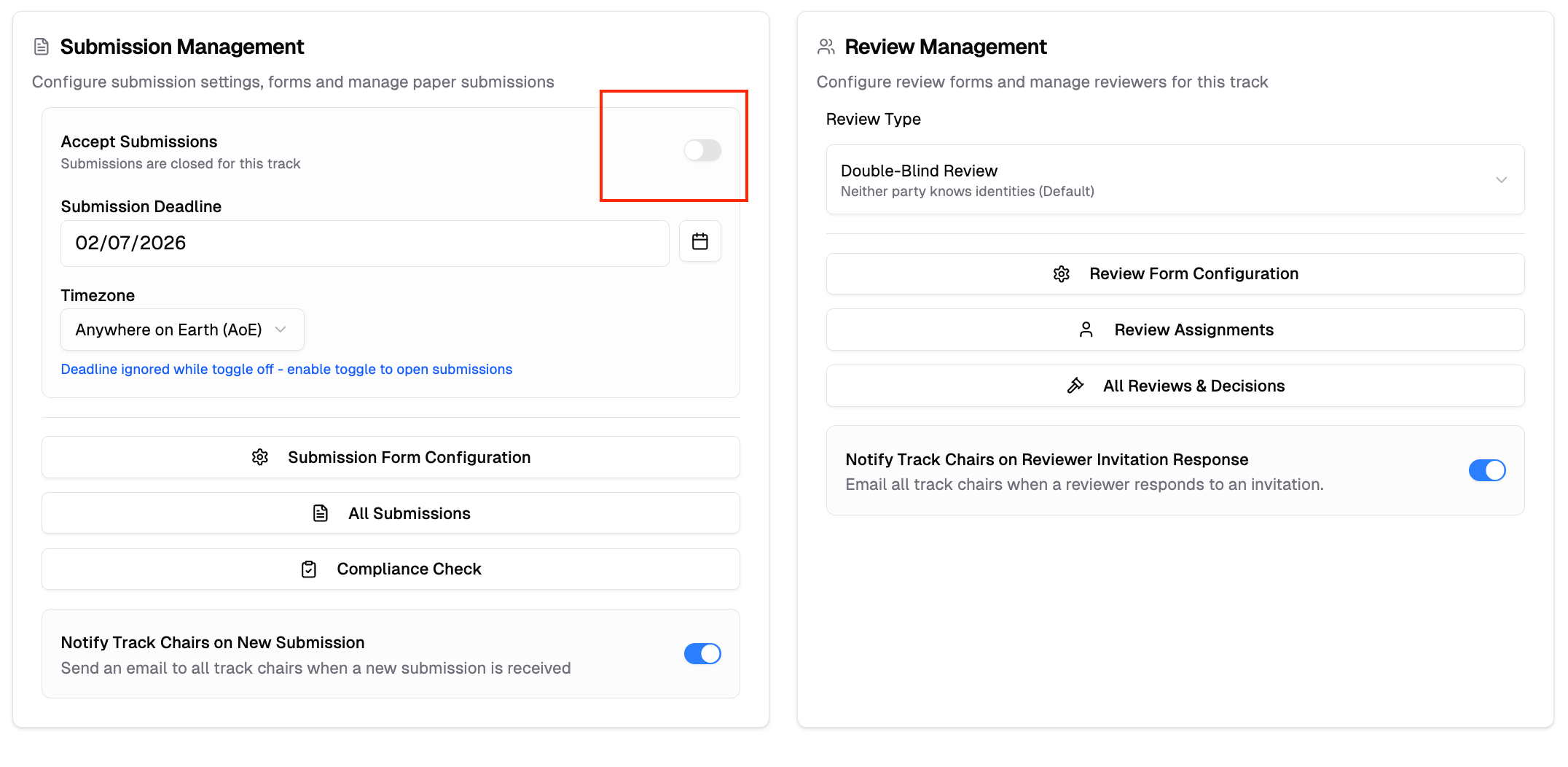
When enabled, authors can submit submissions to this track from your conference's public submission page. Before opening submissions, you may want to configure your submission form.
Set Submissions for All Tracks at Once
If your conference has several tracks that share the same deadline, you don't need to open each track one by one. From the conference Track Configuration page, click "Bulk Submission Settings" in the top-right.
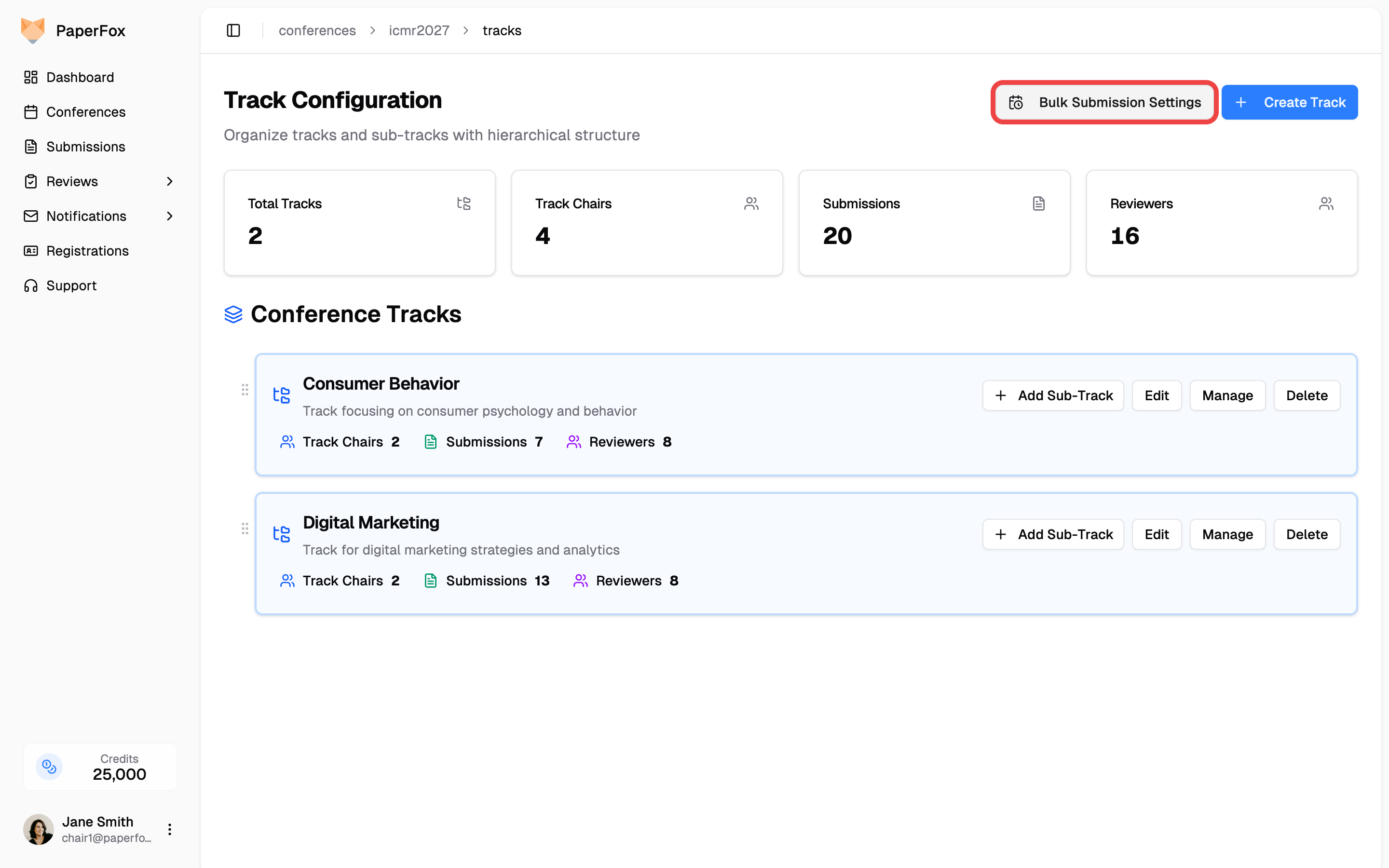
In the dialog, every track is selected by default. Uncheck any track you want to leave alone, then choose what to apply:
- Accept Submissions — flip to OFF to close all selected tracks, ON to open them.
- Submission Deadline — set a shared cutoff. Clear the date to remove the deadline entirely.
- Late Submission Until — optional grace period after the deadline.
When all selected tracks share the same values, those values pre-fill the form so you can see what's currently saved before changing anything. When tracks disagree on a field, the dialog resets that field to a safe default (toggle OFF, empty deadline, AOE timezone) and shows an amber banner reminding you that Apply overwrites every selected track with whatever you leave in the form. The per-track row above each field still shows each track's current value so you know what's being replaced.
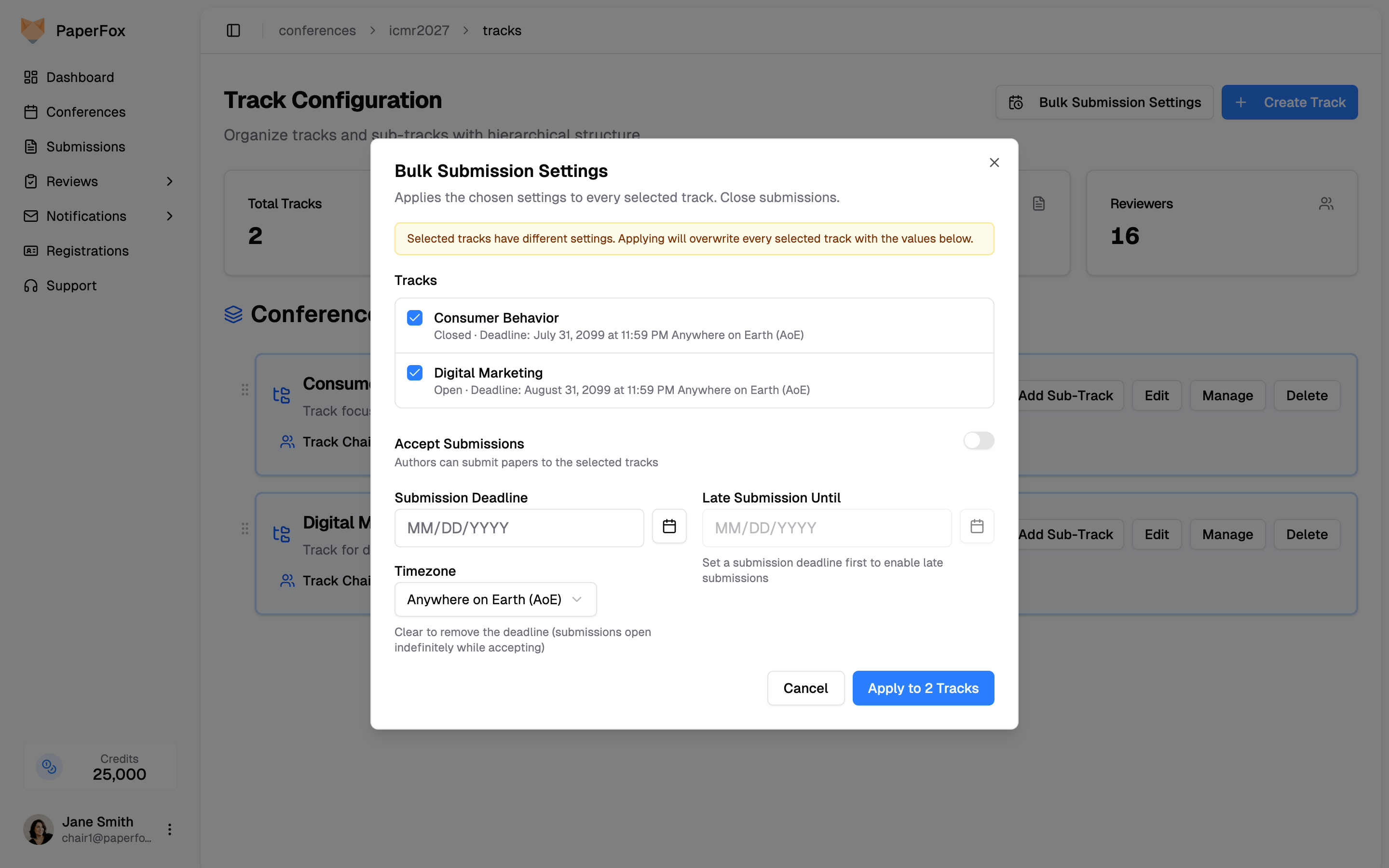
Click "Apply to N Tracks" to save. The action is conference-chair only and updates each track's settings in one step. This is a shortcut for the per-track flow above — anything you set here can still be fine-tuned later on each track's Submission Management section.
Public Submission Page
To make the submission page visible to public, go to Website Configuration and enable the Submission page.
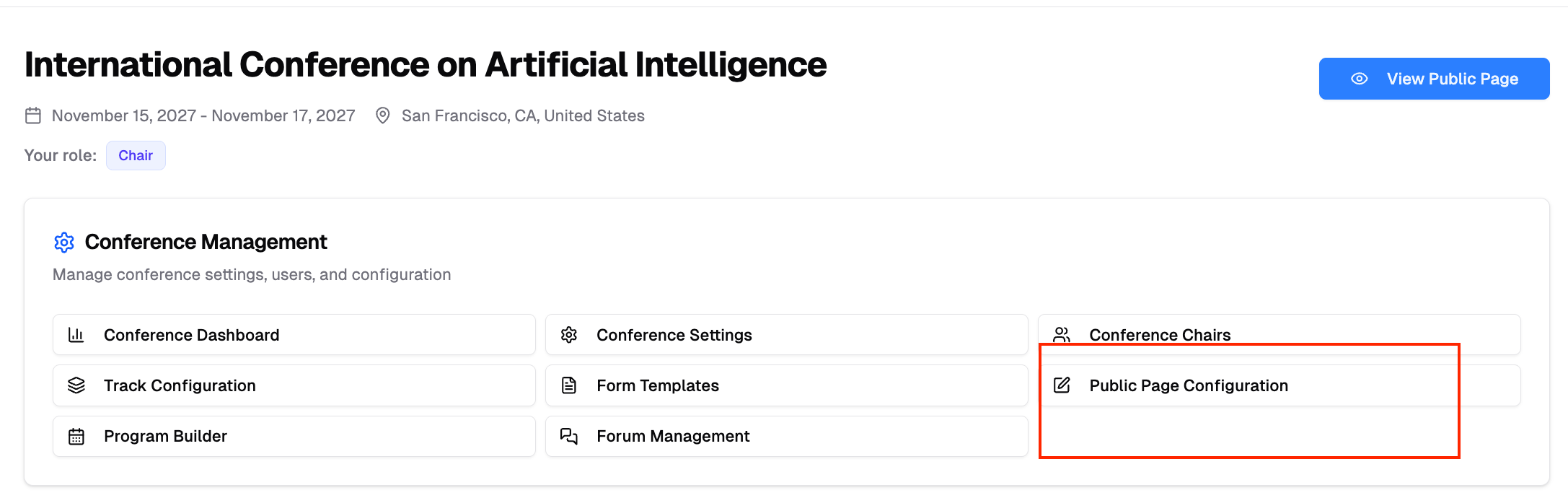
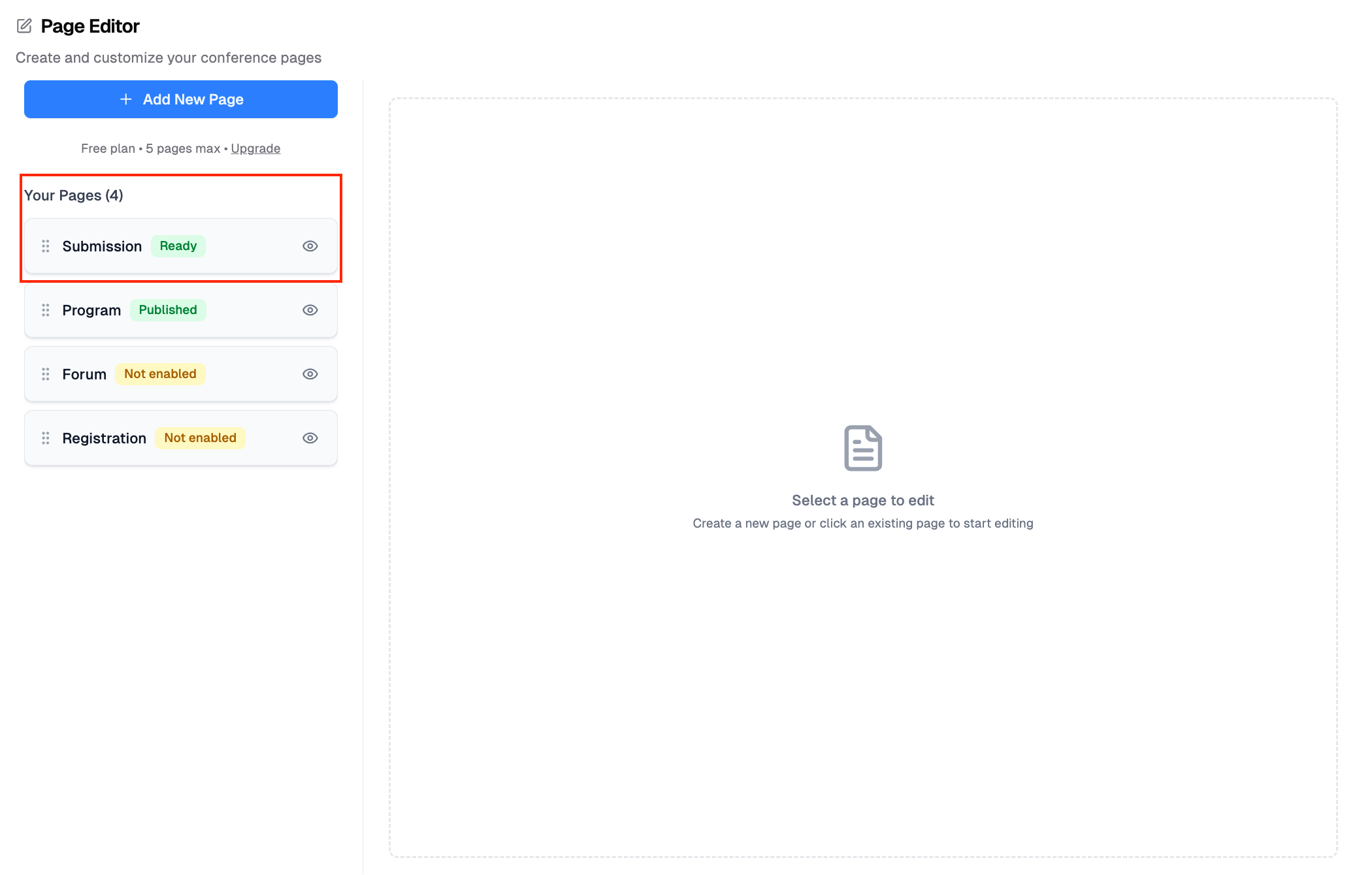
You can preview how the submission page looks to authors.
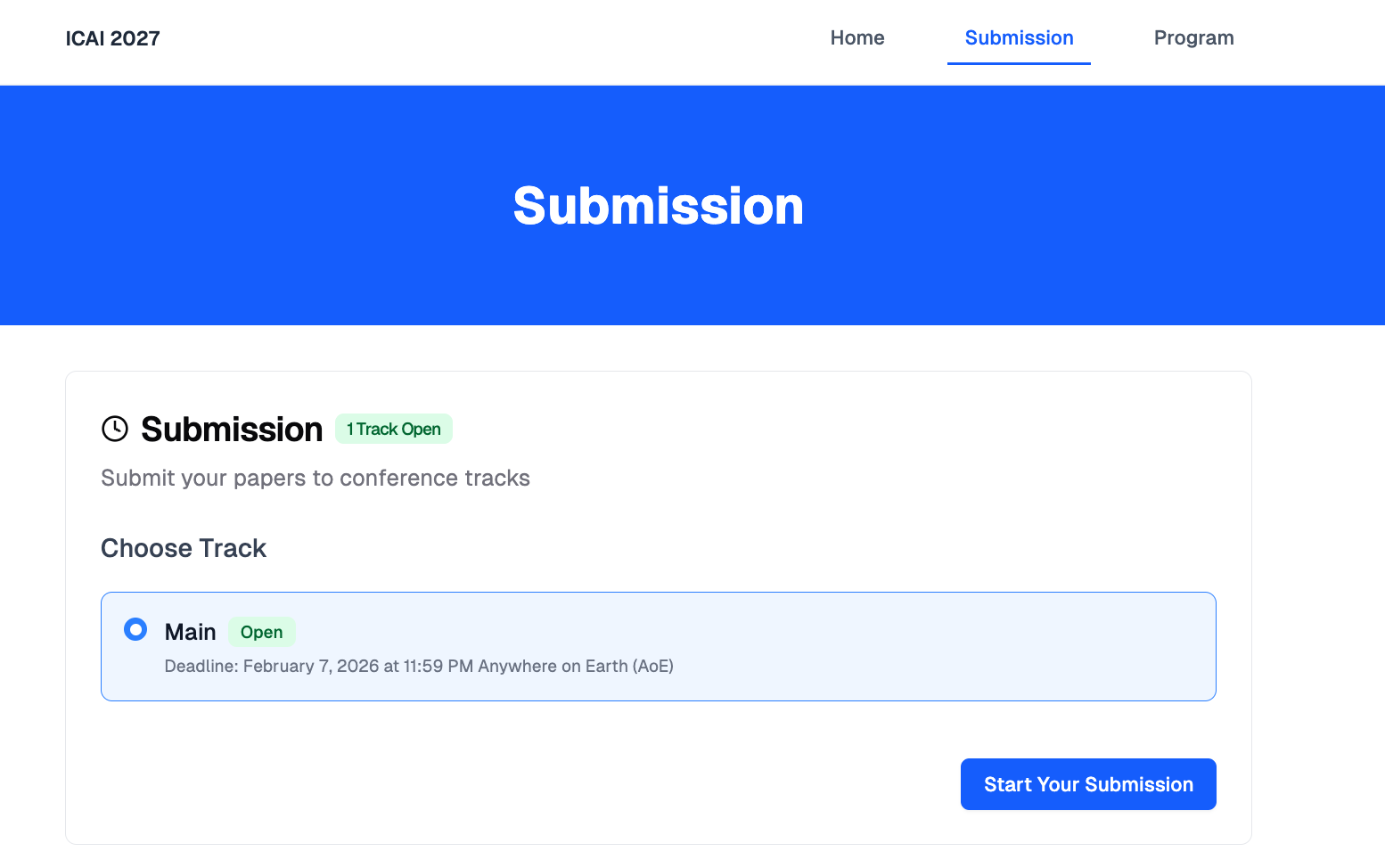
Once enabled, the submission page displays available tracks with deadlines and submit links.
See Submission Guidelines for how authors submit submissions.