
Getting Help & Support
Get help through support tickets or community forum
Conference chairs can get help through two channels: dedicated support tickets (for conferences with support packages) or the free community forum.
Support Tickets
Support tickets provide dedicated assistance from the PaperFox support team for conferences with an active support package.
Who Can Submit Tickets
Only conference chairs can create support tickets. This includes:
- Conference creators (users who created the conference)
- Assigned conference chairs
Your conference must have a support package (Small, Medium, Large, or Mega) to enable ticket creation.
Accessing Support Tickets
- Go to your dashboard
- Click Support in the left sidebar navigation
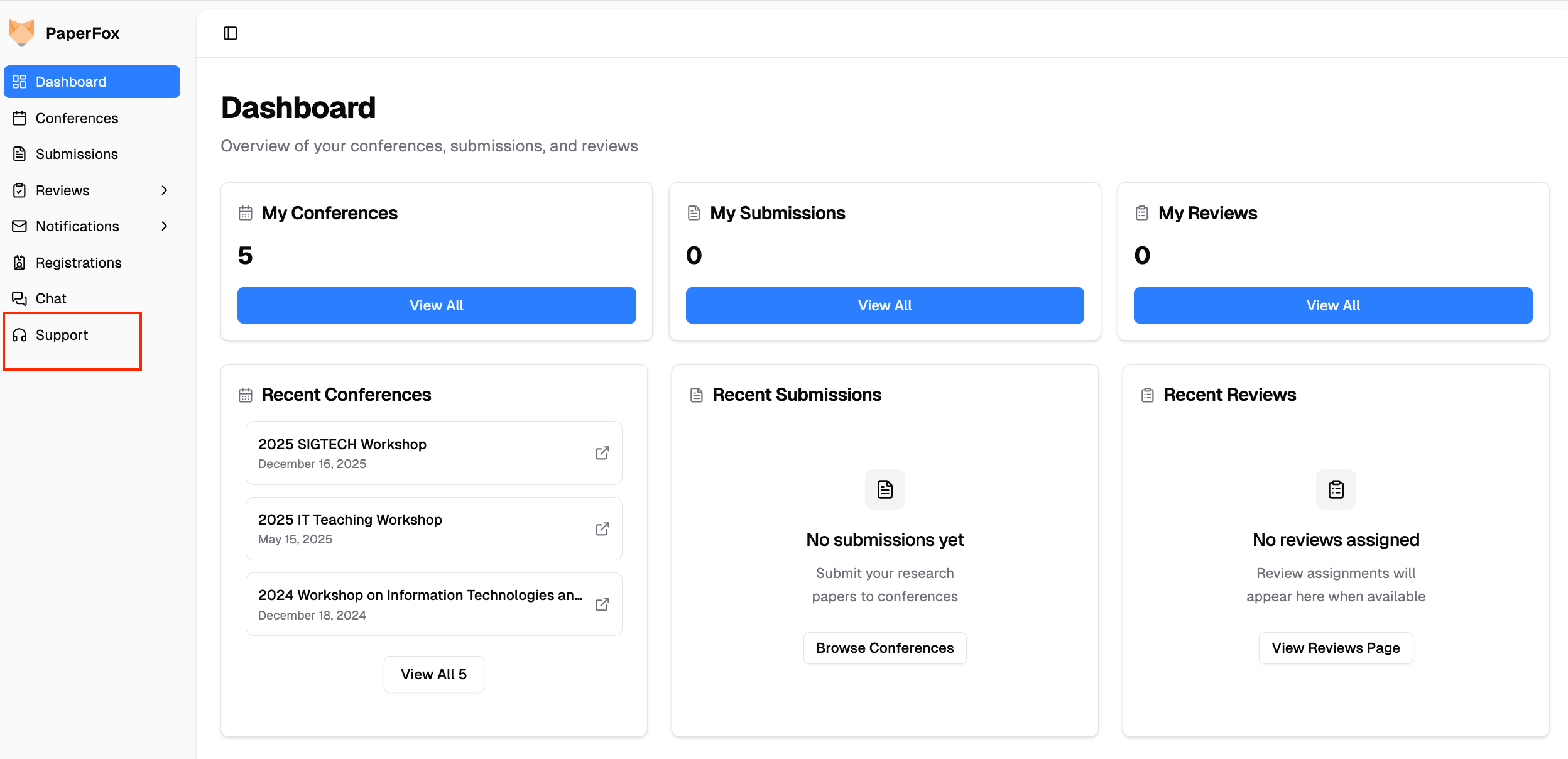
Viewing Your Tickets
The Support Tickets page displays all your tickets with the following information:
- Subject - Brief summary of your issue
- Conference - Associated conference name
- Status - Current ticket status
- Priority - Urgency level
- Replies - Number of support responses
- Created - Submission date
Status Filter
Use the status dropdown to filter your tickets:
- All Status - View all tickets
- Open - New tickets awaiting initial response
- In Progress - Support team is actively working on the issue
- Resolved - Issue has been addressed
- Closed - Ticket is completed
Creating a New Ticket
- Click the New Ticket button
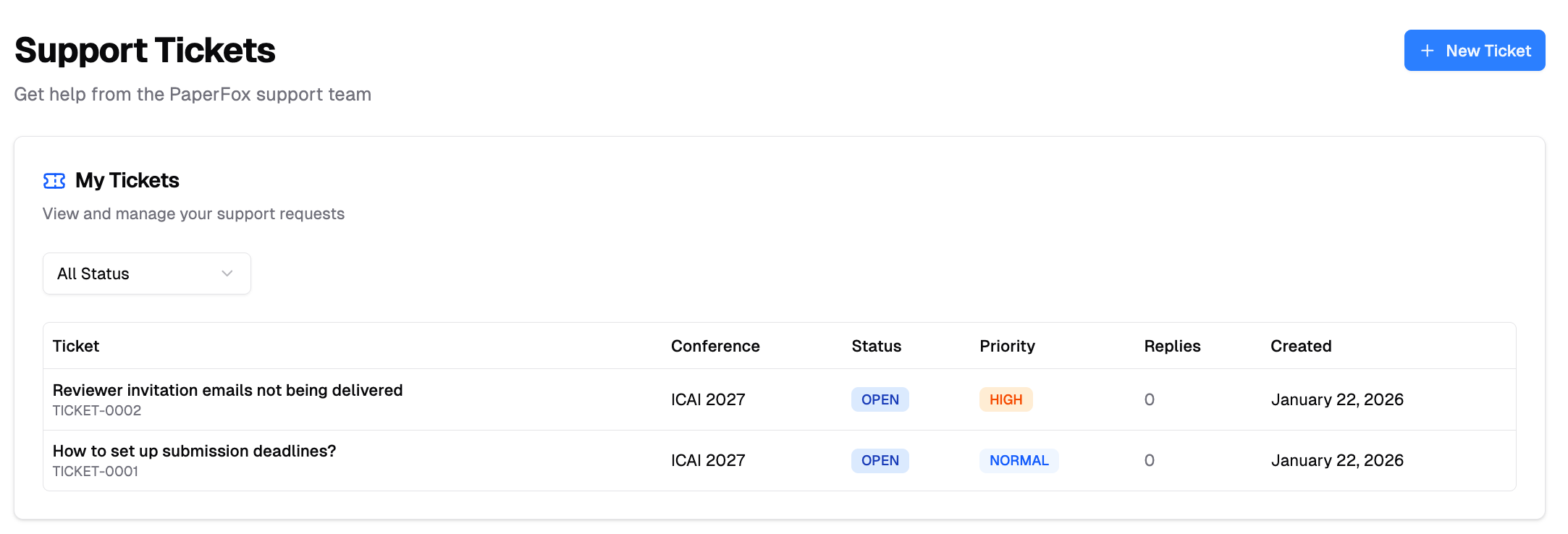
- Select the Conference from the dropdown
- Enter a Subject (brief summary of your issue)
- Write a detailed Description in the rich text editor
- Choose a Priority level:
- Low - General questions, non-urgent issues
- Normal - Standard support requests (default)
- High - Important issues affecting conference operations
- Urgent - Critical problems requiring immediate attention
- Click Submit Ticket
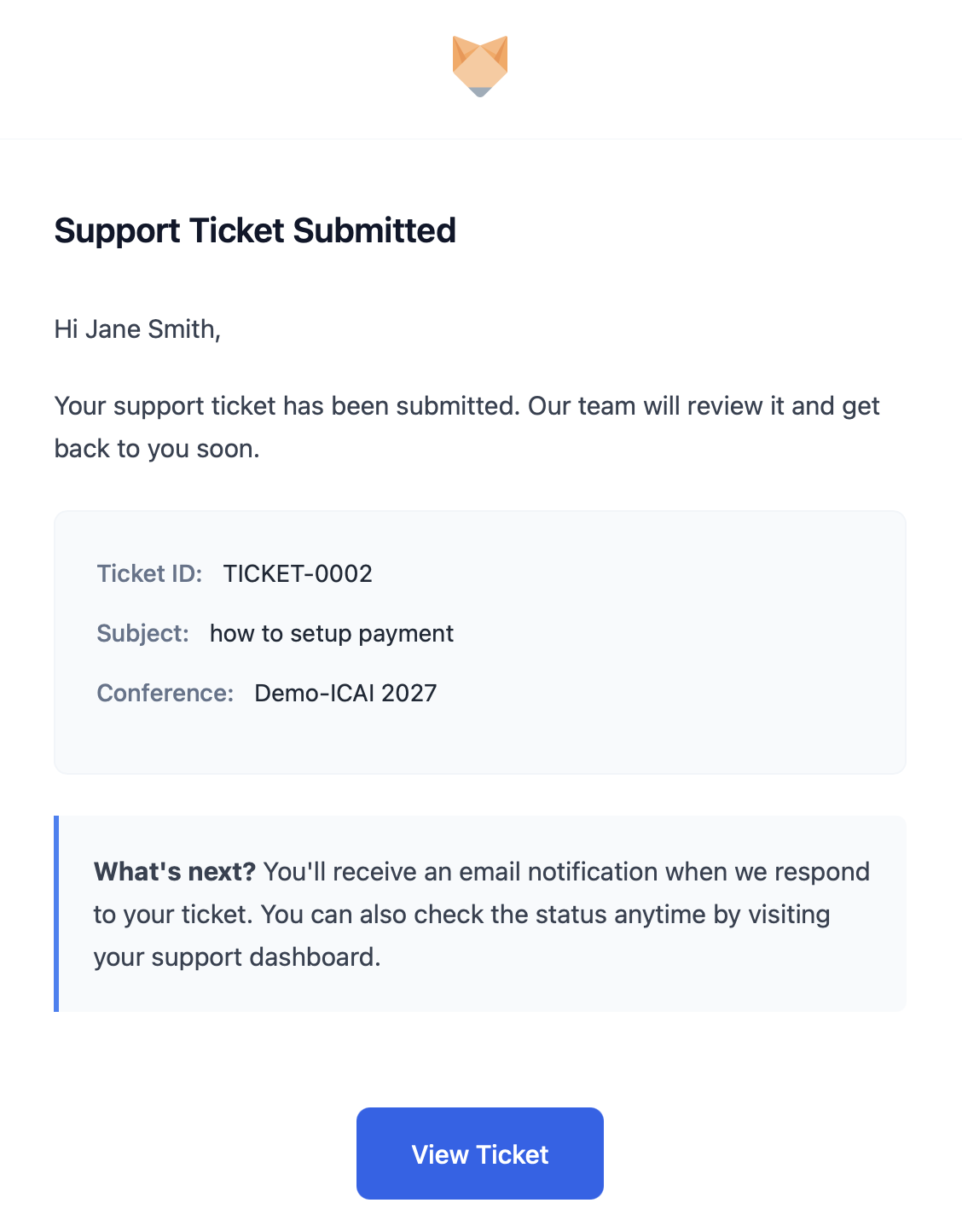
You'll receive an email confirmation once your ticket is submitted.
Viewing Ticket Details
Click any ticket to view:
- Original message and description
- Full conversation history with all replies
- Ticket details sidebar with status, priority, conference, assigned agent, and timestamps
Ticket Status Workflow
| Status | Description |
|---|---|
| Open | Ticket submitted, awaiting initial response |
| In Progress | Support team is actively working on it |
| Resolved | Issue has been addressed by support team |
| Closed | Ticket is completed and archived |
Replying to Tickets
To add a reply to your ticket:
- Open the ticket
- Scroll to the Add Reply section at the bottom
- Write your message in the rich text editor
- Click Send Reply
Note: Support team replies are highlighted with a blue background and "Support" badge.
You'll receive email notifications when the support team responds to your ticket.
Alternative: Community Forum
If your conference doesn't have a support package, you can get help through the Community Forum - a free platform where you can:
- Ask Questions - Post questions about conference management, submissions, reviews, and more
- Share Knowledge - Learn from other conference chairs and PaperFox users
- Connect with Community - Engage in discussions with the broader PaperFox community
- Browse Discussions - Search existing threads to find answers to common questions
Using the Community Forum
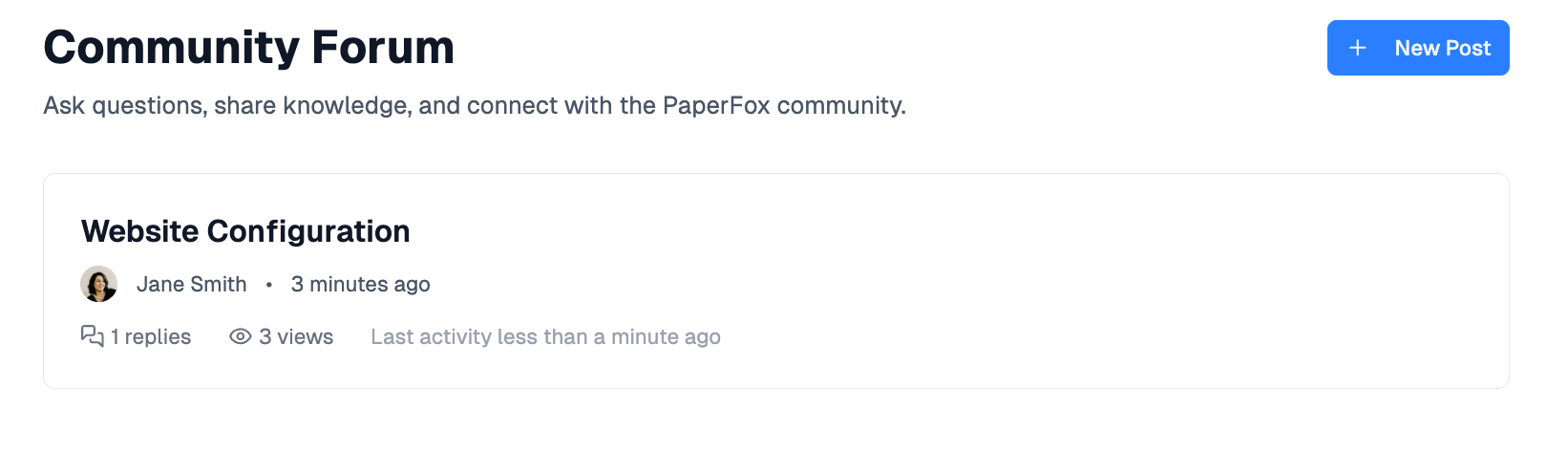
- Visit Community Forum
- Click New Post to create a new discussion thread
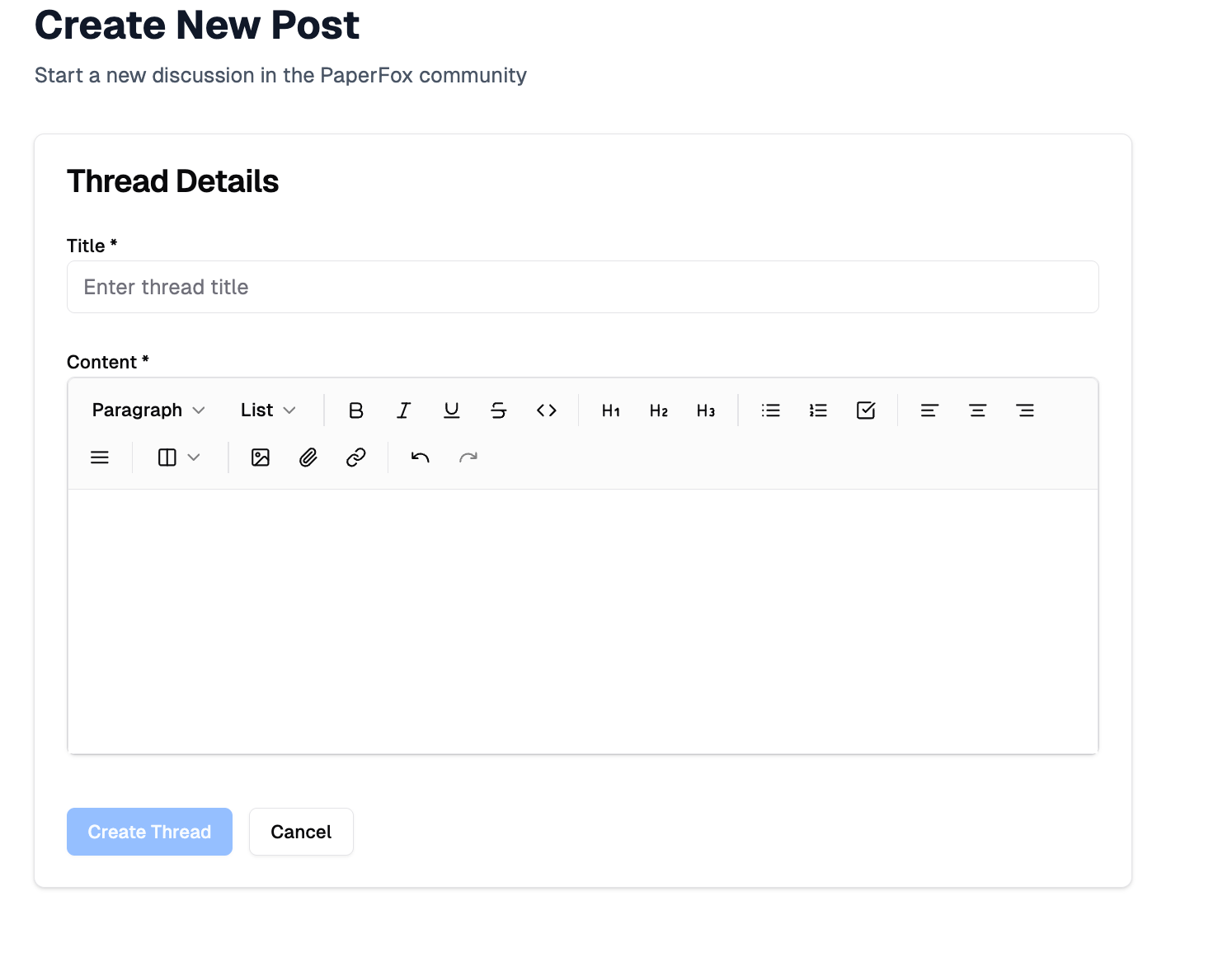
- Enter a clear title and detailed description of your question
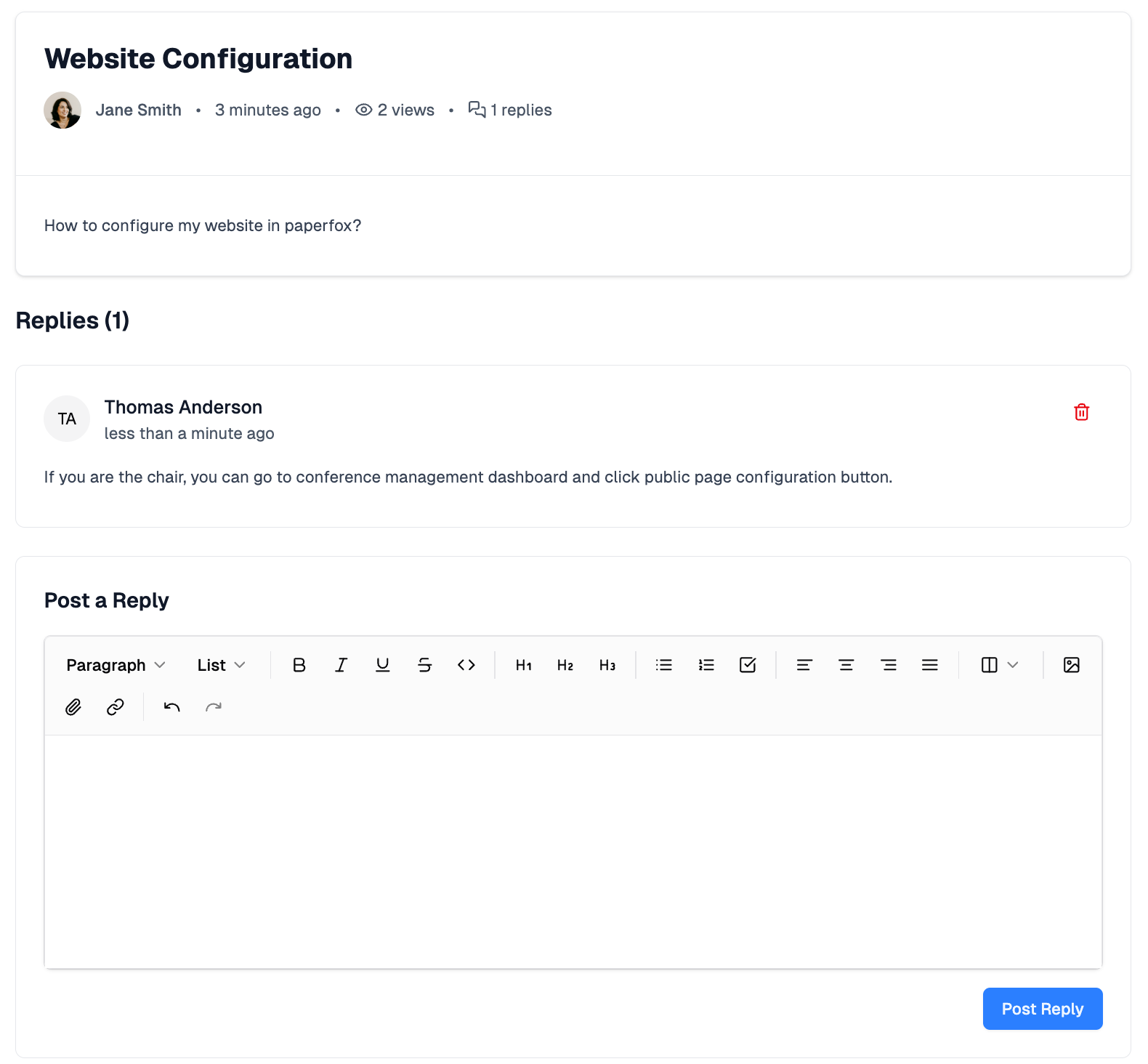
- Monitor replies from community members and moderators
The Community Forum is ideal for general questions, best practices, and connecting with other conference organizers. For dedicated, priority support with guaranteed response times, consider upgrading to a support package.
Support Package Information
Different support packages offer varying response times and benefits:
- Small (< 300 submissions) - 12-hour response time, 1 setup call
- Medium (300-1,000 submissions) - 12-hour response time, 2 setup calls
- Large (1,000-3,000 submissions) - 12-hour response time, 4 setup calls
- Mega (3,000+ submissions) - Custom support with dedicated account manager
Learn more about support packages and pricing.