
Configure Track-level Submission Forms
Guide for track chairs to customize submission forms using the form builder
As a track chair, you can customize your track's submission form to collect the specific information needed for your review process. The form builder allows you to add, edit, and organize fields across different submission phases.
Conference-level defaults
Your track's submission form inherits default fields set by the conference chair — including phase-scoped ones, so a conference-level camera-ready field shows up here in its phase automatically. You can add additional fields on top of these defaults. See Configure Conference Forms for details on how conference-level forms work.
If your conference has only one track, authors see one combined form either way — the page shows a reminder saying so. Prefer adding fields on Conference Forms (they carry over to any track added later); add fields here when they should stay with this track.
Accessing the Form Builder
- Log in to your PaperFox account
- Go to your conference dashboard
- Navigate to your assigned track
- Under Track Settings, click "Track Forms"
- The Submission Form tab is selected by default
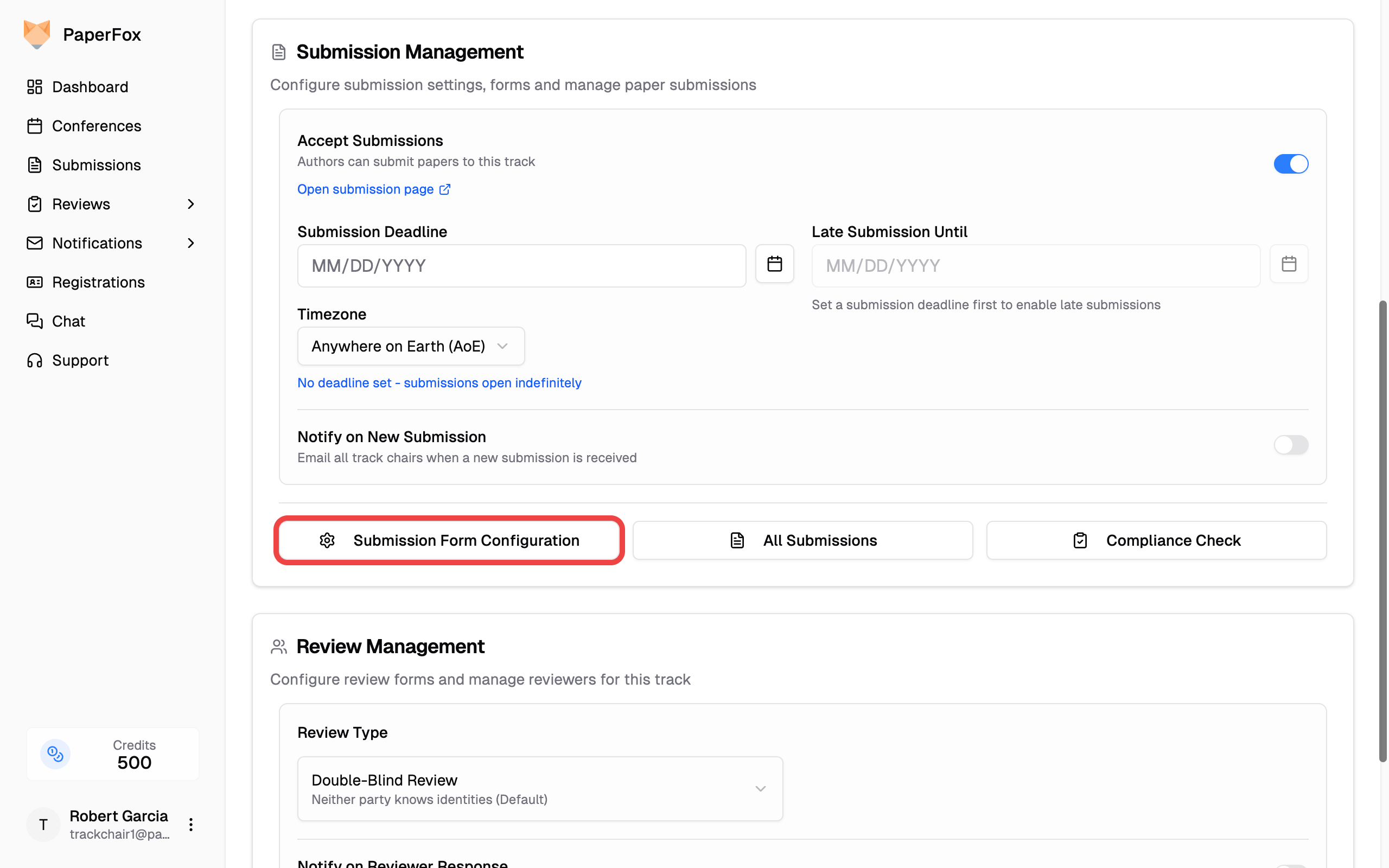
Form Builder
The builder lists the form the way an author meets it, in the order they fill it in. A line above the list tells you how many fields that adds up to.
Fields are grouped by where they come from:
- From the conference — defaults set by the conference chair (Title, Authors, Abstract, and so on), showing the ones that apply to the phase you're viewing. Read-only here; conference chairs see an "Edit conference forms" link on this group.
- Added for this track — the fields you own. Use "Add Field" to create one, drag to reorder, or click the edit icon to modify.
Each row shows the field's name and the kind of control an author gets — text, long text, choice, file. A row with no edit or delete icon is one you manage somewhere else, and its group heading links to where.
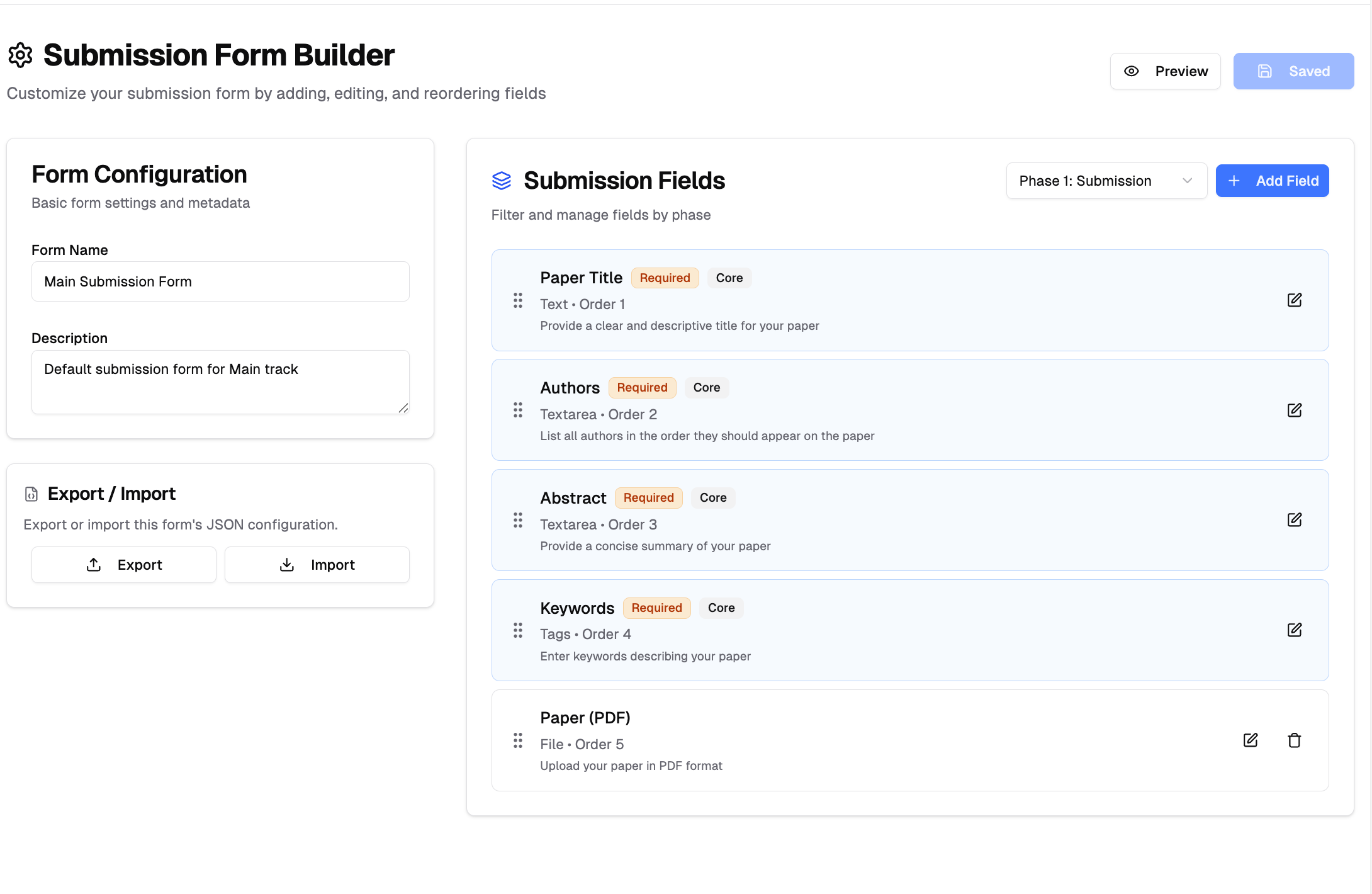
Adding Fields
- Click "Add Field" button
- Select a field type (Text Input, Text Area, Single Choice, Multiple Choice, or File Upload)
- Configure label, description, and validation rules
File Upload Fields
File fields have an Accepted File Types setting: choose which formats authors can upload — PDF (the default), Word, PowerPoint, or ZIP. At least one format must stay selected.
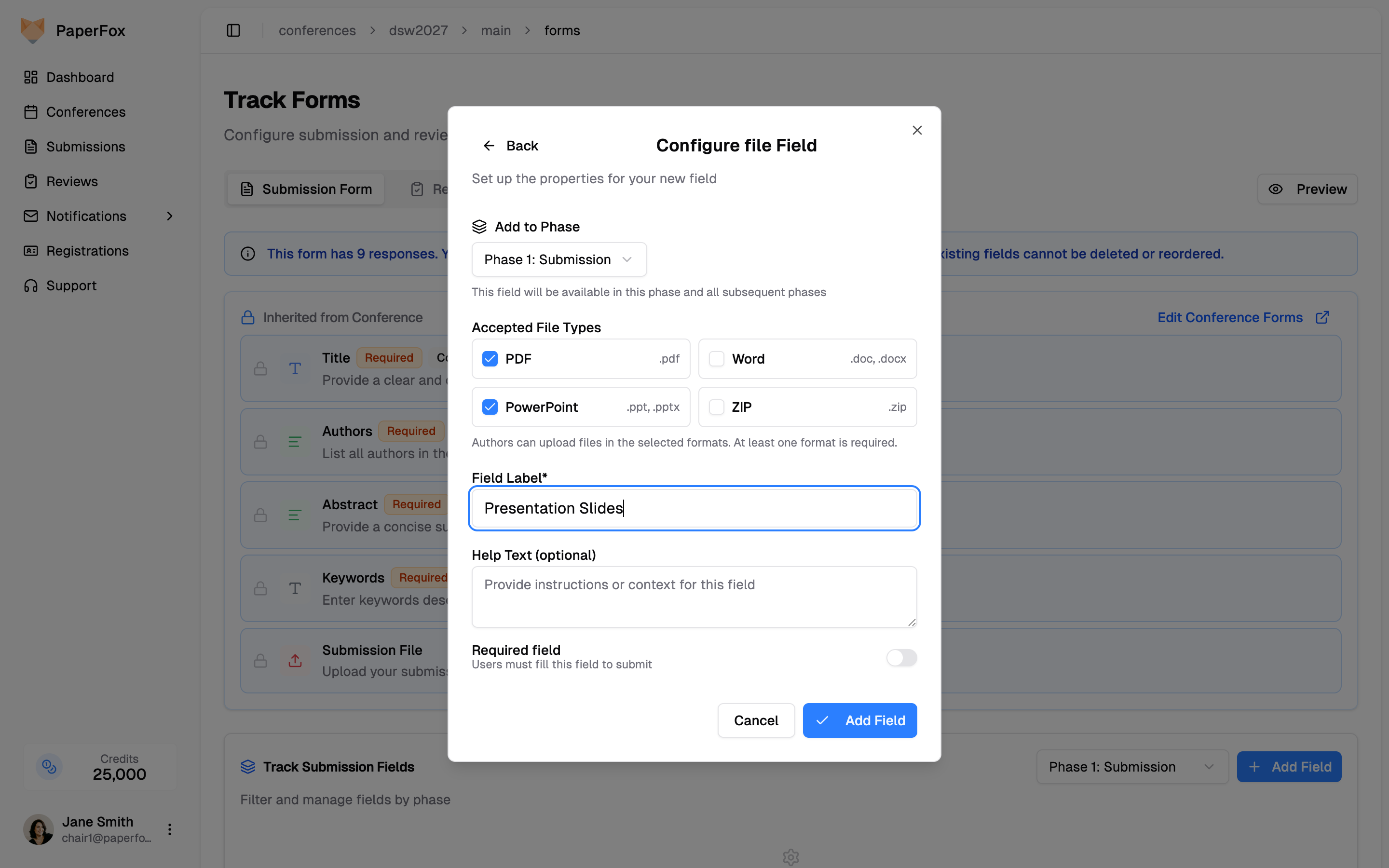
Authors see the allowed formats on the upload area (for example, "PDF or PowerPoint only"), and files in other formats are rejected before upload. This is useful for phase-specific fields — for example, a Presentation Slides field accepting PowerPoint in a later phase, or a camera-ready field accepting ZIP archives.
You can also change the accepted types on an existing file field later — click its edit icon and adjust the checkboxes.
Pre-selected Options
Single Choice and Multiple Choice fields can start with an option already chosen — useful for opt-out questions ("uncheck to opt out of AI feedback") or a Yes/No question where most submissions answer the same way. Check the box beside an option to pre-select it; Single Choice fields allow one, Multiple Choice allows any number.
Pre-selection applies to new submissions only, so you can turn it on at any time without changing answers authors have already given. See Pre-selecting Options for the full walkthrough.
Locking Answers in Later Phases
On a multi-phase track, every field opens for editing again when authors revise — including the ones they answered in the first phase. Turn on Lock answer in later phases to freeze a field's answer once the submission moves past the phase that collected it.
- Click the edit icon on the field (or open "Add Field" for a new one)
- Turn on "Lock answer in later phases"
- Read the amber warning that appears, then click "Update Field"
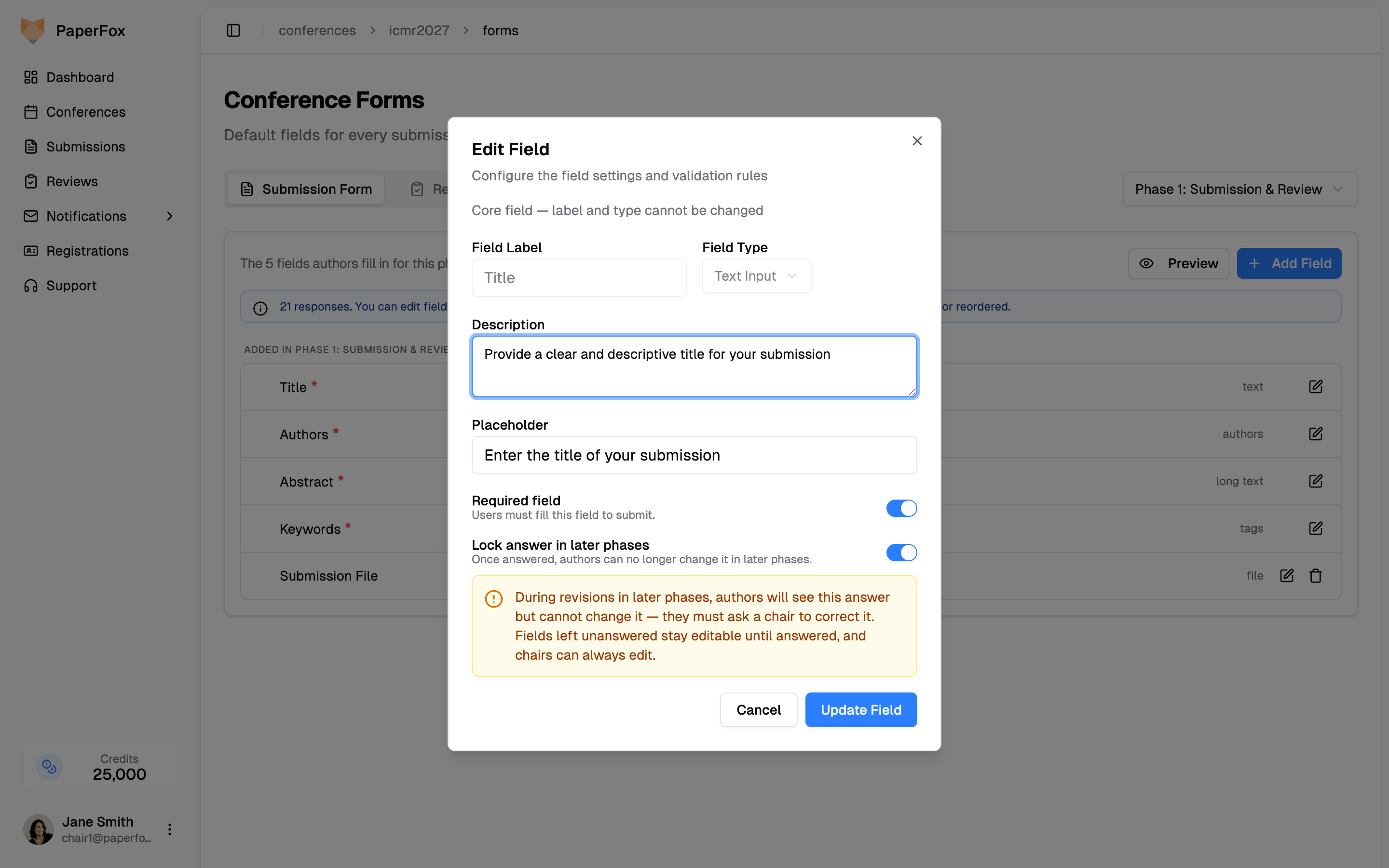
The switch is off for every field until you turn it on, and it only appears on tracks with more than one phase — a lock that can never engage would be noise.
Use it for the answers a revision shouldn't quietly rewrite — the title reviewers evaluated, a funding declaration, an ethics approval number — while leaving the camera-ready upload and anything else authors genuinely need to change open.
What authors experience
See Submission Edit Rules for the author's side, including the two cases the lock deliberately skips.
Who Sees the Answers
Reviewers assigned to a submission read every field on this form — the conference-inherited ones and the fields you add here alike. The only exception is Authors, which is hidden on Double-Blind tracks.
The track's review type does not change this. It controls whether authors and reviewers see each other's identities, not which questions a reviewer may read. See Set the Review Type.
Keep chair-only questions off this form
Anything you add here goes to your reviewers. Don't use the submission form for information meant only for organizers — student status, suggested or excluded reviewers, funding sources. On a Double-Blind track a "suggested reviewers" field names real people to the very reviewers you are trying to blind. Collect that information outside the submission form.
Managing Fields
- Edit: Click the edit icon to modify field properties
- Delete: Remove non-core fields using the delete icon
- Reorder: Drag and drop fields to change their order
Core fields (Title, Authors, Abstract, Keywords) cannot be deleted, but you can edit them.
Once a form has responses, existing fields stop being removable or re-orderable so the answers already collected stay intact — a note above the list says so, and the drag handles and delete icons disappear. You can still edit labels, descriptions and placeholders, change Lock answer in later phases, and add new fields.
Previewing the Form
Click "Preview" in the form's control bar to see exactly how the submission form appears to authors. The preview renders the real form — you can interact with all fields, open dropdowns, and test options. No data will be saved.
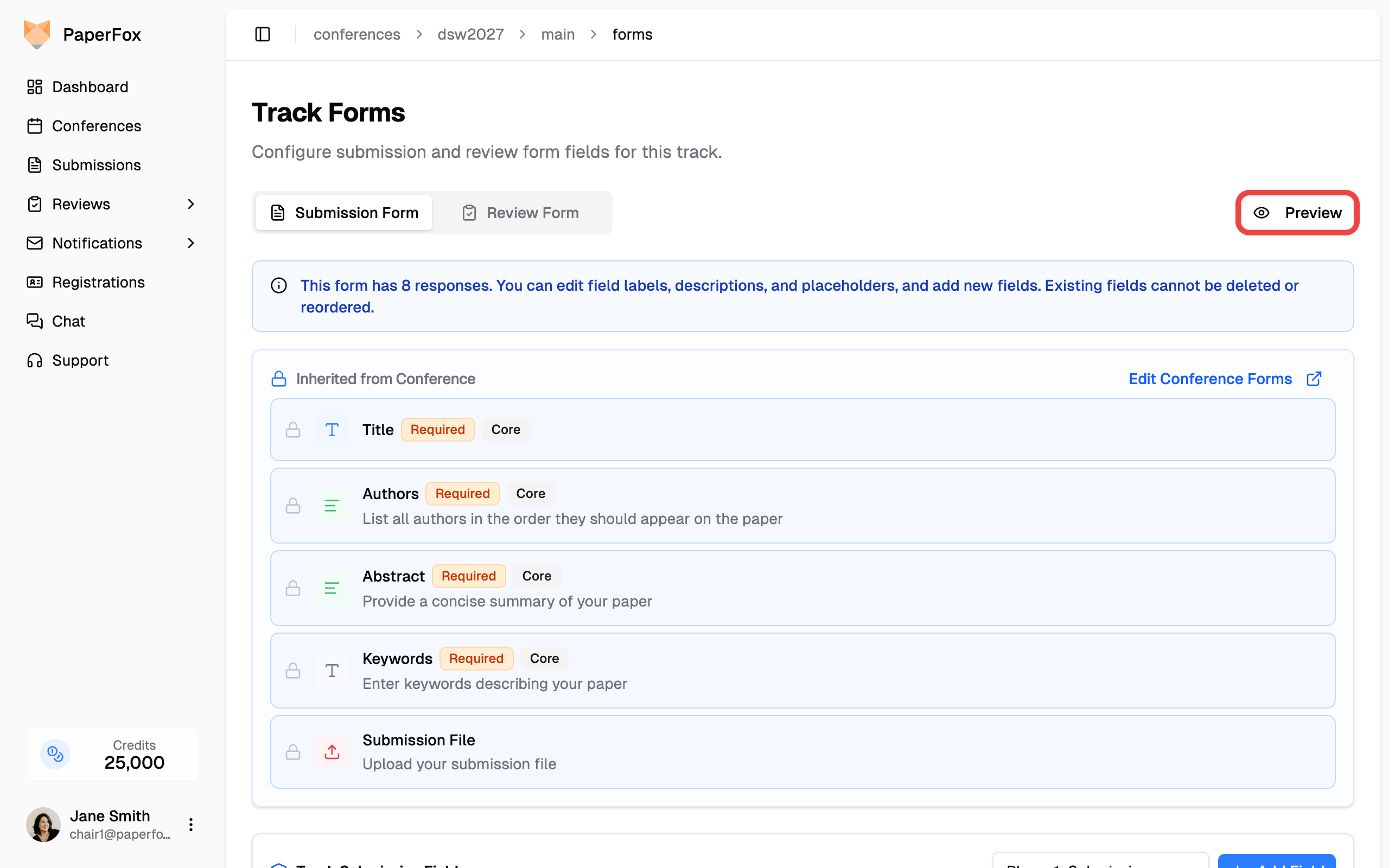
The preview includes both conference-level inherited fields and your track-specific fields, showing the complete form authors will see.