
Manually Assign Reviewers
Guide for track chairs to manually assign reviewers to submissions, set deadlines, and track progress
Review Assignment Process
Track chairs are responsible for assigning submissions to reviewers to ensure thorough and fair evaluation of all submissions.
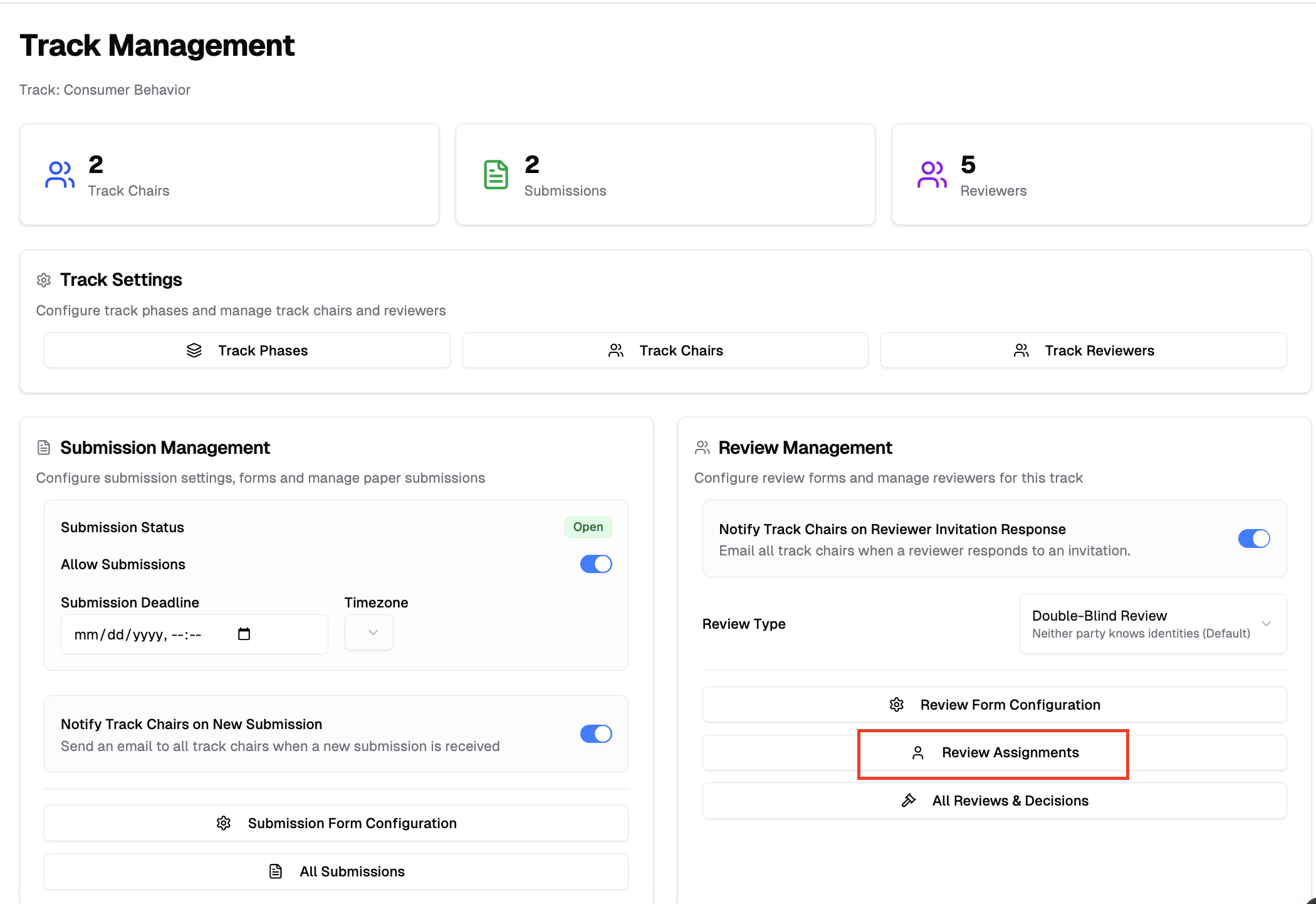
1. Accessing Review Assignments
- Go to Conferences in the sidebar, then click on your conference
- Under Track Management, select your track and click "Manage Track"
- Under Review Management, click "Review Assignments"
2. Phase Selection and Deadline Management
The phase selector sits in the top-right of the page header — the same spot as on the other review pages — and the current phase's review deadline appears below the header:

- The page opens to the track's current phase — the furthest phase holding submissions; use the phase selector to switch between review rounds, since assignments are managed per phase. The selector appears only when the track has multiple phases — single-phase tracks just show the deadline
- The current phase's review deadline is shown below the header; click the edit icon next to it to adjust deadlines on the Track Phases page
3. Assignment Overview
The assignment interface displays:
- Submissions list - All submissions submitted to your track for the selected phase
- Reviewer pool - Available reviewers for your track
- Assignment status - Shows for each submission:
- Number of reviewers currently assigned
- Review completion status (Invited, Accepted, Completed)
- Reviewer names and their progress
- Review requirements - Number of reviews needed per submission
4. Conflict of Interest Enforcement
COI rules are enforced automatically — if you try to assign a reviewer who has a conflict with a submission's authors, the assignment will be blocked. Three rules are checked: self-conflict, co-author conflict, and declared conflict. Tracks that turn enforcement off get warnings instead of blocks for the co-author and declared rules.
See Conflict of Interest Enforcement for full details on how COI works across all assignment paths.
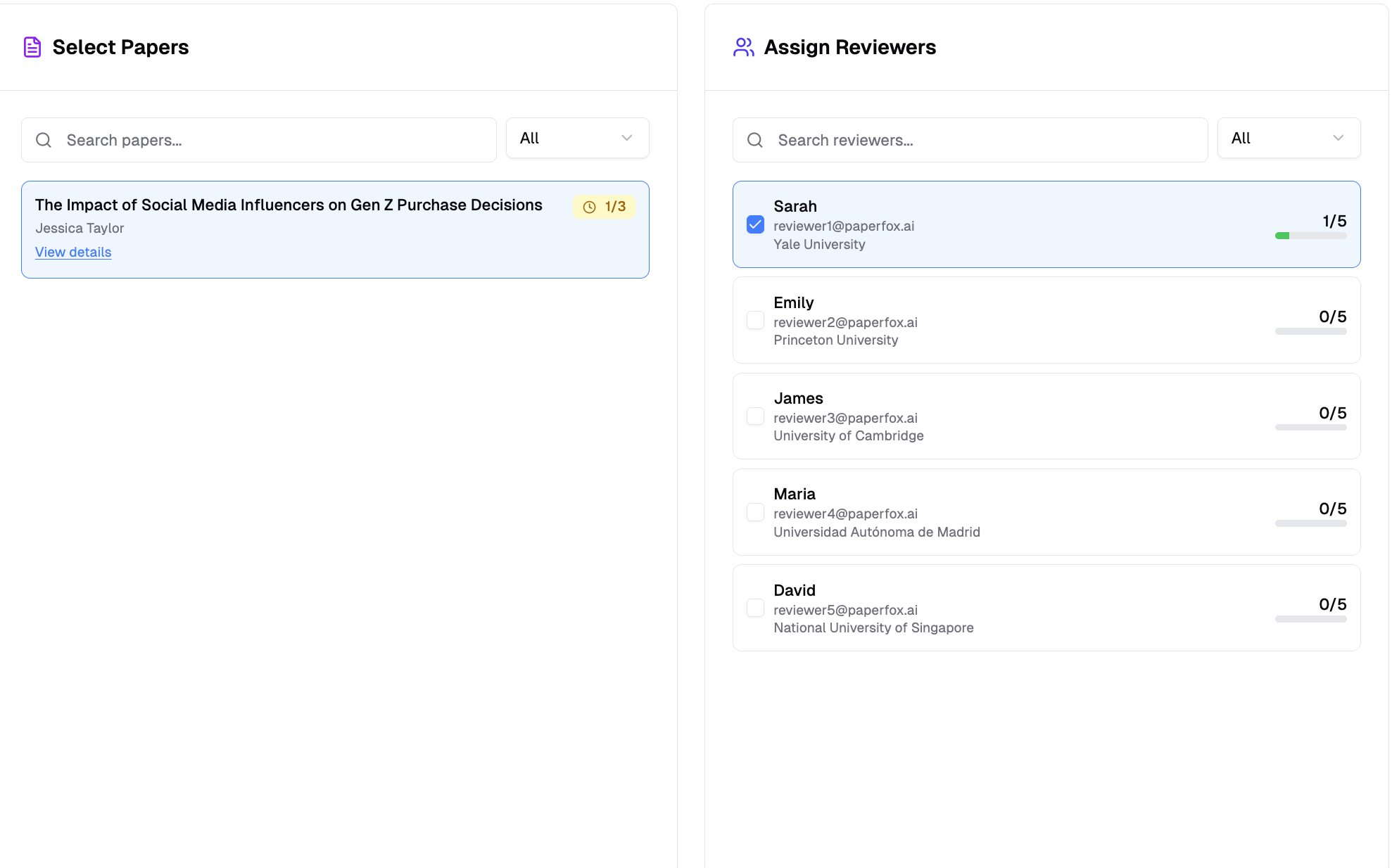
5. Assigning Reviewers to Submissions
- Select a submission from the left panel to view its current assignments
- Assigned reviewers appear at the top of the right panel, highlighted in blue with their assignment status (pending, accepted, or declined). Unassigned reviewers are listed below.
- Choose additional reviewers from the list based on expertise and workload
- Confirm assignments — COI conflicts are checked automatically
Growing the Pool from Here
If the reviewer you need isn't in the pool — or the pool is empty — click "Add Reviewers" in the panel header. It opens Reviewer Management with a "Back to Assignments" link that returns you to this page and phase.
Reviewers a chair added who haven't created their PaperFox account yet appear at the bottom of the panel under Awaiting Account — visible but not assignable until they sign up, at which point they join the pool automatically.
Reactivating a Declined Reviewer
When a reviewer declines by mistake, you can return their invitation to Invited so they can accept or decline again — no need to re-invite from scratch.
- Select the submission the reviewer declined
- Find the reviewer in the Assign Reviewers panel — their row shows an "Assignment declined" badge with a "Reset to Invited" button
- Click "Reset to Invited" and confirm
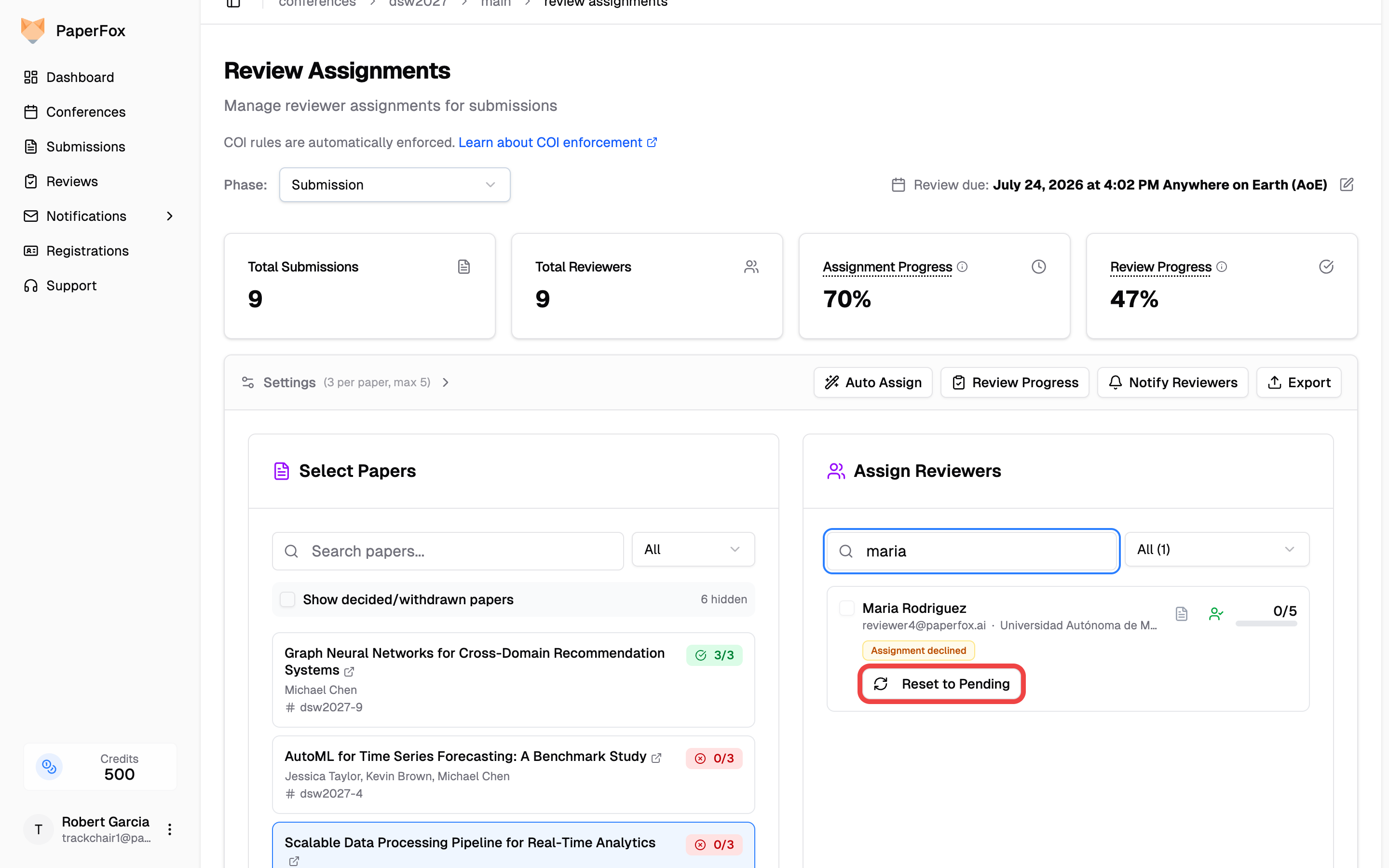
The invitation returns to that reviewer immediately, and they'll see it again on their Reviews page. To hand the slot to someone else instead, simply select a different reviewer.
You can also reset a declined assignment from the Review Progress page — from either the By Submission matrix or the By Reviewer list.
6. Reusing Reviewers in a Later Phase
For multi-phase tracks (for example a Revision or Camera-Ready round with its own reviews), you usually want the same reviewers who handled each submission in the previous phase. Instead of re-selecting them submission by submission:
- Make sure the phase selector in the top-right is on the later phase — once you've moved submissions there it's already the current phase the page opens to
- Select a submission — reviewers from the previous phase are marked with a "Reviewed in [phase]" badge and sorted near the top
- Click "Reuse Reviewers" in the toolbar
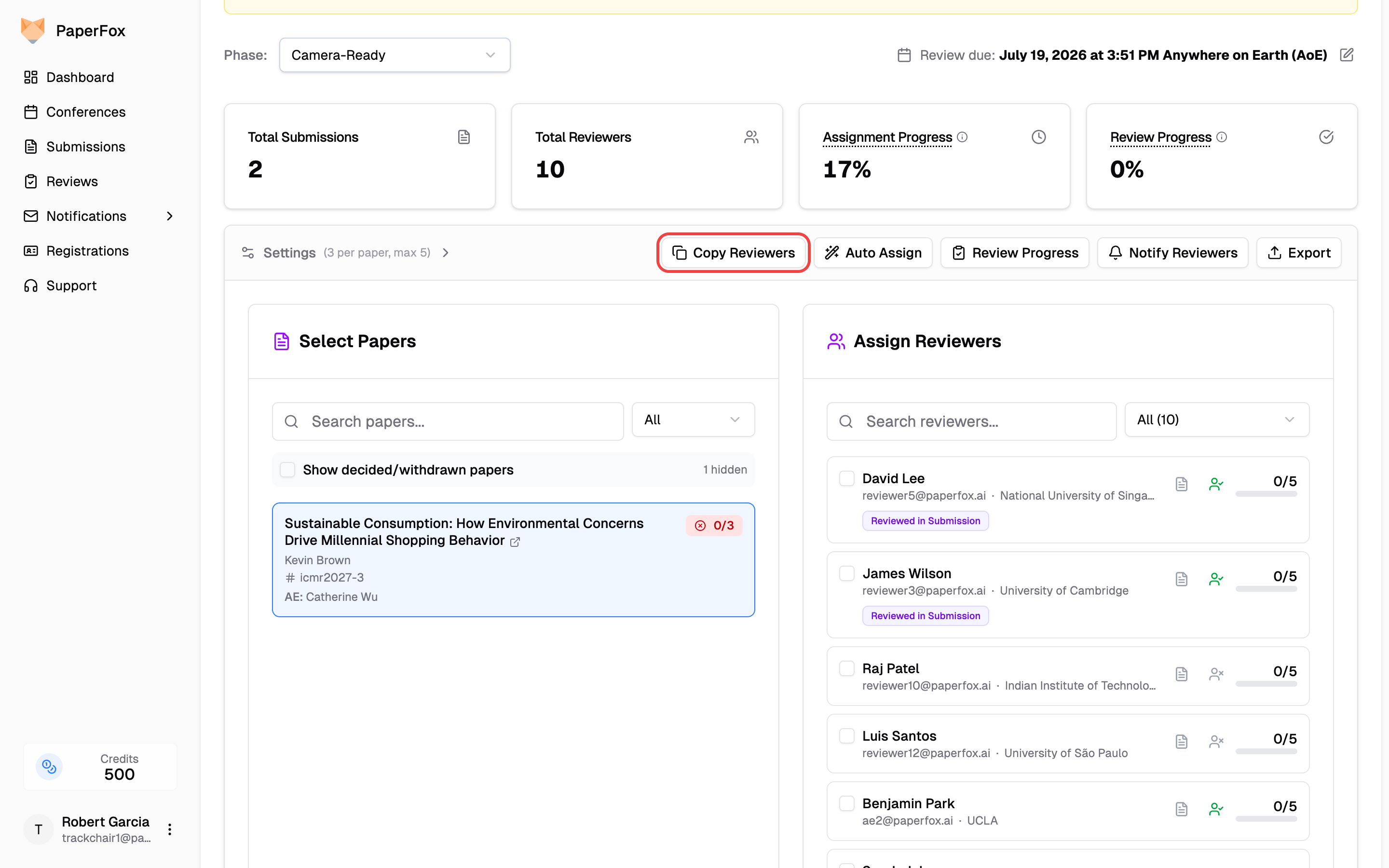
- Review the summary and click "Reuse Reviewers" to confirm
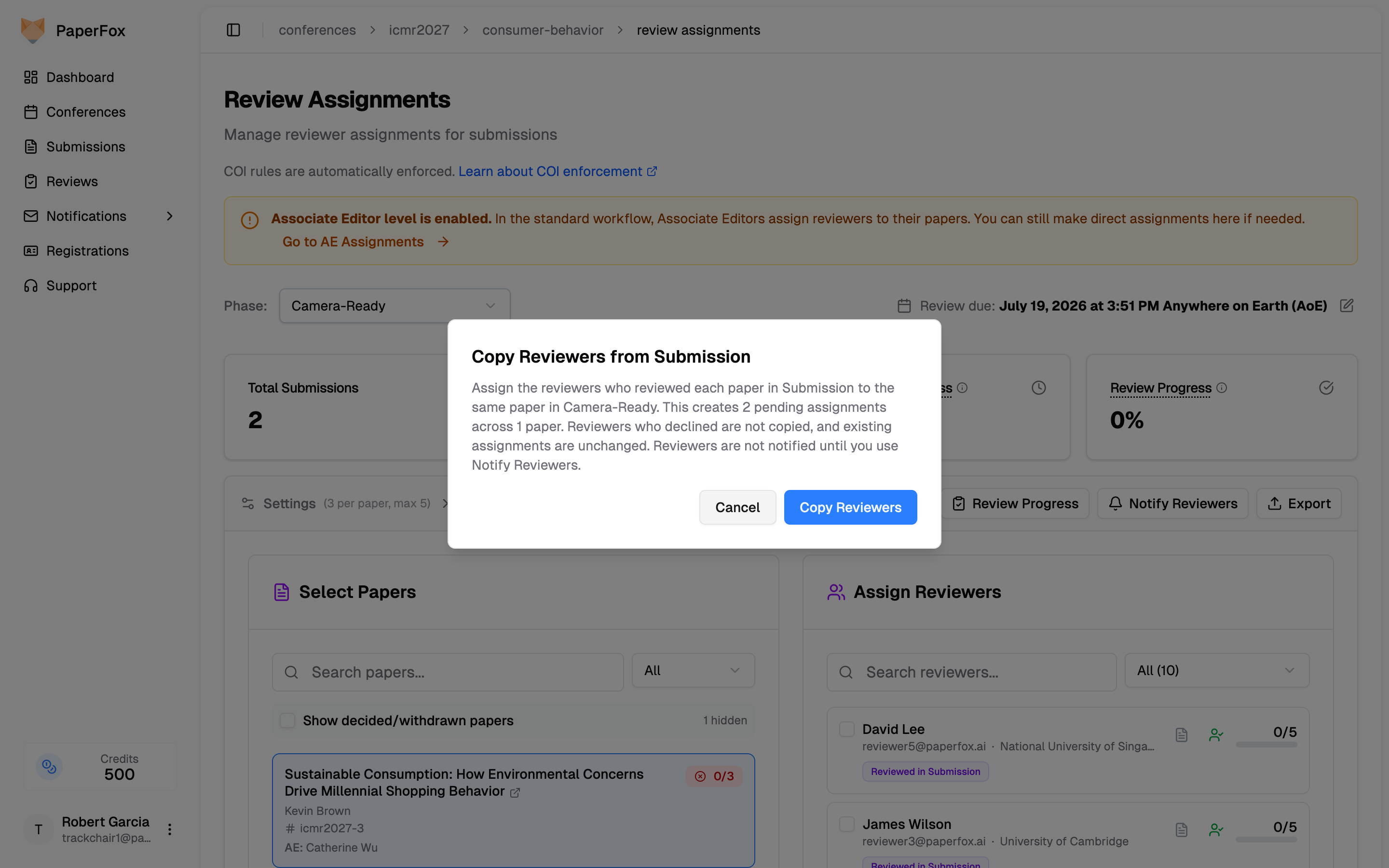
This applies to every submission in the phase at once: each submission gets pending assignments for its own previous-phase reviewers. Reviewers who declined in the previous phase are not reused, existing assignments are unchanged, and submissions that already have a decision in this phase are skipped. You can still add or remove reviewers on any submission afterwards.
Reviewers only see their phase's version
Each assignment is pinned to its phase. A reviewer assigned only in Phase 1 sees the submission as it was in Phase 1 — they never see revisions the authors upload in later phases. When you reuse a reviewer in Phase 2, their new assignment shows the Phase 2 version, while their original Phase 1 review keeps showing the version they originally reviewed.
7. Managing Assignment Workload
Balance Reviewer Load:
- Monitor how many submissions each reviewer has been assigned
- Distribute assignments evenly across your reviewer pool
- Respect maximum submissions per reviewer limits set in track configuration
Track Assignment Progress:
- Review assignment completion status for all submissions
- Identify submissions that still need reviewer assignments
- Ensure all submissions meet the minimum review requirements
8. Release to Reviewers, Then Notify
Assignments are private until you release the phase. The banner at the top of the assignments page tells you which state the phase is in:
- Not yet visible to reviewers (amber) — assign, adjust, remove, and re-run auto-assign as much as you like. Nothing reaches a reviewer, and Notify Reviewers stays disabled.
- Released to reviewers (green) — every assignment in the phase shows on the reviewer's Reviews page as Invited, ready to accept or decline. Anything you add after releasing is visible to that reviewer right away.
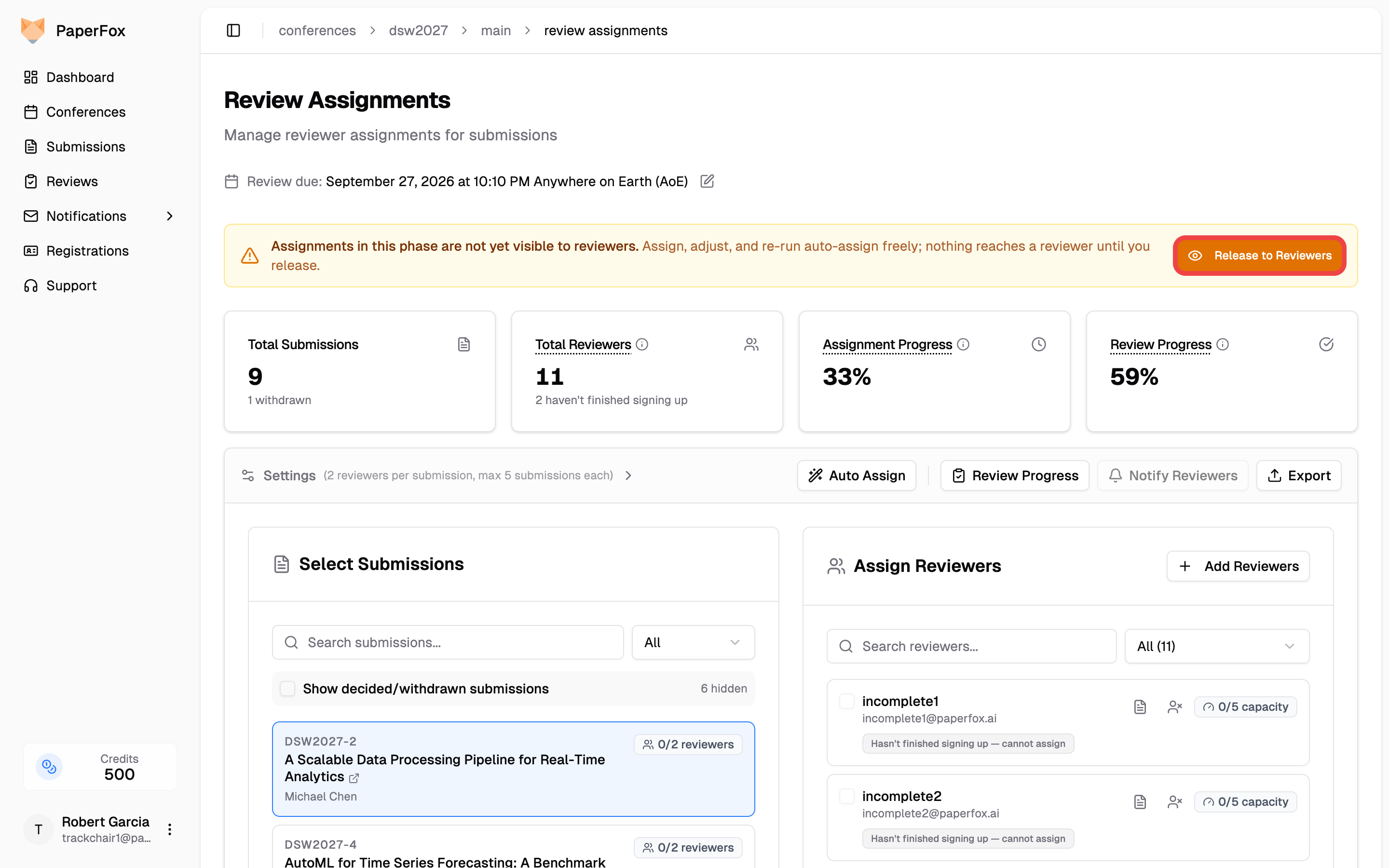
When your first pass is done:
- Click "Release to Reviewers" in the banner
- Leave "Open the Notify Reviewers email next" checked to send the assignment email in the same step, or untick it to email later from "Notify Reviewers" in the toolbar
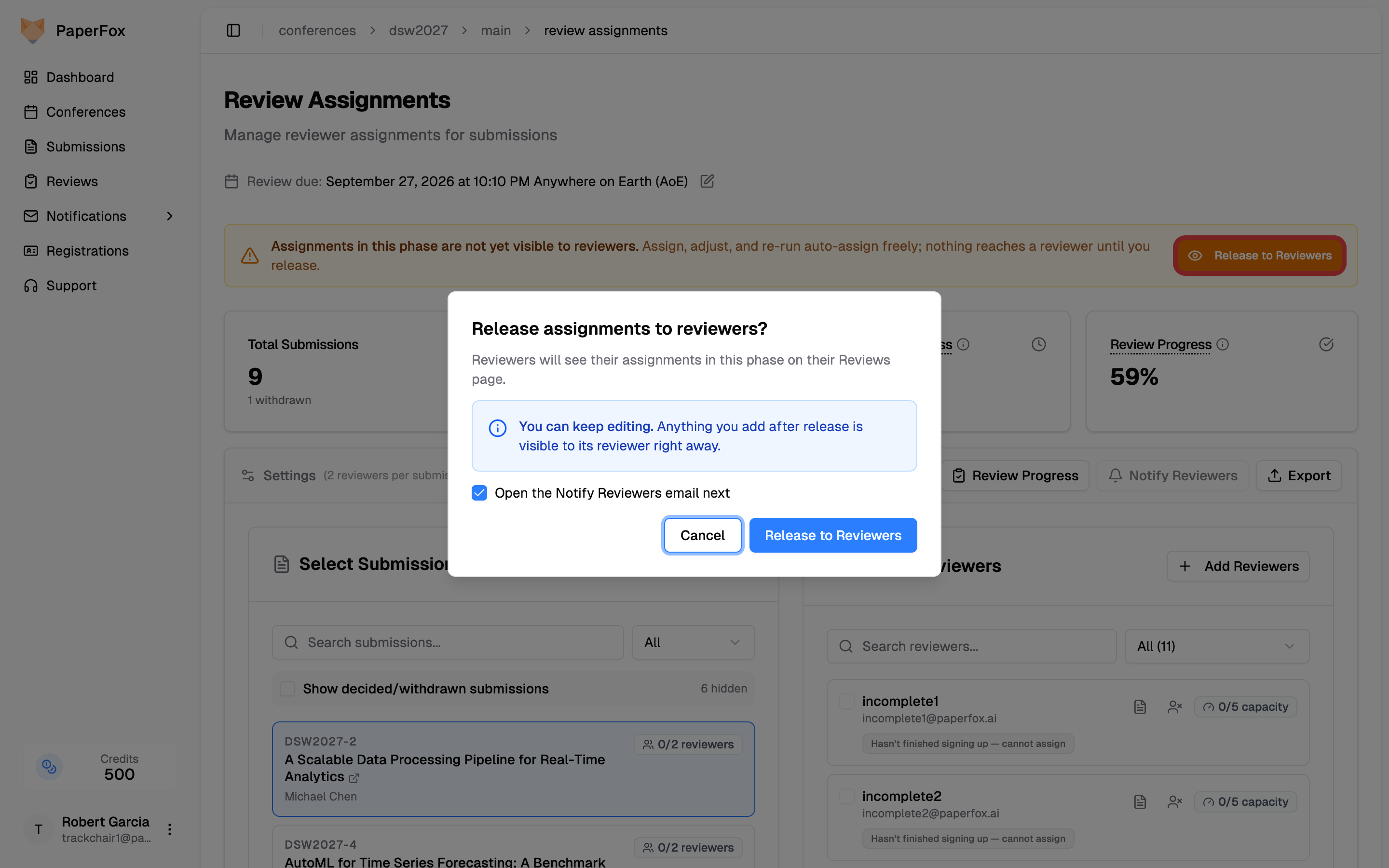
Conference chairs: release every track at once
In a multi-track conference, a conference chair's banner also says how many other tracks still hold the phase unreleased, and the dialog offers All tracks as a scope beside This track only. With "Open the Notify Reviewers email next" ticked, the composer then covers every track you manage. After a per-track release, the green banner adds a "Release in All Tracks" button for the rest. The same switch, tallied per phase, sits on the Conference Phases page (Conference Management → "Conference Phases"), next to the one for decisions and reviews. Tracks with custom phases are not included — release them from their own page.
Later additions are visible immediately, and Notify Reviewers is safe to use again: it reaches only reviewers with pending assignments no email has announced yet — not everyone in the phase. So after a reviewer declines and you assign a replacement, clicking Notify Reviewers emails just the replacement. The green banner shows how many reviewers are waiting on that email.
To email everyone with current assignments again — say the deadline moved — use Re-send Assignment List from the Notifications hub instead.
To email specific people by hand (for example a re-send to someone who lost the email): click Notify Reviewers and choose Email Specific Reviewers…. Tick the people you want and click Write Message. Whoever is assigned to the submission you have open is ticked for you, so writing to just the replacement you assigned a moment ago takes two clicks. Only the people you ticked are emailed. Picking the Review Assignment Notification template makes each message list that person's own current assignments, and a send like that counts as emailed too, so Notify Reviewers won't email them again later.
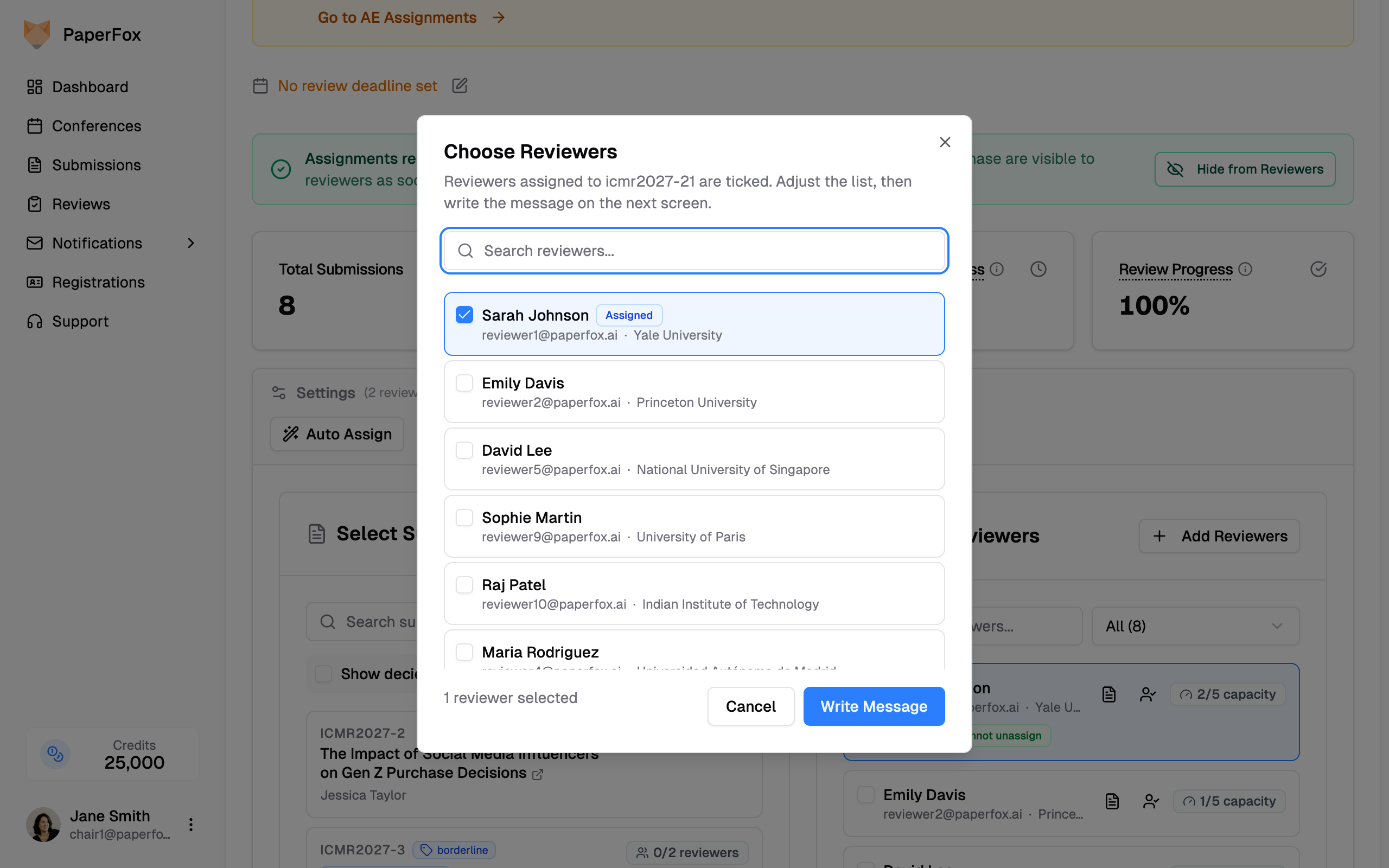
The same hand-picking is available on the track's Reviewers page, where you can tick rows and click Notify Selected — use that one when the message has nothing to do with a particular submission.
Hiding isn't a full undo
Hide from Reviewers in the green banner puts the phase back to unreleased: reviewers stop seeing the phase's assignments until you release again. Nothing is deleted — accepted assignments and reviews come back exactly as they were. But anyone who already opened a paper has seen it, so use it to catch a mistake quickly, not as a routine workflow. To take one reviewer off a paper, remove the assignment instead.
Same word as decisions
This is the same Release step you use to send a phase's decisions and reviews to authors — see Release Decisions & Reviews to Authors. Release is per phase: a new phase starts private again.
9. Getting Emailed When Reviewers Respond
By default, a reviewer accepting or declining an assignment does not email anyone — you see the current state on this page and on Review Progress. If you would rather hear about it as it happens, turn it on per track:
- Open the track page and expand Review Settings
- Switch on "Notify on Review Assignment Response"
Every track chair is then emailed when a reviewer accepts or declines an assigned submission. The email names the submission and the reviewer, so you can tell at a glance which paper needs another reviewer.
Two different settings, two different events
Notify on Review Assignment Response covers a reviewer responding to an assigned submission, which is what this page is about. The neighbouring Notify on Reviewer Pool Invitation Response covers something else: someone accepting or declining your invitation to join the reviewer pool at all — see Invite Reviewers. Turning one on does not turn on the other.
A conference chair can turn this on for the whole conference in one place instead: Notify Chairs on Review Assignment Response in Settings → General. Every track follows that setting unless its own switch has been changed, and a track that has no chairs of its own sends to the conference chairs who run it. Flip a track's switch when you want that one track to differ. Everything starts off, so no conference begins sending these without someone asking for them.
10. Review Progress
Click "Review Progress" to open a visual overview of review completion across all submissions — as a submission-by-reviewer matrix or a reviewer status list — with options to search, filter, export data, and send reminders.
See Review Progress for full details.