
Make Decisions on Submissions
How to accept, reject, or request revisions on submission submissions in your track
The Reviews & Decisions page is where track chairs review submission progress and make acceptance decisions. Navigate to your track management page and click "Reviews & Decisions" under Review Management.
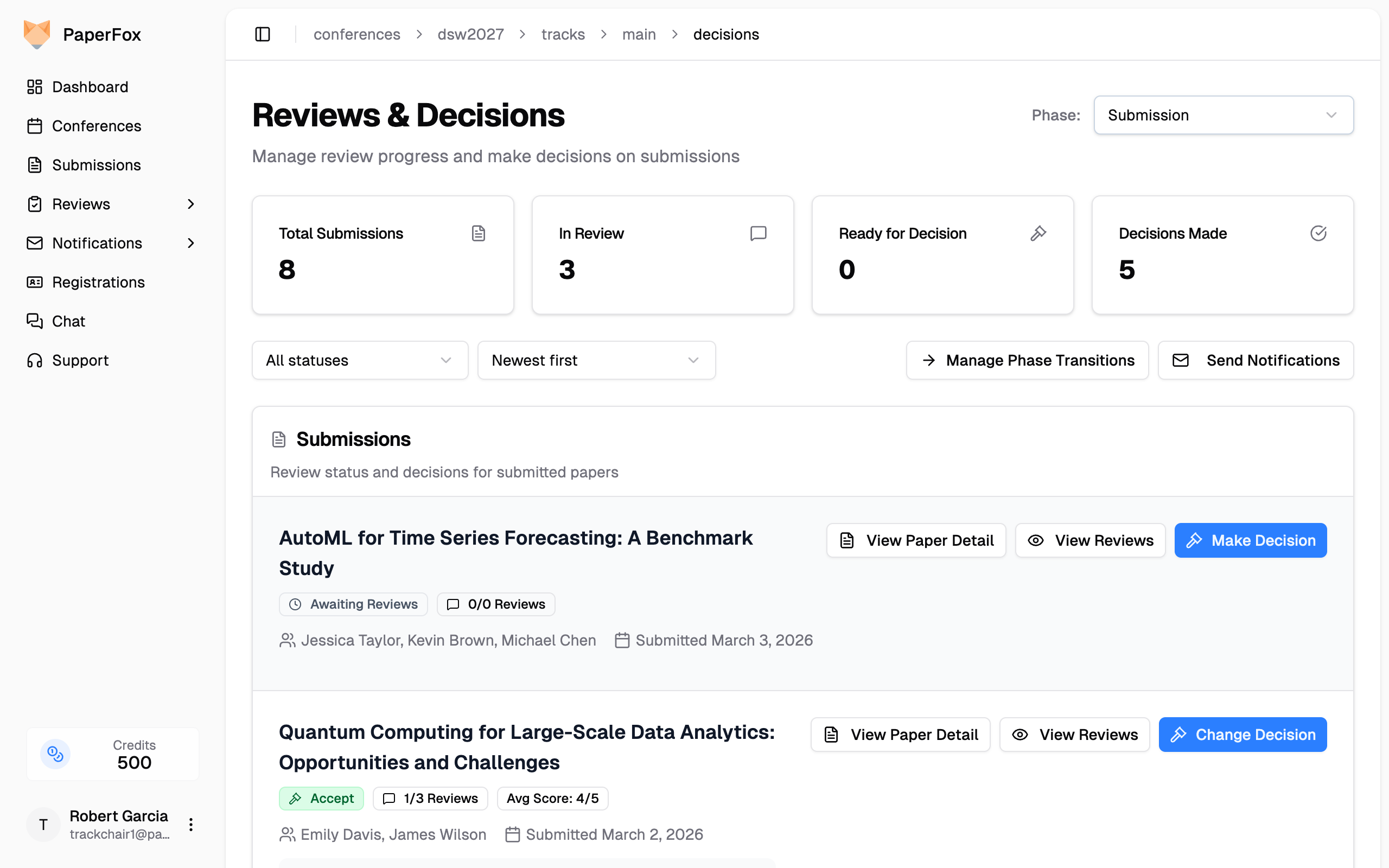
The page shows:
- Phase selector (multi-phase tracks only) — Top-right of the header; switches the entire view between review phases (e.g., Phase 1: Submission, Phase 2: Camera Ready). The page opens to the track's current phase — the furthest phase holding submissions — so use this only to look back at an earlier phase. Single-phase tracks don't show a selector.
- Summary cards — Total Submissions, Review Progress, and Decisions Made. The last two lead with a percentage and show the exact count beneath it; click either card to open its breakdown, where every row links to the queue filtered to exactly those submissions.
- Filter bar — A "Filters" button on the left opens the submission-status, review-status, and decision filters; the sort and the "Phase Transitions", "Progress Matrix", "Notify", and "Export" actions sit on the right. While a filter is on, a line beneath the bar shows the matching count, one chip per applied filter (click its ✕ to drop it), and "Clear all"
- Submission list — Each row shows title, authors, review progress, the average score, and a decision badge. Once at least one review is in, the row shows the average score (e.g. Avg score 4 out of 5, or No score yet until the first review is in) — the same Avg Score the Export writes — so you can scan and sort the queue by score without opening each submission. Each reviewer's individual score and confidence are on the submission's Reviews & Decision page. Review progress badges read "No Reviews Yet", "Reviews In Progress", "Ready for Decision", or the decision name once one is recorded.
Reading the summary cards
Review Progress measures reviews, and nothing else. A submission counts as complete only when every reviewer assigned to it has submitted — deciding a submission early doesn't make its missing reviews arrive. Its breakdown splits the submissions that have reviewers into Reviews complete, Reviews in progress, and No reviews yet. Submissions with no reviewers assigned are listed separately beneath, since assigning reviewers is a different job from chasing reviews.
Decisions Made counts submissions you've decided, and its breakdown shows the mix across your conference's decision types.
Both cards describe the selected phase and leave withdrawn submissions out entirely — they're already hidden from the list below.
Review & Decide on a Submission
- On the Reviews & Decisions page, click "Reviews & Decision" on the submission row
- This opens the combined reviews and decision page — reviews are on the left, with the Review Summary and Decision cards in the right sidebar
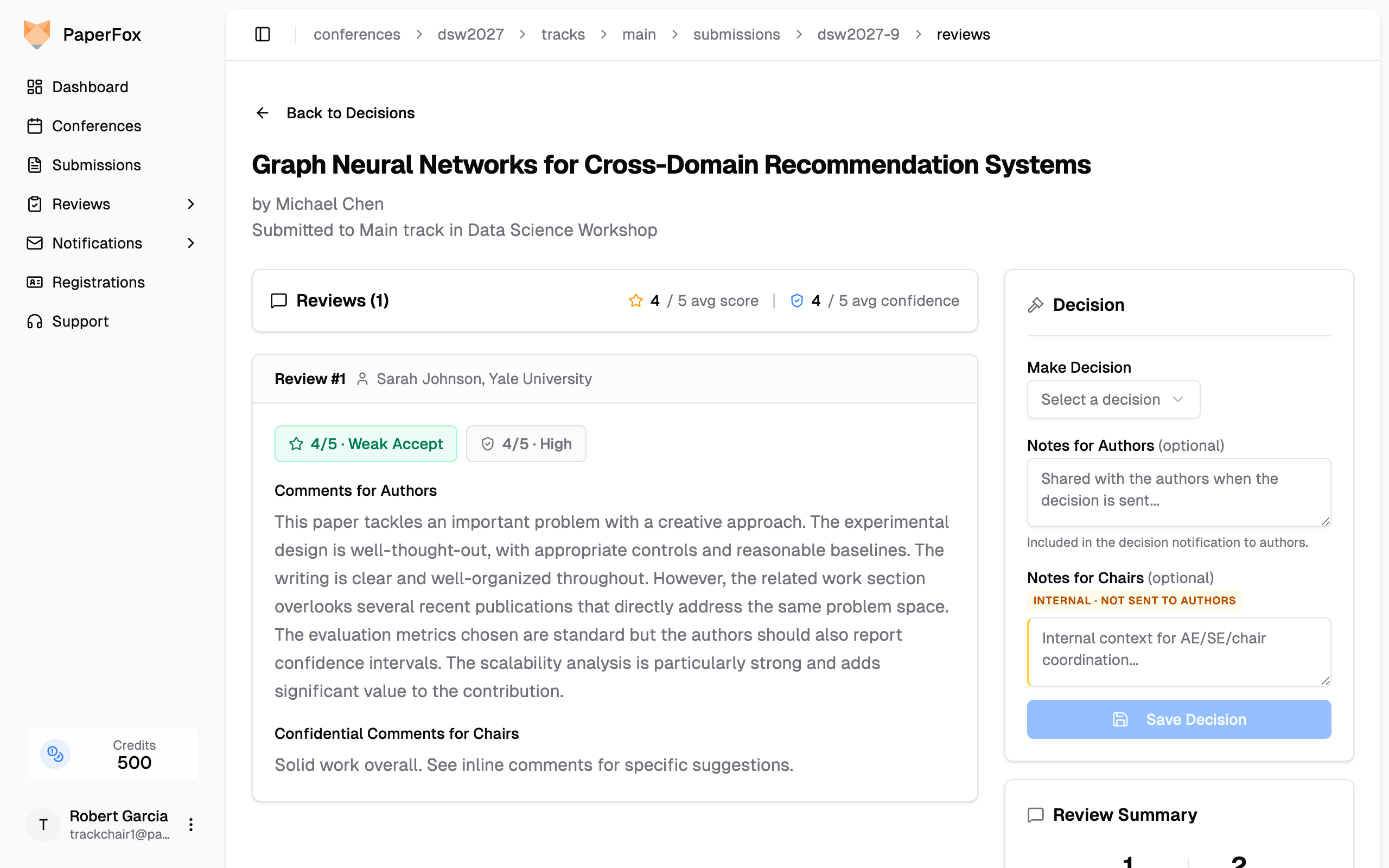
The Reviews header offers Copy and Download actions that export every submitted review — scores, comments, and reviewer identities as you see them — as a single Markdown or plain-text document.
At the top of the Decision sidebar is a decision timeline. On a multi-phase track it shows one row per phase the submission has reached — each with the decision recorded in that phase (who decided, when, and any notes), or "Awaiting decision" for a phase that hasn't been decided yet. Decisions are tracked per phase, so a submission you've advanced to a later phase reads as Awaiting decision for the new phase until you decide it, while the earlier phase's decision stays visible above it. On a single-phase track the timeline is just the one decision, with no phase labels.
- Read through the reviewer scores, comments, and confidential notes on the left
- In the Decision sidebar on the right, select a decision from the dropdown. The dropdown lists your conference's decision types — the six built-ins below, plus any custom verdicts the conference chair has added under Customize Decision Types:
| Built-in Decision | Effect |
|---|---|
| Accept | Submission accepted, submission status changes to Accepted |
| Conditional Accept | Accepted with minor requirements, status changes to Accepted |
| Major Revision | Substantial revisions needed, status changes to In Revision |
| Minor Revision | Minor revisions needed, status changes to In Revision |
| Reject | Submission rejected, submission status changes to Rejected |
| Desk Reject | Rejected without full review, status changes to Rejected |
- Optionally fill in two independent notes fields:
- Notes for Authors — included in the decision notification email and visible to authors on their submission page
- Notes for Chairs — marked with an amber INTERNAL · NOT SENT TO AUTHORS pill; visible only to chairs and editors (AE/SE), never sent to authors. Use for AE/SE coordination, override rationale, or any context you want recorded but kept off the author email
- Click "Save Decision"
Once saved, the decision appears in the card as a record — the badge, who decided and when, and both notes under matching Notes for Authors / Notes for Chairs labels (the internal note is marked in amber). Decision emails are sent separately with "Notify Authors" on the Reviews & Decisions page.
Working through the queue
You don't have to return to the list between submissions. When you open a submission from the Reviews & Decisions page, the header shows Previous and Next with your position in the queue (e.g. 3 of 12). They walk the list exactly as you left it — the same phase, filters, and sort — so filtering to Ready for Decision and sorting by score lets you decide the whole queue in order: save the decision, click Next. "Back to Decisions" returns you to the same page of the same list.
Who can make decisions?
Conference chairs, track chairs, and senior editors can all make decisions on submissions within their track.
Internal notes are chair-only
Notes for Chairs are visible to conference chairs, track chairs, associate editors, and senior editors — never to authors and never to regular reviewers. They appear inline beneath their phase's decision in the timeline, marked in amber so they're easy to spot. The decision notification email never includes them.
When Authors See Decisions & Reviews
Recording a decision is private. By default, authors don't see the decision — or the reviews — until you release that phase's results, a separate and explicit step. Recording, updating, or clearing a decision never reaches authors on its own.
Exactly when decisions and reviews become visible is controlled by two per-track settings, and releasing is one click per phase (or an automatic toggle when you send decision emails).
See Release Decisions & Reviews to Authors for the visibility settings, the Release button on the Decisions page, the toggle on decision-letter emails, multi-phase behavior, and hiding a released phase.
Change a Decision
If the current phase already has a decision, the card shows the recorded decision with the edit form collapsed behind a "Change Decision" button.
- Click "Change Decision" — the form expands, pre-filled with the current values
- Select a new decision from the dropdown and update either notes field if needed
- Click "Update Decision" — or "Cancel" to collapse the form without changes
To clear the current phase's decision entirely, select "Clear Decision" from the dropdown.
Changing or clearing a decision only affects the current phase — decisions recorded in earlier phases stay in the timeline untouched. The full timeline shows every phase's decision (who decided, when, and any notes), so nothing is lost when you update the current one.
Review Summary
Above the Decision card, the sidebar shows a Review Summary card with:
- Completed and Pending review counts
- Average Score and Average Confidence across all submitted reviews
- A View Submission link to see the full submission details
Multi-Phase Reviews
For tracks with multiple phases, the reviews page shows additional context:
- Phase badge on each review — Each review card shows which phase it belongs to (e.g., "Initial Submission" or "Camera Ready"), so you can distinguish reviews from different rounds
- Phase context banner — When navigating from the Decisions page with a specific phase selected, a banner at the top shows which phase you're viewing in context of
- Back navigation preserves phase — Clicking "Back to Decisions" returns you to the same phase you came from, with your filters, sort, and page intact
- Per-phase decisions — Each phase gets its own decision. When you move a submission to a later phase with Phase Transitions, it returns to under review for the new phase and shows "Awaiting decision" until you decide again. The earlier phase's decision isn't lost or carried forward as the current one — it stays in the timeline as that phase's outcome
The Reviews & Decisions page always shows reviews from all phases — it does not filter them. The phase badges help you identify which round each review is from.
Bulk Decisions
When most submissions should receive the same decision, use bulk decisions to apply a decision to multiple submissions at once, then adjust individually as needed.
The bulk action toolbar is always visible at the top of the submission list, with a Select all checkbox, a Bulk decision dropdown, and an Apply button.
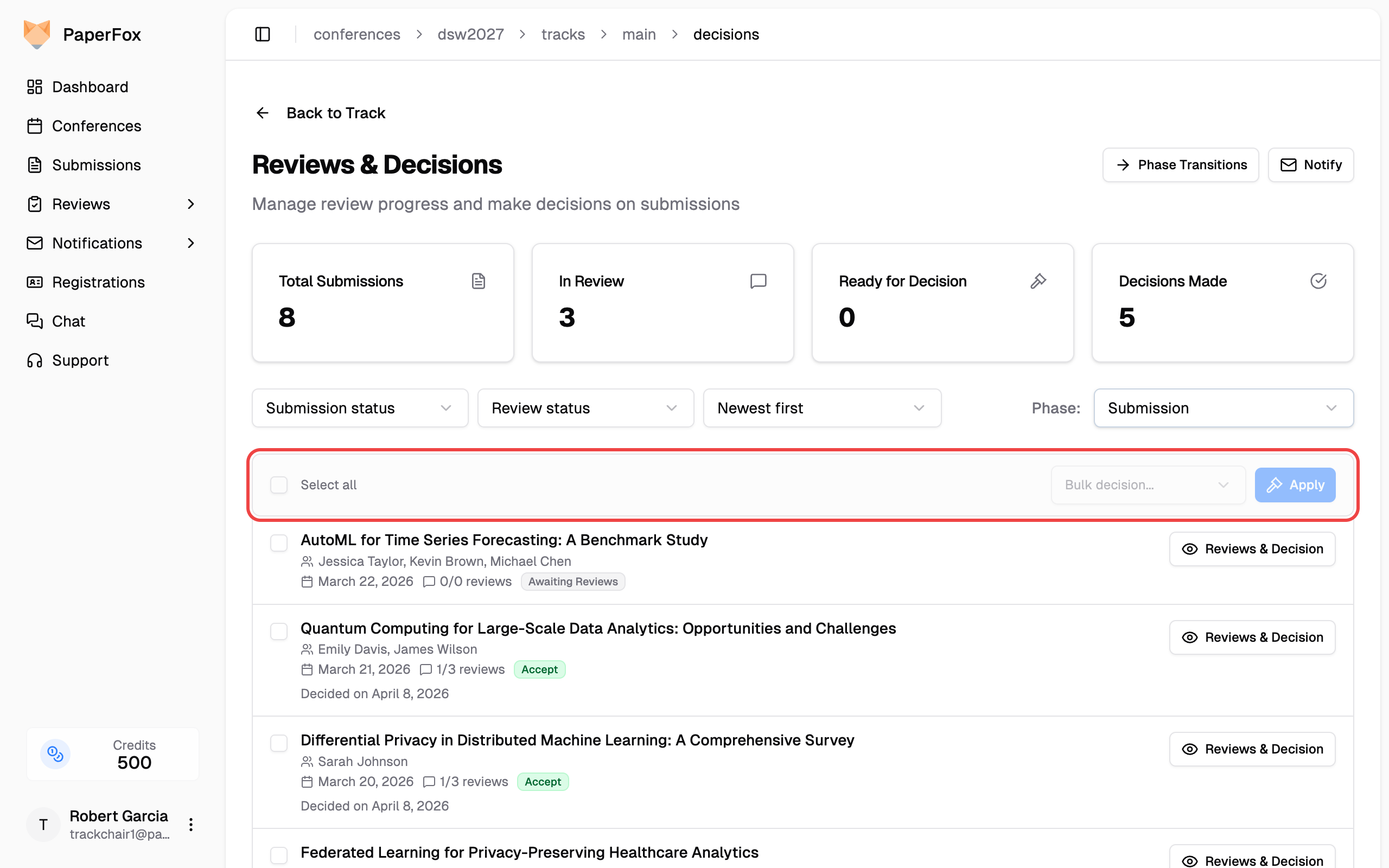
Apply a Bulk Decision
- Select submissions using the individual checkboxes, or click the Select all checkbox to select all submissions on the current page
- Choose a decision from the Bulk decision dropdown — two notes textareas appear once a decision is selected:
- Notes for Authors — applied to all selected submissions and included in their decision emails
- Notes for Chairs — marked with the amber INTERNAL · NOT SENT TO AUTHORS pill; applied to all selected submissions but visible only to chairs and editors
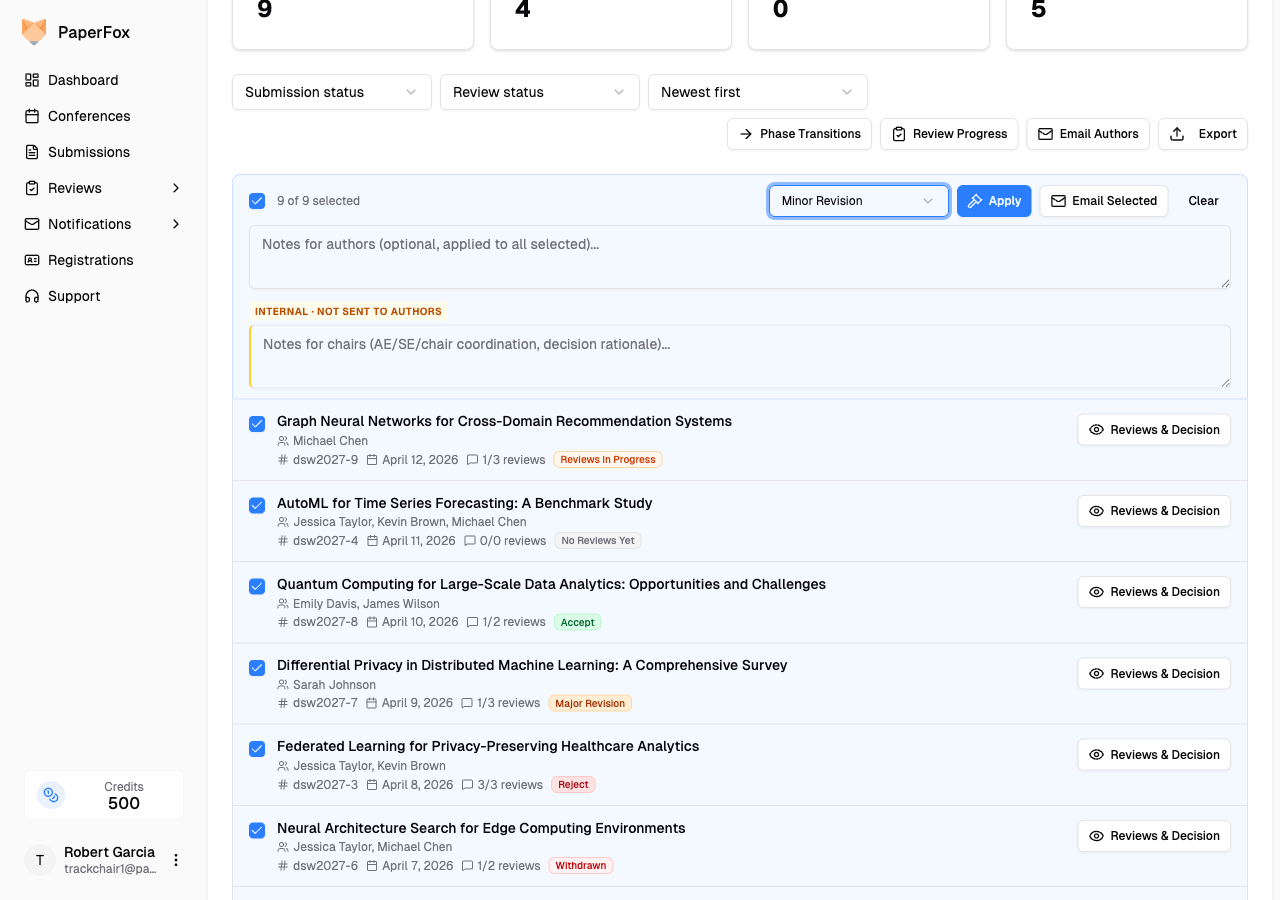
- Click "Apply"
If any selected submissions already have a decision, a confirmation dialog appears showing a summary of which decisions will be overwritten. Click "Apply to All" to proceed or "Cancel" to go back.
Existing notes are overwritten
When you apply a bulk decision to submissions that already have a decision, both notes fields are replaced with the bulk values (or cleared if left empty). Previous decisions and notes are preserved in the decision history.
Notify Authors of Decisions
After making decisions, click "Notify" on the Reviews & Decisions page to open the notification composer pre-configured for your track's authors. See Send Notifications for details.
Review file attachments are flagged in the email
If a reviewer uploaded a file (e.g. an annotated PDF) using a review-form file field marked visible to authors, the decision email automatically includes a note telling the author how many reviews include attachments and prompting them to sign in to download. You don't need to mention it manually.