
Configure Track-level Review Forms
Guide for track chairs to customize review forms for submission evaluations
Track chairs can customize review forms to match their evaluation criteria and review process. The review form builder provides the same interface as submission forms but focuses on reviewer evaluation fields.
Conference-level defaults
Your track's review form inherits default fields set by the conference chair — including phase-scoped ones. You can add additional fields on top of these defaults. See Configure Conference Forms for details on how conference-level forms work.
If your conference has only one track, reviewers see one combined form either way — the page shows a reminder saying so. Prefer adding fields on Conference Forms (they carry over to any track added later); add fields here when they should stay with this track.
Accessing the Review Form Builder
- Log in to your PaperFox account
- Go to your conference dashboard
- Navigate to your assigned track
- Under Track Settings, click "Track Forms"
- Select the "Review Form" tab
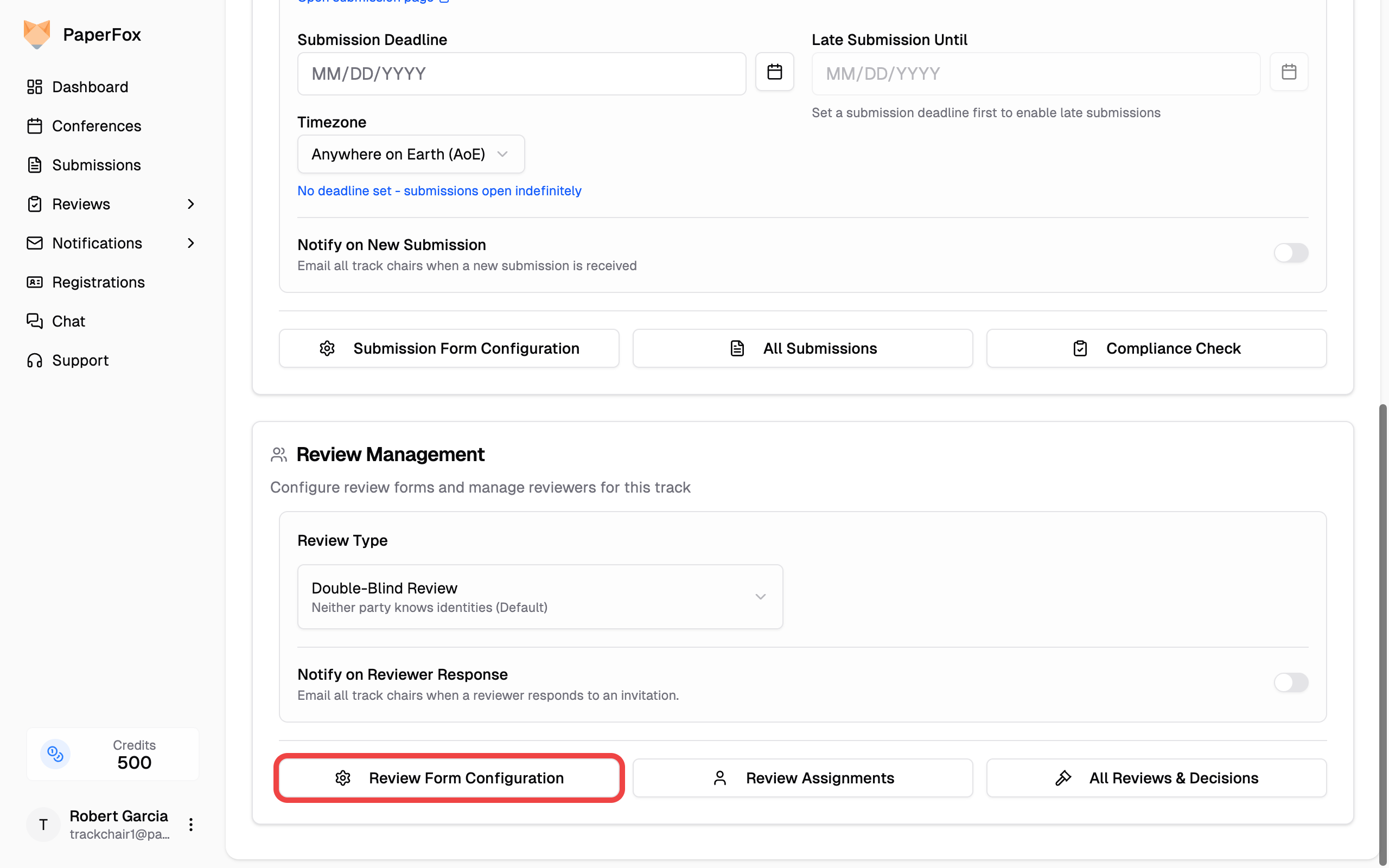
Form Builder
The builder lists the form the way a reviewer meets it, with a line above telling you how many questions that adds up to.
Questions are grouped by where they come from:
- From the conference — defaults set by the conference chair (Overall Evaluation, Reviewer Confidence, and so on), showing the ones that apply to the phase you're viewing. Read-only here; conference chairs see an "Edit conference forms" link on this group.
- Added for this track — the questions you own. Use "Add Field" to create one, drag to reorder, or click the edit icon to modify.
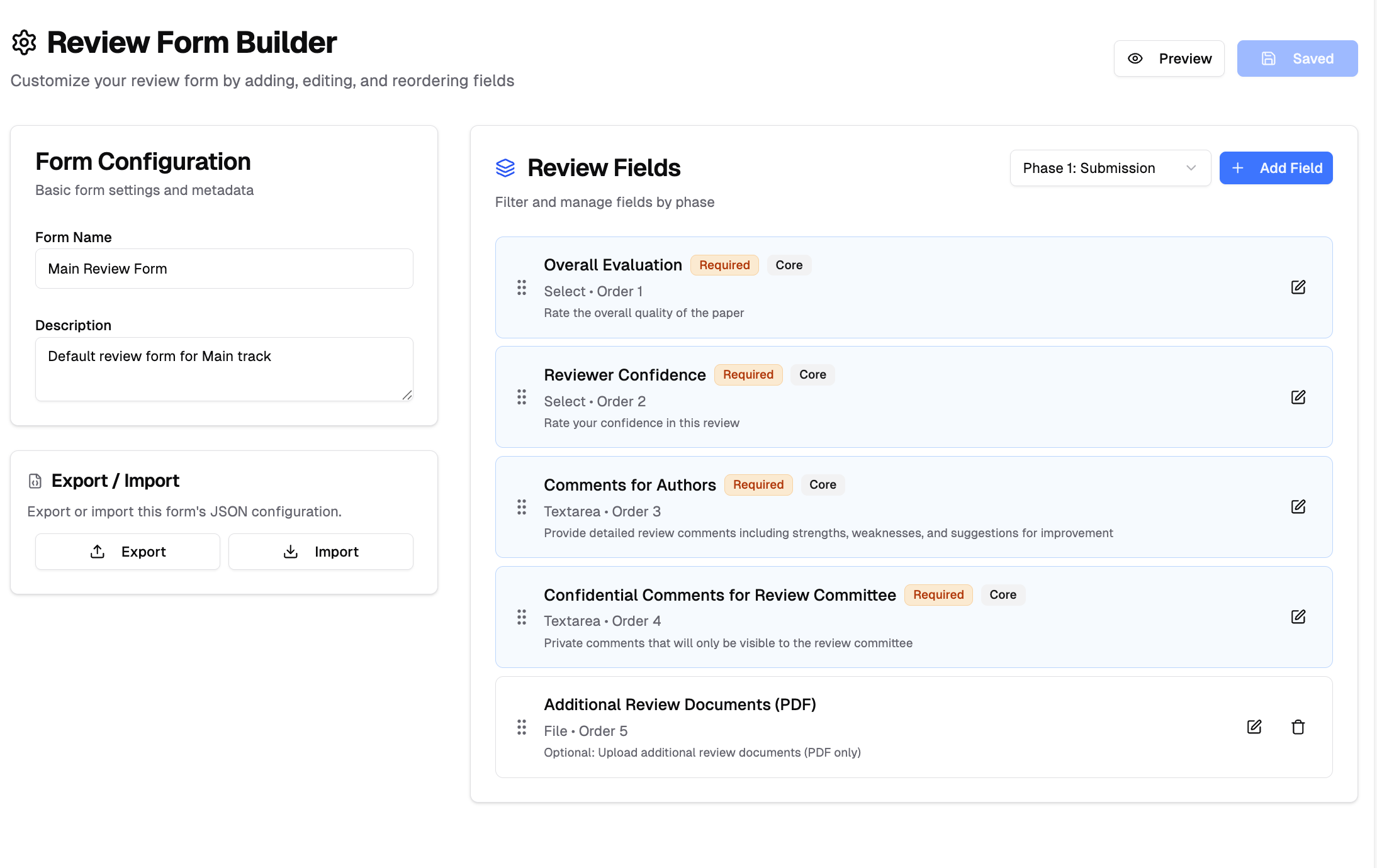
Review Deadlines
Configure review timing and deadlines for your track:
- Review Assignment: Set when reviewers are assigned to submissions
- Review Deadline: Final deadline for completing reviews
- Review Reminders: Automatic reminders sent to reviewers before deadline
Core Review Fields
Review forms include essential fields that cannot be deleted but can be edited:
- Overall Evaluation: 5-point scale rating (Strong Reject to Strong Accept)
- Reviewer Confidence: Confidence level in the review (1-5 scale)
- Comments for Authors: Detailed feedback visible to authors
- Confidential Comments: Private comments for review committee only
What Authors See
When authors view their reviews after the chair releases the phase's results, the system automatically filters what's shown:
| Element | Authors see it? |
|---|---|
| Overall Evaluation (score) | No — always hidden |
| Reviewer Confidence | No — always hidden |
| Comments for Authors | Yes |
| Confidential Comments | No — committee only |
| Custom fields | Depends on the field's visibility setting (see below) |
| Reviewer name | Only when the track's review type is Open; hidden in Single-Blind and Double-Blind |
| Review timestamps | No — hidden |
Score and confidence are always confidential to authors
Even though Overall Evaluation and Reviewer Confidence are core fields, authors never see them — there's no setting to expose them. They're shown to chairs and track chairs, and to the submission's other reviewers when the track's Review Visibility to Other Reviewers setting reveals co-reviews (see the track's Review Settings). Design custom rating-style fields with this in mind: if you want a numeric rating that authors can see, add it as a custom field with visibility set to Visible to Authors.
Adding Custom Fields
- Click "Add Field" button
- Select a field type (Text Input, Text Area, Single Choice, Multiple Choice, or File Upload)
- Configure label, description, and validation rules
- Set visibility: visible to authors or confidential
Phase-Specific Questions
On tracks with more than one review phase, each track question belongs to a phase, and reviewers only get the questions their phase asks. Single-phase tracks have no phase to choose, so this section doesn't apply — the phase selector and the Phase option are hidden entirely.
- Use the phase selector at the right of the form tabs to switch phases
- Click "Add Field" and pick the Phase the question belongs to
- The list shows every question that phase collects, grouped by the phase each one was added in — Added in Phase 1, then Added in Phase 2, and so on
Only the group for the phase you have selected is editable. Questions carried in from an earlier phase are shown for context and have no edit or delete icons; use "Edit in Phase 1" on that group's heading to go where they can be changed.
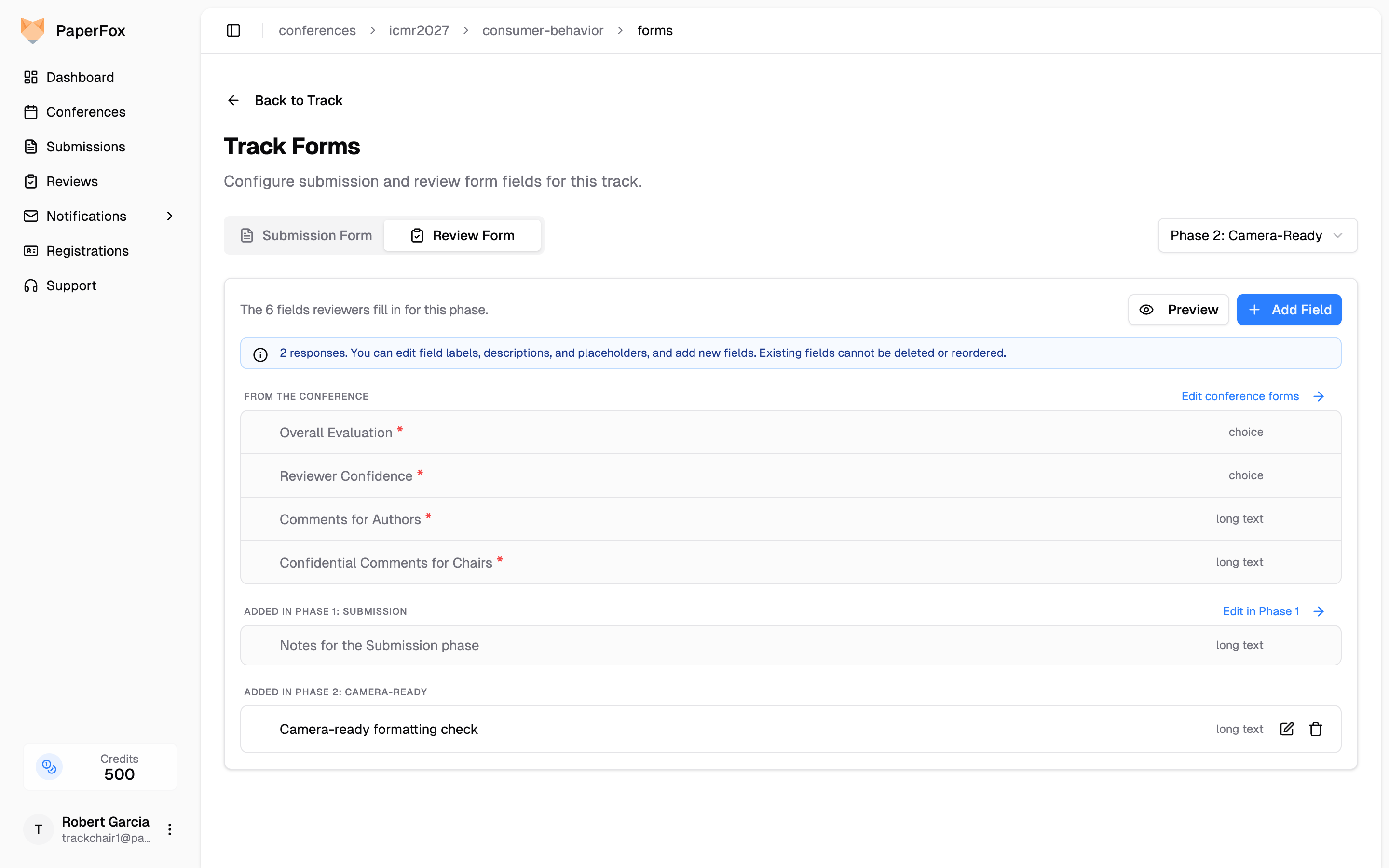
A question tagged to a phase is hidden from reviewers before that phase and appears from that phase onward. Later phases keep the earlier phases' questions:
| Reviewer assigned to | Questions on their form |
|---|---|
| Phase 1 | Conference fields + Phase 1 track questions |
| Phase 2 | Conference fields + Phase 1 + Phase 2 track questions |
Conference-level fields aren't phase-specific — they appear in every phase.
Reviewers keep answering the same questions across phases
Phases add questions, they never replace them. That's deliberate: a question keeps the same identity in every phase, so a rating you collect in Phase 1 and Phase 2 is the same question in your exports rather than two unrelated columns. If you want a question asked only in a later round, add it to that phase — earlier-phase reviewers won't see it.
Adding a question mid-phase reaches reviewers immediately
Reviewers already working in that phase pick up the new question the next time they open their review form, and a Required question will block them from submitting until they answer it. Add required questions for a phase before you assign its reviewers.
Field Visibility (Custom Fields)
Custom fields you add have two visibility options:
- Visible to Authors: Authors will see this field's content alongside Comments for Authors
- Confidential: Only the review committee sees the field
This setting only applies to custom fields. Core fields follow the rules in What Authors See above.
Managing Fields
- Edit: Click the edit icon to modify field properties
- Delete: Remove non-core fields using the delete icon
- Reorder: Drag and drop fields to change their order
Previewing the Form
Click the "Preview" button next to the tab bar to see exactly how the review form appears to reviewers. The preview renders the real form — you can interact with all fields, open dropdowns, and test rating scales. No data will be saved.
The preview includes both conference-level inherited fields and your track-specific fields, showing the complete form reviewers will see.