
Withdraw or Delete Submissions
Approve author withdrawal requests, withdraw submissions directly, or permanently delete them
There are three ways a submission leaves the review pipeline:
| Action | Triggered By | Effect | Reversible? |
|---|---|---|---|
| Author withdrawal request | Author requests, chair approves | Marks as withdrawn after chair approval | Yes — a chair can reinstate |
| Direct withdrawal | Track or conference chair | Marks as withdrawn immediately | Yes — a chair can reinstate |
| Delete | Track or conference chair | Permanently removes all data | No — permanent |
Which should I use?
Author withdrawal requests are the standard path — let the author own the decision and approve it from the inbox. Direct withdrawal is for cases where the chair acts unilaterally (e.g., desk-withdrawing a duplicate or a submission out of scope). Both can be undone — see Reinstate a Withdrawn Submission. Delete is the only irreversible action; use it solely to completely remove a submission and all its data, such as cleaning up duplicate submissions.
Review Author Withdrawal Requests
When an author submits a withdrawal request, both conference chairs and track chairs are notified by email. Approve or decline from the Withdrawal Requests inbox.
- From the track page, under Submission Management, click "Withdrawal Requests"
- Pending requests appear in the Pending tab with the author's name, reason, and submission title
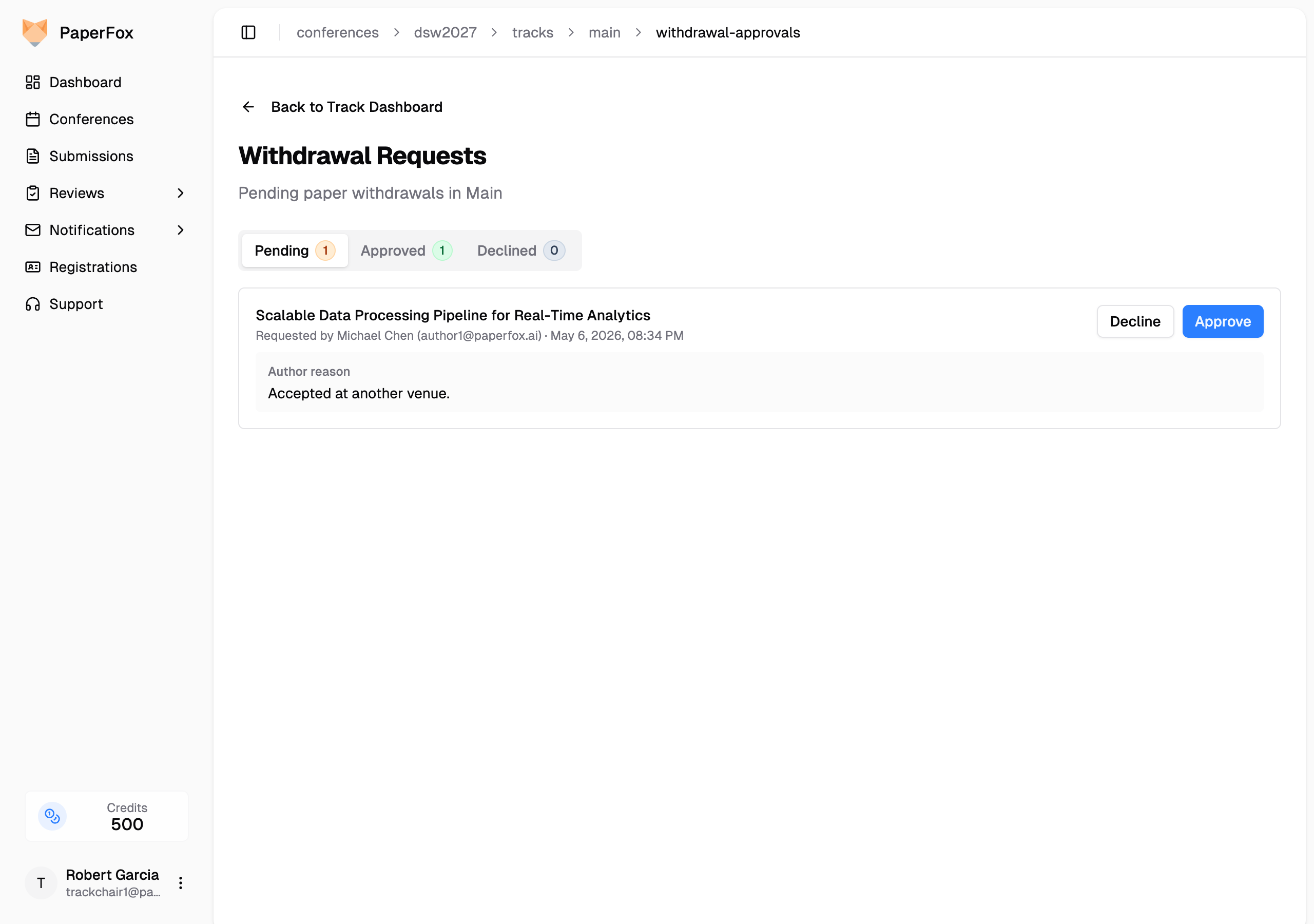
- Click "Approve" or "Decline" on the row
- Optionally add a note — the author sees this on their submission page and in the email
- Click "Approve" (or "Decline") in the confirmation dialog
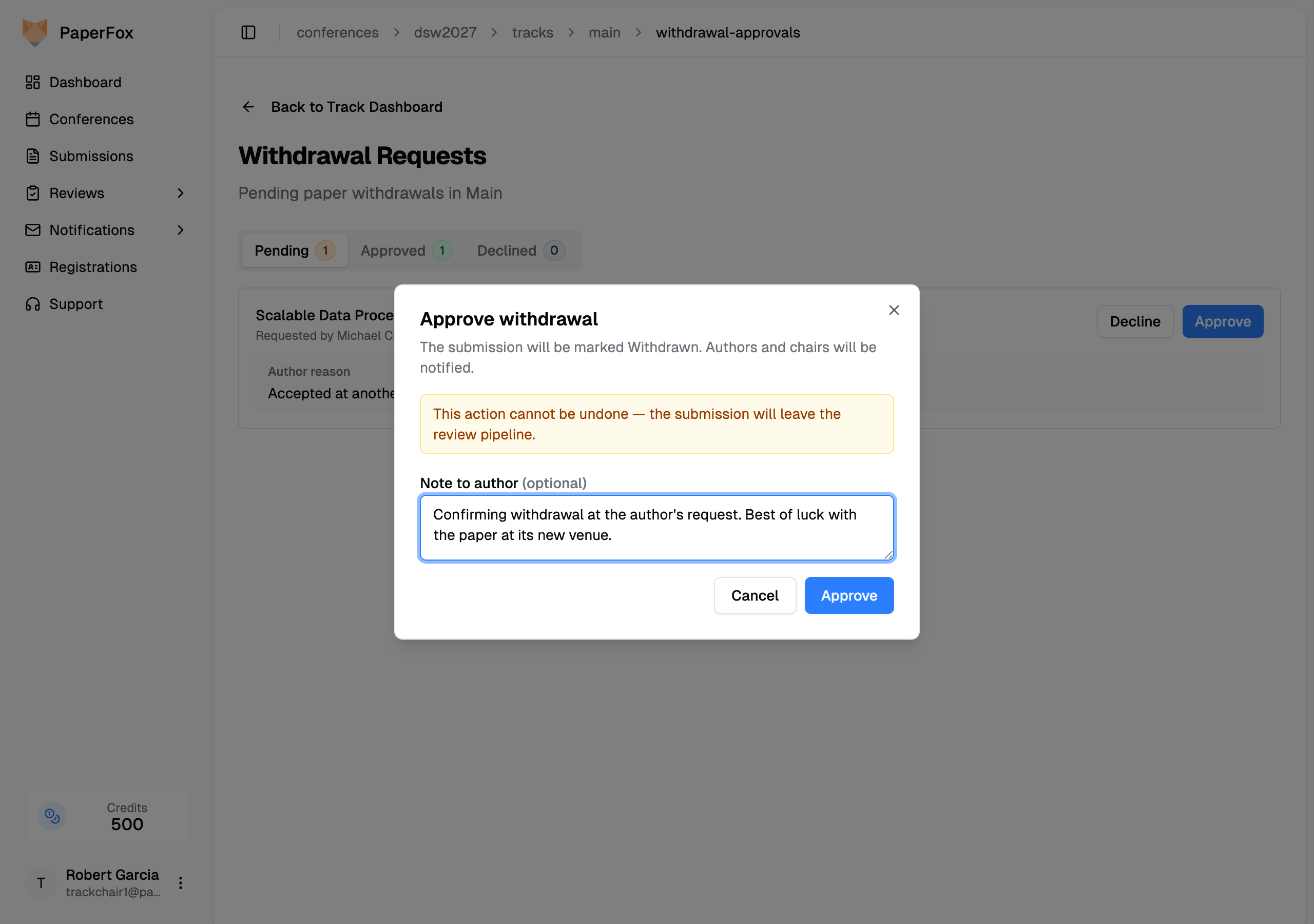
After the decision:
- Approved — the submission status changes to WITHDRAWN, and authors plus all chairs are notified.
- Declined — the submission stays under review. The author sees the decline + your note on their submission page; they cannot re-request through PaperFox.
Dashboard reminder
The main Dashboard shows a Pending Withdrawal Requests banner with a one-click Review link to each track's inbox whenever you have requests waiting. The banner only appears when count > 0, so an empty inbox stays out of your way.
Withdraw a Submission Directly
When a chair decides to withdraw a submission without an author request — for example, an out-of-scope submission or a duplicate — use the Actions dropdown on the Track Submissions page.
- From the track page, under Submission Management, click "Submissions"
- Find the submission and click the "Actions" dropdown
- Click "Withdraw Submission"
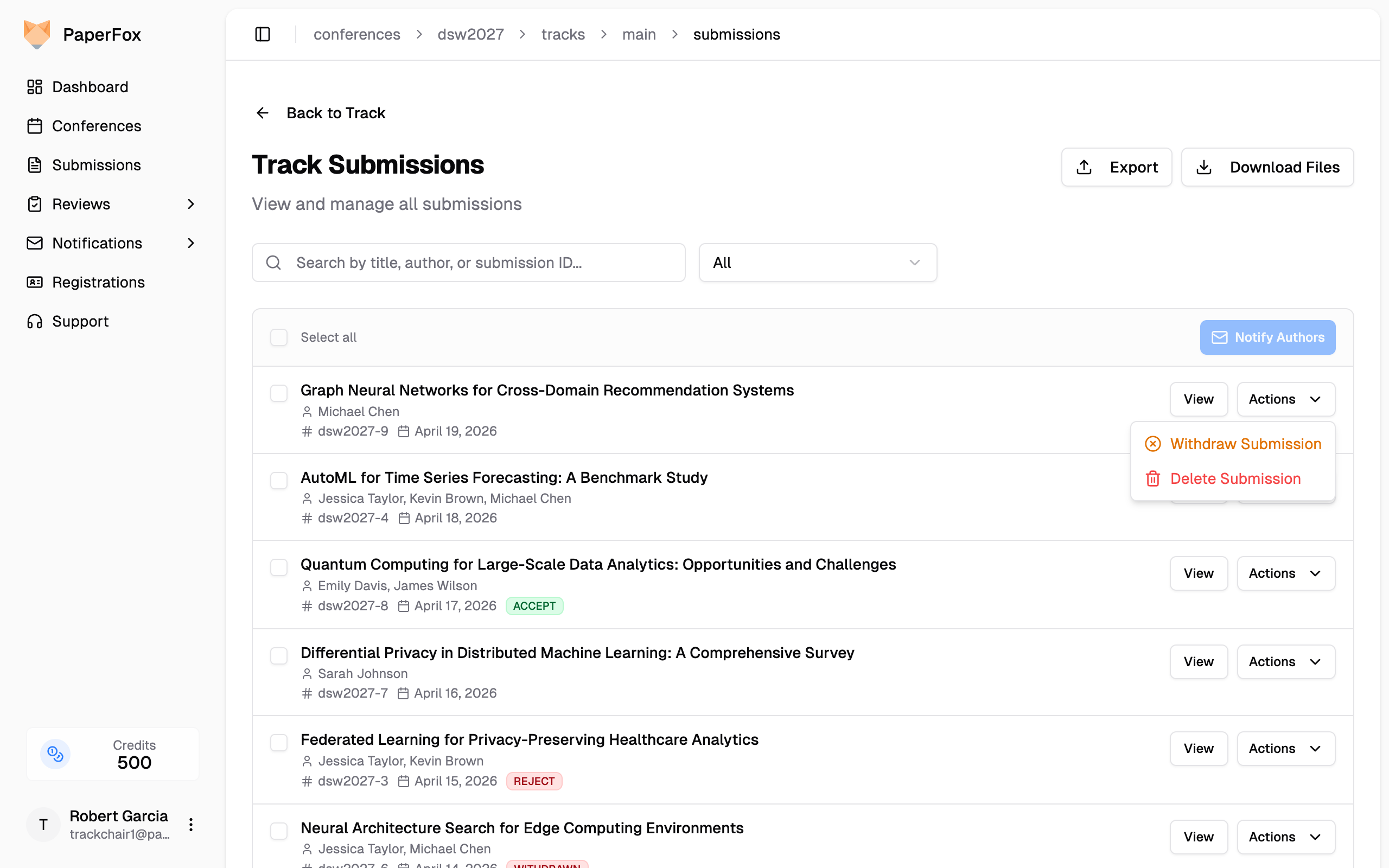
- Optionally enter a reason for the withdrawal
- Click "Withdraw Submission" to confirm
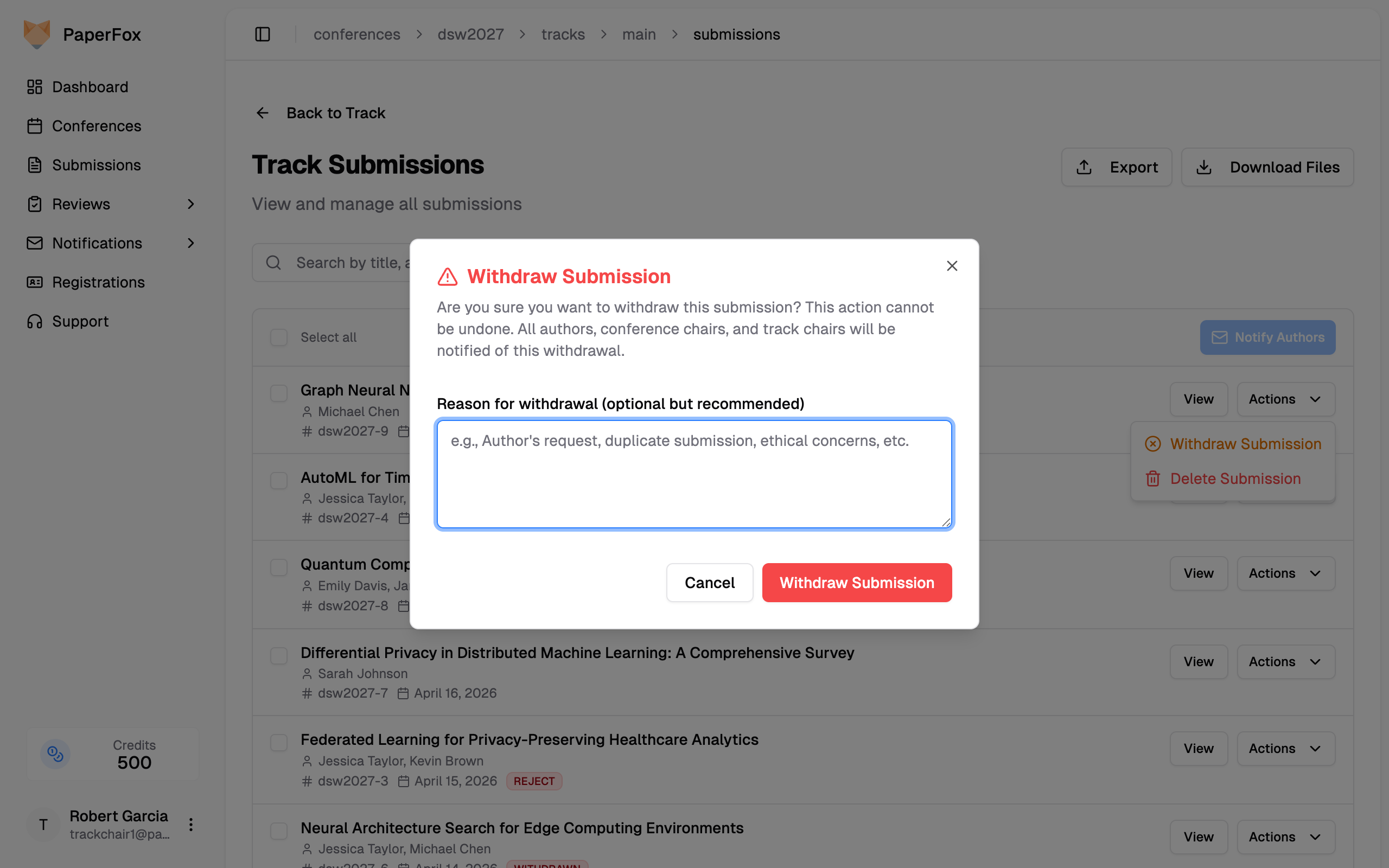
Conference chairs
Conference chairs see an additional "Move to Another Track" option in this dropdown for relocating a submission across tracks.
After a direct withdrawal:
- The submission status changes to WITHDRAWN
- All authors, conference chairs, and track chairs are notified
- A record appears in the Withdrawal Requests inbox under Approved, attributed to you
Reinstate a Withdrawn Submission
If a submission was withdrawn by mistake — or the author asks to continue after all — a track or conference chair can reverse the withdrawal. The submission returns to exactly the status it held before it was withdrawn (for example, an accepted submission goes back to ACCEPTED, not the start of the process).
Withdrawn submissions are hidden by default
The Track Submissions list hides withdrawn submissions from the default All Statuses view so they don't clutter your active queue. To find one, click "Filters" and choose "Withdrawn" from the All Statuses dropdown — the count next to it tells you how many there are.
- From the track page, under Submission Management, click "Submissions"
- Click "Filters" and select "Withdrawn" from the All Statuses dropdown — a Status: Withdrawn chip appears beneath the bar
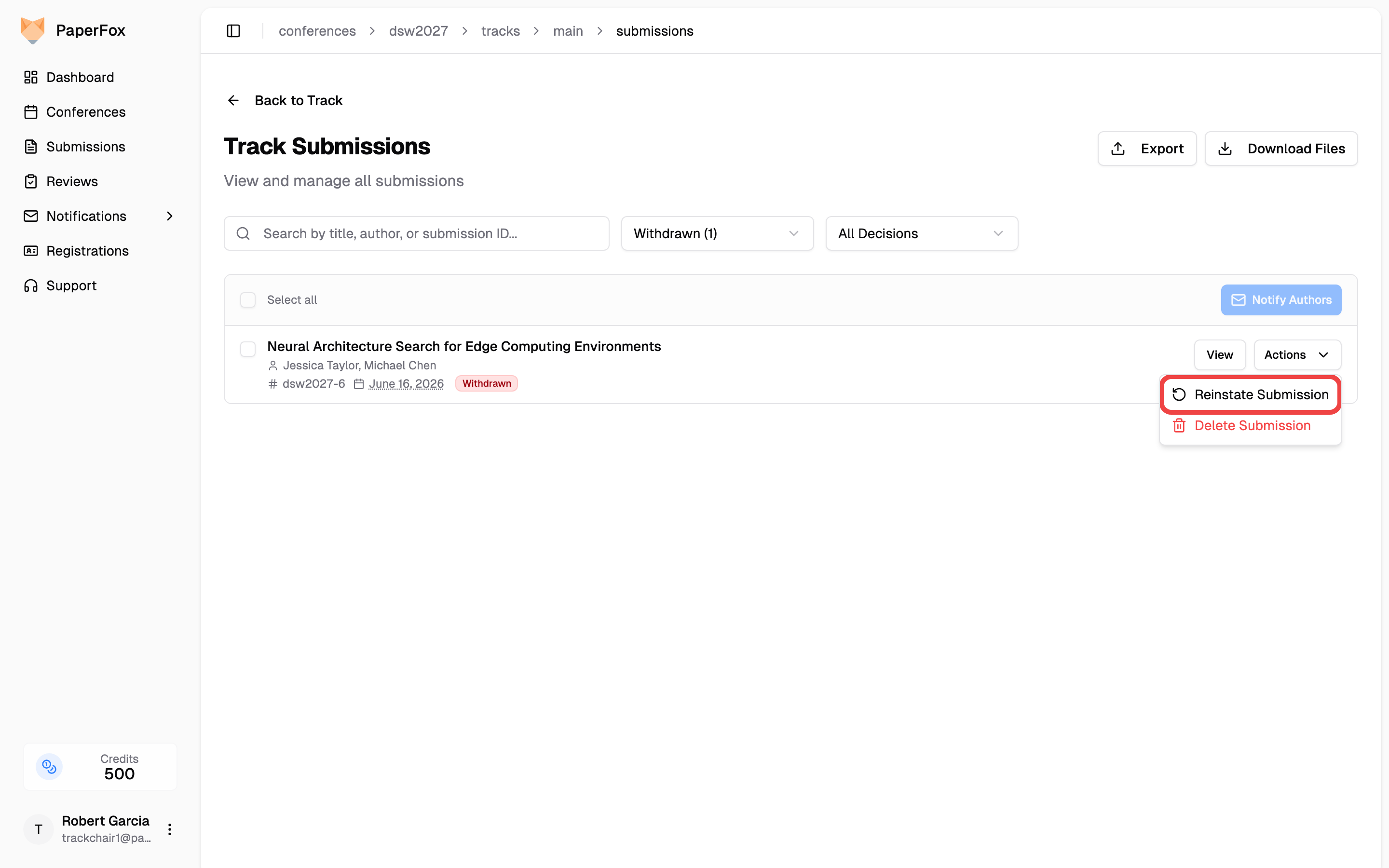
- Find the withdrawn submission and click its "Actions" dropdown
- Click "Reinstate Submission"
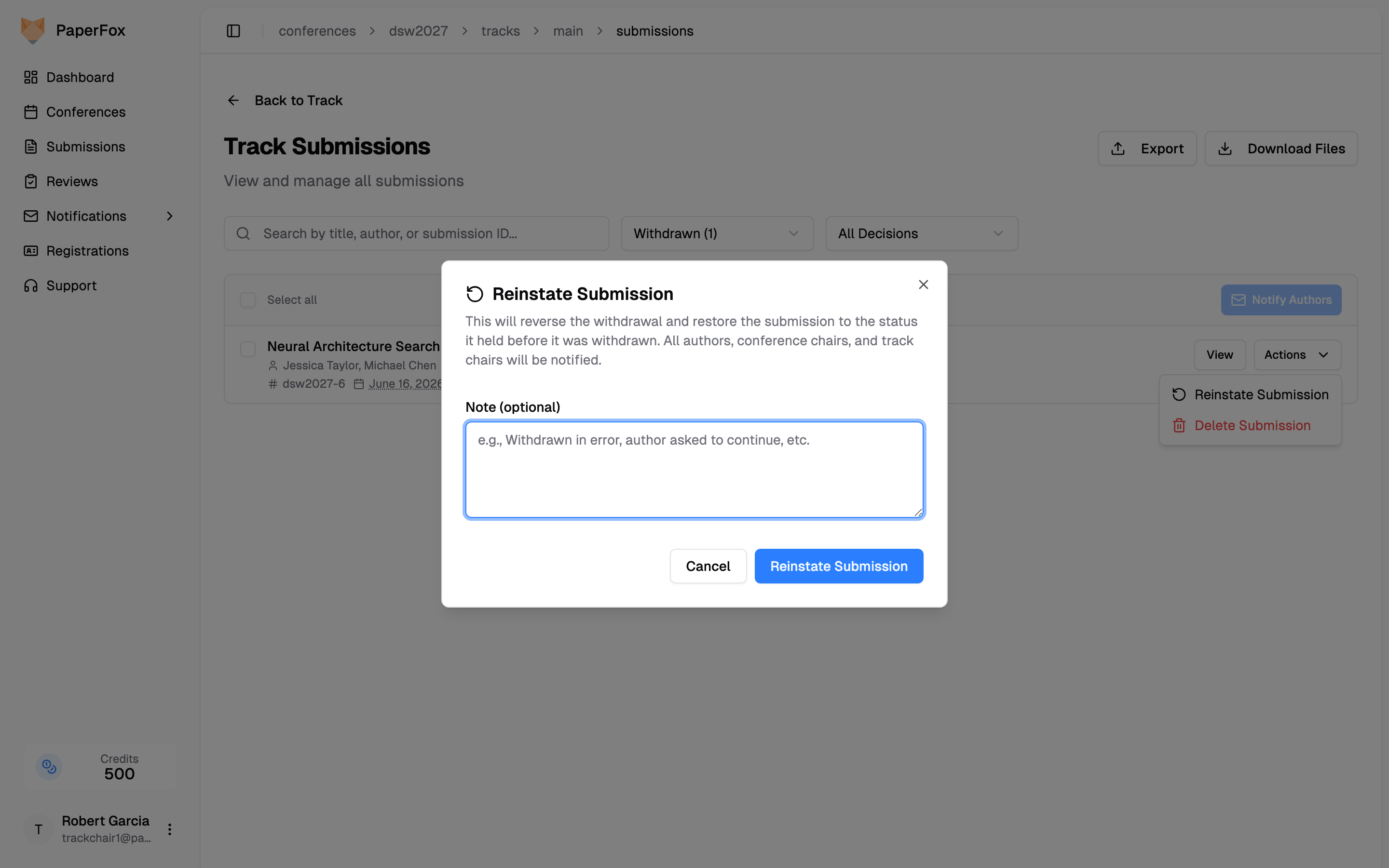
- Optionally add a note explaining why
- Click "Reinstate Submission" to confirm
After reinstating:
- The submission returns to its previous status and is back in the review pipeline
- All authors, conference chairs, and track chairs are notified
- The earlier withdrawal record is cleared from the Withdrawal Requests inbox
Deletion can't be reinstated
Reinstating only undoes a withdrawal. A submission that was deleted is gone permanently — there is nothing to reinstate.
Delete a Submission
Deleting permanently removes a submission and all associated data. Available to track chairs and conference chairs.
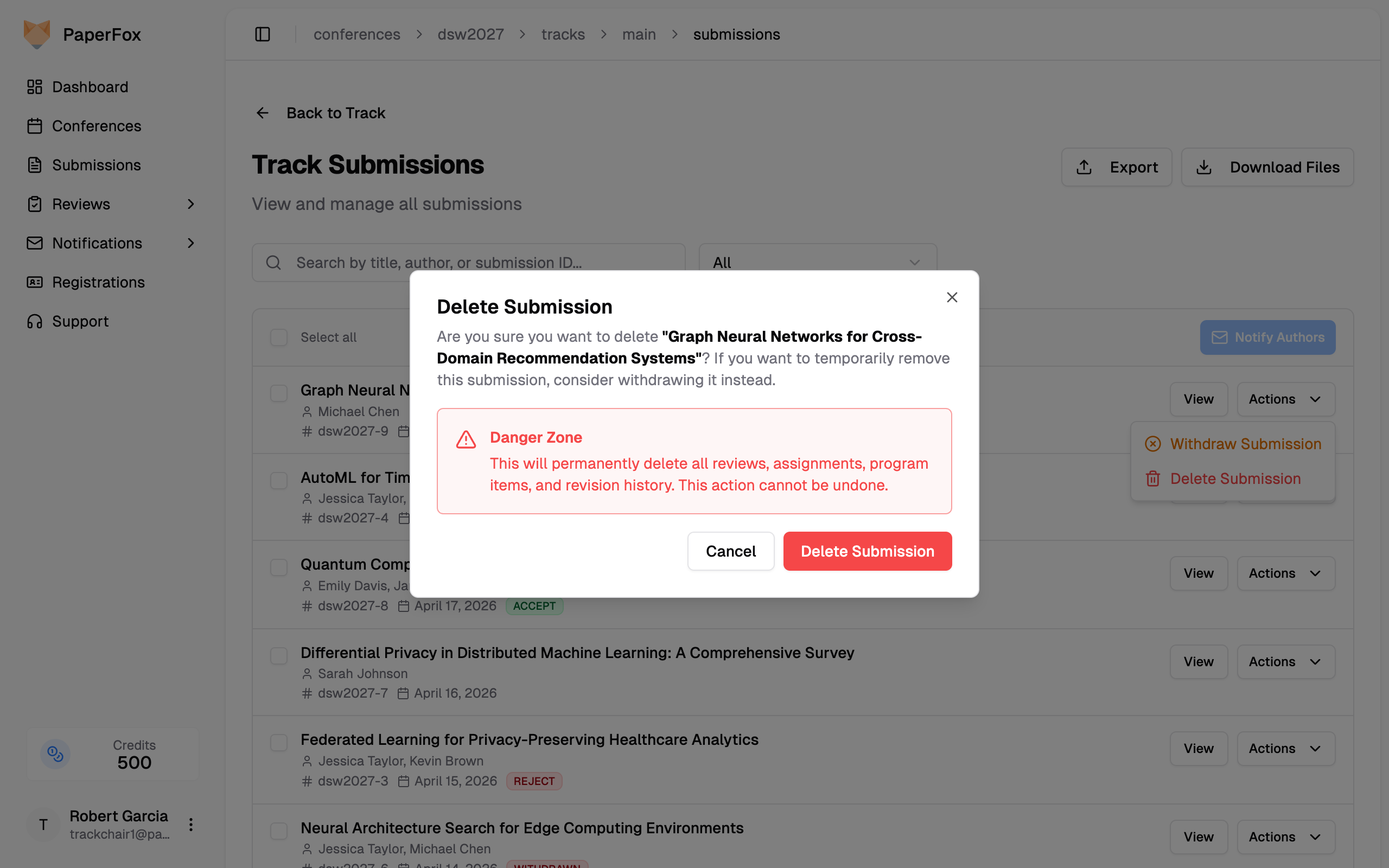
- Click "Delete Submission" from the Actions dropdown
- Review the Danger Zone warning carefully
- Click "Delete Submission" to confirm
Permanent deletion
Deleting a submission permanently removes all reviews, review assignments, program items, and revision history. This action cannot be undone.
After deletion:
- The submission and all related data are permanently removed
- You are redirected back to the Track Submissions list