
Submission Billing
Set up payment to support submissions over the free limit
Each conference includes 20 free submissions. If you expect more, you'll need to add a payment method to avoid blocking submissions when the limit is reached.
Opening the Submission Billing Page
Submission billing is per-conference — the payment method lives on the conference, not your personal account. Any conference chair can add or update it.
- Go to Conferences in the sidebar and click your conference
- Click Settings in the conference sidebar
- Open Submission Billing from the settings navigation
This opens /conferences/{your-conference}/settings/billing.
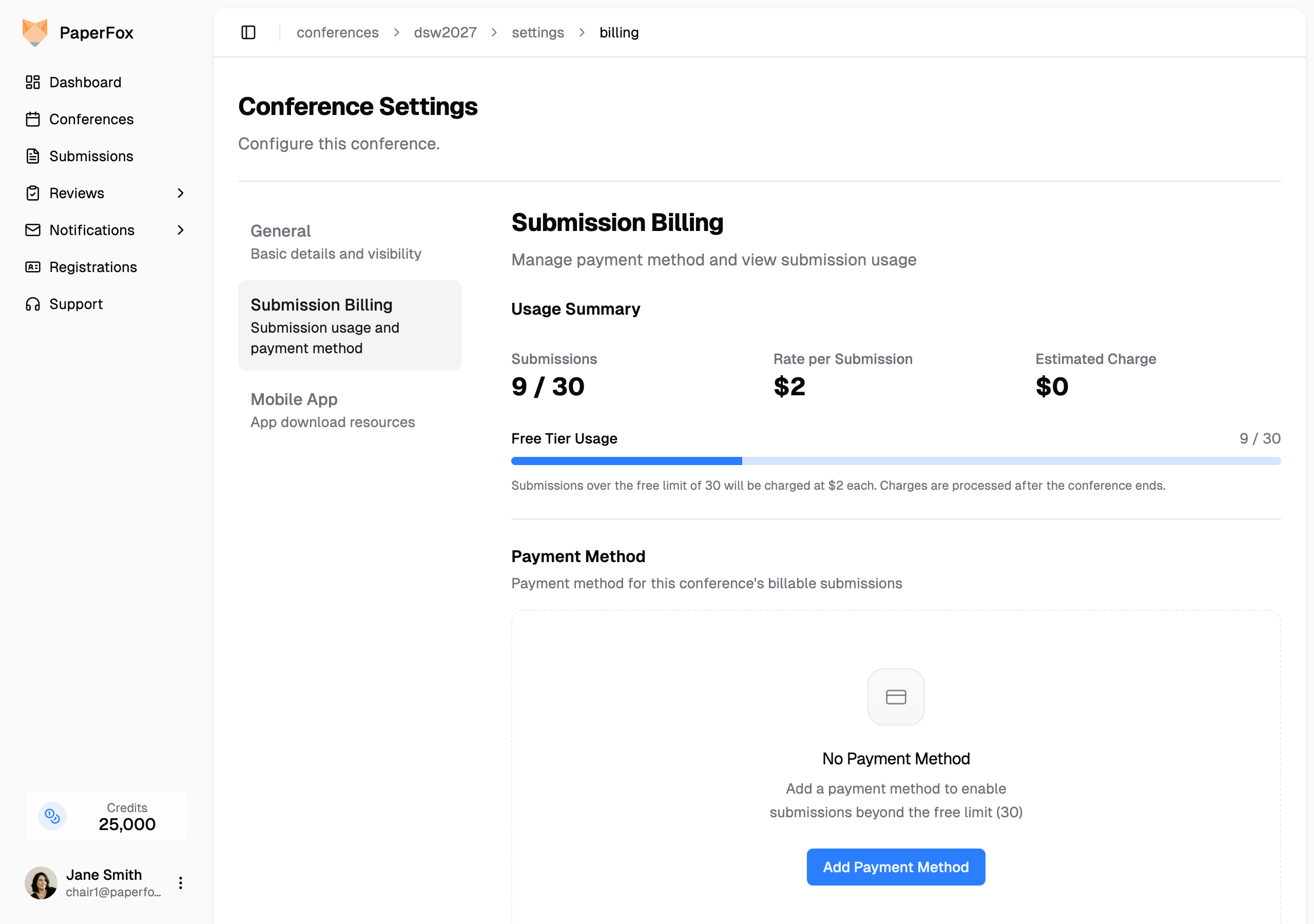
The page has two sections:
- Usage Summary — current submissions vs. free limit, the per-submission rate, and your estimated charge. The progress bar fills as you approach the free limit and shows any billable count beyond it.
- Payment Method — the saved card for this conference. Empty until you add one.
Personal billing is a separate page
If you're looking to buy AI credits for your personal account, that lives at Settings → Billing & Payment (from your profile menu). The two pages look similar but manage different things.
Adding a Payment Method
- Click "Add Payment Method"
- Enter your credit card details in the Stripe form
- Confirm
The card is attached to this conference's Stripe customer only — it is not a shared personal payment method. Removing it from this conference does not affect any other conference or your personal billing.
To change the card later, click "Change" in the saved-card panel and re-enter card details. To remove it, click the small "Remove payment method" link below the card; submissions over the free limit will be blocked until a new card is added.
How Billing Works
Automatic Billing Process
During Conference:
- First 20 submissions are free
- Submissions 21+ require a valid payment method
- No charges occur during the conference
After Conference Ends:
- You receive an advance-notice billing email 7 days before the conference end date
- Final billing is charged 1 day after the conference end date
- Only charged for submissions beyond the free limit
Reading the Charge Status
After the conference ends, the top of the Submission Billing page shows the latest charge's state. You'll see one of these banners — and only when there's something to know:
| Banner | What it means | What to do |
|---|---|---|
| Charge Scheduled (blue) | A charge is queued and will run within 24 hours. | Nothing — sit back. |
| Charge Retrying (blue) | A previous attempt failed; the next retry is scheduled for the date shown. | Optionally click "Retry Now" if you've fixed the underlying issue (e.g. updated the card). After 3 total attempts the row flips to Charge Failed. |
| Charge Failed (red) | All retry attempts exhausted. | Update the payment method below, then click "Retry Now" — we'll re-attempt within 24 hours. |
| Charge Completed (green) | Charge succeeded. The banner includes a "View receipt" link to Stripe's hosted invoice page. | Done. The same link is also in the email Stripe sends you. |
If no banner is shown, there's no charge state to surface yet — typically because the conference hasn't ended, or you stayed within the free tier.
Receipts and Invoices
Unlike registration payments (where your conference is the seller), submission billing is invoiced directly by PaperFox (DataMonet LLC). Each charge produces a full Stripe invoice — not just a simple receipt.
After a successful charge, the email you receive includes a "View Receipt" button that opens Stripe's hosted invoice page. From there you can:
- Download the invoice as a PDF (standard invoice with PaperFox business details, invoice number, tax info, line-item breakdown)
- Forward the PDF to your finance department for reimbursement
- Reference the invoice number on your institution's expense system
The invoice line item reads, for example: AB4SC — 32 billable submissions × $2 USD (52/20 free) so finance can see the exact pricing breakdown without needing additional documentation.
Payment Security
Secure Processing:
- All payments processed through Stripe
- Your card information is encrypted and secure
- PaperFox never stores your full card details
- Industry-standard security practices
Payment Method Management:
- View, change, or remove the saved card from the Submission Billing page anytime
- Past charge receipts arrive by email and stay accessible at the Stripe invoice URL — there's no in-app charge history page today