
Create Registration Coupons
Generate fixed-amount discount codes that registrants apply at checkout, and track how many times each one is redeemed
Coupons let you offer a fixed dollar amount off registration. You create a code, share it with registrants, and they enter it on the registration page to get the discount. Each coupon tracks its own redemption count, expiration, and active status.
Create a Coupon
- Go to Conferences in the sidebar, then click on your conference
- Under Registration Management, click "Coupons"
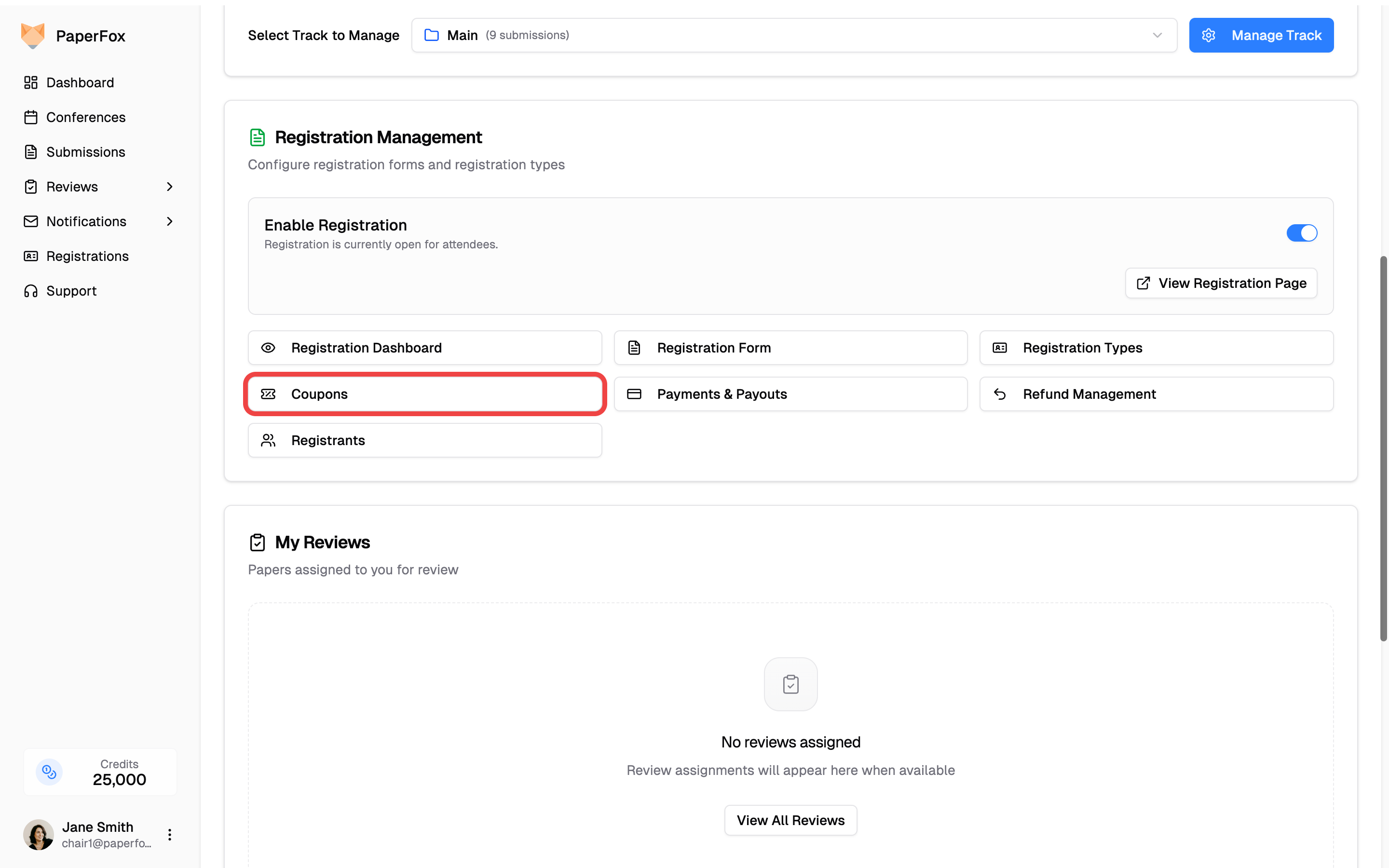
You can also reach this page from the Registration Types page via the "Coupons" button in the header. The Coupons page lists every coupon with its status and redemption count.
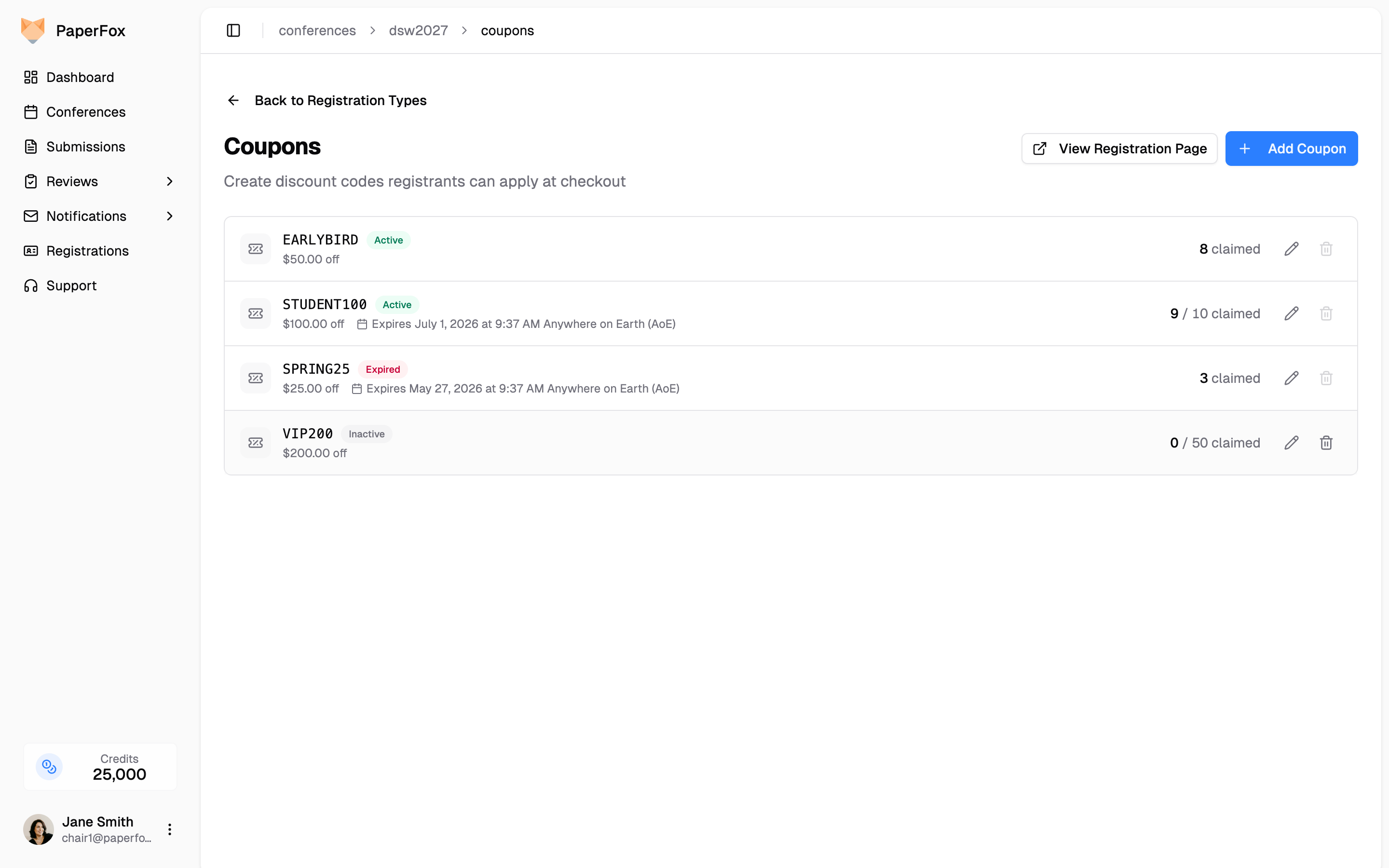
- Click "Add Coupon" and configure the coupon:
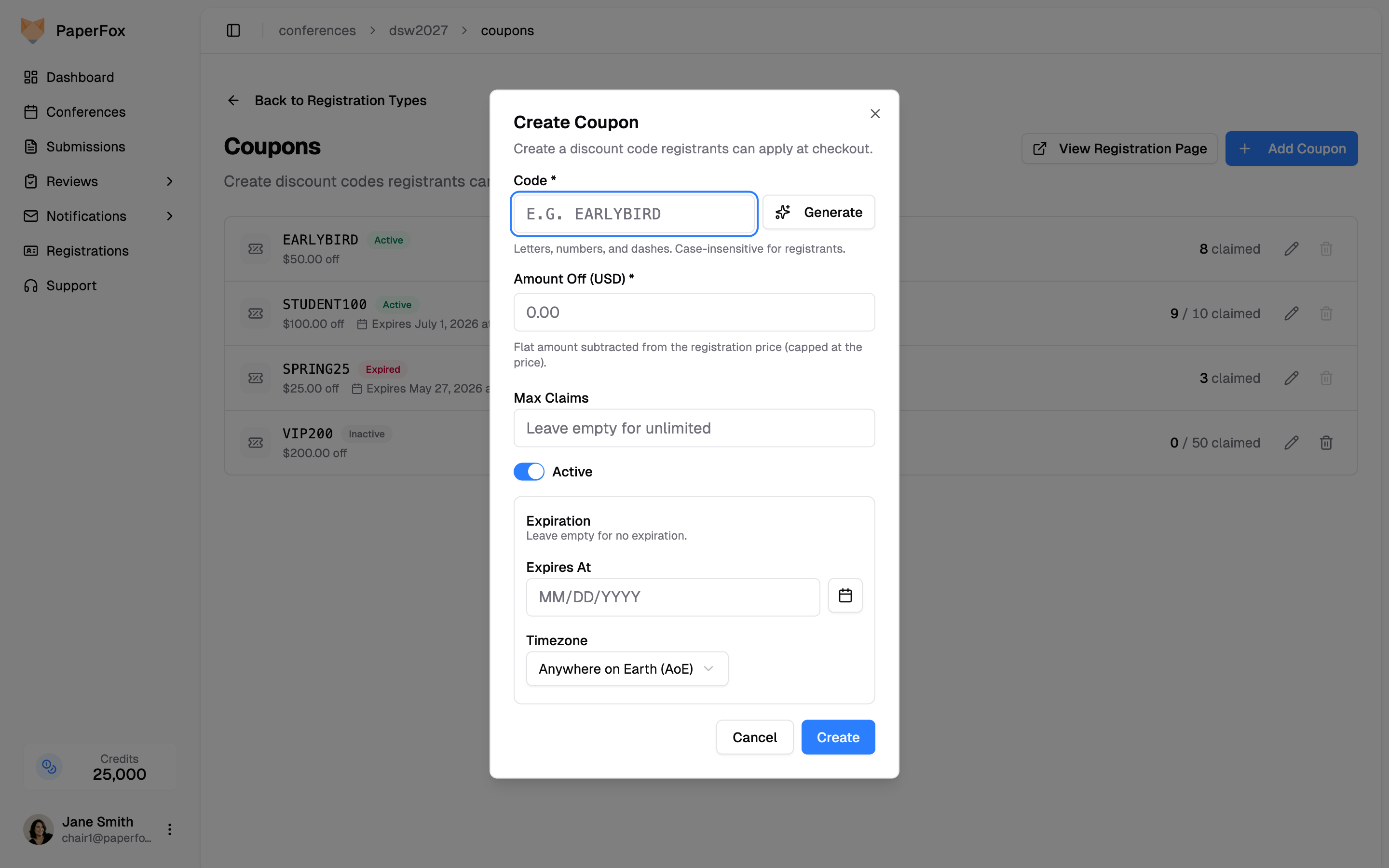
| Field | Description |
|---|---|
| Code | What registrants type at checkout. Click "Generate" for a random, easy-to-read code, or enter your own (letters, numbers, and dashes). Codes are case-insensitive for registrants. |
| Amount Off (USD) | Flat amount subtracted from the registration price. Capped at the price — a coupon worth more than the registration simply makes it free, never negative. |
| Max Claims | Total number of times the coupon can be redeemed across all registrants. Leave empty for unlimited. |
| Active | Toggle off to pause a coupon without deleting it. |
| Expiration | Optional date and time (with timezone) after which the code stops working. Leave empty for no expiration. |
A coupon applies to any paid registration type the registrant selects.
Coupons are for paid registrations
Coupons discount paid registration types. Free registration types are already $0, so there's nothing for a coupon to take off. If you haven't set up paid types and Stripe yet, see Set Up Conference Registration and Managing Registration Payments.
How Registrants Apply a Coupon
On the registration page, after selecting a paid registration type, registrants enter the code in the Coupon Code field and click "Apply". The discount and updated total appear immediately, and they can Remove it to try a different code.
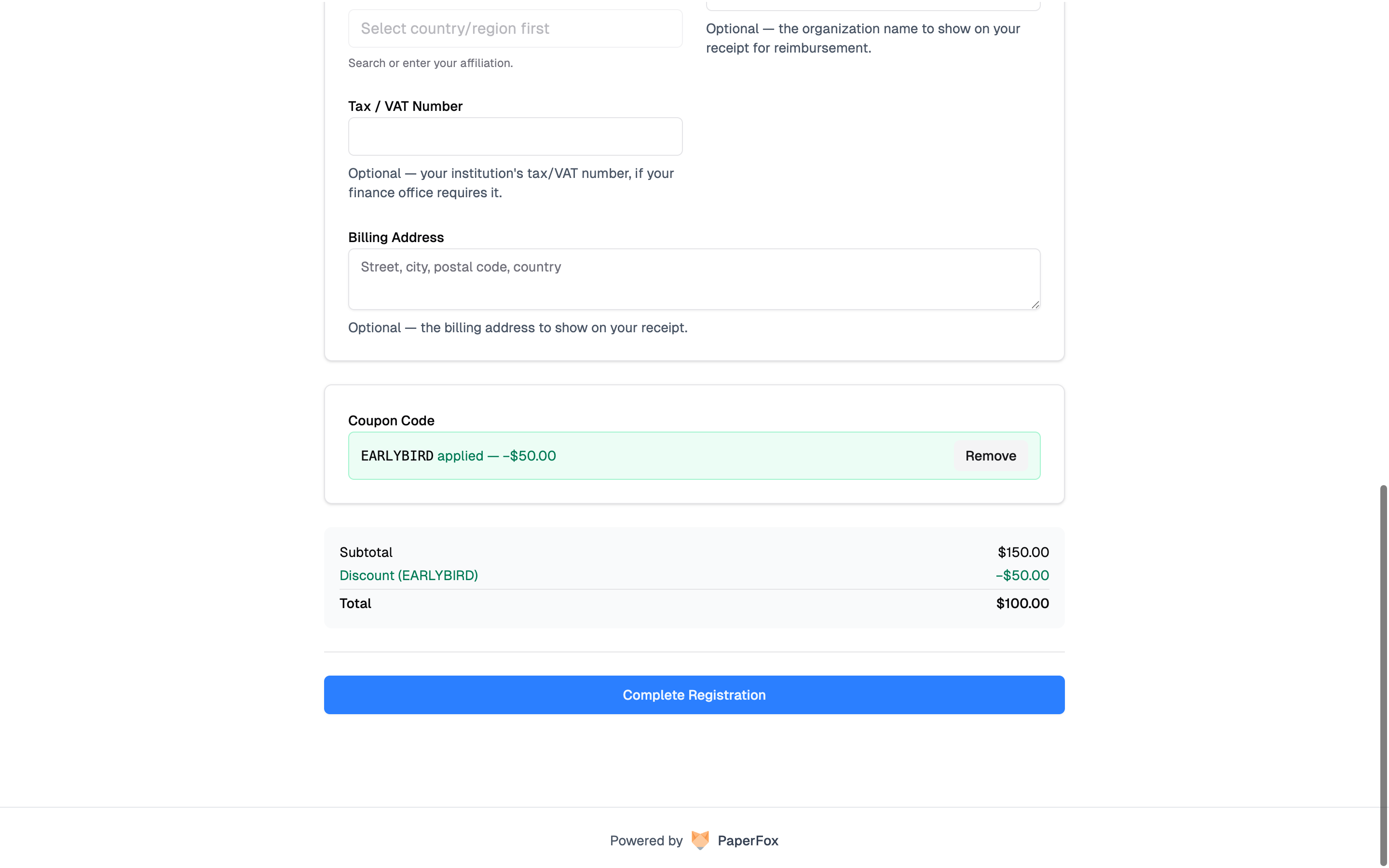
The registrant is charged — and refunded — based on the discounted amount, not the original price. A $150 registration with a $50 coupon charges $100, and a later refund is calculated from that $100. See Handling Refunds.
Track and Manage Coupons
The Coupons page shows each coupon's status and redemption count (for example, 9 / 10 claimed).
| Status | Meaning |
|---|---|
| Active | Usable now |
| Fully claimed | Reached its Max Claims limit |
| Expired | Past its expiration date |
| Inactive | Toggled off |
Editing and Deleting
- Once a coupon has been redeemed at least once, its code and amount off are locked to keep past redemptions accurate. You can still change the claim limit, expiration, and active status.
- A redeemed coupon cannot be deleted — deactivate it instead so its history is preserved. Coupons with zero redemptions can be deleted freely.
Redemption count is cumulative
The claimed count reflects every successful redemption and does not go back down if a registrant later gets refunded — it mirrors how many times the code has been used.