
Configure Conference Forms
Set up default submission and review form fields that all tracks inherit
As a conference chair, you can configure default submission and review forms at the conference level. These forms define the base fields that all tracks inherit automatically. Track chairs can then add additional fields to customize their track's forms.
Accessing Conference Forms
- Go to your conference page
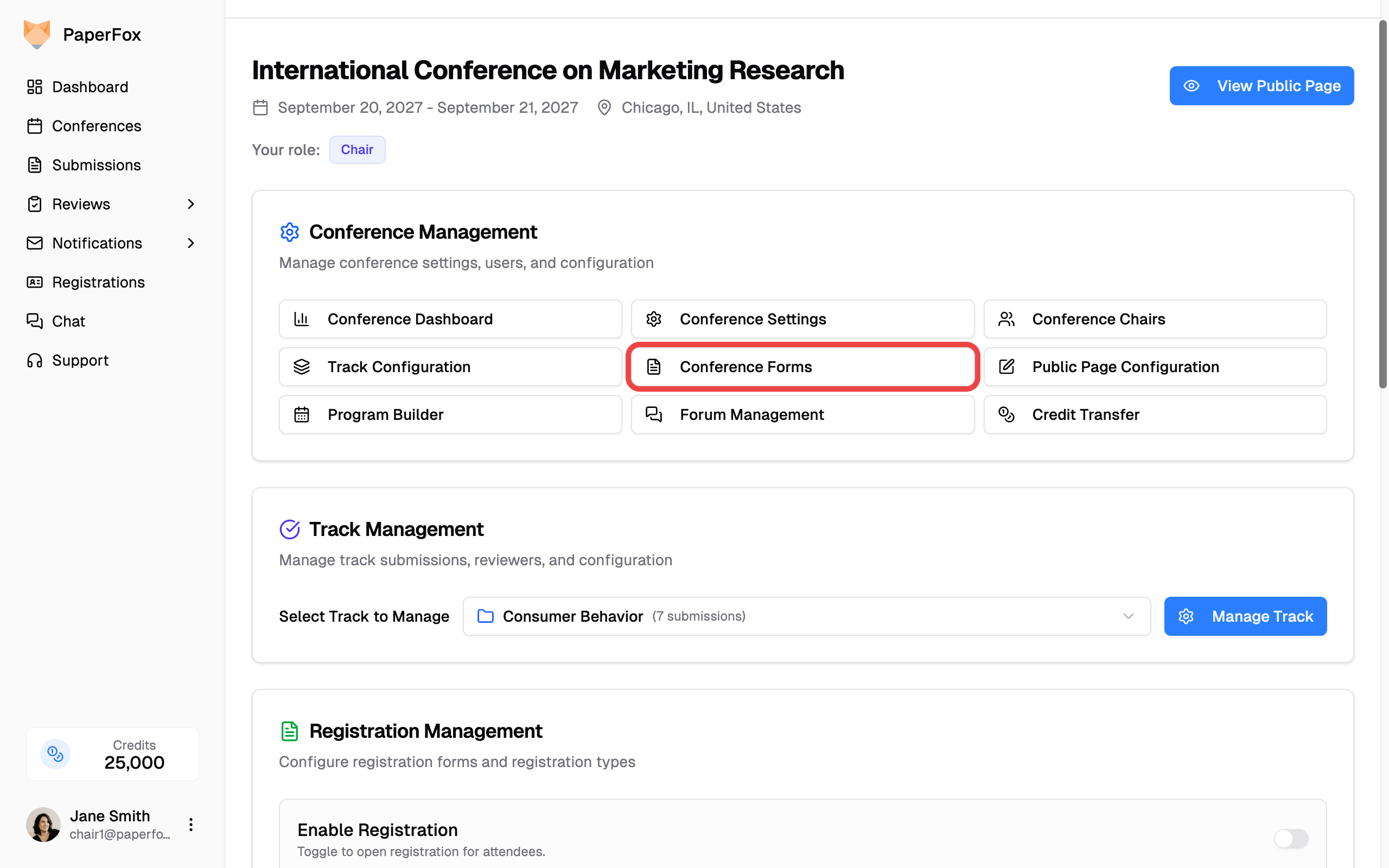
- Under Conference Management, click "Conference Forms"
Submission Form Template
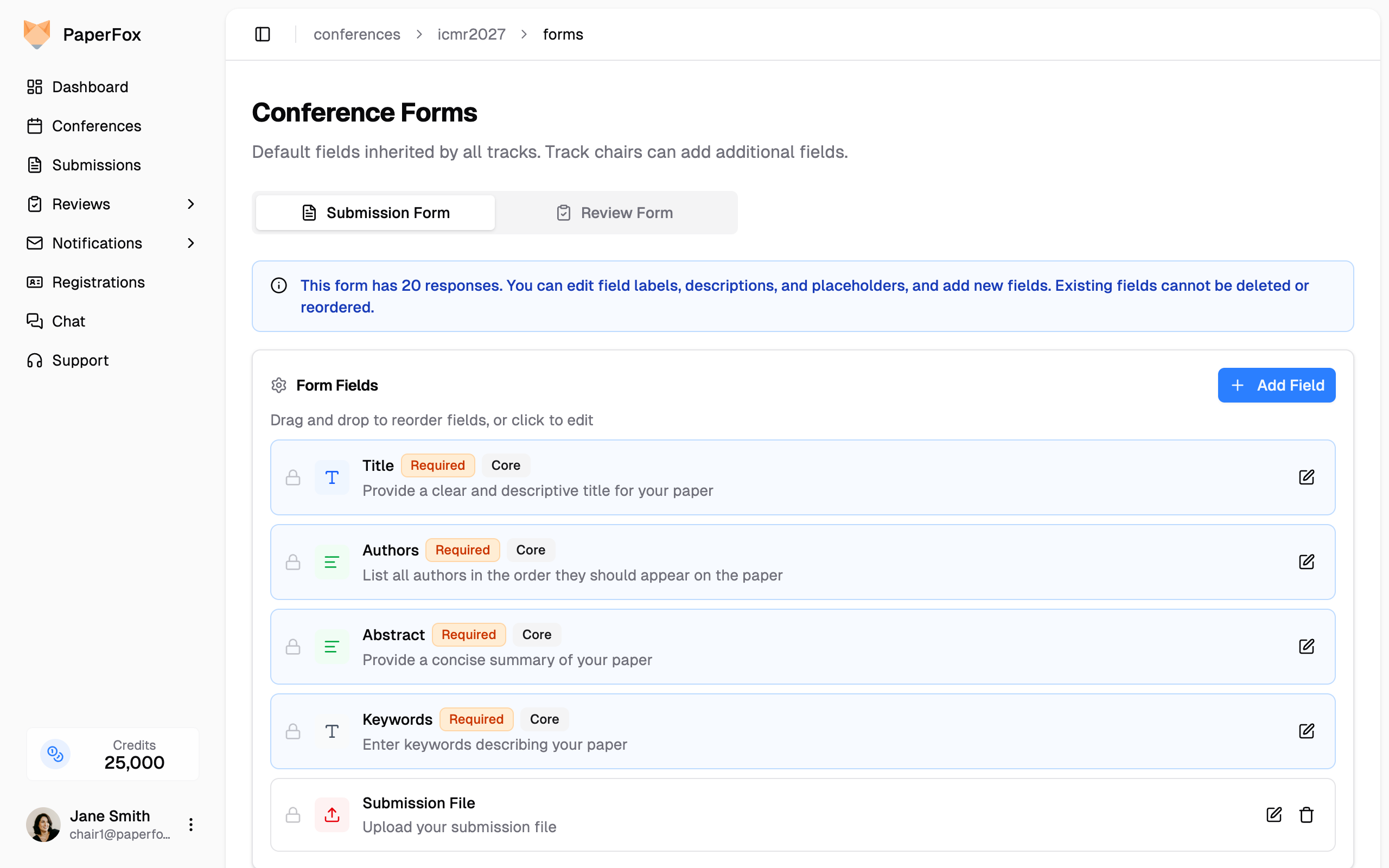
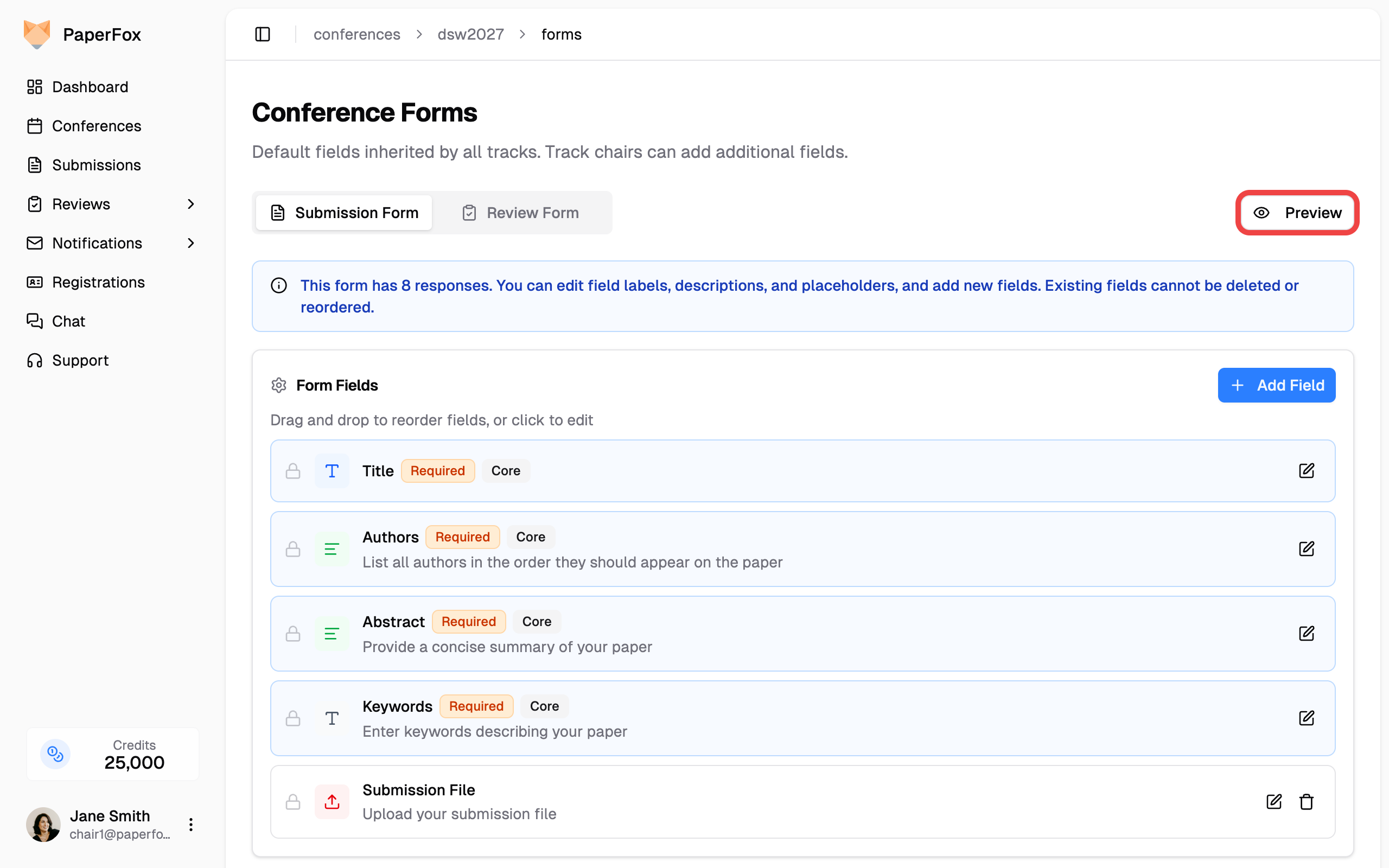
The Submission Form tab lets you configure the default fields authors see when submitting submissions. Core fields like Title, Authors, Abstract, and Keywords are included by default and cannot be deleted.
You can:
- Add fields — Click "Add Field" to create new fields (Text Input, Text Area, Single Choice, Multiple Choice, or File Upload)
- Edit fields — Click the edit icon to modify labels, descriptions, and placeholders
- Reorder fields — Drag and drop to change field order
Existing responses lock structure
If any track already has submissions, you can still edit field labels, descriptions, and placeholders, change which options are pre-selected, turn Lock answer in later phases on or off, and add new fields. However, existing fields cannot be deleted or reordered to preserve data integrity.
Phase-Scoped Fields
If your conference has more than one phase (see Configure Track Phases), a phase selector appears next to the form tabs. The builder shows the form as authors meet it in the selected phase, and "Add Field" scopes new fields to the phase you're viewing.
A phase collects its own fields plus every earlier phase's — so a later phase never needs a copy of the earlier form, only what's new. This is how you collect a camera-ready upload conference-wide:
- Switch the phase selector to your camera-ready phase
- Click "Add Field" and create the field (e.g. a Camera-Ready PDF file upload) — the Add to Phase setting is already set to the phase you're viewing
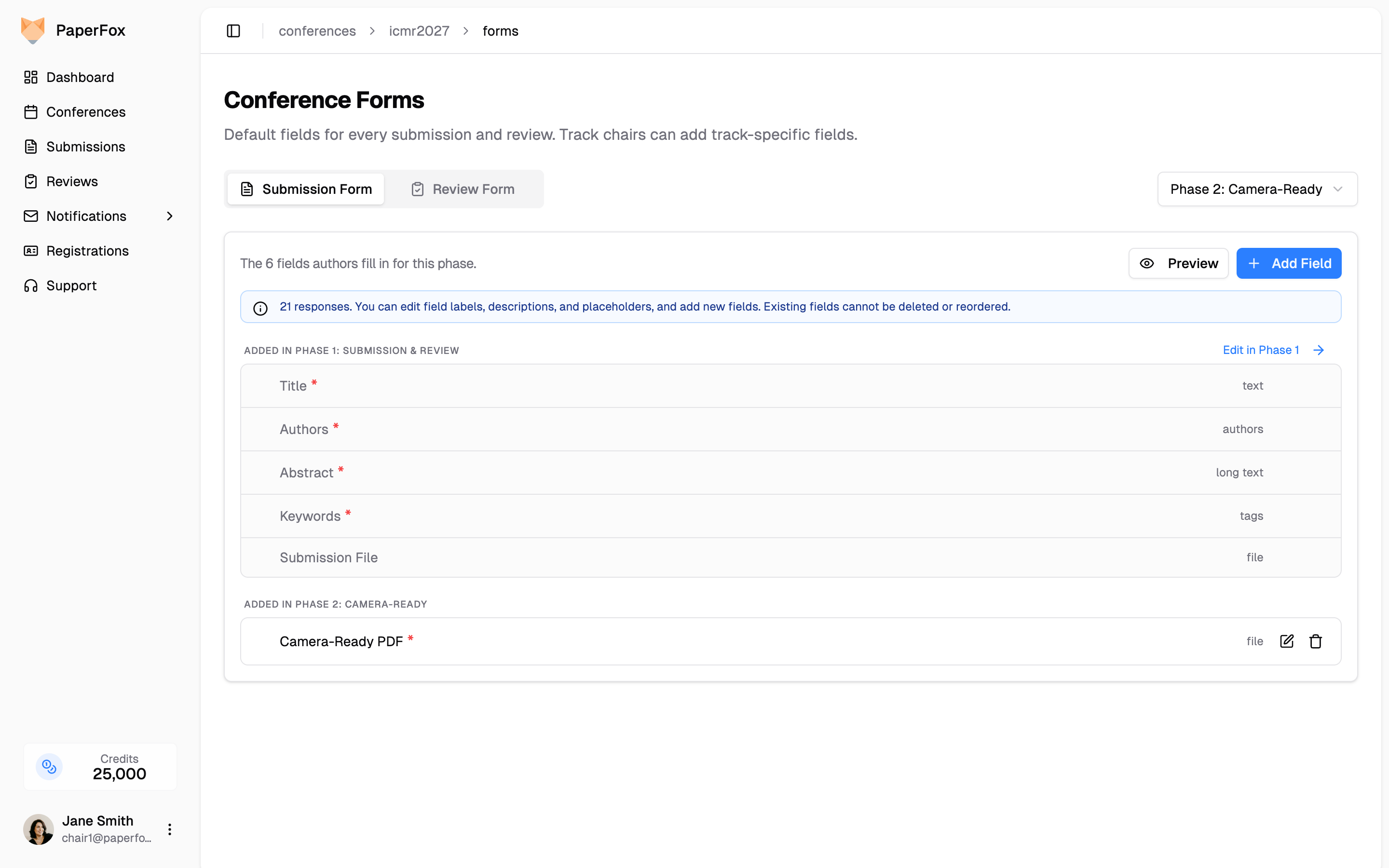
The field appears for every track's submissions once they reach that phase, and stays hidden before it. Adding it here — once, at conference level — beats adding it to each track's form separately: it also applies automatically to any track you create later.
Single-phase conferences don't see any of this
With one phase there is no phase dimension — no selector, no phase grouping. Everything on this page behaves as a single flat form.
If a track uses custom phases (its own structure, see Configure Track Phases), phase-scoped conference fields match by phase position — a field scoped to Phase 2 appears in that track's Phase 2, and never appears on a custom track with fewer phases.
Links and Formatting in Help Text
A field's Help Text accepts Markdown, so you can point authors at the rules a question depends on instead of asking them to go hunting.
Write a link as [link text](https://example.org):
Summarise your submission in under 250 words.
Follow the [formatting guide](https://example.org/formatting) before you write it.
Authors see a real link that opens in a new tab, so they never lose a part-filled form:
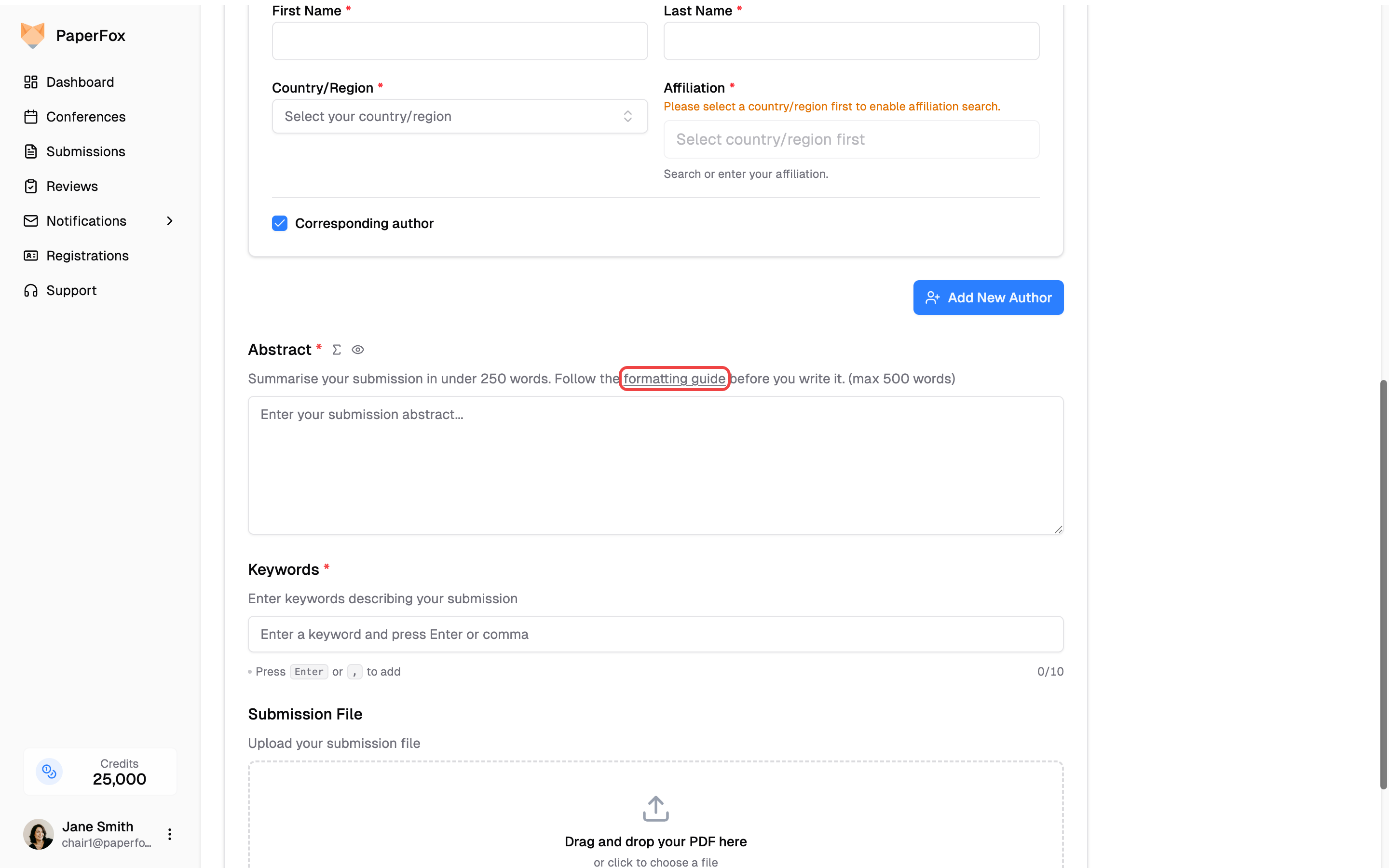
Bold (**text**), italics (*text*) and bullet lists also work. A plain sentence stays exactly as you typed it — Keywords in the screenshot above is an ordinary description with no Markdown in it.
Only http, https and mailto links
Any other link target renders as plain text rather than a link. Paste the full address, including https:// — a bare example.org/guide is not a link.
This works the same way on review forms and on the public registration form.
Pre-selecting Options
Single Choice and Multiple Choice fields can start with an option already chosen, so authors see a sensible default instead of an empty control. This is how you build an opt-out question — "your submission will receive AI-generated feedback, uncheck to opt out" — or a Yes/No question where most submissions will answer the same way.
Check the box beside an option to pre-select it. The setting appears when you add a field and when you edit an existing one.
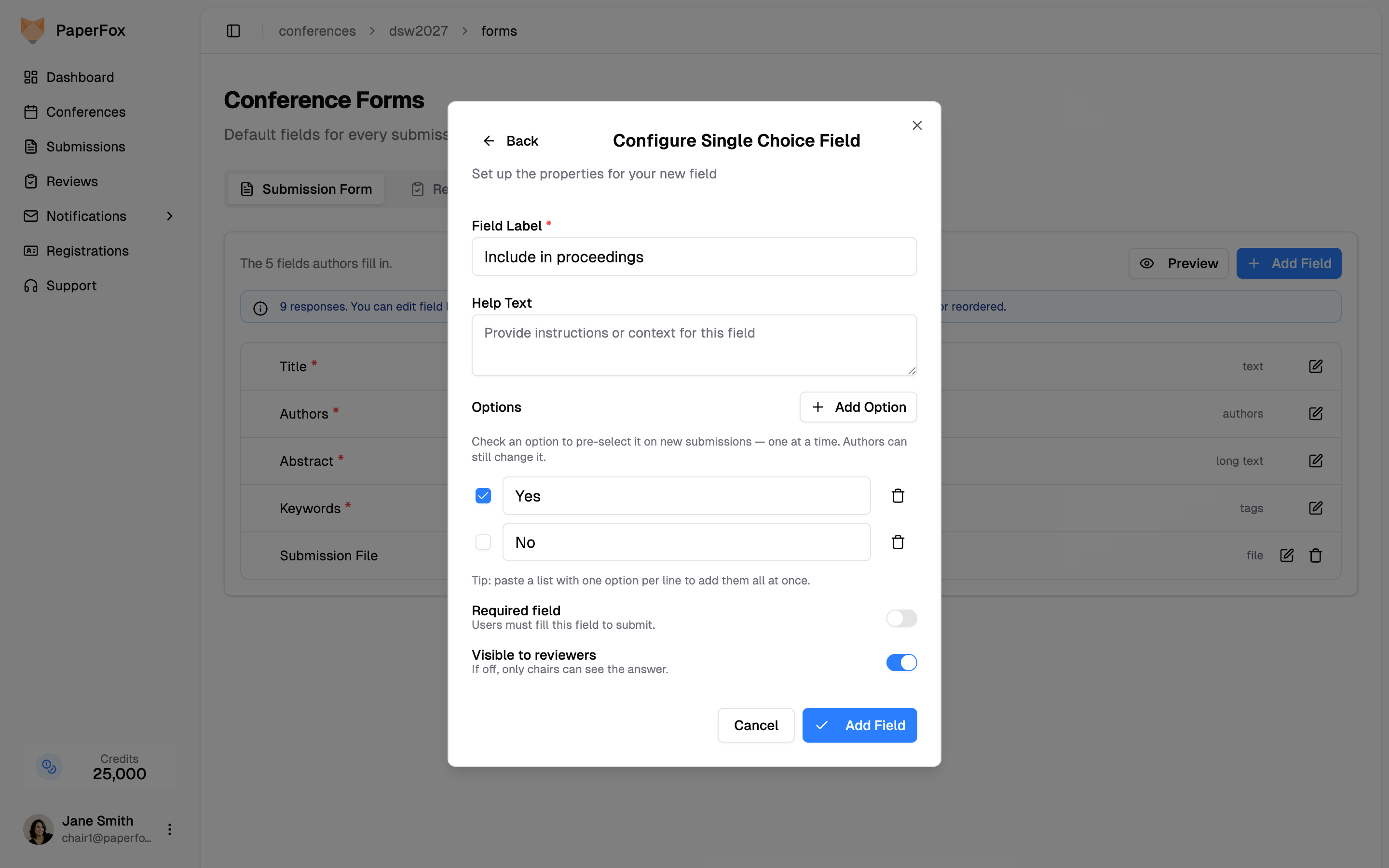
- Multiple Choice — pre-select as many options as you like.
- Single Choice — only one option can be pre-selected. Checking a second moves the mark to it; checking the marked option again clears it.
Authors see the field already filled in, and can change it like any other answer.

Pre-selection only affects new submissions
Turning a pre-selection on never rewrites a submission that already exists — authors keep whatever they answered, and a field added later stays empty on their submission until they fill it in. This is why you can safely add or change a pre-selection mid-conference.
Who Sees Submission Answers
Reviewers read every field on the submission form, on every track that inherits it. The one exception is Authors, hidden on Double-Blind tracks.
A track's review type doesn't change this — it controls whether authors and reviewers see each other's identities, not which questions a reviewer may read. So keep organizer-only questions (student status, suggested reviewers, funding sources) off the submission form; a field you add here reaches the reviewers of every track. See Set the Review Type.
Review Form Template
Switch to the Review Form tab to configure the default fields reviewers use when evaluating submissions. Core review fields include Overall Evaluation, Reviewer Confidence, Comments for Authors, and Confidential Comments.
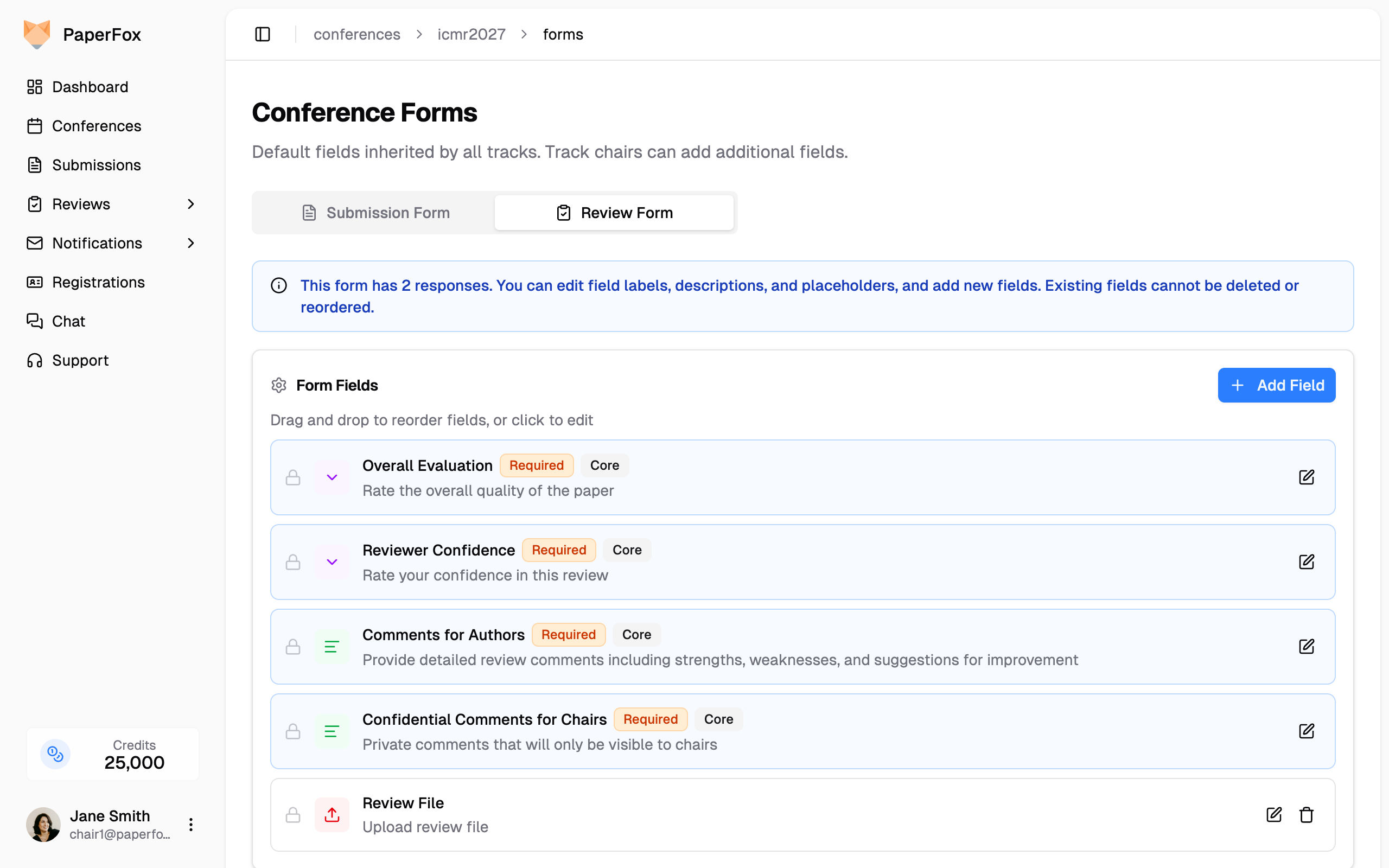
The same editing capabilities apply — add new fields, edit labels, and reorder as needed.
Score and confidence are hidden from authors
Overall Evaluation (score) and Reviewer Confidence are always confidential to authors — there's no setting to expose them. Only Comments for Authors (and any custom fields you mark as visible to authors) appear when authors view their reviews. See What Authors See for the full breakdown, including how reviewer identity is handled across review types.
Previewing Forms
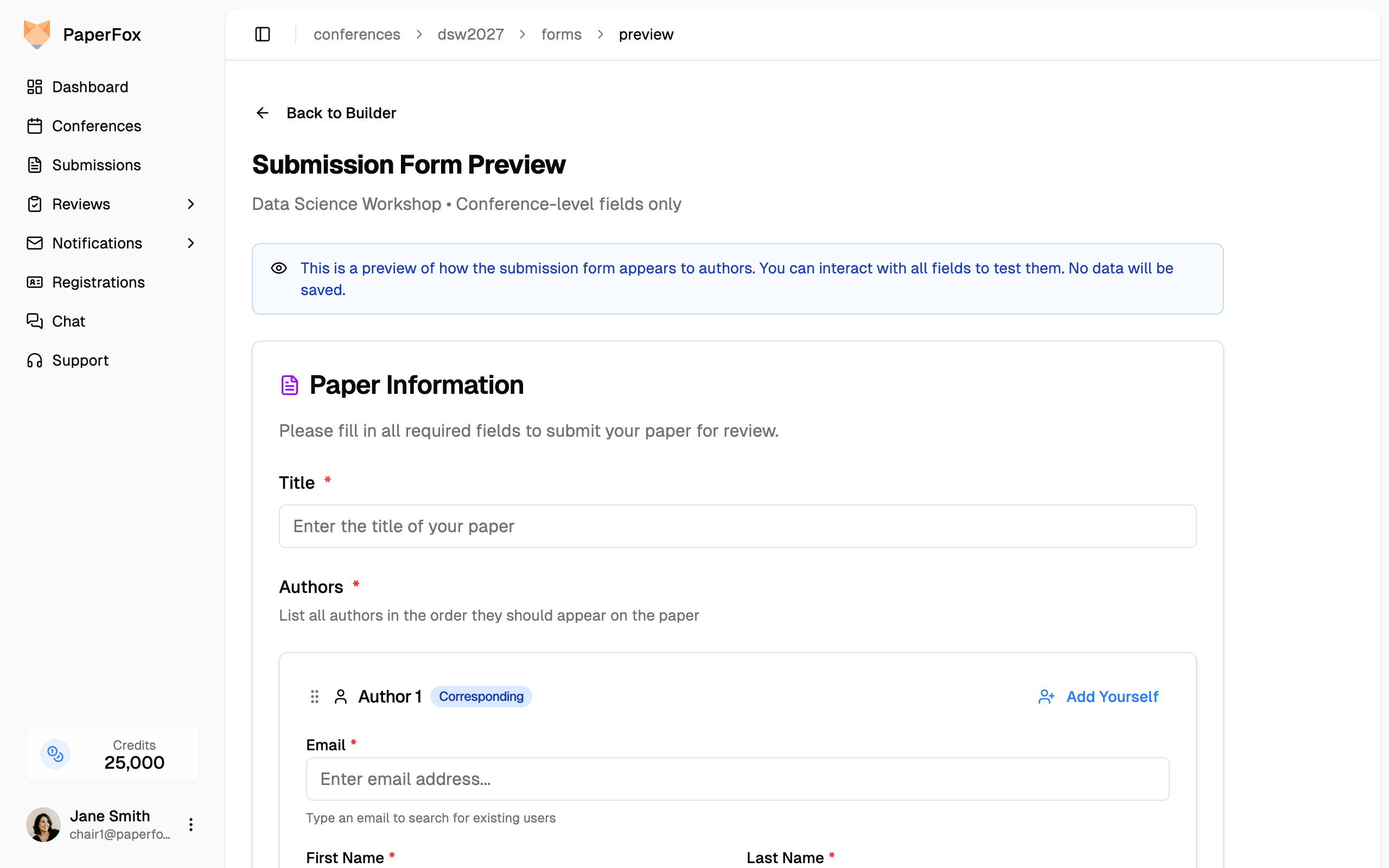
Click "Preview" in the form's control bar to see exactly how the form appears to authors or reviewers. The preview renders the real form — you can interact with all fields, open dropdowns, and test options. No data will be saved. On a multi-phase conference the preview shows the phase you were viewing in the builder, so a camera-ready field appears only when previewing that phase.
The preview page shows the form with a blue info banner and a "Back to Builder" link to return.
How Inheritance Works
Conference forms serve as the starting point for all tracks:
| Level | Who configures | What happens |
|---|---|---|
| Conference (this page) | Conference chairs | Sets default fields inherited by all tracks |
| Track | Track chairs | Can add additional fields on top of the conference defaults |
This two-level approach ensures consistency across tracks while giving track chairs flexibility to collect track-specific information.
Track chairs can customize their track-level forms by following these guides: