
Customize Committee Emails
Add a chair-authored intro and signature to invitation and assignment emails so recipients recognize the sender
PaperFox sends invitation and assignment emails on your behalf — to reviewers, area editors, senior editors, track chairs, and forum moderators. By default, these emails carry only the system body. You can add a custom intro (after the greeting) and signature (before the Accept / Decline buttons) so the email reads in your voice and recipients recognize who's behind it.
What You Can and Can't Change
These emails carry the accept / decline links that grant committee access, so the body is a system template with chair-authored slots — not a blank page. Three parts are yours:
| Part | Where you set it |
|---|---|
| Intro — paragraph(s) after the greeting | Conference Settings → Committee Emails, or a track override |
| Signature — sign-off before the buttons | The same two places |
| Role name — "Reviewer" vs. "Program Committee Member" | Track → Committee Settings → Custom Role Names (below) |
The rest is fixed: the Dear {name}, greeting line, the sentence naming the role and track ("You have been invited to be a Reviewer for …"), the note about signing in to accept, the "if you received this in error" line, the [SHORTNAME] Reviewer Invitation subject format, and the Accept Invitation / Decline Invitation button labels.
If you want to send committee members an email you wrote start to finish, that's a different tool — the notification composer, where the subject and body are both free text. Use this page to shape the emails PaperFox sends automatically; use the composer for everything you send by hand.
Set the Conference Default
- Go to Conferences in the sidebar, then click on your conference
- Click the Settings icon in the conference header, then choose Committee Emails in the settings sidebar
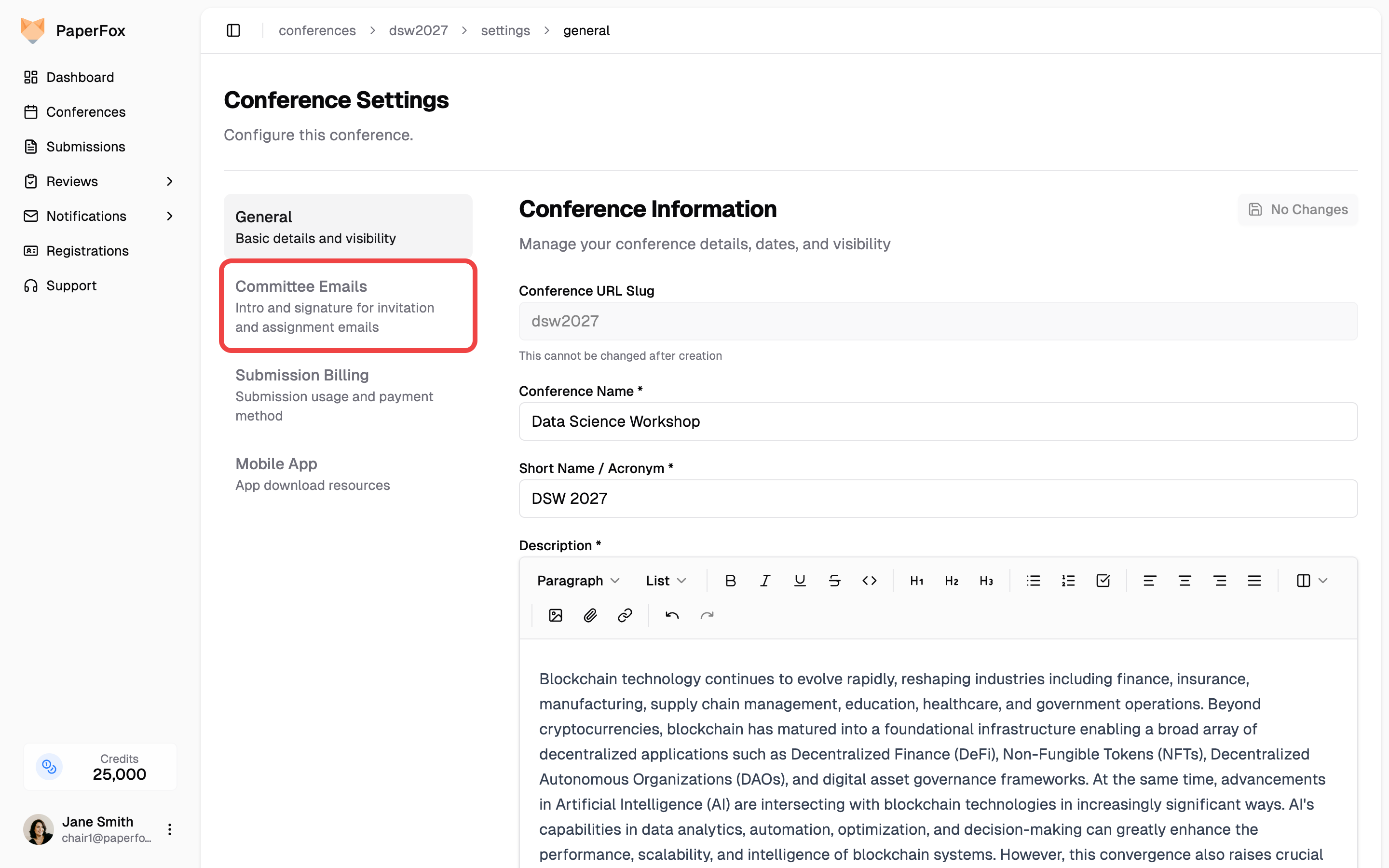
- Fill in the Intro and Signature fields
- Click "Save Changes"
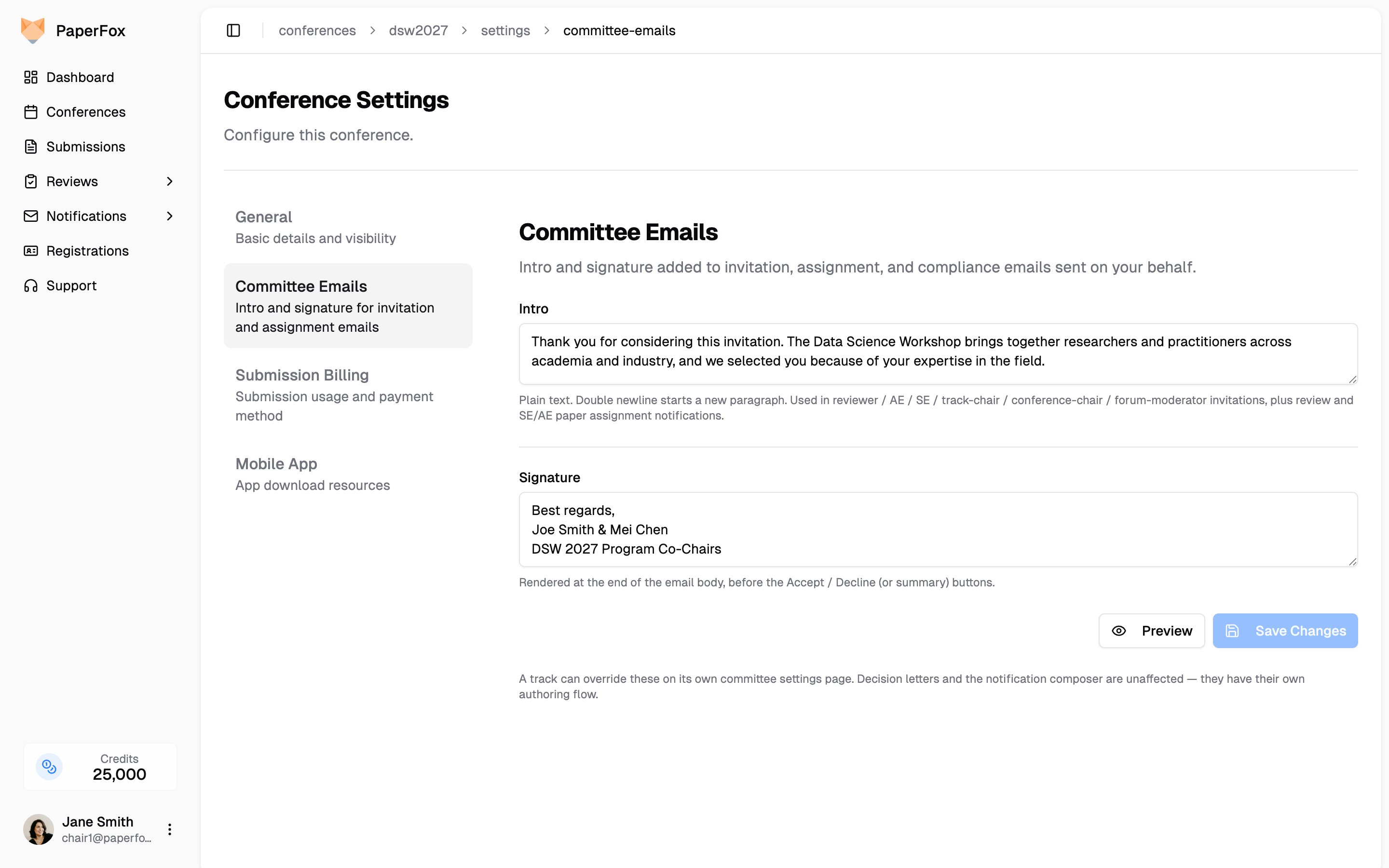
Both fields are plain text — a double newline starts a new paragraph. Either can be left blank. The intro renders after the recipient's greeting line, the signature renders before the Accept / Decline (or summary) buttons at the bottom of the email.
The intro and signature appear in every chair-triggered email below — all five invitation types (reviewer / AE / SE / track-chair / conference-chair / forum-moderator), plus review assignments (single and bulk), SE and AE submission assignments, and compliance notices. Decision letters and emails composed through /notifications/compose are unaffected — they have their own authoring flow.
Preview Before Saving
Click "Preview" to see how a real Reviewer Invitation will look with your current draft intro and signature. Other invitation and assignment templates render the same intro/signature block, so a single preview reflects the change everywhere.
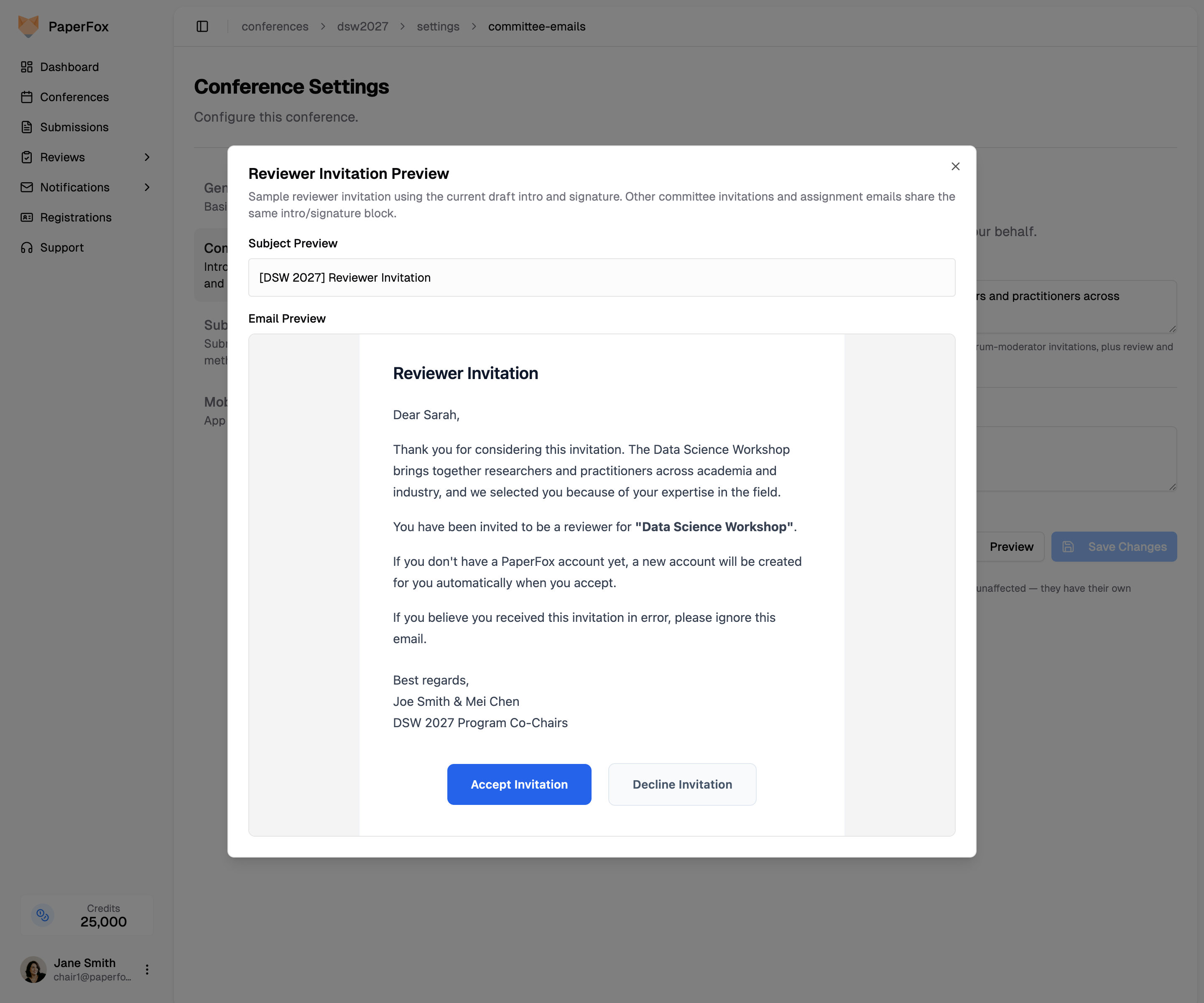
The preview uses sample recipient data (Dear Sarah,) but pulls your real conference name and the draft values from the form. Unsaved changes are reflected in the preview.
Override on a Specific Track
Each track can override the conference default — useful when a multi-track conference has different program chairs per track.
- Go to your track's management page, then click "Committee Settings"
- Scroll past the Committee Structure card to Committee Email Overrides
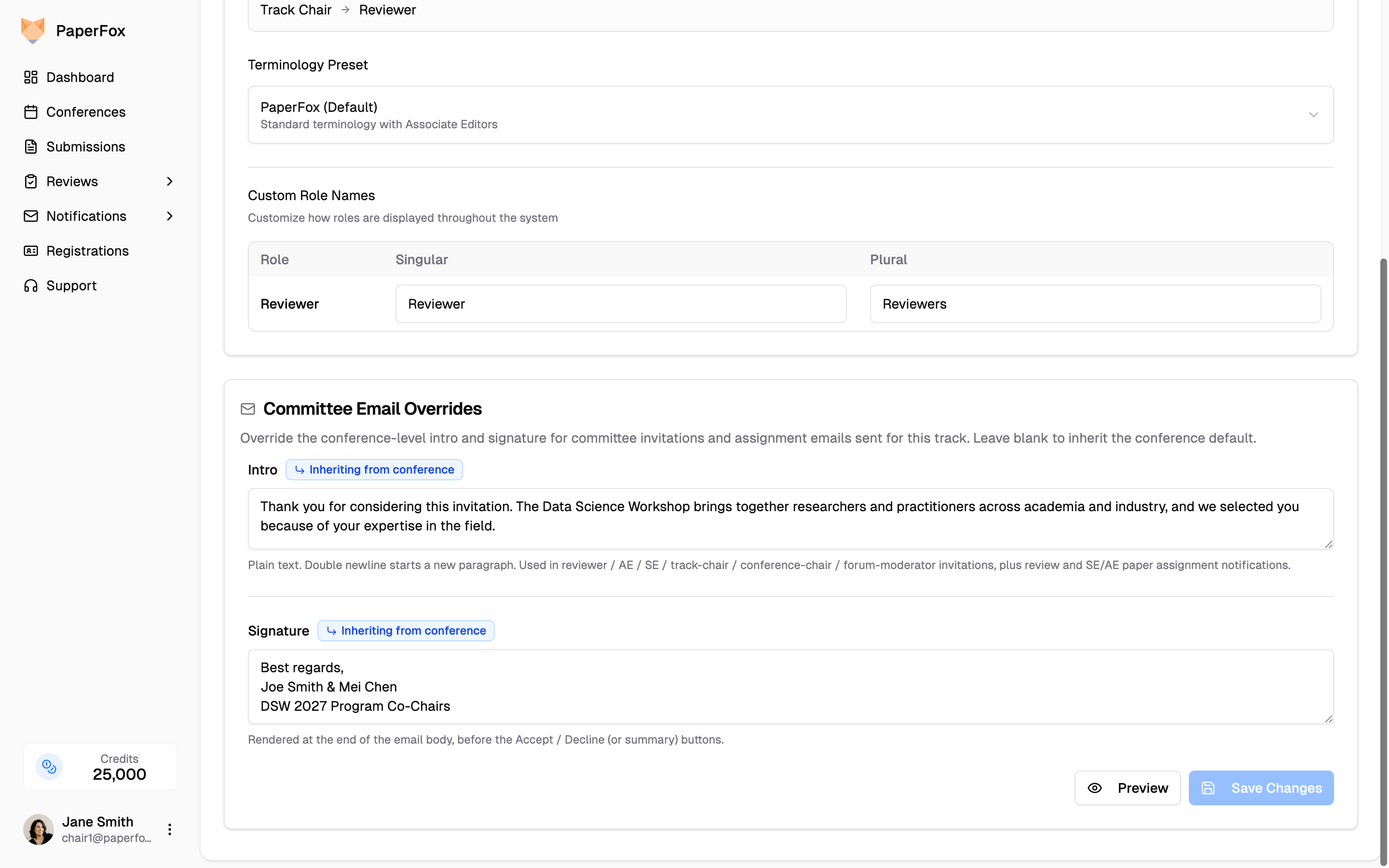
When a track field is blank, it inherits the conference value. The form pre-fills the field with that inherited content, and a blue Inheriting from conference badge appears next to the label. Editing the field replaces the inherited value with a track-specific override; the badge disappears.
To revert a track back to inheriting, clear the field and click "Save Changes" — that writes a blank value, which the email pipeline then resolves back to the conference default.
Rename the Role
The invitation body reads "You have been invited to be a Reviewer for …" and its subject reads [ICMR2027] Reviewer Invitation. Both follow the role's display name, so renaming the role rewrites the invitation everywhere — no separate email setting involved.
- Go to your track's management page, then click "Committee Settings"
- Either pick a Terminology Preset to rename the whole committee at once, or set individual labels under Custom Role Names
A track that calls its reviewers "Program Committee Members" sends [ICMR2027] Program Committee Member Invitation instead. The same applies to the Associate Editor and Senior Editor invitations.
Display names are per track, so one track can run "Area Chairs" while another keeps "Senior Editors".
Who Can Edit What
| Surface | Who has access |
|---|---|
| Conference Settings → Committee Emails | Conference chairs only |
| Track → Committee Settings → Overrides | Track chairs of that track, plus conference chairs |
| Track → Committee Settings → Custom Role Names | Track chairs of that track, plus conference chairs |