
Notify All Registrants
Email logistics, hotel, and arrival info to everyone registered for the conference
Once registrations are open, you'll need a way to send everyone the practical information they need to show up — hotel block, venue address, arrival logistics, on-site check-in. PaperFox bundles this as a one-click preset that pulls every active registrant for the conference and pre-fills a logistics email you can edit.
Open the Composer
- Go to Conferences in the sidebar, then click your conference.
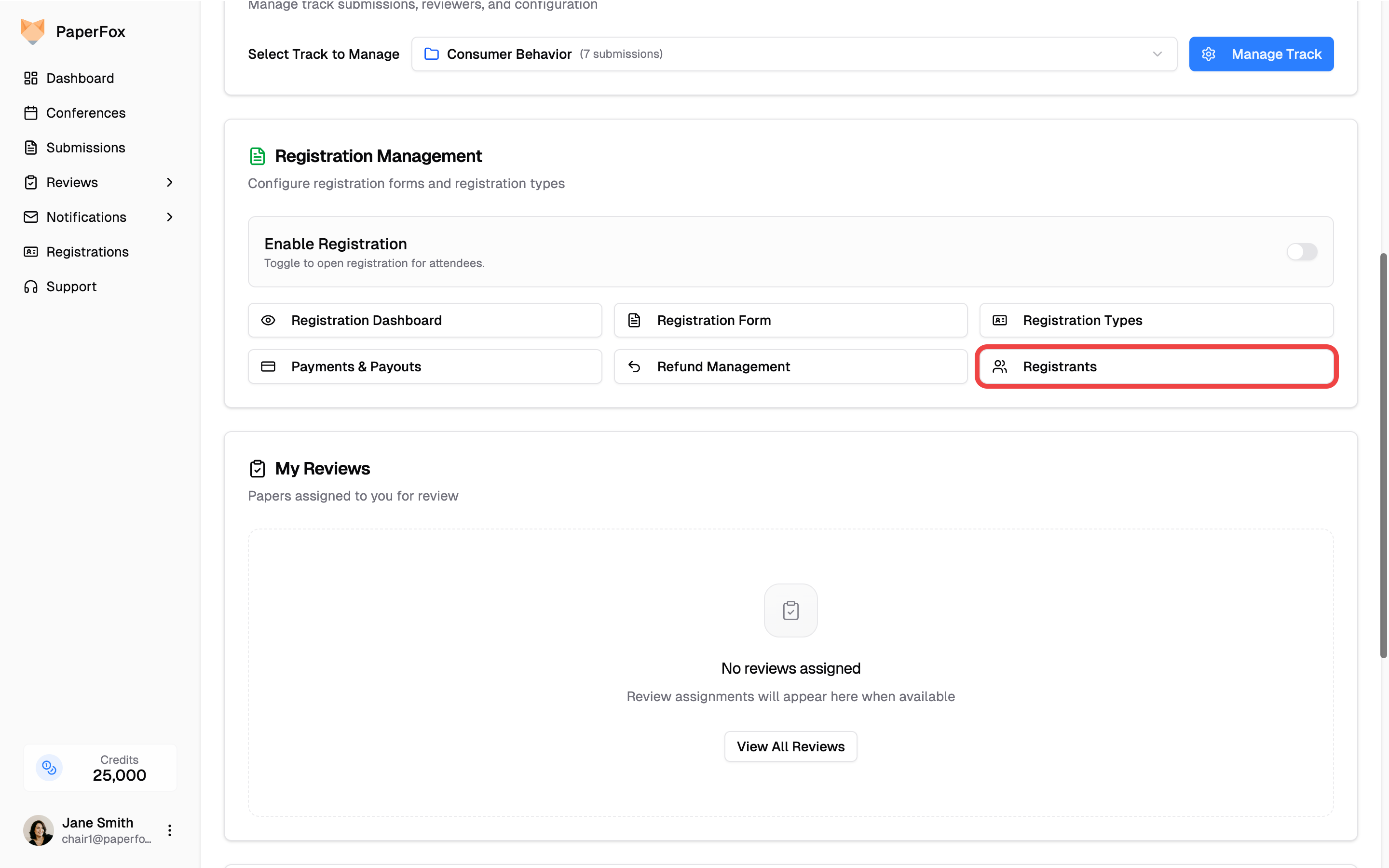
- Under Registration Management, click "Registrants".
- Click "Notify All" in the toolbar above the table.
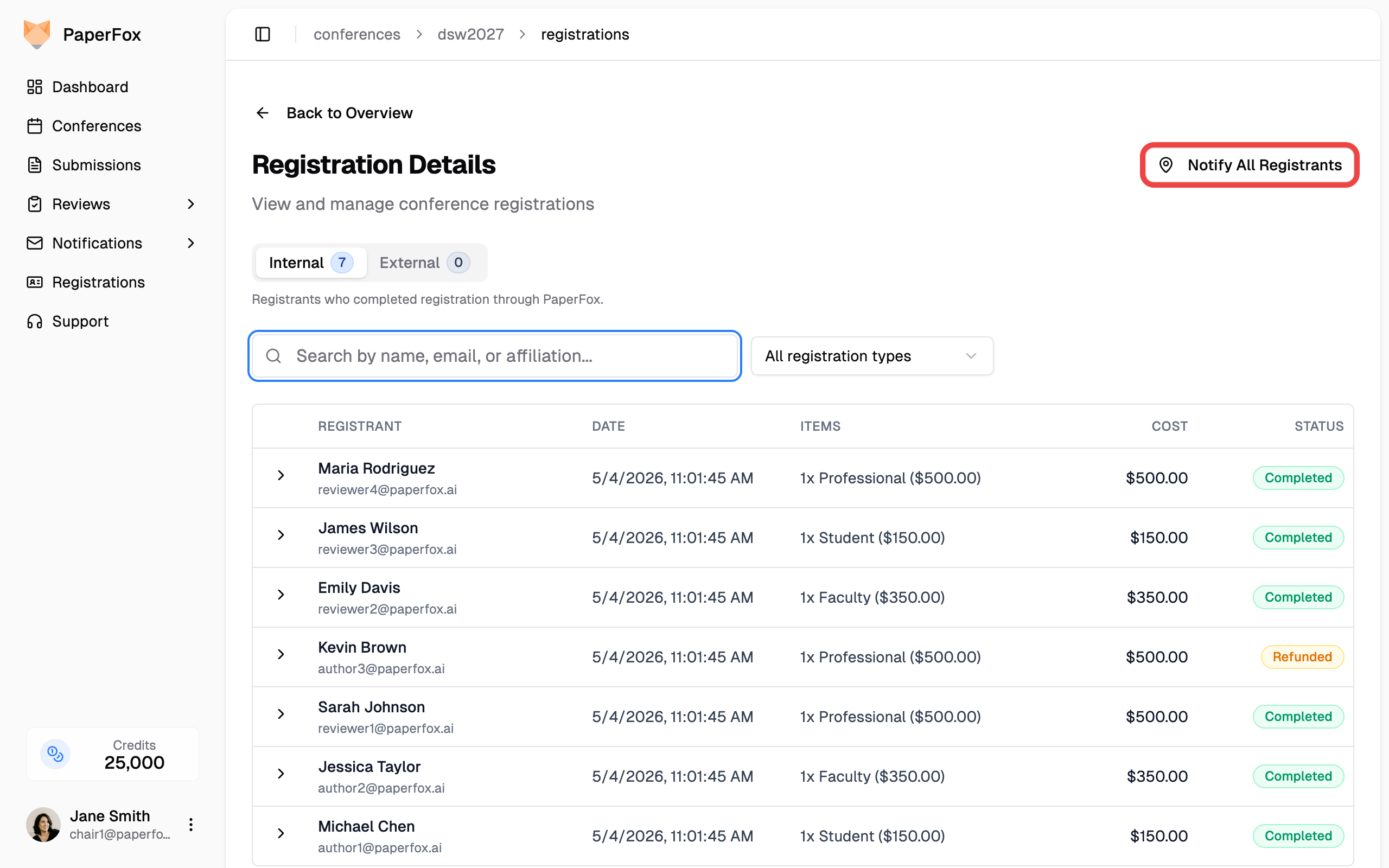
The button is enabled as soon as there's at least one active registration. With zero registrations the button is shown but disabled, with a tooltip explaining why.
Edit and Send
The composer opens with everything pre-filled — recipients, subject, and a logistics template body.
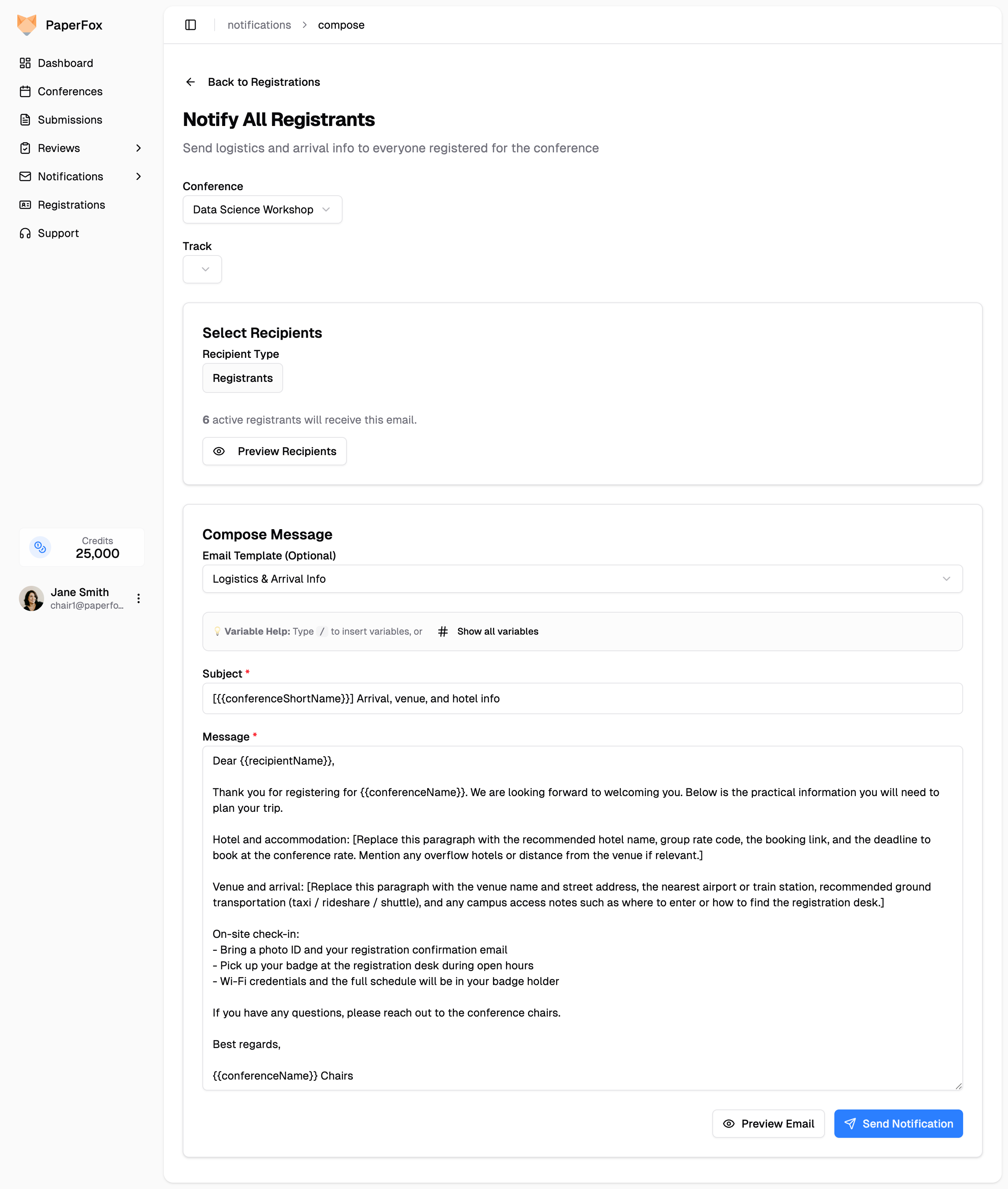
| Section | What's pre-filled |
|---|---|
| Conference / Track | Your conference, All tracks (registrations are conference-scoped, not per-track). |
| Recipient Type | Locked to Registrants — no other audience makes sense for this preset, so the role tabs are replaced with a read-only label. |
| Audience count | "N active registrants will receive this email." Only ACTIVE registrations count — refunded or cancelled registrations are skipped automatically. |
| Subject | [{{conferenceShortName}}] Arrival, venue, and hotel info |
| Message | Logistics template with placeholders for hotel info, venue & arrival, and on-site check-in. |
Replace the bracketed placeholders in the body with your actual hotel name and group rate, venue address and transit notes, and any on-site specifics. The Mustache variables ({{conferenceName}}, {{recipientName}}, etc.) are filled in per recipient at send time — leave them as-is.
Click "Preview Email" to see a fully rendered version, then "Send Notification" when ready.
Email Specific Registrants
Sometimes you only need to reach a subset — the workshop presenters, a single institution, or everyone who booked a particular package. Instead of "Notify", tick the checkbox next to each registrant you want, then click "Notify Selected" in the toolbar above the table.
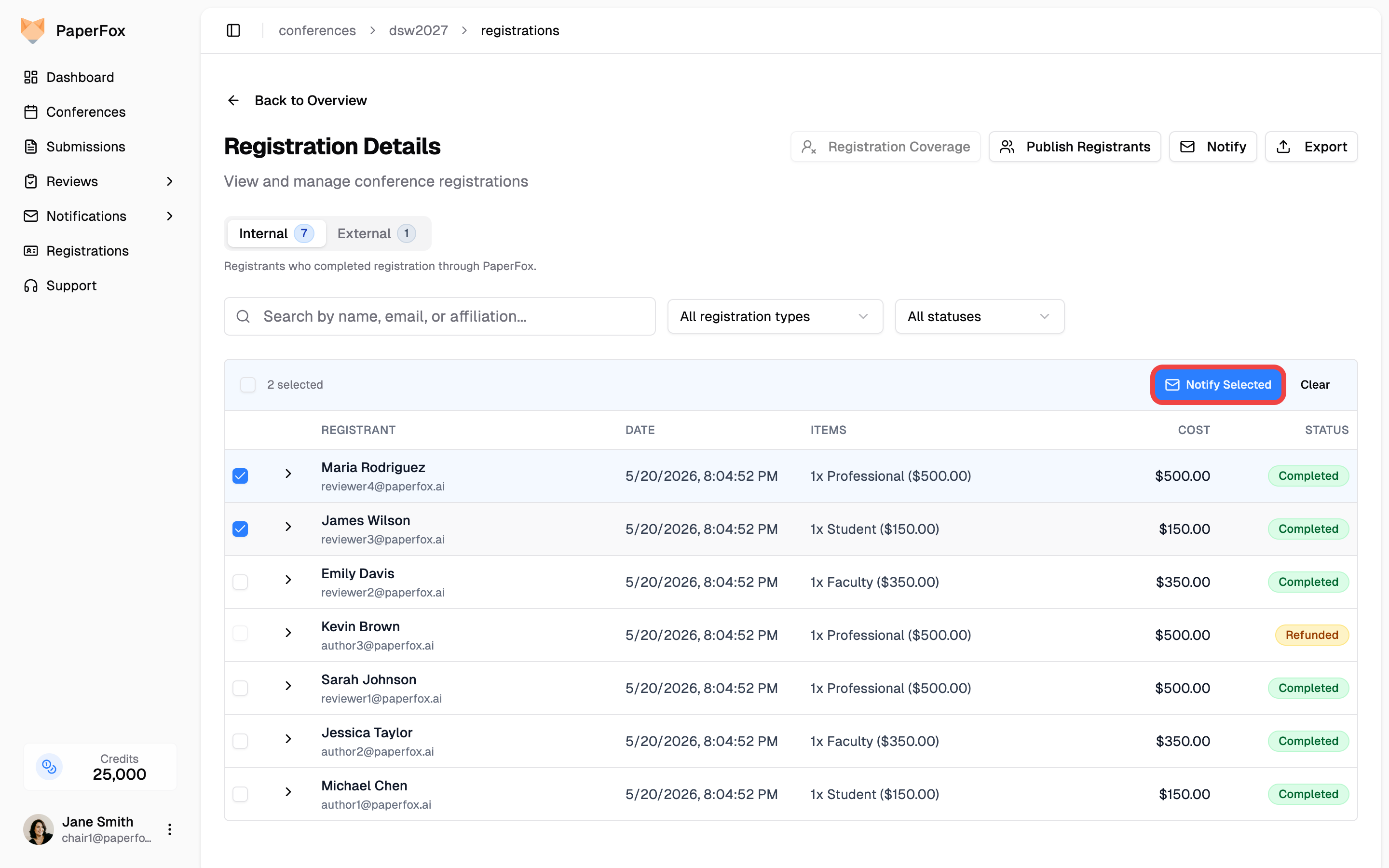
- The toolbar keeps a running count of who's picked, and Notify Selected enables once at least one registrant is selected. Select all checks everyone on the current page.
- Your selection persists as you search, filter, and page through the list — pick people across several pages, then send once.
- Refunded registrants can't be selected (their checkbox is disabled) — only active registrants are emailable, same as Notify.
Notify Selected opens the same composer, but with the recipients locked to just the people you picked — the Recipients card reads "N selected registrants" instead of the full count. Edit the subject and message, preview, and send.
From the Notifications Hub
If you're already in the Notifications hub — for example, sending out reviewer reminders or decision letters — you can launch the same flow without going back to the conference page.
- Click Notifications in the sidebar.
- Pick your conference at the top.
- Under Announcements, click the Notify All Registrants card.
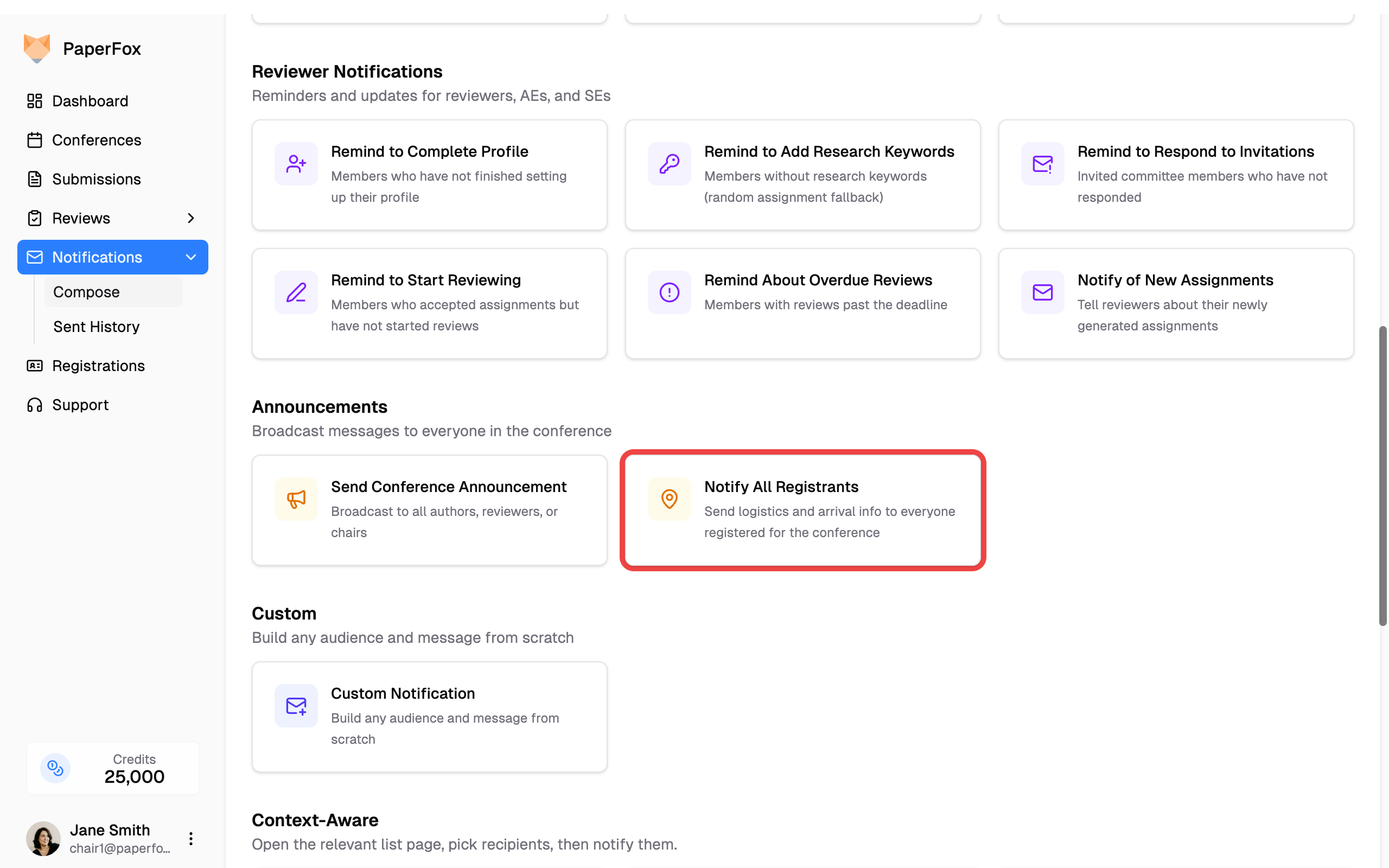
The composer opens with the same pre-fill as the in-page button.
To email a subset from the hub, use the Email Selected Registrants card under Context-Aware — it takes you to the registrants list to pick recipients first (the picking has to happen on the list page, so the hub links you there rather than opening an empty composer). See Send Notifications for the full preset catalog.