
Send Notifications
Send email notifications to authors, reviewers, and committee members from the Notifications hub
PaperFox sends every chair-facing email through one place — the Notifications hub at /notifications. The hub lists pre-built notifications (called presets) for the things chairs do over and over: send decision letters, remind authors to register, ping reviewers about overdue reviews, broadcast announcements. Click a preset card and the composer opens with the right audience and template already filled in.
The Notifications Hub
- Click Notifications in the sidebar (or the Compose sub-item)
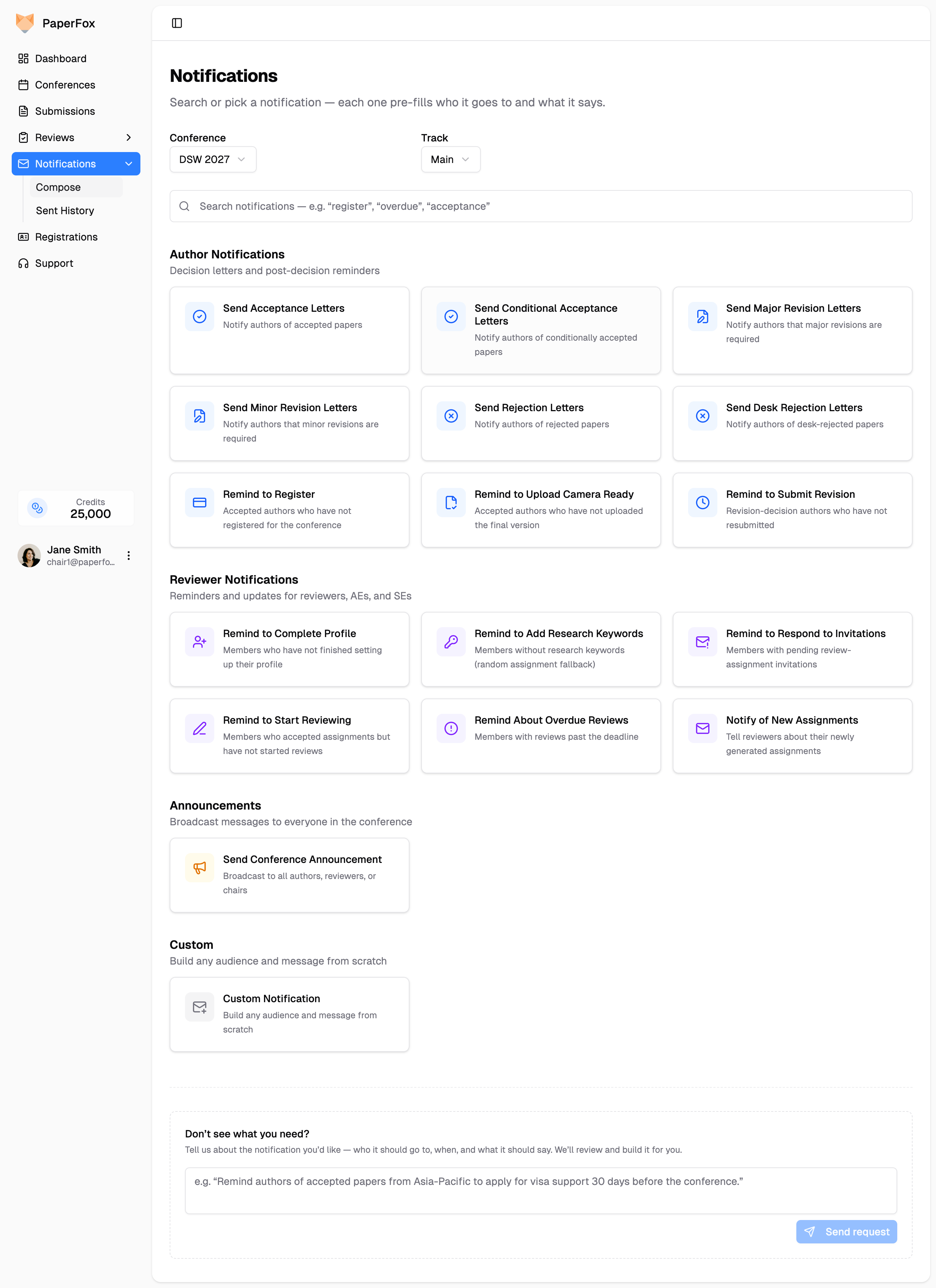
The hub groups presets by category:
| Category | Examples |
|---|---|
| Author Notifications | Send Acceptance / Conditional Acceptance / Major Revision / Minor Revision / Rejection / Desk Rejection Letters, Remind to Register, Remind to Upload Camera Ready, Remind to Submit Revision |
| Reviewer Notifications | Reminders and thank-yous for reviewers, AEs, and SEs — profile prompts, invitation and assignment chasers, review reminders, and more. Full list below. |
| Announcements | Send Conference Announcement (broadcast to authors / reviewers / chairs), Notify All Registrants (logistics & arrival info to everyone registered, including registrants you imported) |
| Custom | Custom Notification — the freeform composer if no preset fits |
| Context-Aware | Email Selected Authors / Reviewers / Associate Editors / Senior Editors / Track Chairs, Notify Authors of Compliance Issues, Remind Authors to Register — these open the relevant list page so you can pick recipients, then notify only the rows you selected |
Custom decision types get their own cards
If your conference defines its own decision types beyond the six built-in ones — say Accept as Poster — the hub adds a "Send Accept as Poster Letters" card under Author Notifications automatically. It opens the composer with that decision already selected and a neutral decision letter loaded, which you then edit to say what the decision actually means.
Reminder cards skip authors who already delivered
Remind to Submit Revision and Remind to Upload Camera Ready email only the authors who still owe you a new version — anyone who already uploaded one for the current phase drops out of the audience automatically, so nobody gets nagged for work they've done.
"Still owes a version" is the same test behind the No revision yet badge on Track Submissions, so the card's recipient count matches what you see filtering that page (pick the phase there first — the revision badges and their filter only appear once a specific phase is selected). It works whether or not you recorded a formal decision: submissions moved into a revision or camera-ready phase are included on the strength of the phase alone.
- Use the Conference and Track pickers at the top to scope the cards to the conference and track you want to email
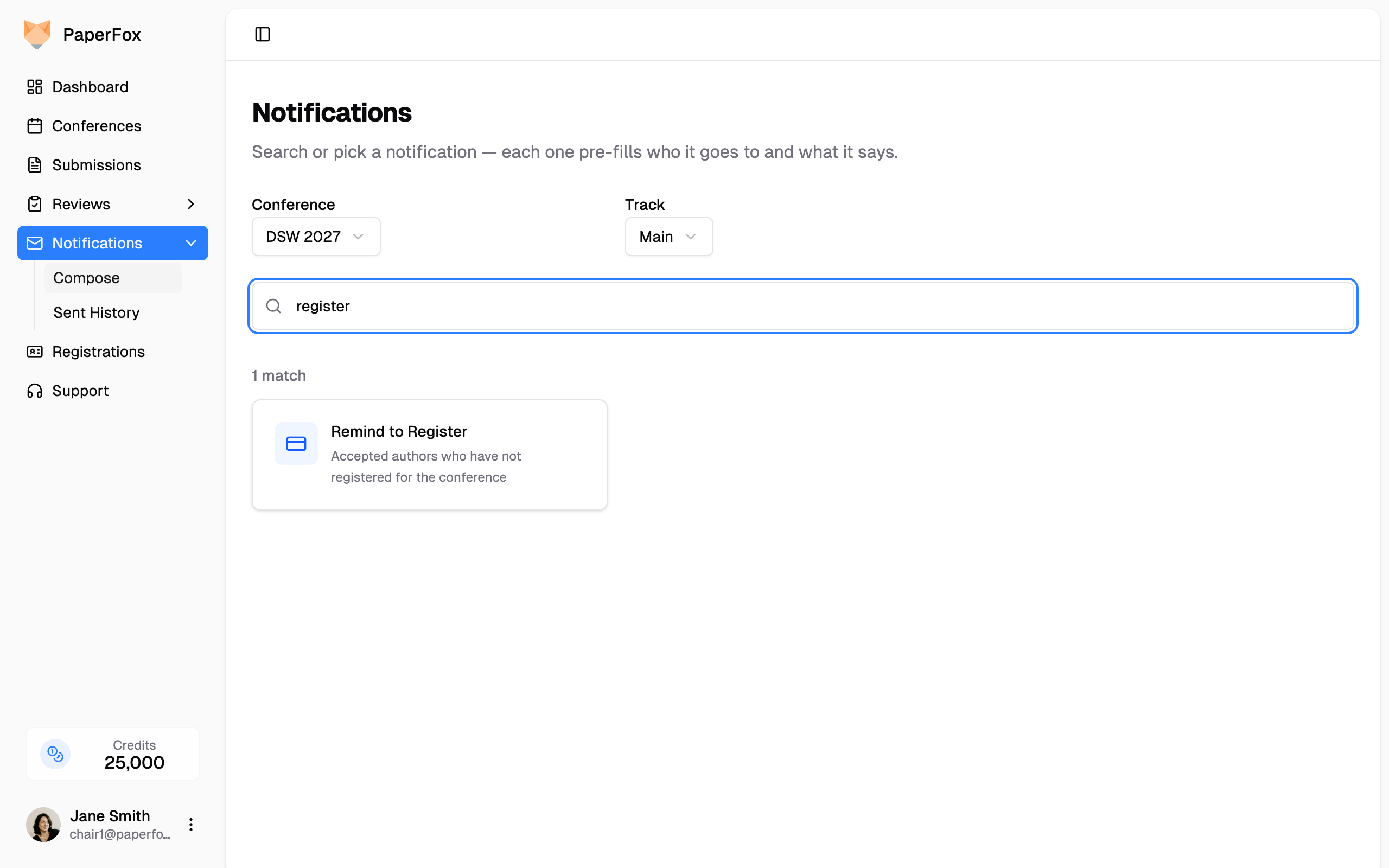
- (Optional) Type in the search box to filter cards by name or description — type "register" to narrow to registration-related presets, "overdue" for the overdue-review reminder, etc.
- Click a preset card. The composer opens with everything pre-filled — recipients, subject, message body, and a Back to Notifications button to return:
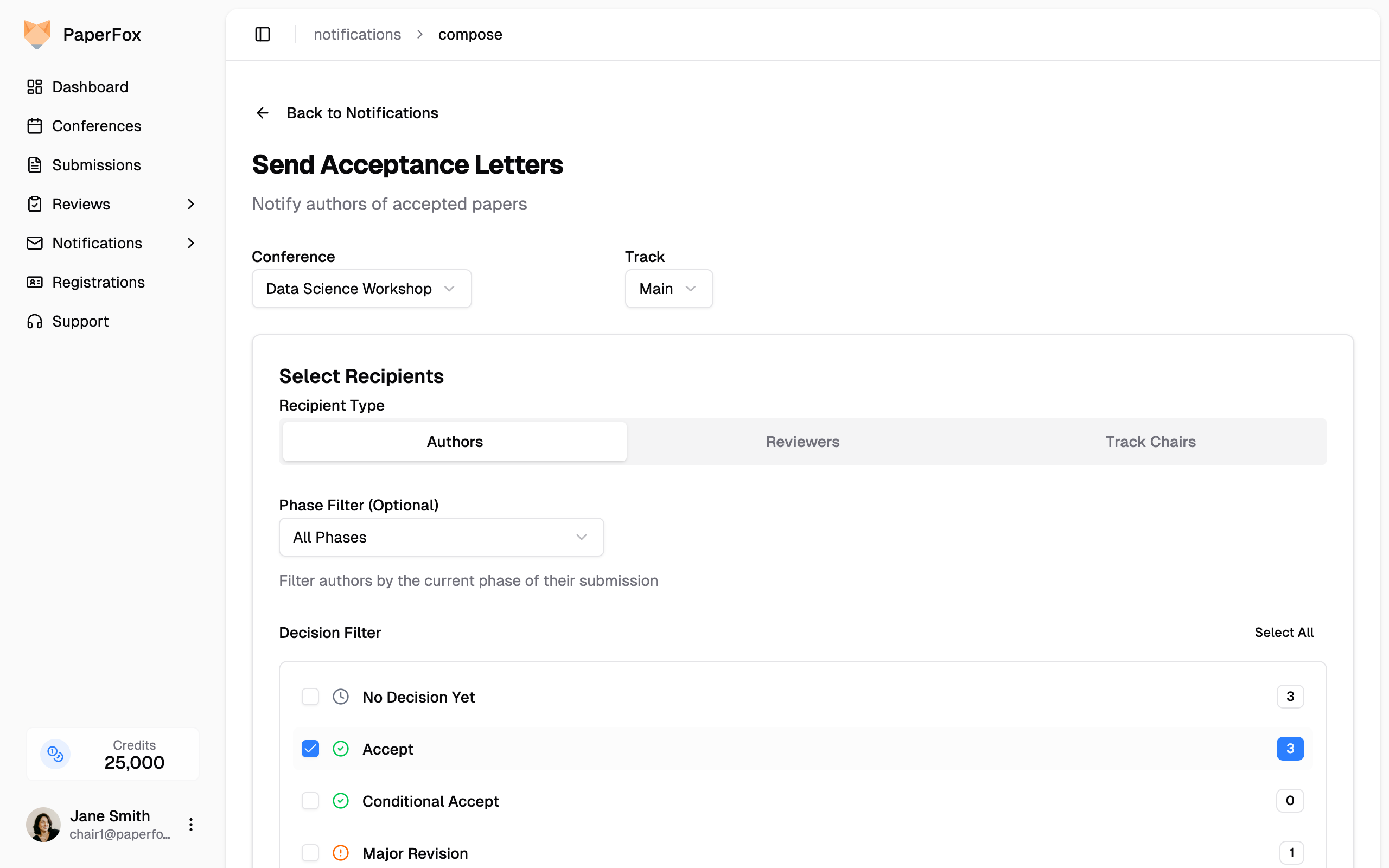
- Edit the subject or body if you want to add conference-specific context, then click Send Notification.
Each preset is one click
The hub replaces the old "pick conference, pick track, pick role, pick filter, pick template" multi-step flow. If you find yourself wanting a notification that isn't on the list, see Don't see what you need? below.
All Tracks
When a conference has more than one track and you manage them all, the Track picker shows an All tracks option at the top. Picking it lets you send a single notification across every track in the conference — useful for conference-wide announcements or multi-track decision letters.
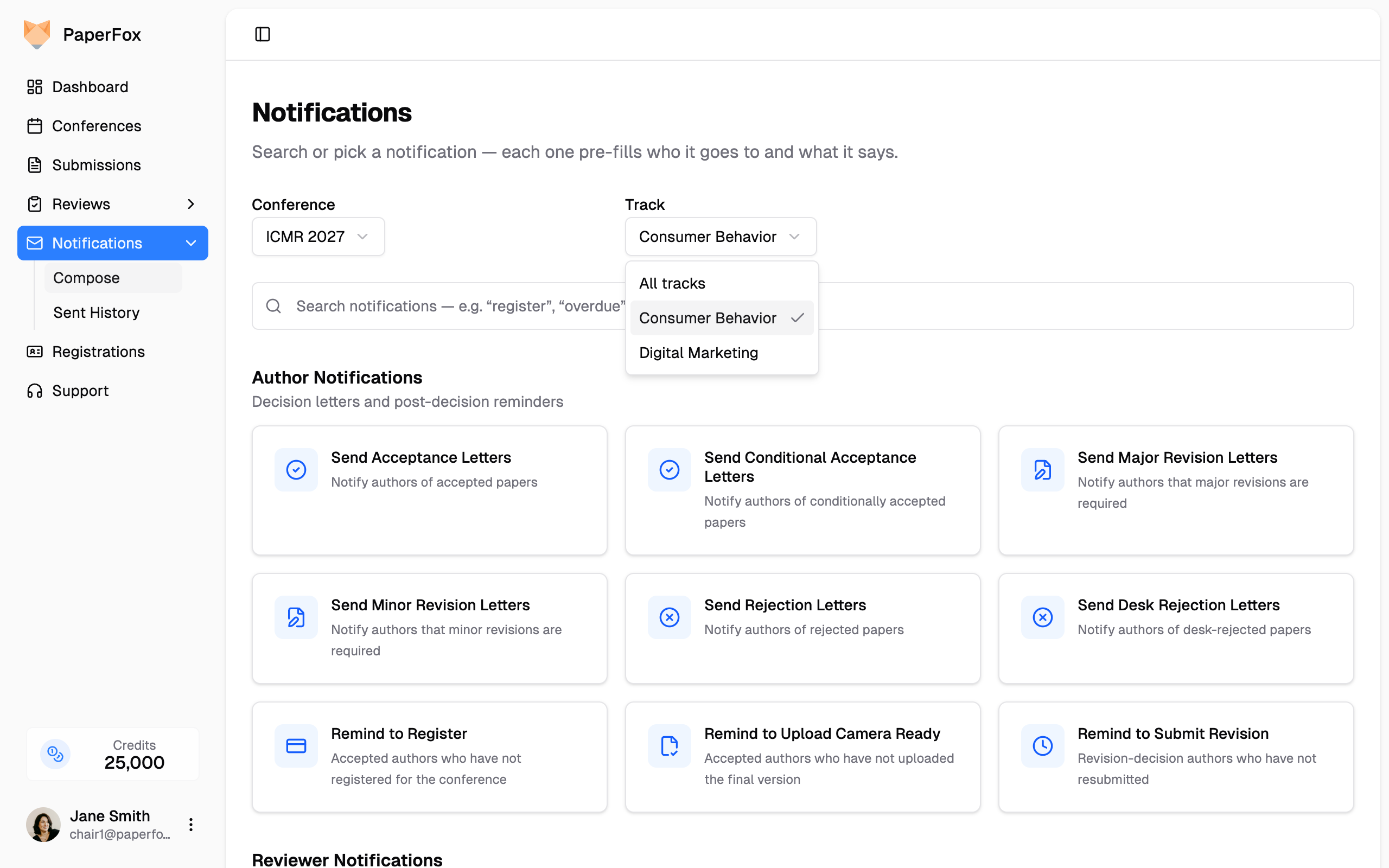
The "All tracks" option only appears in conferences where you manage 2 or more tracks. In a single-track conference there's nothing to combine.
For reviewer, associate editor, and senior editor sends, an all-tracks composer targets a review phase by number — "Phase 2" reaches phase 2 of every track at once (for example, emailing every reviewer with final-draft assignments across all tracks in one send). Tracks without that phase are simply skipped, and the recipient count updates as you switch phases.
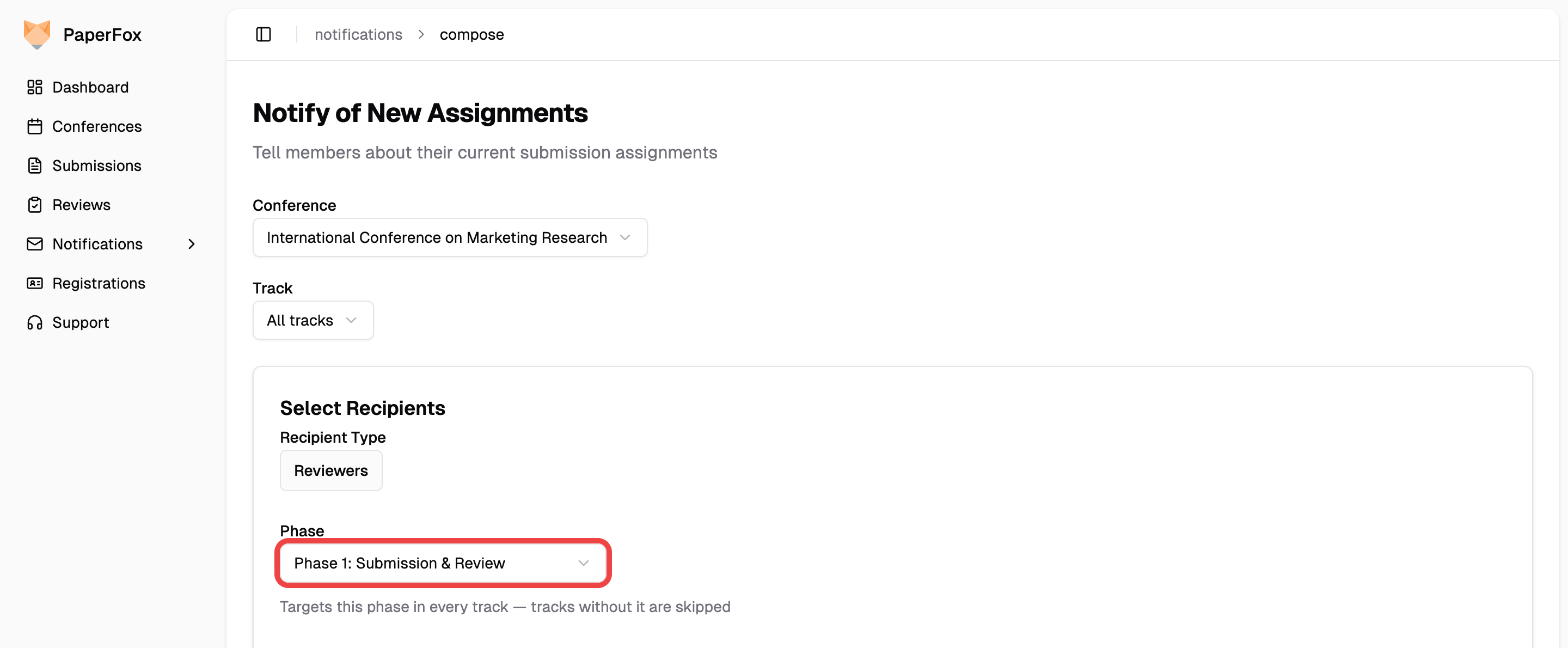
The picker names the phase when every track agrees on it; where tracks use different names for the same phase number it reads "Phase 2 (names vary by track)". It only appears when your tracks have more than one phase.
Email a Submission's Authors
You can email the authors of a specific submission directly from the submission detail page.
- Open a submission in your track
- Next to the Authors heading, click "Email Authors"
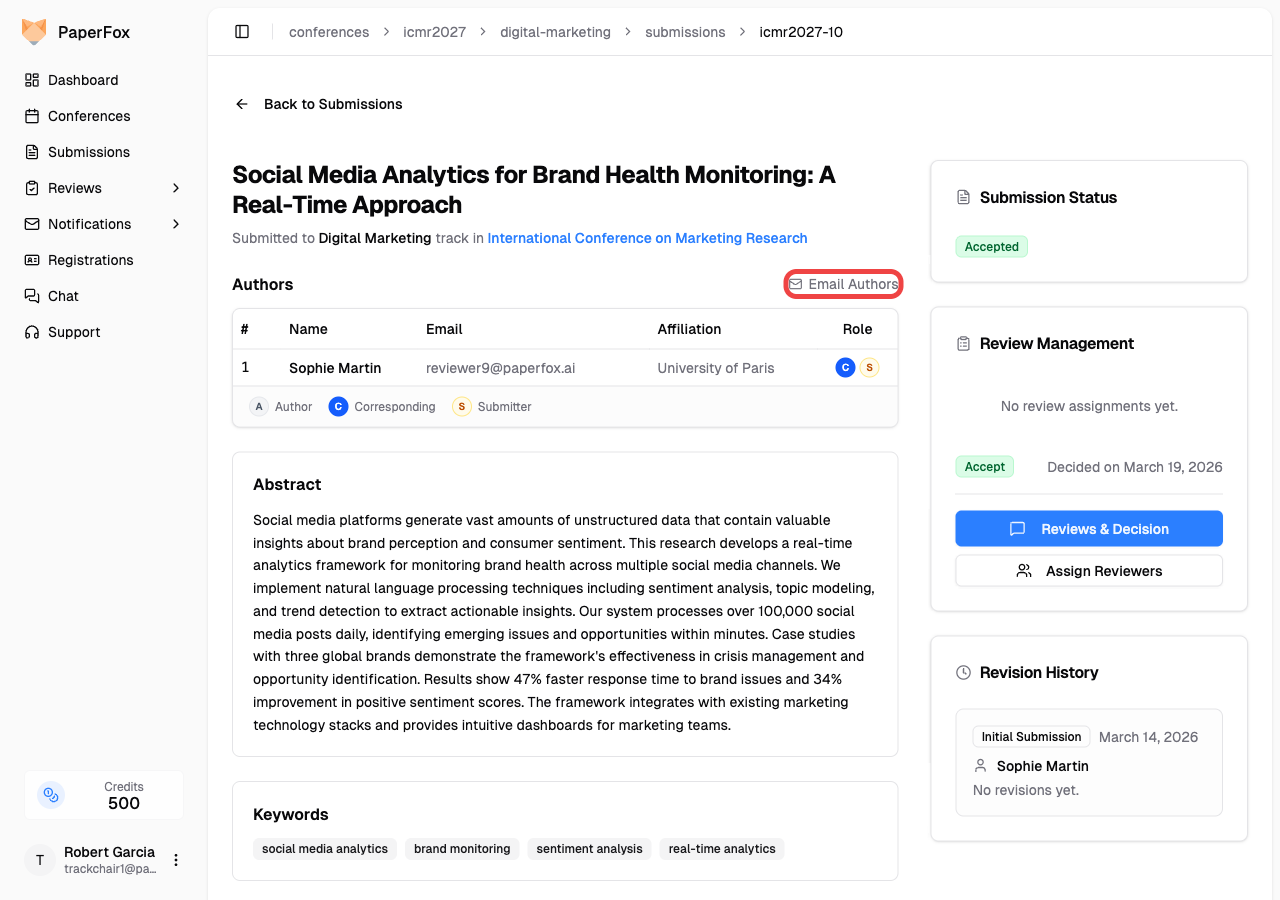
This opens the composer pre-filled with the submission's details:
- Recipients are pre-loaded from the submission's author list, each with a checkbox you can toggle individually
- Subject is pre-filled with the submission slug (e.g.,
[ICAI2027-5]) - Quick-filter buttons above the list reset the selection: Select All, Corresponding Only (when there's a corresponding author), Submitter Only (when the submitter is one of the authors), and Unselect All
Compose your message and click "Send Notification". (The picker UI is the same as the bulk-select flow shown in Email Authors of Selected Submissions below.)
Who can see this?
The "Email Authors" link only appears for conference chairs and track chairs. Authors and reviewers do not see it.
Email Authors of Selected Submissions
When you want to email the authors of several specific submissions — for example, all accepted submissions in a track, or a hand-picked shortlist — use the bulk-select tool on the Track Submissions page.
- Go to Conferences in the sidebar, then click your conference
- Under Track Management, open your track and click "All Submissions"
- (Optional) Use the search or the "Filters" panel to narrow the list — for example, pick Accepted from All Decisions to email accepted authors
- Check the box on each submission you want to include, or check the top box to select every row on the page
- Click "Notify Authors" in the toolbar above the list
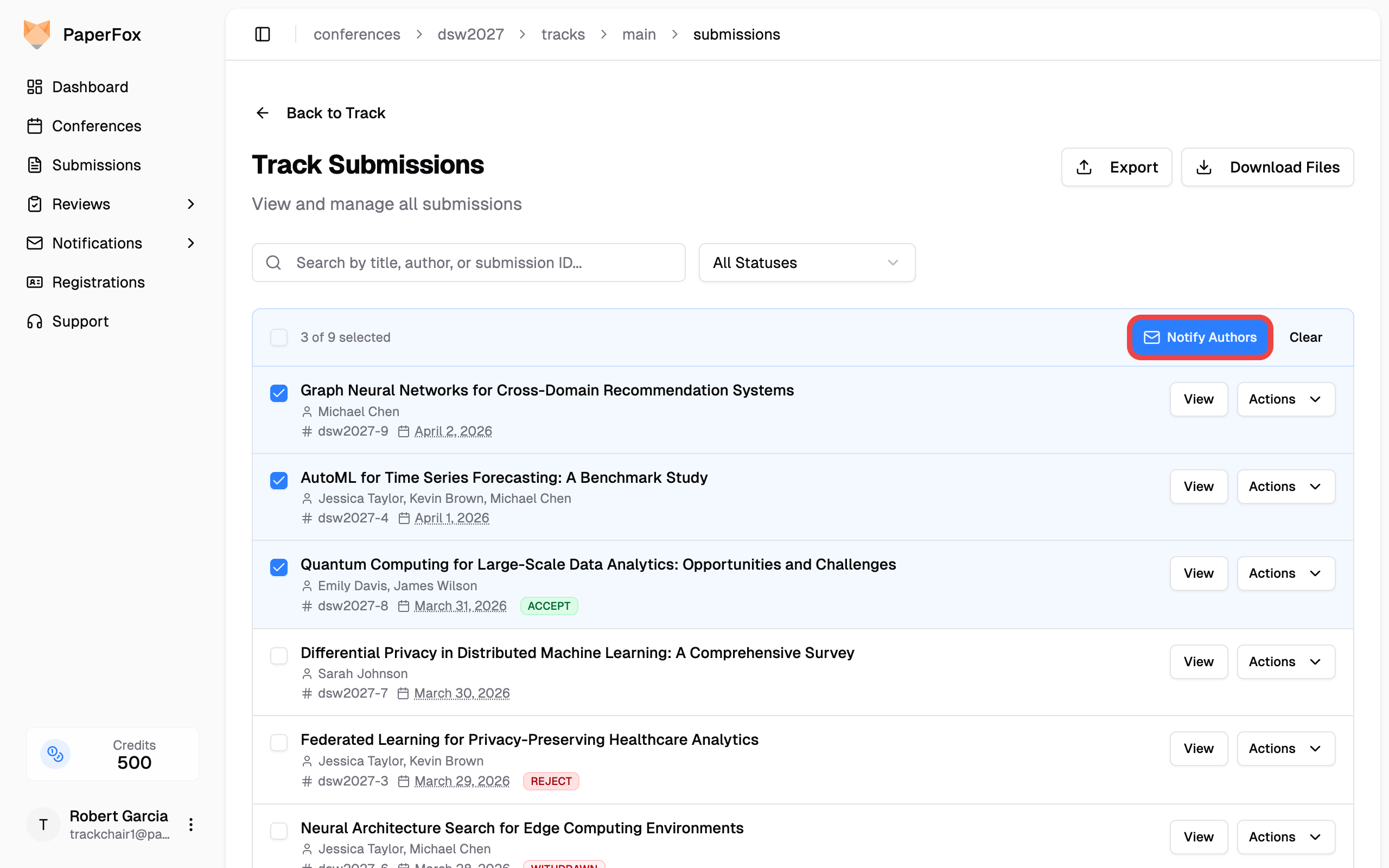
The composer opens with all selected submissions pre-loaded:
- The Recipients card shows the count of selected submissions and a deduplicated checkbox list of every author across them
- Use the quick filters (Select All, Corresponding Only, Submitter Only, Unselect All) or toggle individual checkboxes to pick exactly who should receive the email — co-authors who appear on multiple selected submissions receive only one email
- Compose your message and click "Send Notification"
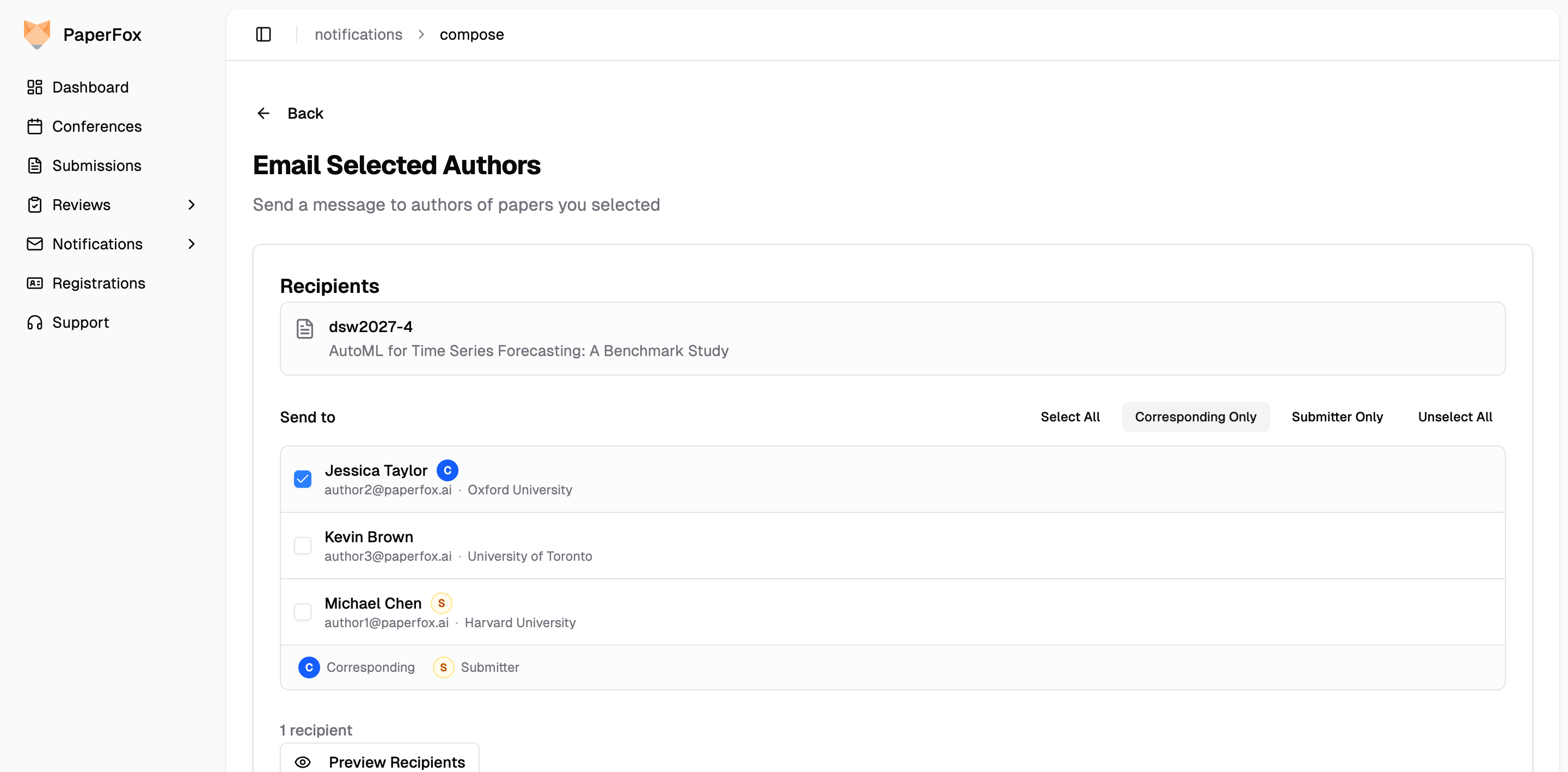
The C badge marks the corresponding author; the S badge marks the user who actually submitted the submission. They can be the same person or different.
The same select-and-notify affordance is available in the toolbar on the Track → Decisions page — useful right after making decisions, when you want to email authors by decision outcome without leaving the review workflow.
Email Reviewers from the Committee Page
From the Reviewer Management page, you can jump to the Notifications hub pre-scoped to your conference and track — no need to re-pick them when you arrive.
- Open your track and click "Manage Reviewers" (or navigate to Track → Reviewers)
- Click the "Notify" button in the Reviewers toolbar
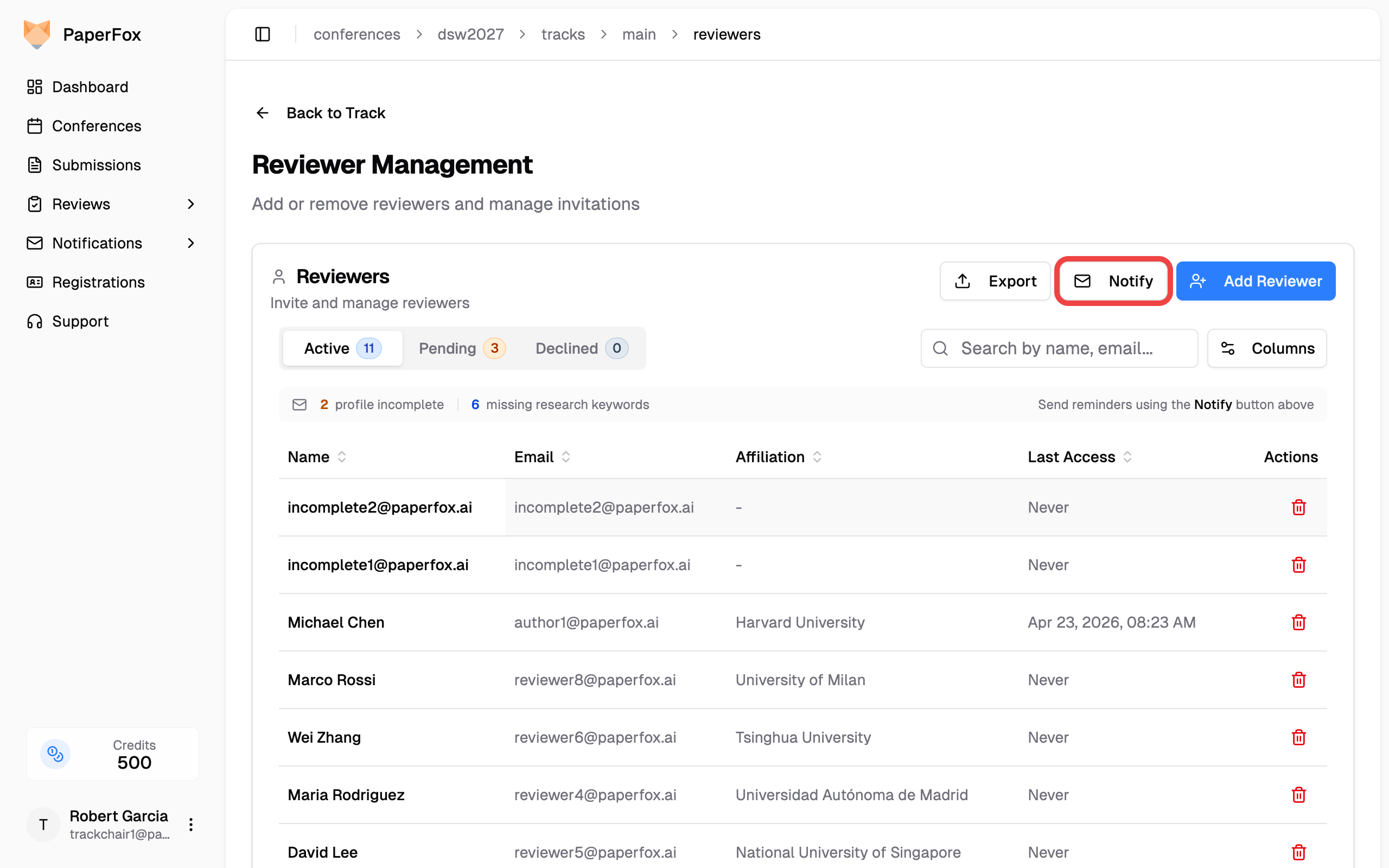
- The hub opens with your conference and track already selected. Pick the preset that fits — typically one of:
| Preset | When to use it |
|---|---|
| Remind to Complete Profile | Reviewers who accepted their invitation but haven't filled in name, affiliation, etc. |
| Remind: Empty Research Profile | Reviewers whose profile is otherwise complete but who haven't added research keywords — they get random-assignment fallbacks instead of expertise-matched submissions |
| Remind to Answer Committee Invitation | Invited people who haven't joined the committee yet |
| Remind to Answer Submission Assignments | Reviewers already on the committee who haven't accepted or declined the submissions you assigned them |
| Remind to Submit Reviews | Reviewers with at least one review still unsubmitted — includes those part-way through, not just those who never started |
| Remind About Overdue Reviews | Reviewers with at least one review past the deadline |
| Thank Members Who Finished | Reviewers who submitted every review assigned to them |
| Follow Up on Declined Assignments | Reviewers who declined at least one submission — offer them different submissions or a lighter load |
| Notify of Assignments | Members with pending assignments no email has told them about yet — safe to click again after adding or replacing reviewers; it never re-emails people already notified |
| Re-send Assignment List | Everyone with current assignments, even if already emailed — for when the whole committee needs the email again (say the deadline moved) |
| Custom Notification | Anything else — opens the freeform composer |
Two different invitations
Remind to Answer Committee Invitation and Remind to Answer Submission Assignments sound alike but reach different people — on a large conference the audiences differ by an order of magnitude. Check the count on the card before sending.
Counts are people, not submissions
Every number on the composer's Status Filter counts people, not submissions or reviews. Because one reviewer can hold several submissions, they can match more than one filter — anyone in Remind About Overdue Reviews is also in Remind to Submit Reviews, and someone who declined one submission may still owe a review on another. So the counts overlap and won't add up to your committee total.
Remind to Submit Reviews and Thank Members Who Finished are the exception: they never overlap. A reviewer with two reviews in and one outstanding counts as unfinished, so the thank-you never reaches someone who still owes you work.
Email Reviewers You Pick by Name
The presets above target a cohort — everyone with an overdue review, everyone who never filled in a profile. When the people you want don't share a status like that (say you invited five reviewers personally and want to nudge just them), pick the rows yourself:
- Open Track → Reviewers and stay on the Active tab
- Tick the checkbox next to each person you want to reach — or use Select all in the toolbar above the table to take everyone on the page
- Click "Notify Selected"
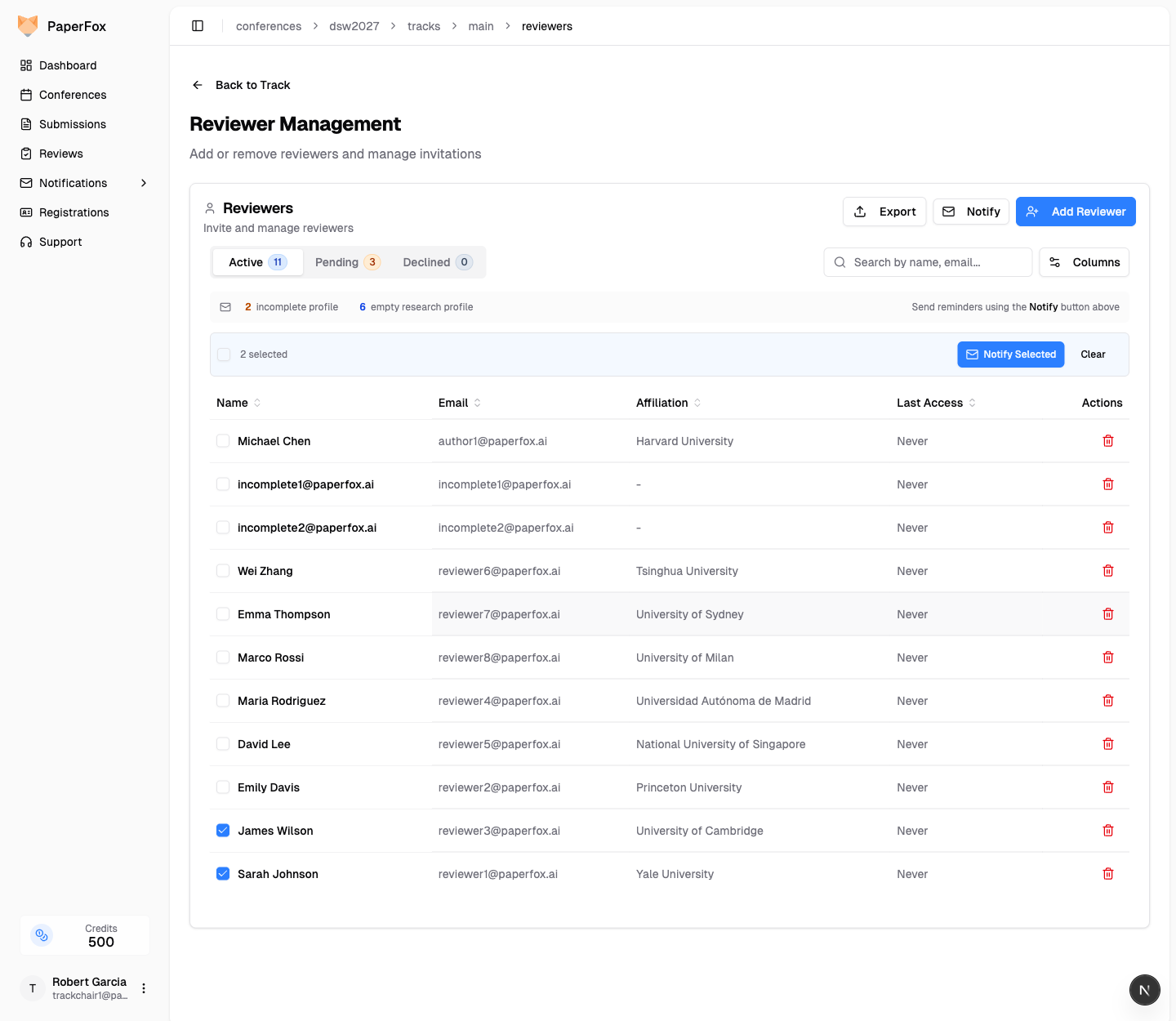
The composer opens with those people as a fixed recipient list — a read-only Recipients card instead of the usual audience picker — so you write the message once and it goes to exactly who you ticked. Click Preview recipients on that card to see the names before you send.
The same checkboxes are on the Associate Editors, Senior Editors, and Track Chairs pages, and behave identically.
You can also hand-pick reviewers without leaving the assignment work: on Track → Review Assignments, click Notify Reviewers and choose Email Specific Reviewers…. It opens the same fixed-recipient composer, and whoever is assigned to the submission you have open is ticked for you — the quickest way to write to a replacement you just assigned. See Assign Reviewers.
A few things worth knowing
- Your picks survive paging. On a large committee, tick people on page 1, move to page 2, and tick more — the count in the toolbar keeps the running total, and all of them reach the composer. Select all adds only the current page, so it never wipes picks you made elsewhere.
- Active members only. People on the Pending and Declined tabs haven't joined the committee, so they can't be selected here. To chase them, use Remind to Answer Committee Invitation above, or Resend All on the Pending tab.
- Undeliverable addresses. A reviewer tagged Undeliverable can still be ticked, but the email will not reach them — their address previously bounced or was suppressed. Ask them for a different address and update it before relying on the send.
Don't see what you need?
First — if you just want different wording, you already have it. Nothing on this page locks you to the supplied text:
- Every preset opens the composer with the subject and body pre-filled but fully editable. Rewrite as much or as little as you like before sending.
- The template dropdown has a "No template - write custom message" option. Pick it and both fields go blank for you to write from scratch, with the preset's audience still selected.
- The Custom Notification card starts you at a blank composer with no audience chosen — build the recipient list and the message yourself.
In all three cases you can insert merge variables ({{reviewerName}}, {{conferenceName}}, and the rest) from the variable list beside the editor, and preview the rendered email before it sends. So a preset is a starting point, never a constraint.
Requesting a new preset
The request form below the preset cards is for the other case — a notification your conference sends repeatedly, where re-authoring it by hand every time is the annoyance. For example, a visa-support reminder for accepted authors from a specific region. Describe what you'd like and click Send request; PaperFox support reviews each one and adds new presets as patterns emerge.
The form is plain text. Tell us:
- Who the notification should go to (e.g., "accepted authors from Asia-Pacific")
- When to send it (e.g., "30 days before the conference")
- What it should say (a sentence is enough — we'll draft the template)
Automatic emails are customized elsewhere
This page covers the emails you send. The ones PaperFox sends on its own — committee invitations, review assignments, compliance notices — aren't composed here. You shape those by setting a chair intro and signature: see Customize Committee Emails.
Find People and Submissions
Search across all your tracks for any reviewer, editor, chair, author, or submission — without knowing which track they belong to — and export every submission to one CSV.
Notify All Registrants
Email logistics, hotel, and arrival info to everyone registered for the conference