
Customize Decision Types
Add custom verdict labels to your conference on top of the six built-ins
The six built-in decision types — Accept, Conditional Accept, Major Revision, Minor Revision, Reject, Desk Reject — are always available and drive a submission's submission status. You can add custom verdict labels on top for conferences that need finer distinctions like Accept as Poster, Shepherd, or Reject and Resubmit.
Navigate to Conferences → your conference → Settings → Decision Types in the sidebar.
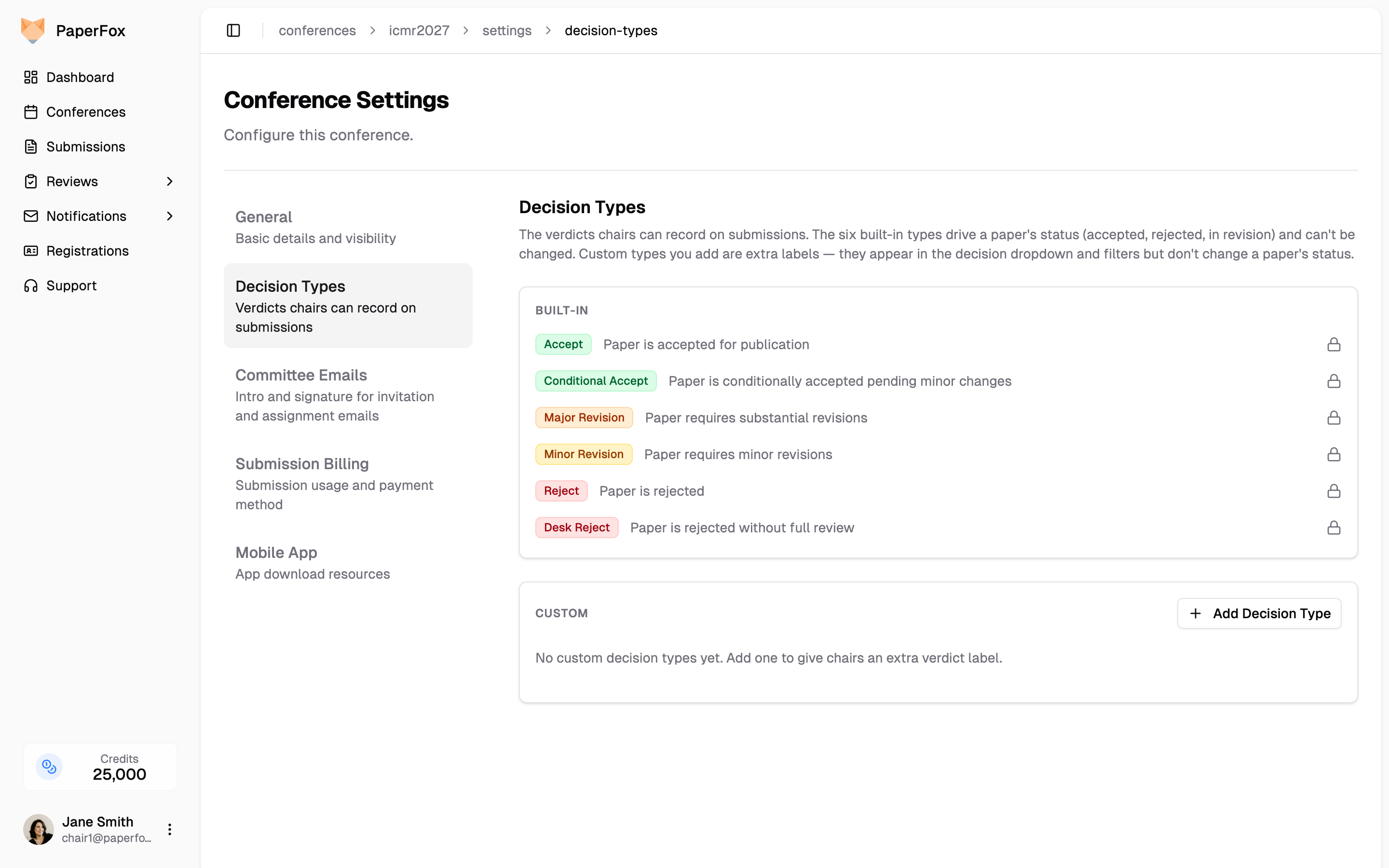
The page lists every decision type in one ordered list — the same order chairs see in the decision dropdown and filters:
- Built-in types (lock icon) — the six fixed types. They drive the submission's lifecycle status (accepted, rejected, in revision) and can't be renamed, recolored, or deleted. They can be reordered.
- Custom types (rename and delete icons) — verdict labels you add. They appear in the decision dropdown and filters but don't change a submission's status — useful when you want a granular outcome label without altering the lifecycle.
Conference chairs only
The Decision Types settings page is visible only to conference chairs. Track chairs, AEs, SEs, and reviewers see the resulting verdicts in their own workflows but can't edit the list.
Add a Custom Decision Type
- Click "Add Decision Type"
- Fill in:
- Label — the verdict text chairs will pick (e.g. Accept as Poster)
- Description (optional) — shown alongside the label on this settings page; helps other chairs understand when to use it
- Color — the badge color, chosen from four families that mirror the built-ins:
- Accept-like (green) — positive outcomes
- Major-revision-like (orange) — substantial revision asks
- Minor-revision-like (amber) — light-touch revision asks
- Reject-like (red) — negative outcomes
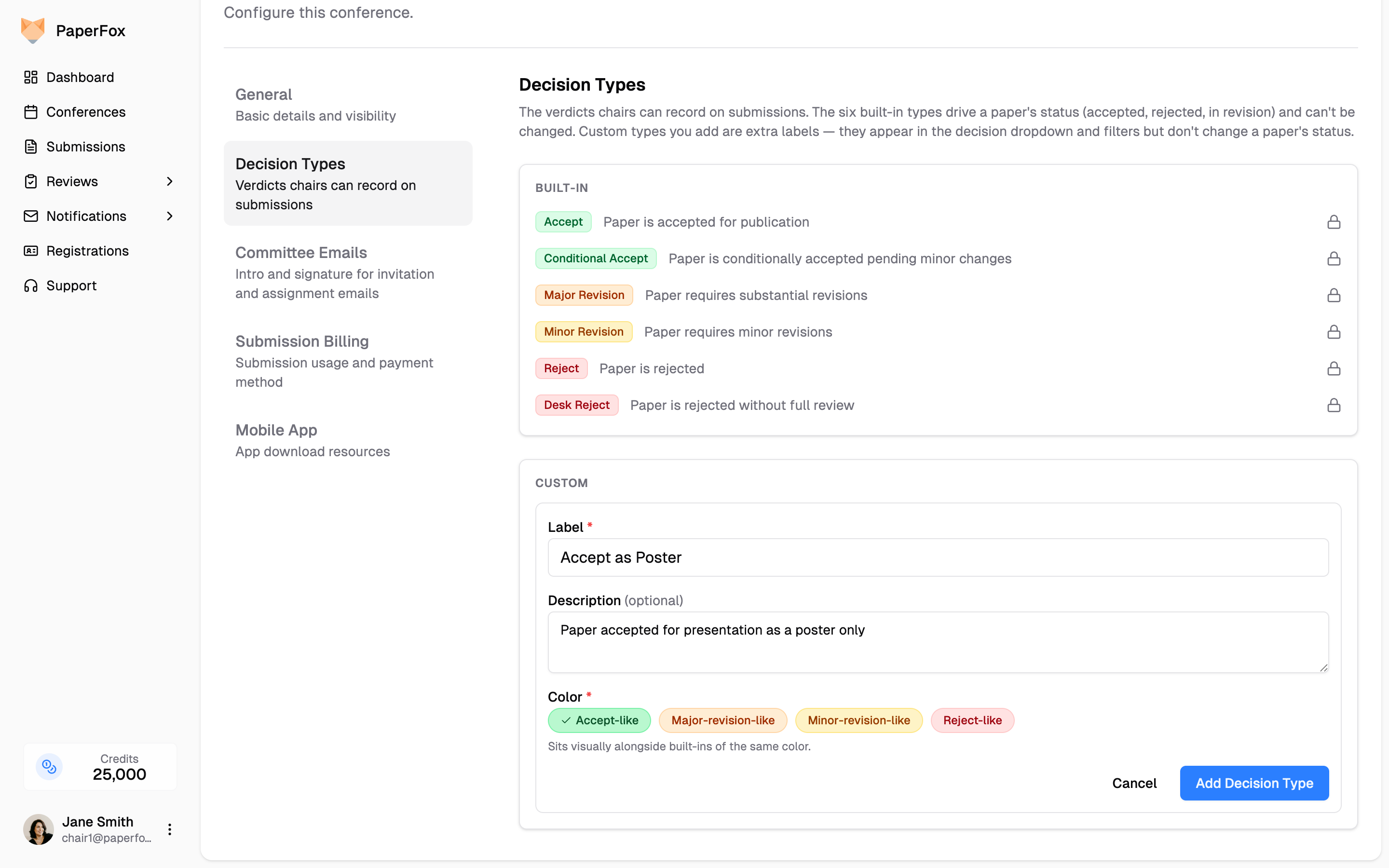
- Click "Add Decision Type" to save
The new label is immediately available to all chairs (and AEs/SEs) making decisions in any track of this conference. It also appears as a filter option on the decisions page.
The new type is placed right after the last type of the same color, so an accept-like Accept as Poster lands beside Accept and Conditional Accept rather than at the bottom of the dropdown below Desk Reject, where a chair scanning for an accept option can miss it. Drag it elsewhere if you want a different spot.
Reorder
Drag the handle at the left of any row — built-in or custom — to change its position. The order saves as soon as you drop the row and applies everywhere the list is shown: the Decision dropdown on a submission, the bulk decision page, and the decision filters. A common arrangement groups all accept-like verdicts first, then revisions, then rejections.
The handle also works from the keyboard: focus it, press Space, move with the arrow keys, and press Space again to drop.
Rename or Recolor
Click the rename icon next to a custom decision to change its label, description, or color. This works whether or not the custom is in use — a label change updates everywhere, including on past decisions that referenced it.
Delete
Custom decisions you haven't recorded on any submission yet can be deleted with the trash icon.
Once a custom decision has been recorded on at least one submission, the delete affordance becomes disabled — hovering shows a tooltip explaining why. A badge next to the row shows how many submissions currently carry that decision. You can still rename it, but to delete it you'd first need to change the affected decisions to something else.
Built-in decisions can never be deleted.
Where Custom Decisions Show Up
After you add one, it appears in:
- The Decision dropdown when track chairs / AEs / SEs make a decision on a submission
- The Decision filter on the track's decisions page
- The decision badge wherever a decided submission is rendered (decisions page, submission detail, MCP responses, CSV exports)
- The decision-letter email to authors, using the label and color you set
See Make Decisions on Submissions for the track-chair workflow that uses these verdicts.