
Springer Proceedings
Prepare a Springer volume (LNCS, CCIS, LNBIP, LNICST, IFIP AICT) — collect sources and signed license forms, arrange the volume, and export the folders Springer takes.
Springer has no upload system for conference organizers: the volume editor sends a ZIP with one folder per submission, labelled with the volume number and the page it starts on. The Springer Proceedings plugin builds that package from your accepted submissions on the Proceedings page. It covers the series that share Springer's volume-editor guidelines: LNCS (with LNAI and LNBI), CCIS, LNBIP, LNICST and IFIP AICT.
Before you start
- Springer has accepted your proceedings and sent you a volume number.
- Decisions are recorded. Only submissions whose latest decision is Accept or Conditional Accept are included.
- You know how Springer is splitting the proceedings. One volume, or several with a number each.
- You have a camera-ready phase. Authors upload three things in it: the final PDF, the source files, and the signed license-to-publish form. See Two-Phase Workflow.
Turn on the plugin
- Go to Conferences in the sidebar, then click on your conference
- Under Conference Management, click "Proceedings"
- Click "Open Plugins" and switch on Springer Proceedings. See Plugins.
- Click "Open Proceedings" to come back
With Springer as your only publisher, Proceedings opens its page. If another publisher is on too, click Springer Proceedings in the list. The page has three tabs: Setup, Volumes and Check and Export.
Choose the uploads
Springer takes three files for every submission. On the Setup tab, under What Goes in the Proceedings, choose for each track which file field on the submission form holds each one:
| Dropdown | What authors upload there |
|---|---|
| Final PDF | The camera-ready PDF |
| Source Files | One ZIP with the LaTeX sources (including the .bib or .bbl file and figures), or the Word .docx file |
| License Form | The license-to-publish form, signed by hand by the corresponding author and scanned |
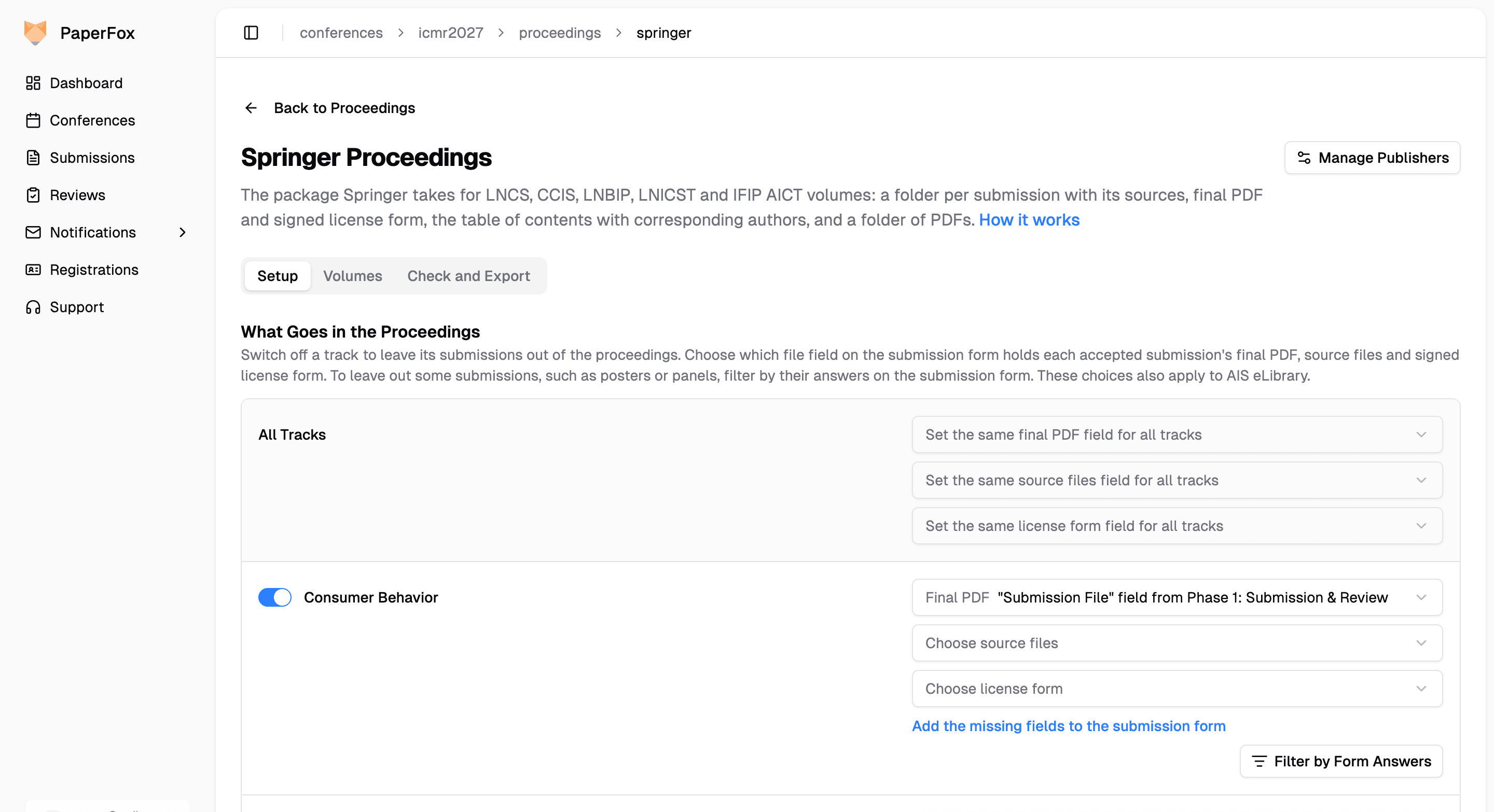
If a track's form has no field for the sources or the license form yet, click "Add the missing fields to the submission form". PaperFox adds them to the track's last phase and chooses them for you. Authors see the new fields the next time they edit their submission, and you can rename them in the form builder afterwards.
All Tracks sets the same field on every track at once. With more than three tracks, each track shows a one-line summary: click "Choose Fields" or "Change Fields" to open it, and the Show All button to see past the first three. With more than eight, search by track name. These choices are shared with any other publisher you turn on.
Springer does not accept digital signatures
The license form must be signed by hand, by the corresponding author marked on the submission. Tell your authors when you ask for the camera-ready files.
Arrange the volumes
The Volumes tab sets what the folders are named and the order the submissions appear in.
- Enter the Volume Number Springer assigned
- Click "Add Section" and type a topical heading, such as "Machine Learning"
- On each submission, choose its section from the dropdown
- Use the arrows to order the sections and the submissions inside each one
- Click "Save Changes"
Springer asks for submissions grouped by topic, not by conference session. With one volume, a submission you leave in no section is listed under its track's name, after your sections, by submission number. If your tracks are your topics, you can leave every submission unfiled.
Several volumes
A larger conference is often split into several books, for example the full papers in two volumes and the short papers in a third. Springer agrees the split with you and sends a number for each volume.
- Click "Add Volume" for each further book and enter its number
- On a volume, click "File Submissions"
- Choose a Track, or leave All Tracks
- To take only one kind of submission, choose an Answer on the Submission Form, such as "Submission Type: Full Paper"
- Click "File Submissions". Each track's submissions go under a section named after the track.
- Repeat for the other volumes, then click "Save Changes"
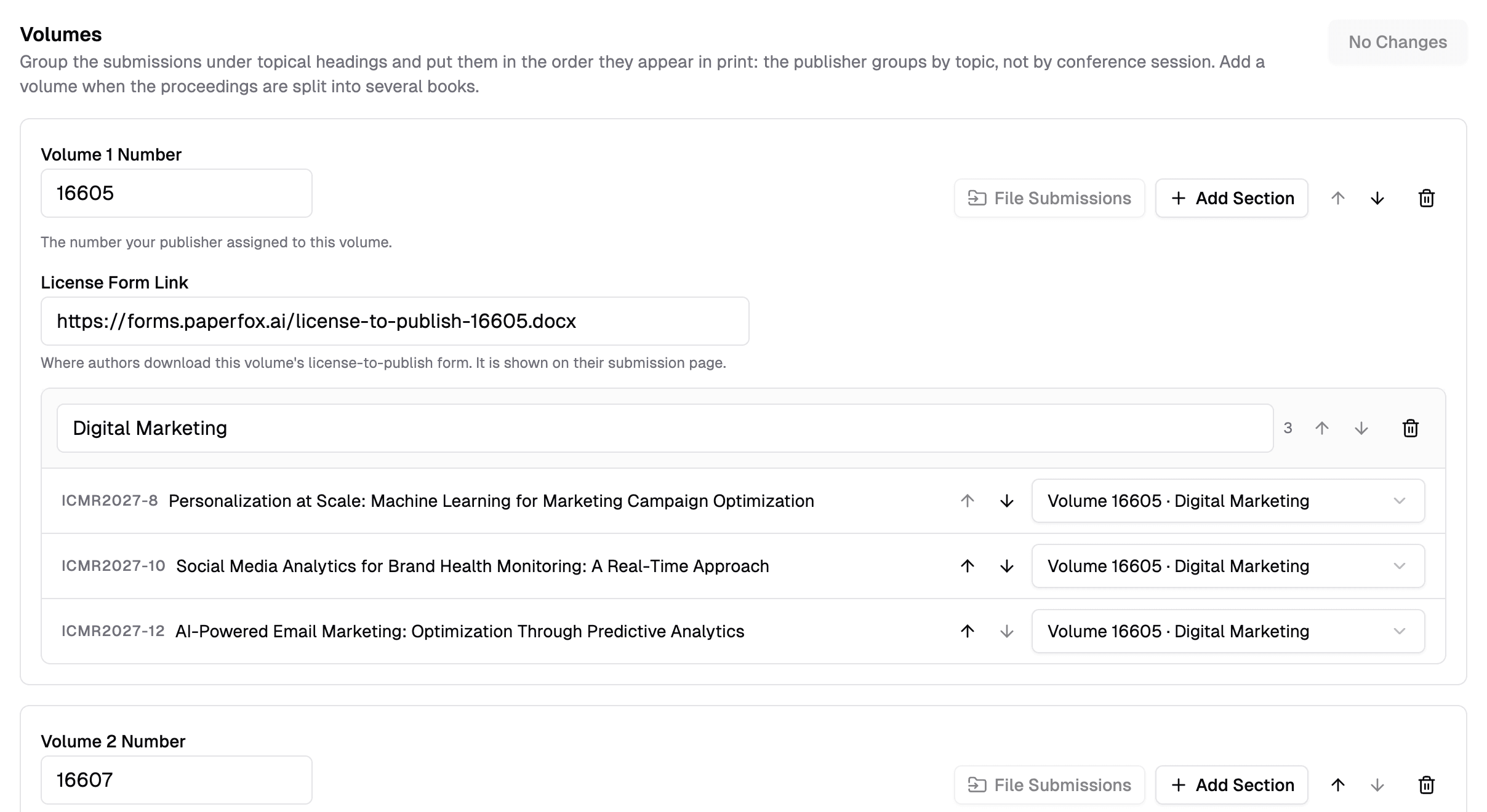
With several volumes, a submission in no section is in no volume and is left out of every export. The page warns you and lists them under Not in a Volume. A submission accepted after you arranged the volumes appears there until you file it.
Check what is ready
The Check and Export tab lists what needs attention before you export. With several volumes, choose a volume at the top: each has its own count, notes and export.
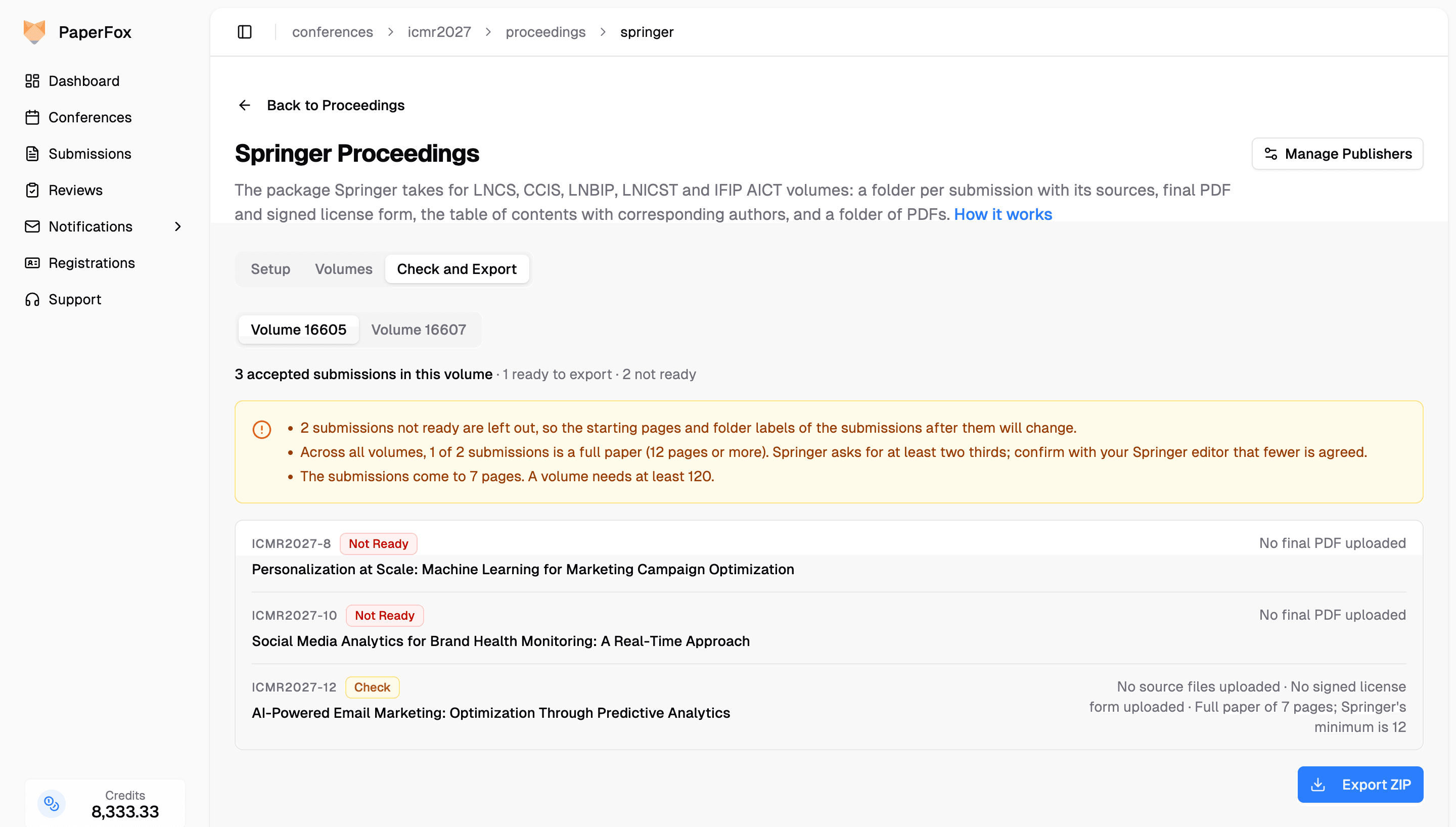
Notes at the top are about the whole volume:
| Note | Springer's rule |
|---|---|
| Enter the volume number | Every folder is labelled with it. The export stays off until it is set. |
| Fewer than two thirds are full papers | At least two thirds of the proceedings, counted across all volumes, should be full papers of 12 pages or more. Springer agrees exceptions; confirm yours with your Springer editor. |
| Fewer than 120 pages | A volume needs at least 120 pages |
| More than 500 pages | A volume holds up to 500 pages; ask your Springer editor about a further volume |
| Submissions not ready are left out | They are missing from the volume, so the starting pages of the submissions after them will change |
Each submission below has a label:
| Label | Meaning | Exported? |
|---|---|---|
| Not Ready | No final PDF, no title or no authors; or its pages could not be counted | No |
| Check | No source files or no license form; a .docm source; the license form was uploaded by someone other than the corresponding author; no corresponding author, or several; fewer than 4 pages; shorter or longer than its paper type allows | Yes |
PaperFox counts the pages of each final PDF the first time you open the page after it is uploaded. A submission of fewer than 4 pages is moved to the back matter by Springer and not indexed.
Export and send
- On Check and Export, choose the volume and click "Export ZIP". The file downloads as
<conference>-springer-<volume>.zip. Each volume is exported and sent on its own. - Unzip it. Inside are two folders and a
README.txt:
| Item | What to do with it |
|---|---|
<volume>/ | One folder per submission, named with the volume number and the starting page (164560015 starts on page 15 of volume 16456). Each holds the sources, the final PDF and the license form. Compress this folder as <volume>.zip and send it to Springer. |
<volume>/frontmatter/organization.docx | A draft of the organization pages from your committee: conference chairs, track chairs, editors, and the program committee in alphabetical order of surname, each with university and country. Check it, add any steering committee and sponsors, and save a PDF beside it. Add your preface there too, as source and as PDF. |
<volume>/corresponding_author_list_of_addresses.xlsx | The table of contents: section, starting page, title, authors, and the corresponding author's name and email. A second sheet lists every author as given name and family name, with ORCID. |
<volume>-pdfs/ | Only the PDFs. Upload it as it is, not zipped. |
- Add what only you have: the preface, the completed Production file Springer sent you, the conference logo, and your estimate of copies to order.
Send it once, when it is complete
Springer does not take late changes. Once a submission is sent, its authors, their order and the corresponding author cannot change. Starting pages are counted from the authors' PDFs, one after the other, and Springer's typesetting may move them.
ORCID
Springer prints an ORCID icon beside each author who has one. To collect them, turn on Ask for each author's ORCID iD on the conference Submission Form's Authors field — it is off by default (see Author Questions). Authors then enter an ORCID iD beside each author's name, and it appears in the Author Names sheet of the export. The field is optional, so authors without an ORCID iD leave it blank and the sheet shows an empty cell.
You can turn the question on at camera-ready, as long as authors can still edit their submissions in that phase.
Paper types and page limits
Springer sets minimum lengths: 12 pages for a full paper, 6 for a short paper, 4 for a poster paper. To check them, and any limit from your call for papers, tell PaperFox what kind of paper each submission is. Publisher Requirements, on the Setup tab, lists Springer's rules and holds these settings.
- Under Paper Type, choose where the type comes from:
- Question: …, a question on your submission form such as "Submission Type"
- By Track, when each track holds one kind of paper
- Under Paper Types, choose the Springer Type for each answer or track
- Under Your Page Limit, enter your own maximum, or leave it empty
- Click "Save Changes"
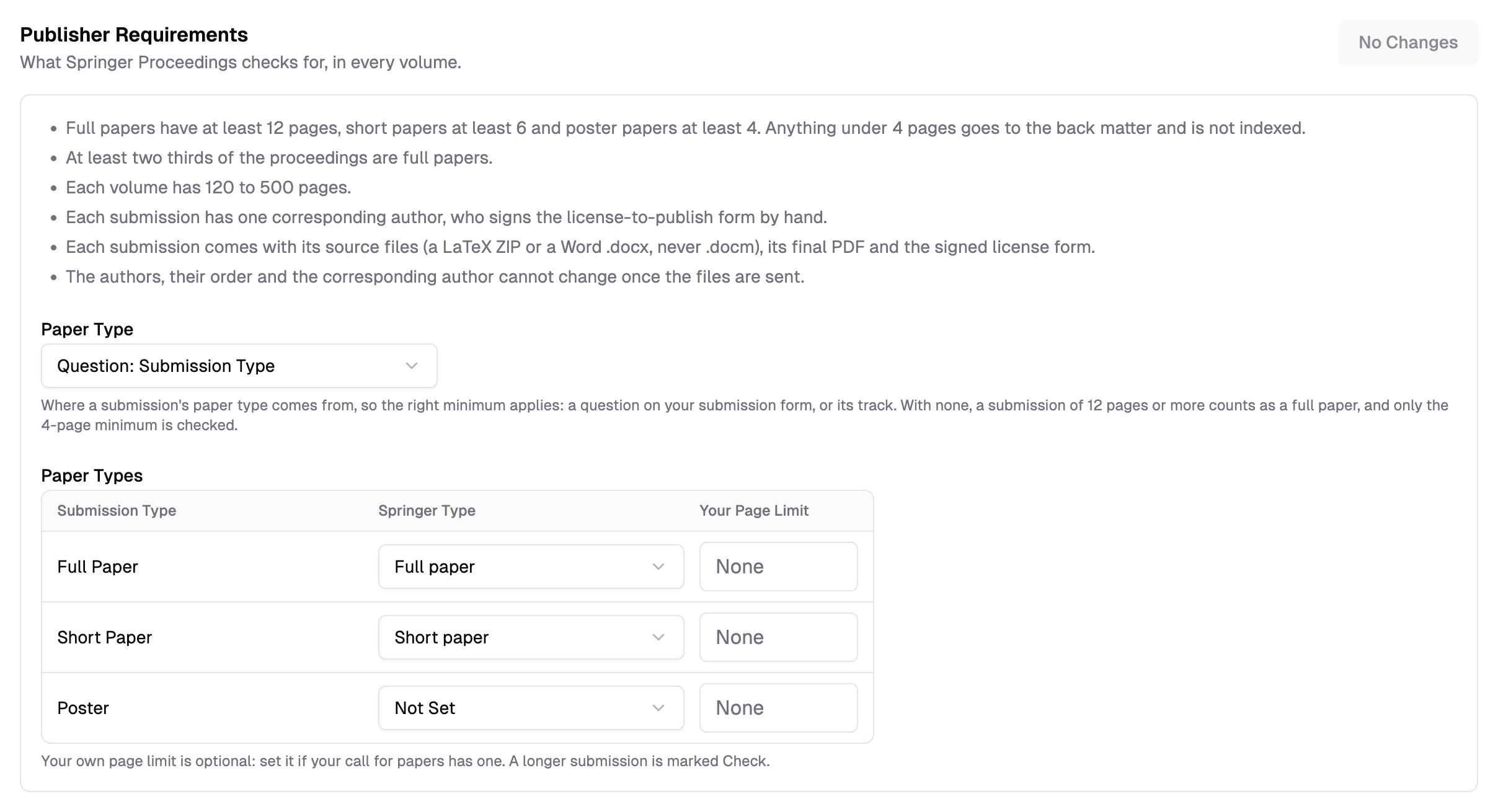
A submission shorter than its type's minimum or longer than your limit is marked Check. With Paper Type set to None, a submission of 12 pages or more counts as a full paper and no length is flagged except fewer than 4 pages.
The license form
Springer's license-to-publish form names the volume, so each volume has its own.
- Put the form where authors can download it, such as your conference website
- On the Volumes tab, paste its address into the volume's License Form Link
- Click "Save Changes"
Authors of accepted submissions in that volume then see a Proceedings box on their submission page with a link to the form.
Authors who opt out
If authors may decline publication, add a yes-or-no question to the submission form, then leave out the "no" answers with Filter by Form Answers. See Proceedings.