
Proceedings
Publish your proceedings in the AIS eLibrary — choose each track's final PDF, check what is ready, and export the batch-upload spreadsheet.
The Proceedings page prepares your accepted submissions for a publisher. This page covers the AIS eLibrary (AISeL): PaperFox fills the batch-upload spreadsheet that AISeL takes, with one row per accepted submission and a link to its final PDF. For a Springer volume (LNCS, CCIS, LNBIP and related series), see Springer Proceedings.
Before you start
- An AISeL editor account for your series. If your conference has not published in AISeL before, email
elibrary@aisnet.orgto have a series set up. - Decisions are recorded. Only submissions whose latest decision is Accept or Conditional Accept are included. Withdrawn submissions are left out.
- Authors have uploaded their final PDFs. See Camera-Ready — How to Handle the File.
Turn on the AIS eLibrary plugin
- Go to Conferences in the sidebar, then click on your conference
- Under Conference Management, click "Proceedings"
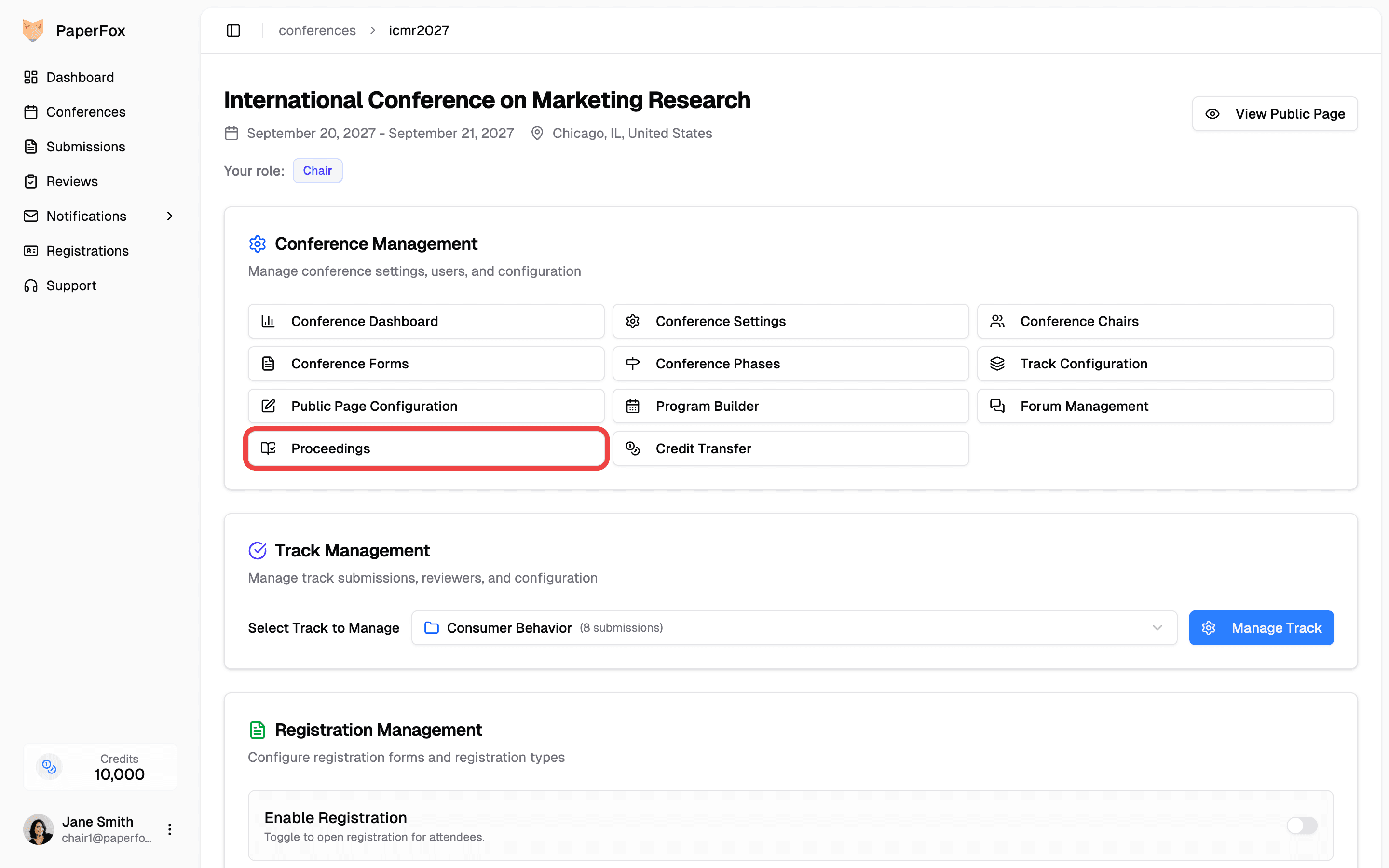
- If no publisher is turned on yet, click "Open Plugins" and switch on AIS eLibrary. See Plugins.
- Click "Open Proceedings" to come back
With AIS eLibrary as your only publisher, Proceedings opens its page. If another publisher is on too, click AIS eLibrary in the list.
Choose what goes in the proceedings
The What Goes in the Proceedings section has one line per track, with three choices on it.
Which tracks are in the proceedings. Every track is included to start with. Switch a track off to leave its accepted submissions out, for example a track of talks that are presented but not published. You can switch it back on at any time.
Which upload is the final PDF. For each included track, PaperFox needs to know which file upload on the submission form holds the final version.
- A track with one file upload uses it: its dropdown shows it chosen.
- A track with several file uploads has no default. Pick one from its Final PDF dropdown. Each option names the upload and its phase.
- With several tracks, All Tracks sets the same upload on every included track at once.
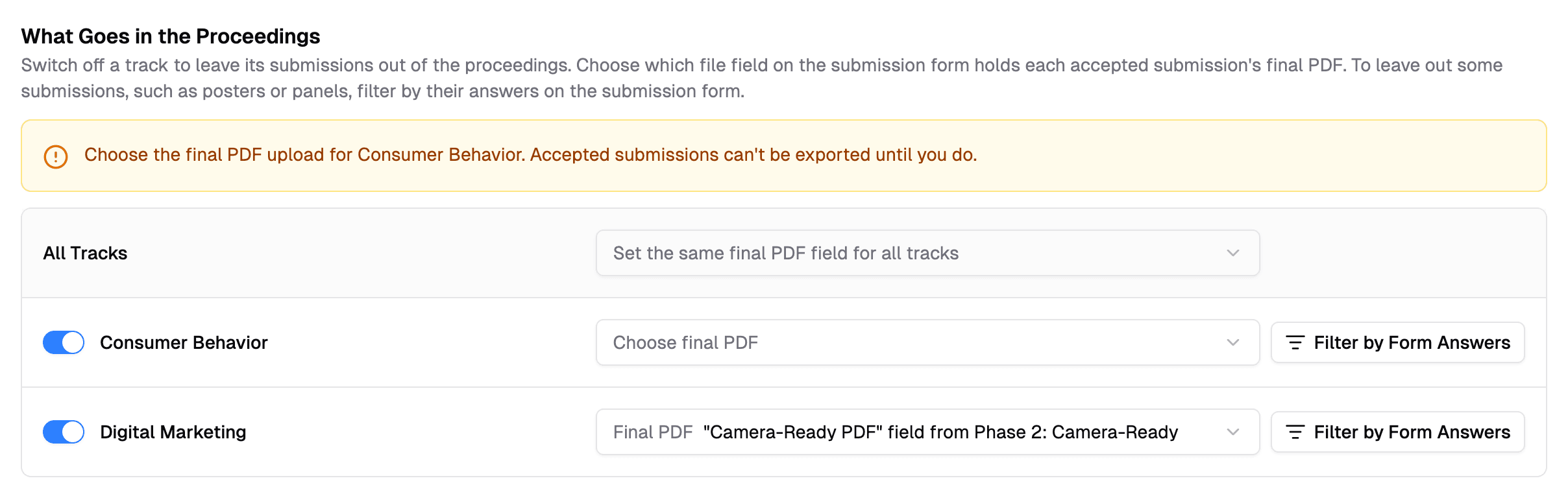
With more than three tracks, the list shows the first three: click the Show All button for the rest. With more than eight, search by track name.
Pick the camera-ready upload, not the review copy
If your form has both an original Submission File and a Camera-Ready upload, the original is usually the anonymized version reviewers read. Until you choose, that track's accepted submissions cannot be exported.
Leave out some submissions
Some accepted submissions are presented but not published: posters, panels, workshops. If your submission form asks a question that tells them apart, such as Submission Type, you can leave them out by their answer.
- On the track's line, click "Filter by Form Answers"
- Untick the answers that are not part of the proceedings
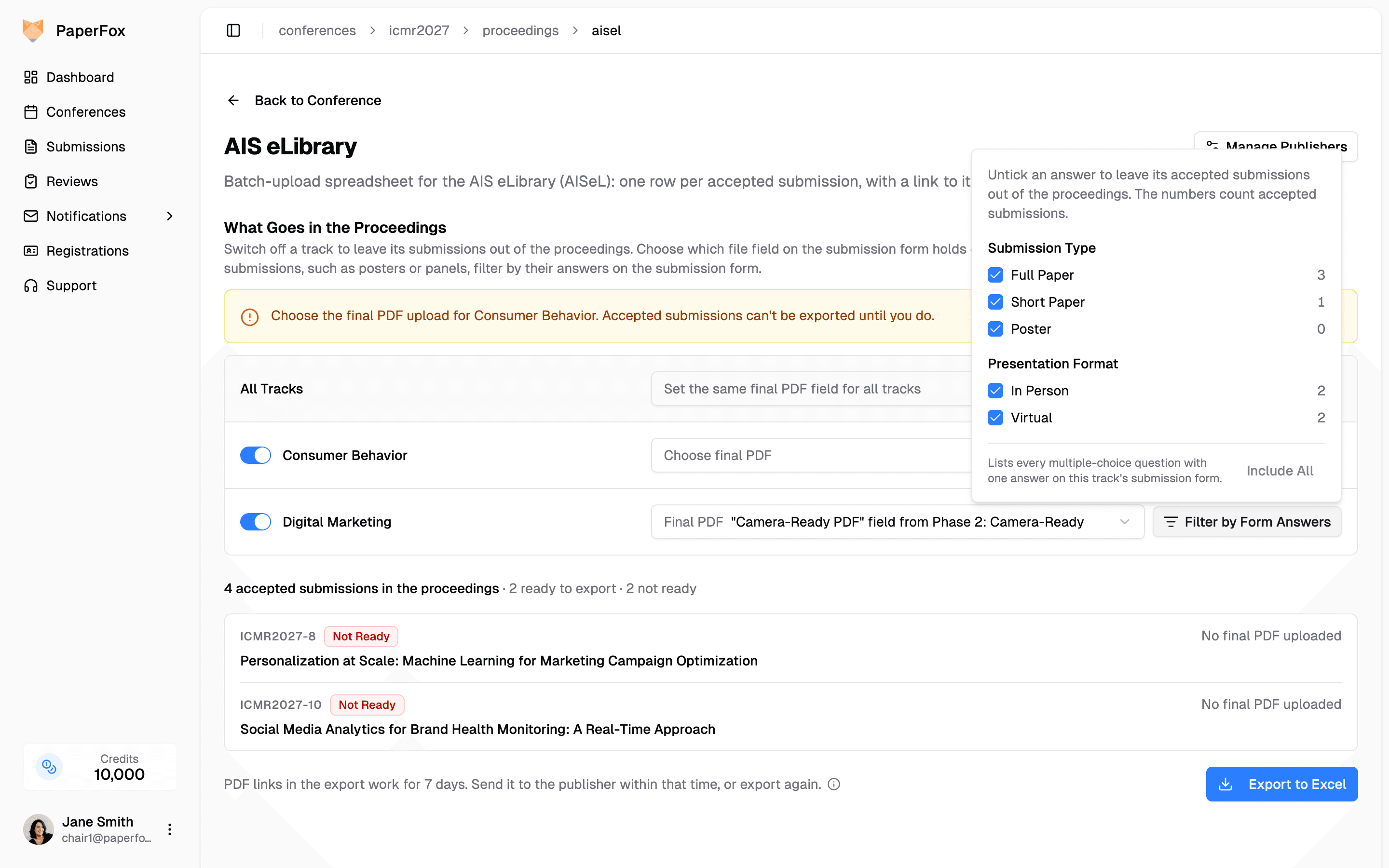
The panel lists every multiple-choice question with one answer on the track's submission form. The number beside each answer is how many accepted submissions gave it. You can untick answers under several questions; a submission is left out if any of its answers is unticked.
- Submissions with an unticked answer are left out of every export and no longer counted.
- Submissions that did not answer a question stay in.
- The button turns blue while a filter is in effect. Click "Include All" in the panel to remove it.
If the panel says there is nothing to filter by, the track's form has no such question. Questions that allow several answers are not listed. To add one, see Configure Track Submission Forms or, for a question every track shares, Configure Conference Forms.
Each switch, choice and tick is saved as soon as you make it.
Check what is ready
Below the track choices, the page shows how many accepted submissions are in the proceedings and how many are ready to export.
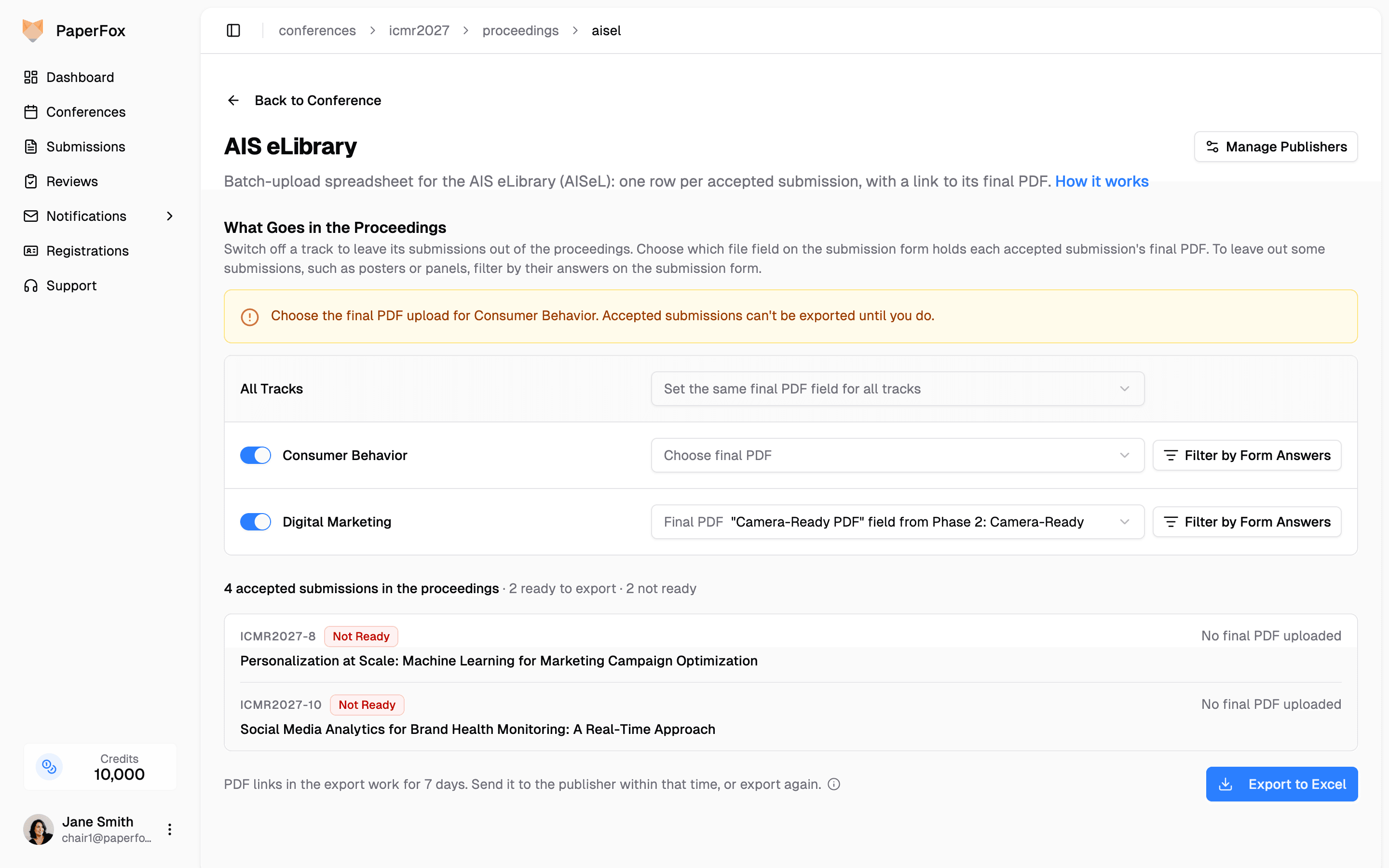
Submissions that need attention are listed with the reason, ten at a time. Click a title to open the submission.
| Label | Meaning | Exported? |
|---|---|---|
| Not Ready | No final PDF, no title, or no authors; or the track's final PDF upload is not chosen yet | No |
| Check | Missing an abstract, keywords, or an author's affiliation | Yes |
| Left Out | A submission type PaperFox set to leave out for your conference | No |
To get a missing PDF, ask the authors to upload it, then reload this page.
Export and upload
- Click "Export to Excel". The file downloads as
<conference>-ais-elibrary-batch-upload.xlsx. - Sign in to your AISeL editor account and open your series
- On Manage Submissions, click "Batch upload Excel" and upload the file
AISeL downloads each PDF from the link in its row and keeps its own copy.
PDF links work for 7 days
Submission files are private, so each link in the file is a temporary pass that works without signing in. Upload the file within 7 days. If the links expire first, click "Export to Excel" again to get new ones.
What is in the spreadsheet
| Column | Filled from |
|---|---|
title, abstract, keywords | The submission form |
author1_fname, author1_lname, author1_email, author1_institution, … | The authors as listed on the submission, in order. Author columns repeat for the submission with the most authors. |
fulltext_url | A link to the final PDF |
document_type | The track name, unless a submission type question is set for your conference |
publication_date | The date set for your conference |
Each AISeL series has its own template. If yours needs different columns, the document type taken from a question on your form, different names for the document types, or a publication date, contact support and we will set it for your conference.
Plugins
Turn on integrations for your conference, such as the AIS eLibrary proceedings export, and manage their API keys (formerly Vendor Keys).
Springer Proceedings
Prepare a Springer volume (LNCS, CCIS, LNBIP, LNICST, IFIP AICT) — collect sources and signed license forms, arrange the volume, and export the folders Springer takes.