
Conference Billing
Payment method, usage and invoices for a conference (formerly Submission Billing) — keep submissions open past the free limit, see every invoice, and reissue one to your organization
Conferences include 20 free submissions by default. Check Usage Summary on your conference’s Billing page for its free limit and per-submission rate. Authors can keep submitting past the free limit if you save a card or arrange to pay by invoice. Either option also lets you accept paid registrations.
Opening the Billing Page
Billing is per-conference — the payment method and invoices live on the conference, not your personal account. Any conference chair can open it.
- Go to Conferences in the sidebar and click your conference
- Click Settings in the conference sidebar
- Open Billing from the settings navigation
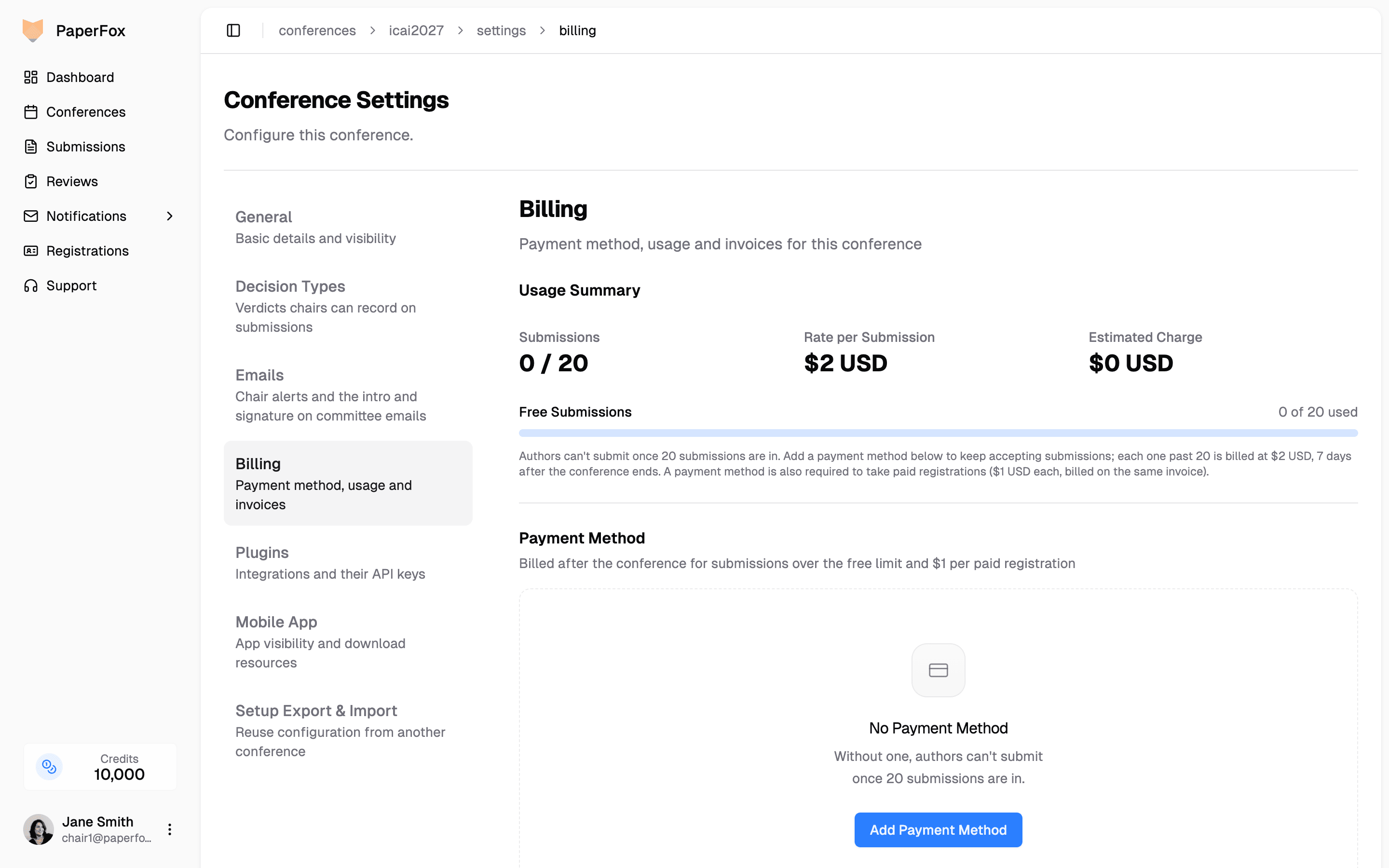
The page has three sections:
- Usage Summary — how many submissions you have, the per-submission rate, and your estimated charge. A Free Submissions bar tracks the limit until you set up billing. Once you have a card or invoice billing, you see counts of free and billable submissions.
- Payment Method — the saved card for this conference. The card is optional if you pay by invoice.
- Invoices — every PaperFox invoice for this conference, whoever paid it. See Invoices and Receipts.
Personal billing is a separate page
Purchases you make for yourself, such as AI credits, are under Settings → Billing & Payments (from your profile menu). One credit is one cent. Credits are sold in $10 units (1,000 credits), each with a 10% card-processing fee, so one unit costs $11. AI features are then charged at what the AI provider charges PaperFox, with no markup: you see an estimate before each run and pay the actual cost once it finishes, so a run that cost a little more than estimated can leave your balance slightly below zero. New AI runs wait until a top-up clears it. Anything bought for a conference — a support package, an add-on, post-conference fees — is listed on that conference's Billing page instead, even if you paid with your own card.
Adding a Payment Method
- Click "Add Payment Method"
- Enter your credit card details in the Stripe form
- Confirm
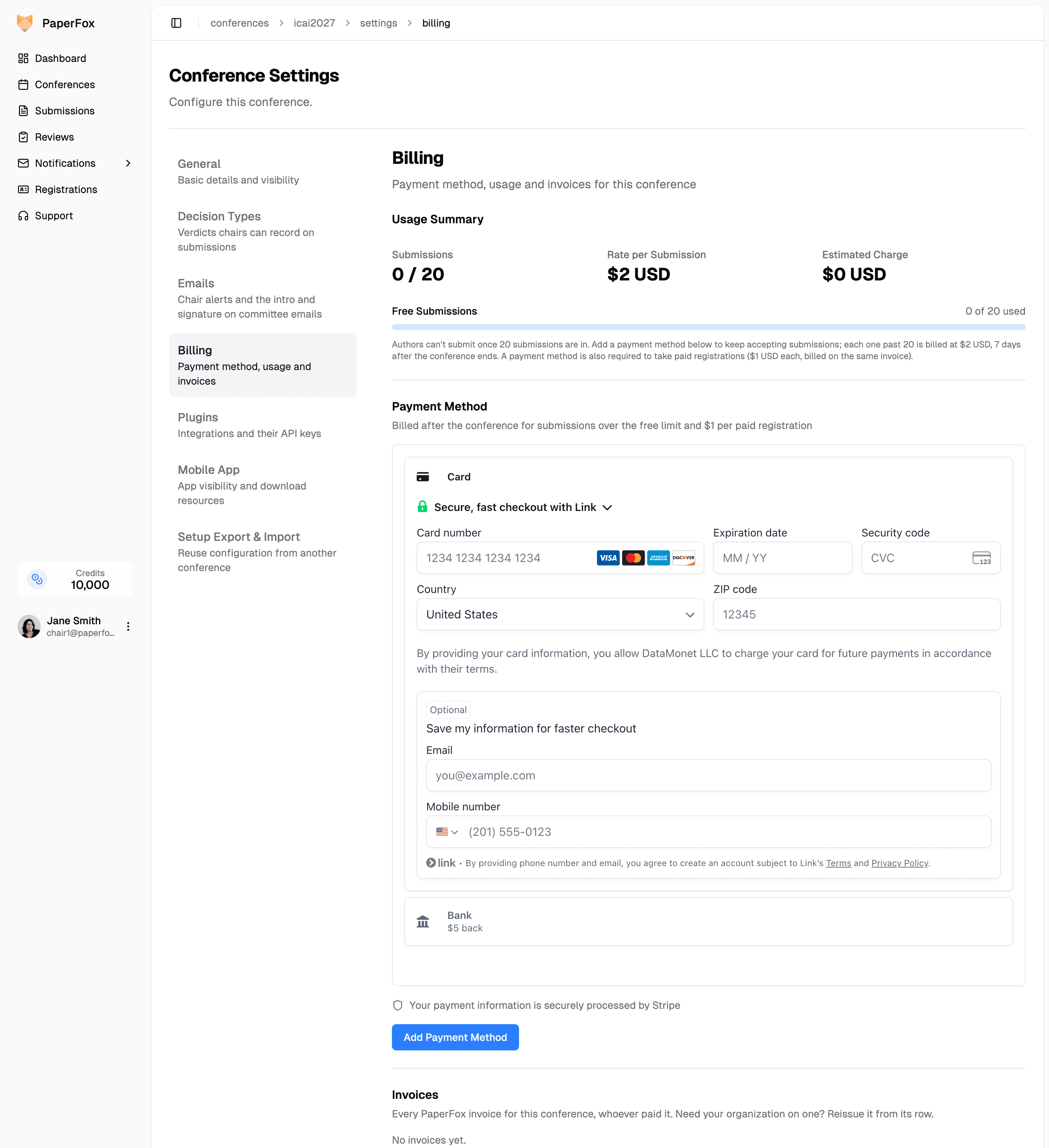
Once the page shows Payment Method Active, authors can keep submitting past the free limit.
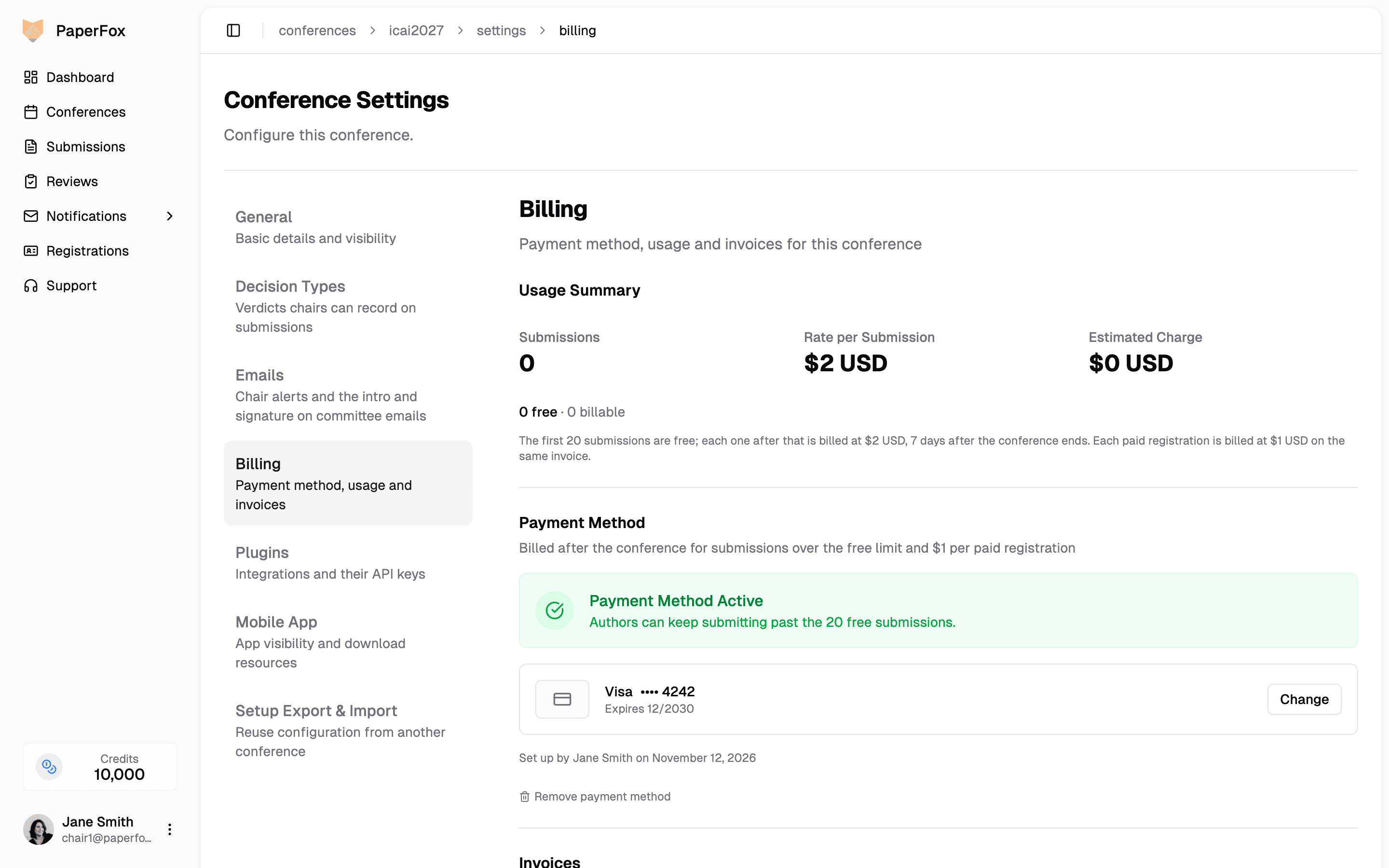
The card is attached to this conference's Stripe customer only — it is not a shared personal payment method. Removing it from this conference does not affect any other conference or your personal billing.
To update the card, click Change in the saved-card panel. If you click Remove payment method, authors can submit past the free limit only if invoice billing is active.
How Billing Works
Automatic Billing Process
For conferences on the automatic billing schedule, PaperFox emails chairs an estimate 7 days before the conference ends when there are fees to bill. The email prompts you to add a card if one is missing. The charge is scheduled for 7 days after the end date and covers submissions above your free limit plus the fee for each paid registration. Check Usage Summary for the rates.
If billing is still unset, chairs receive usage emails at 50%, 80%, and 100% of the free limit. Starting at 80%, a Payment Method Required card appears on the dashboard until billing is set up or the conference ends.
Reading the Charge Status
After the conference ends, the top of the Billing page shows a banner only when a charge needs your attention:
| Banner | What it means | What to do |
|---|---|---|
| Charge Scheduled (blue) | A charge is queued and will run within 24 hours. | Nothing — sit back. |
| Charge Retrying (blue) | A previous attempt failed; the next retry is scheduled for the date shown. | Optionally click "Retry Now" if you've fixed the underlying issue (e.g. updated the card). After 3 total attempts the row flips to Charge Failed. |
| Charge Failed (red) | All retry attempts exhausted. | Update the payment method below, then click "Retry Now" — we'll re-attempt within 24 hours. |
Once the charge succeeds, it appears under Invoices as Post-Conference Fees with a Paid badge. If there's no banner and no fees invoice, there's nothing to charge yet — typically because the conference hasn't ended, or you stayed within the free tier.
Invoices and Receipts
The Invoices section at the bottom of the Billing page lists every PaperFox invoice for the conference, whoever paid it: the support package, paid features, the storage add-on, post-conference fees, and invoices PaperFox issued. Each row shows what it was for, the amount, its status, and who paid it and when. Every chair of the conference sees the same list.
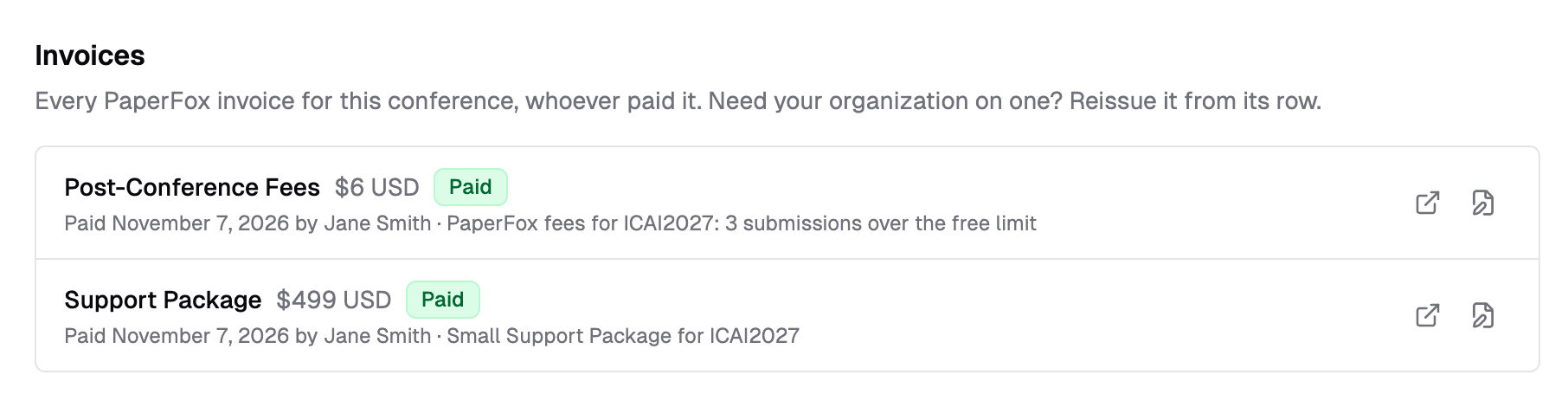
These invoices are issued by PaperFox (DataMonet LLC) — unlike registration payments, where your conference is the seller. Click the receipt icon on a row to open Stripe's hosted invoice page, where you can:
- Download the invoice as a PDF (with PaperFox's business details, invoice number, tax info and line items)
- Forward the PDF to your finance department for reimbursement
- Reference the invoice number in your institution's expense system
Post-conference fees list the exact pricing, for example 3 submissions over the free limit × $2, so finance needs no additional documentation.
Reissuing an Invoice to Your Organization
If your finance office needs your organization's name, address, or tax ID on an invoice — instead of the name or email of whoever paid — reissue it:
- Click the reissue icon (a document with a pen) on the invoice's row
- Enter the Bill To name, Country/Region, Address, and City, plus the state, postal code and Tax ID if your finance office needs them
- Click "Reissue Invoice"
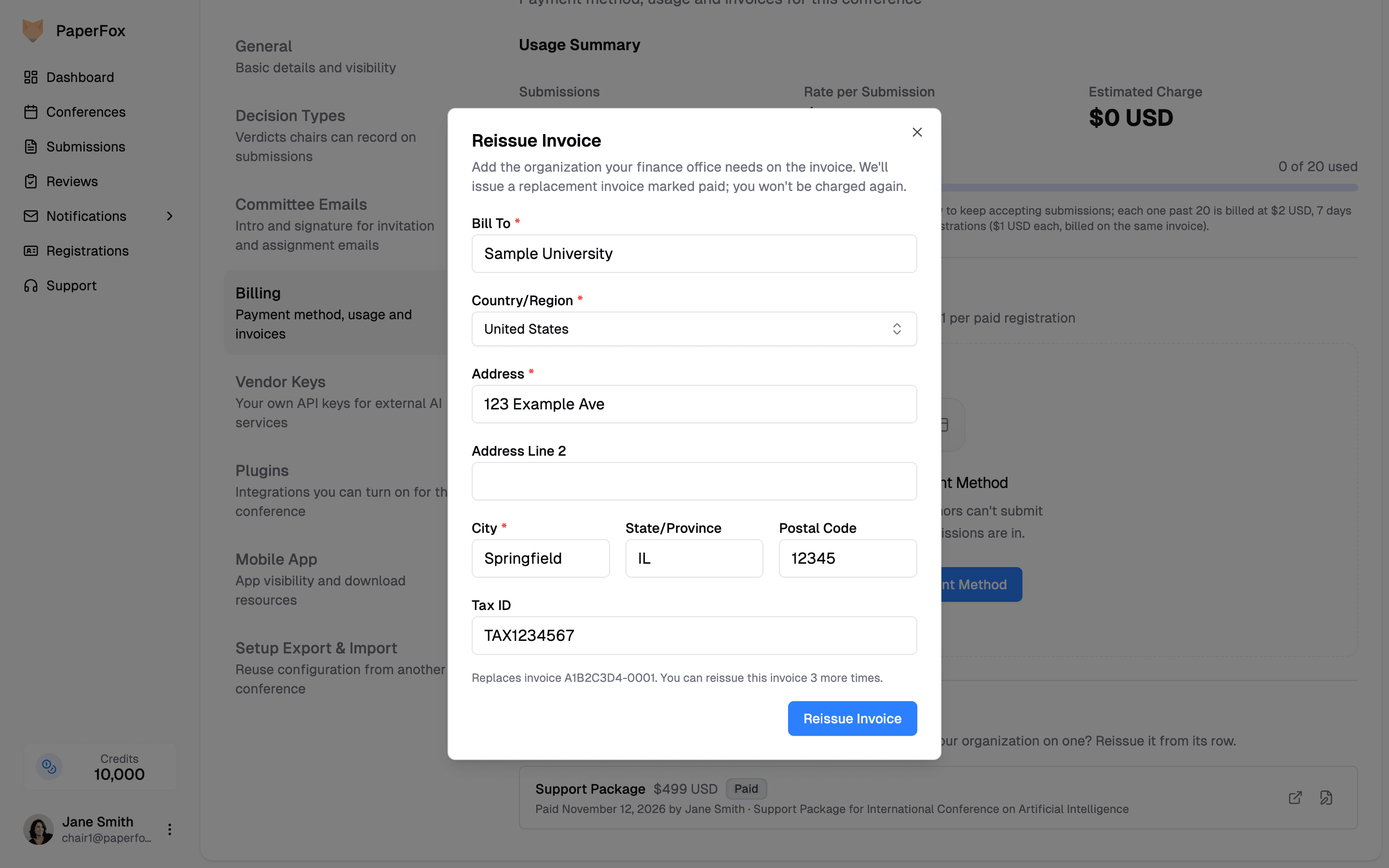
PaperFox issues a replacement invoice billed to your organization and marked paid — you are not charged again. The original invoice is cancelled with a credit note (no money is refunded), the new invoice's memo names the invoice it replaces, and the row's receipt icon now opens the new one.
- Any chair of the conference can reissue its invoices, whoever paid them
- Each invoice can be reissued up to 3 times; after that, contact support
- A payment that was refunded can't be reissued
- Conference registrations work differently: registrants add their organization to their own receipt (see Add Billing Details to Your Receipt)
Adding your organization at checkout
When you buy a support package, an add-on, or credits, checkout asks for a billing address. In countries where Stripe supports it, you can also tick "I'm purchasing as a business" to enter your organization's name and tax ID, which then appear on the invoice. If that option doesn't appear for your country, reissue the invoice afterwards.
Paying by Invoice
Some institutions can't put conference fees on a card. PaperFox can bill your conference by invoice instead: contact support to arrange it. Once your conference is billed by invoice:
- No card is needed. Authors can keep submitting past the free limit, and you can take paid registrations without saving a card first.
- Nothing is charged automatically. There's no end-of-conference card charge and no "upcoming bill" notice email.
- PaperFox staff issue the invoice manually. When they issue it, the billing contact you gave them (a chair or your finance office) receives an Invoice from PaperFox email with the amount, due date, and a Pay Invoice link. Every chair can see and pay it from this Billing page.
The invoice also appears in two places in PaperFox:
- Billing → Invoices — with its status (Unpaid, Paid, or Voided). Unpaid invoices have "Pay Invoice" and "Copy Link"; paid ones have the receipt and reissue icons, like every other invoice.
- Dashboard — an Unpaid Invoice card for each open invoice, until it's paid.
Getting your organization on the invoice
If your finance office needs its legal name, billing address, tax/VAT ID, or a purchase order (PO) number on the invoice, send them to support@paperfox.ai before the invoice is issued. PaperFox puts them on the invoice when it's sent — the name, address and tax ID as the Bill To, the PO number in the memo — so your finance office can process it straight away. Later invoices for the conference keep the same Bill To.
Already paid and the invoice shows the wrong details? Reissue it — the form starts from the details on the invoice.
Sending the invoice to your finance office
The pay link works for anyone who has it — no PaperFox account is needed. To have your finance office pay:
- Forward the Invoice from PaperFox email, or click "Copy Link" and send them the link
- They open it and pay online on Stripe's secure invoice page, which also offers a PDF of the invoice
Once the payment goes through, the invoice turns Paid for every chair and the dashboard card goes away. Any chair can pay — it doesn't have to be the one the invoice is addressed to.
Keep the link to people you trust
Anyone with the link can view and pay that one invoice (it shows the amount, conference, and billing contact). It can't open anything else in PaperFox.
Payment Security
Secure Processing:
- All payments processed through Stripe
- Your card information is encrypted and secure
- PaperFox never stores your full card details
- Industry-standard security practices
Payment Method Management:
- View, change, or remove the saved card from the Billing page anytime
- Every paid invoice stays listed under Billing → Invoices, with a link to its Stripe receipt