
Run AI Content Detection
Screen submissions for AI-generated text with external AI services, paid in credits
AI Content Detection, powered by Pangram AI Detection, scores how much of each submission's text looks AI-generated — a screening signal for a track's submissions. (Looking for AI-generated technical reviews of submissions instead? That's AI Review.)
Submissions are sent to an external provider
Unlike compliance checks, which run entirely inside PaperFox, detection sends each submission's extracted text to Pangram for analysis. No author information is ever included — text only.
How It Works
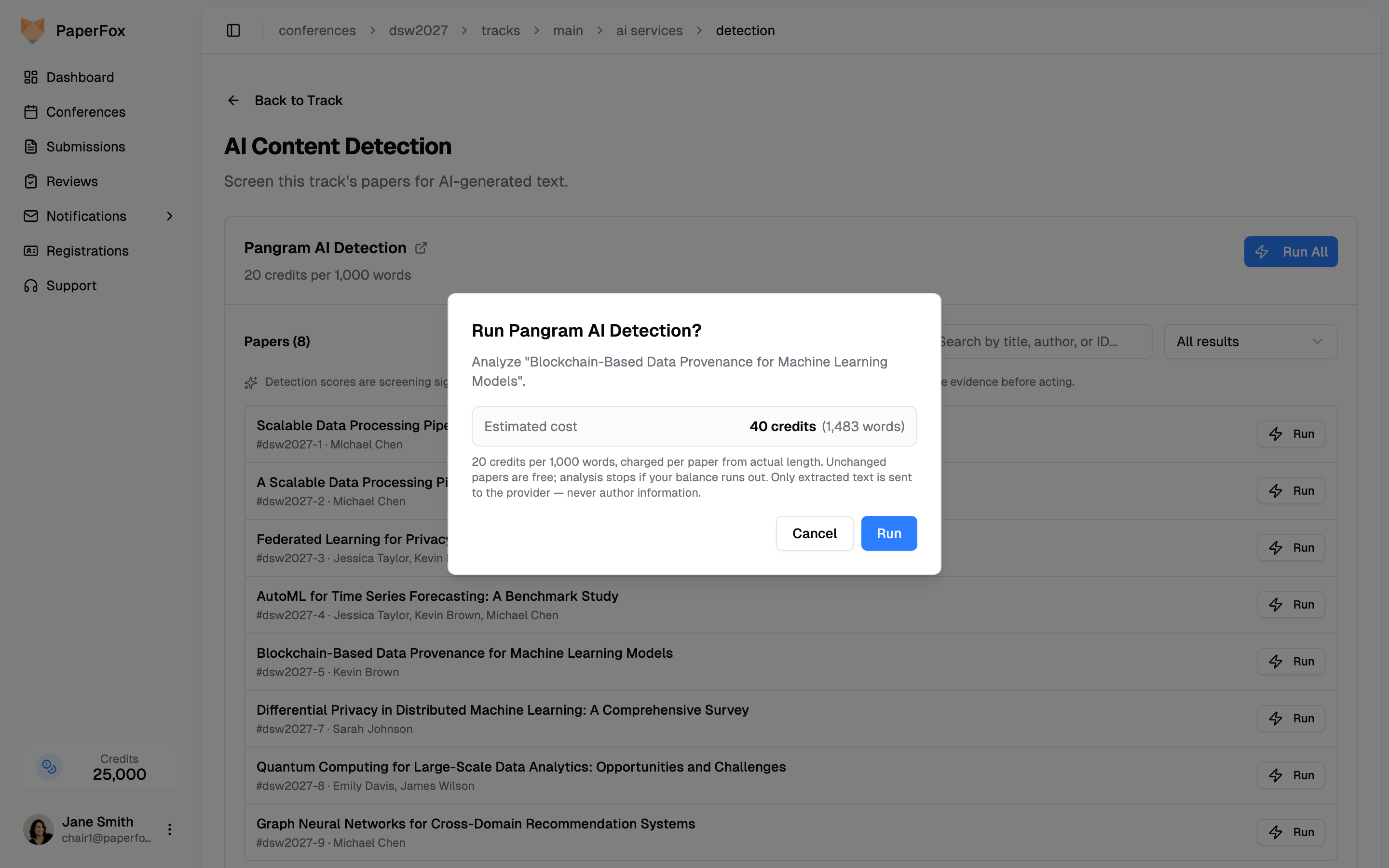
- Confirm the charge — The confirmation dialog shows the estimated cost before anything runs
- Run in the background — PaperFox extracts each submission's text and sends it to Pangram
- Review results — Per-submission verdicts, composition scores, and in-app evidence showing the flagged passages
Credits and Pricing
Detection costs 250 credits per 1,000 words, pay-as-you-go: each submission is charged from its actual length as it's analyzed — a typical 9,000-word submission costs about 2,250 credits, a short submission costs less.
- The service card shows the rate; the confirmation dialog shows the estimated cost — an exact per-submission figure from the submission's measured word count for a single-submission run, an approximate total for Run All
- Submissions are charged one at a time, as each is analyzed — you're never charged for a submission that wasn't analyzed
- Unchanged submissions are free — if a submission's text is identical to a previous run, the earlier result is reused at no charge. A submission whose current text already has a result can't be re-run at all (its Re-run button is disabled — there's nothing new to analyze)
- If your balance runs out mid-run, analysis stops automatically — already-analyzed submissions keep their results, the rest are marked "insufficient credits," and running again after a top-up picks up exactly where it stopped (the analyzed submissions reuse for free)
- Submissions that fail on the provider's side after being charged are refunded automatically
- Starting a run requires enough balance for at least one typical submission
Running Detection
- Go to Conferences in the sidebar, then click on your conference
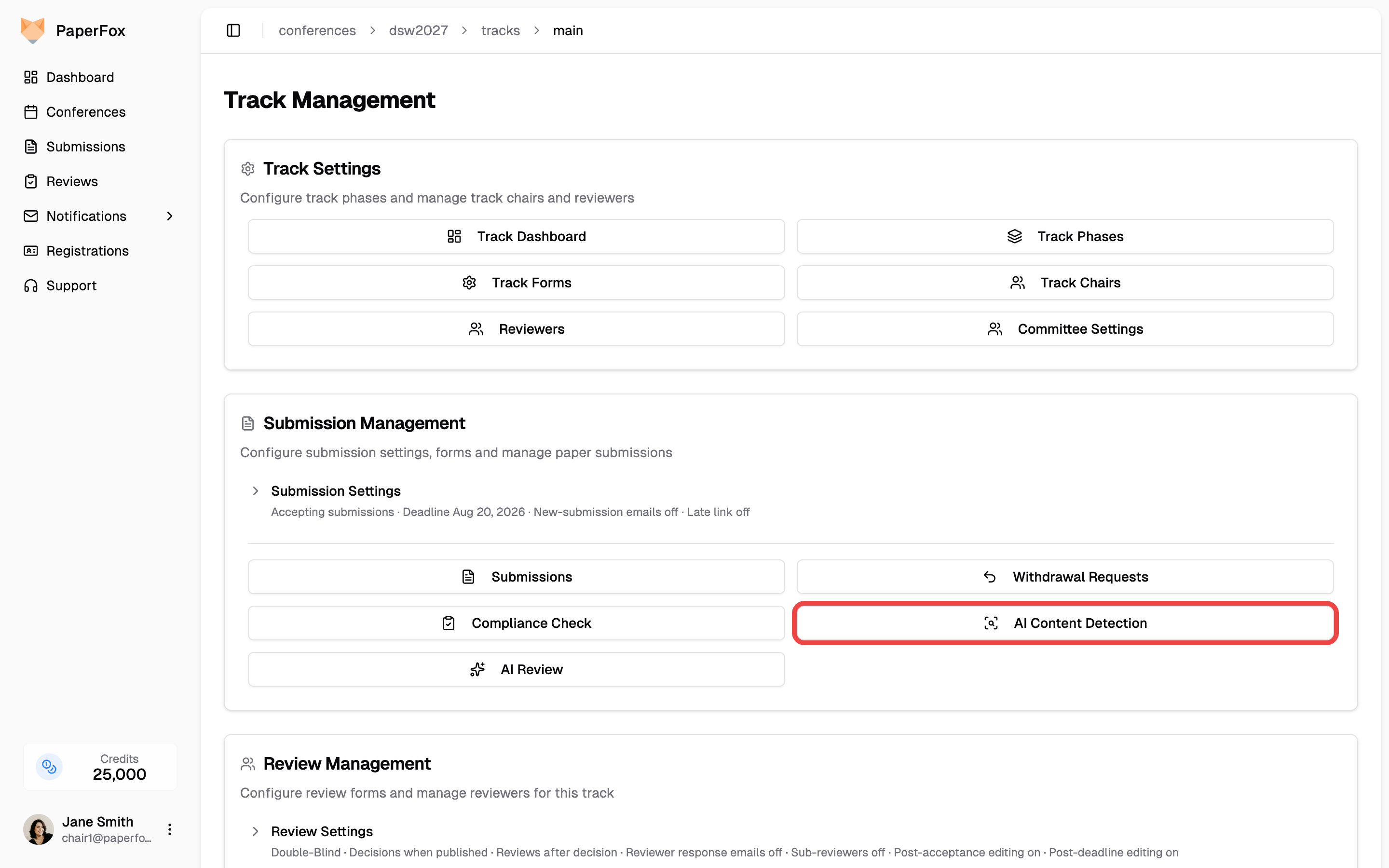
- Navigate to your track and under Submission Management, click "AI Content Detection"
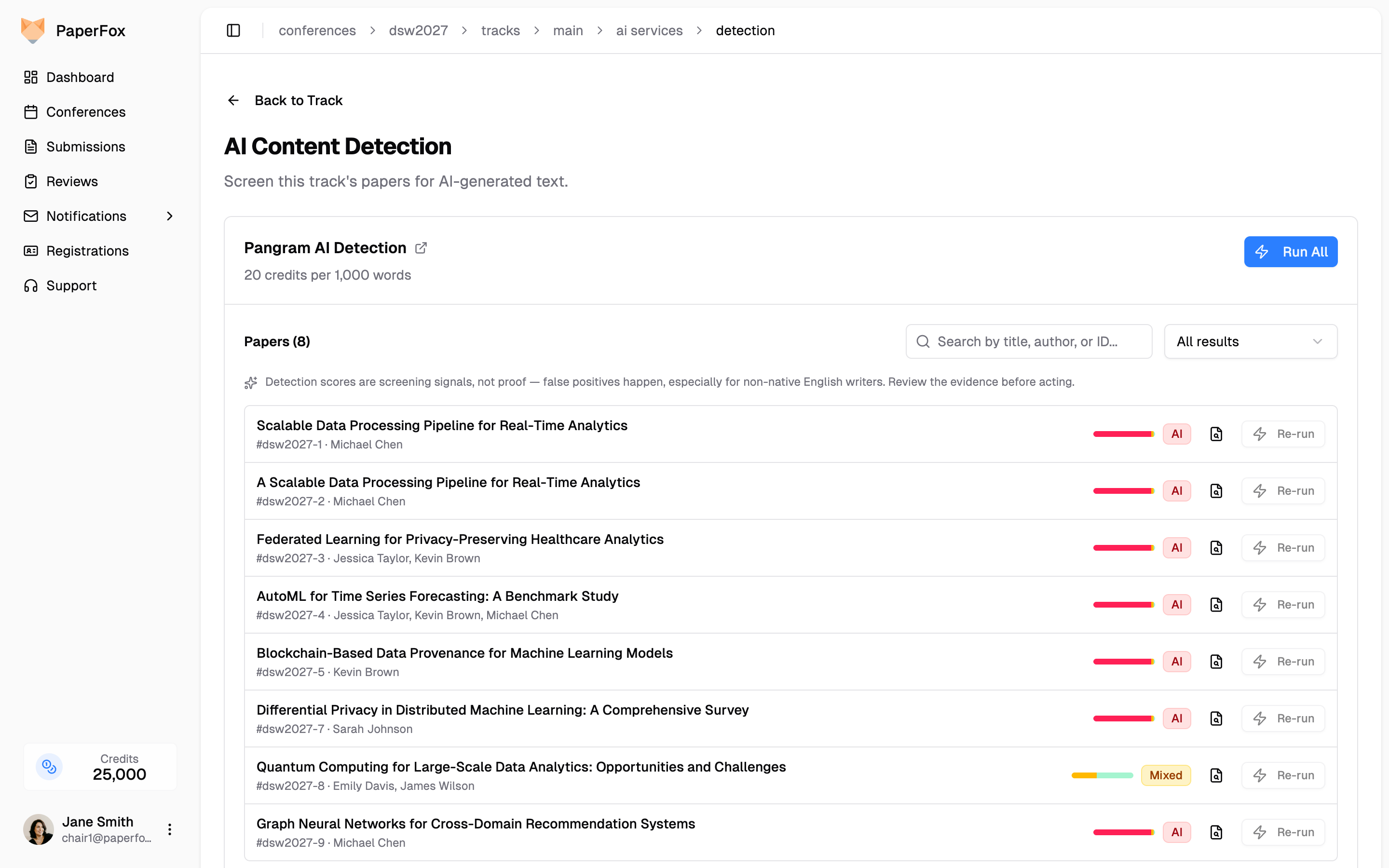
- Click "Run All" on the service card — or click "Run" / "Re-run" on any individual submission's row to analyze just that submission
- The confirmation dialog shows the estimated cost — an exact figure from the submission's measured word count for a single submission, an approximate total for Run All — and reminds you that submission text is sent to the external provider. Confirm to start
The analysis runs in the background with a progress bar — a typical track finishes in under a minute. You can keep working or cancel the run; cancelling refunds any submissions that weren't analyzed, while submissions that already finished keep their results and their charges.
Multiple File Fields
If your submission form has more than one file upload field (for example a manuscript plus an appendix), a Submission field selector appears above the service cards — pick which field's upload gets analyzed. Submissions without an upload in the selected field are skipped, never billed. Forms with a single file field need no configuration.
Which Version Is Analyzed
A run always analyzes each submission's latest uploaded PDF — there is no phase scoping. If a submission's PDF is replaced after a run, its row shows a PDF updated badge so you can re-run just that submission. Moving submissions between phases doesn't trigger the badge — only a new file does.
Reviewing Results
The Submissions list on each service card shows every submission in scope with its latest result — single-submission re-runs simply refresh that submission's row. On large tracks, use the search box (title, author, or submission ID) and the result filter next to it (All / AI / Mixed / Human / Skipped / Not analyzed, with live counts) to narrow the list; the two combine. Verdicts:
| Verdict | Meaning |
|---|---|
| AI (red) | Most of the text looks AI-generated |
| Mixed / AI-Assisted (amber) | Parts of the text look AI-generated or AI-edited |
| Human (green) | The text looks human-written |
Each analyzed row also shows:
- Composition bar — how much of the text looks AI-generated (red), AI-assisted (amber), and human (green); hover for exact percentages
- Evidence — click the magnifier icon to see the full composition breakdown and the flagged passages
- PDF updated badge — if the submission's PDF was replaced after the run, an amber badge flags that the result may be outdated
- Skipped / Failed — submissions without a PDF, with unreadable files, or stopped by an empty balance; failed-after-charge submissions are refunded automatically
Viewing Evidence
Click the magnifier icon on any analyzed row to see the submission's full composition and exactly which passages were flagged, each with its own label, score, and confidence level. Passages that look like AI text run through a "humanizer" tool carry an extra Humanizer detected badge. Long passages are collapsed — click "Show full passage" to expand:
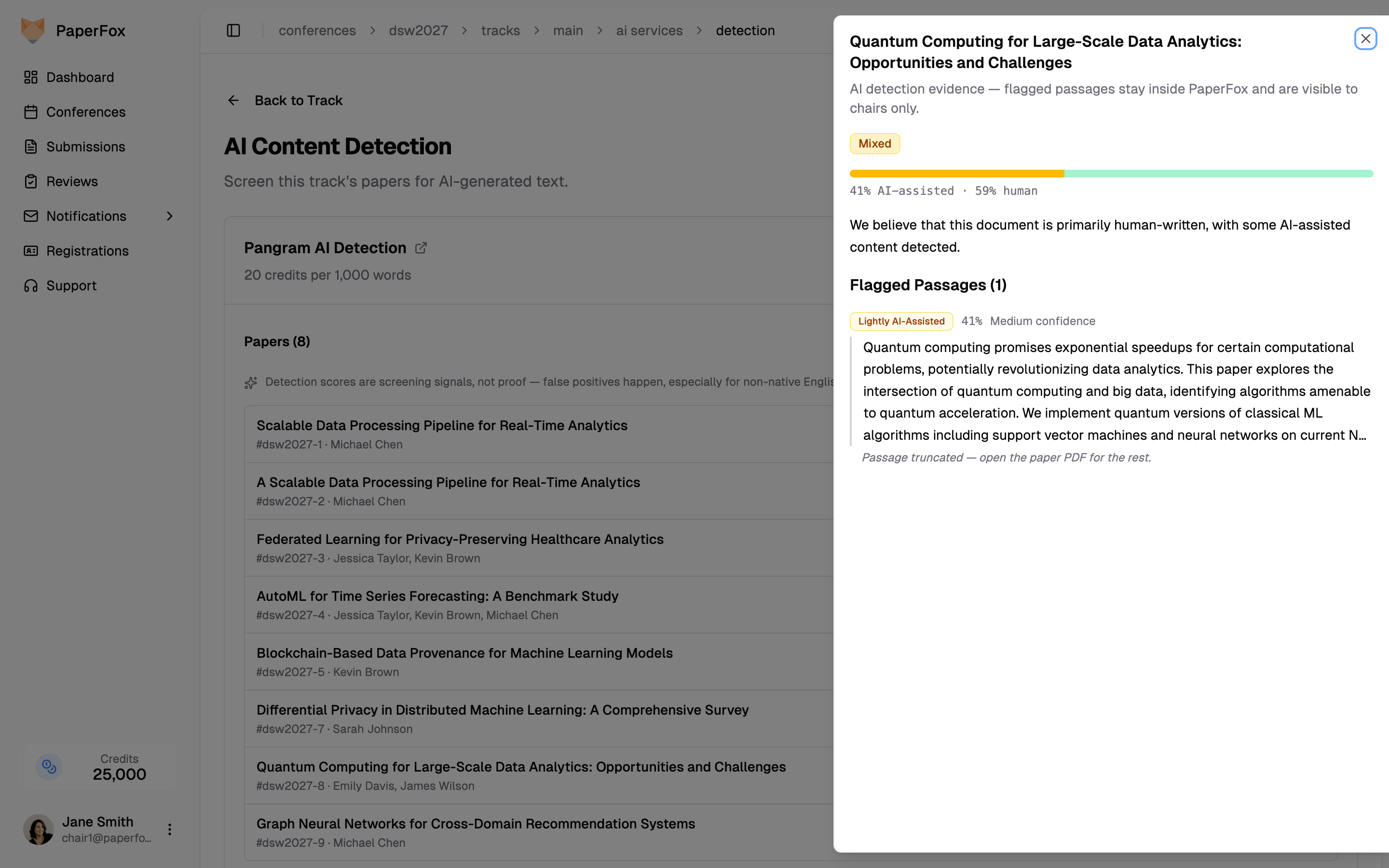
Submissions with a Human verdict have no flagged passages — the evidence panel simply confirms nothing was flagged.
No public result pages
PaperFox never requests shareable result links from the provider — a public link would expose the submission's text to anyone with the URL. All evidence stays inside PaperFox, visible to chairs only.
Detection is a signal, not proof
AI detectors have known false-positive risks — especially for non-native English writers. Treat scores as a screening signal that tells you where to look, and never make decisions on the score alone.
Re-running the service refreshes results for submissions that changed and reuses earlier results for submissions that didn't — you're only billed for what's actually re-analyzed. Only one run per service can be active on a track at a time.