
Tag Submissions
Label submissions with your own working notes — borderline, needs-ethics-check, discuss-at-meeting — and filter by them
Tags are free-text labels for the committee's own use. Authors and reviewers never see them. Use them for anything that has no status of its own: submissions to discuss at the meeting, candidates for a poster session, ones that need an ethics check.
Tag Submissions
- Go to your track, then under Submission Management click "Submissions"
- Tick the submissions you want to tag, then click "Tag" in the toolbar
- Type a tag and pick Create, or pick an existing tag from the list
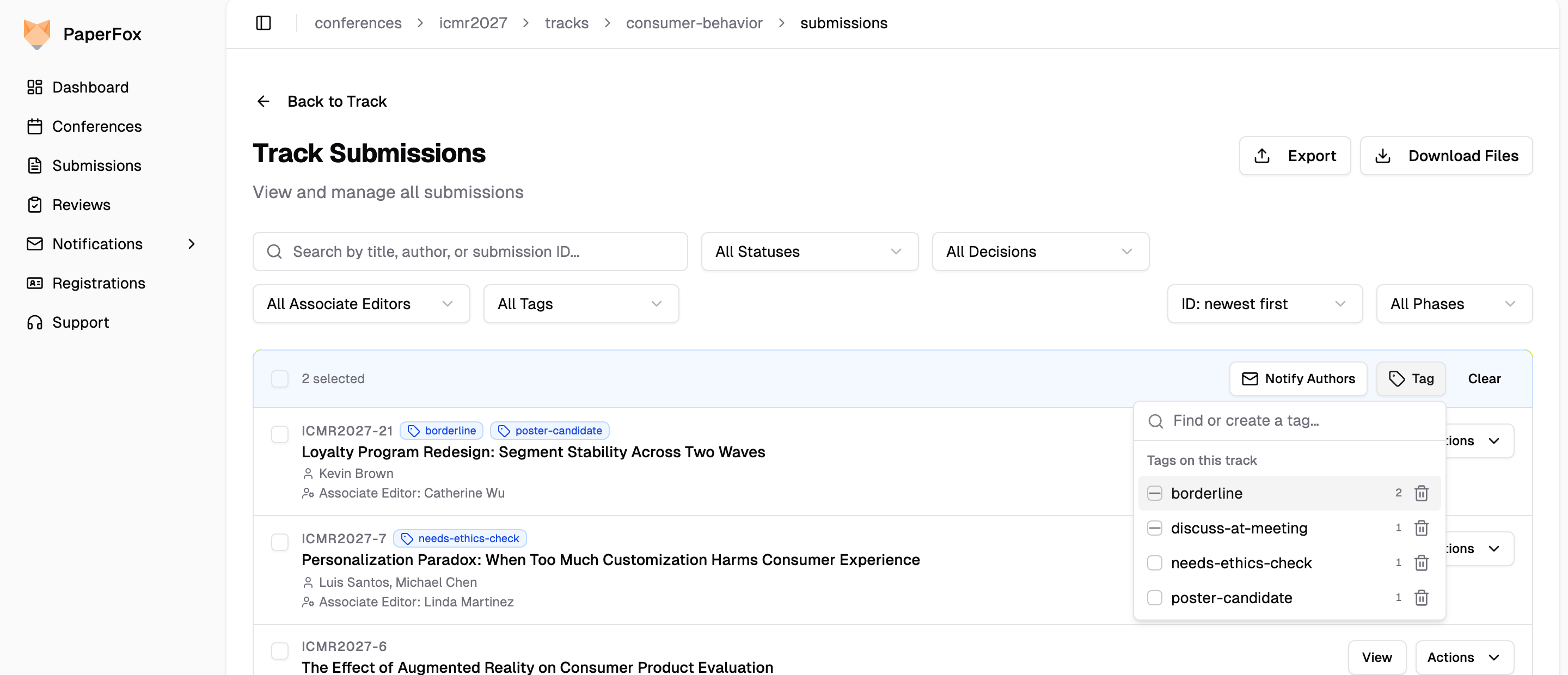
The list shows every tag already used on this track. The box beside each tag tells you where it stands for the submissions you selected:
| Box | Meaning | Clicking it |
|---|---|---|
| Empty | On none of the selected submissions | Adds the tag to all of them |
| Dash | On some of them | Adds it to the rest |
| Tick | On all of them | Removes it from all of them |
Tags are normalized as you type: Needs Second Opinion is stored as needs-second-opinion, so the same tag spelled two ways never becomes two tags. Tags appear beside the submission ID on every row, and on the Assign Reviewers page.
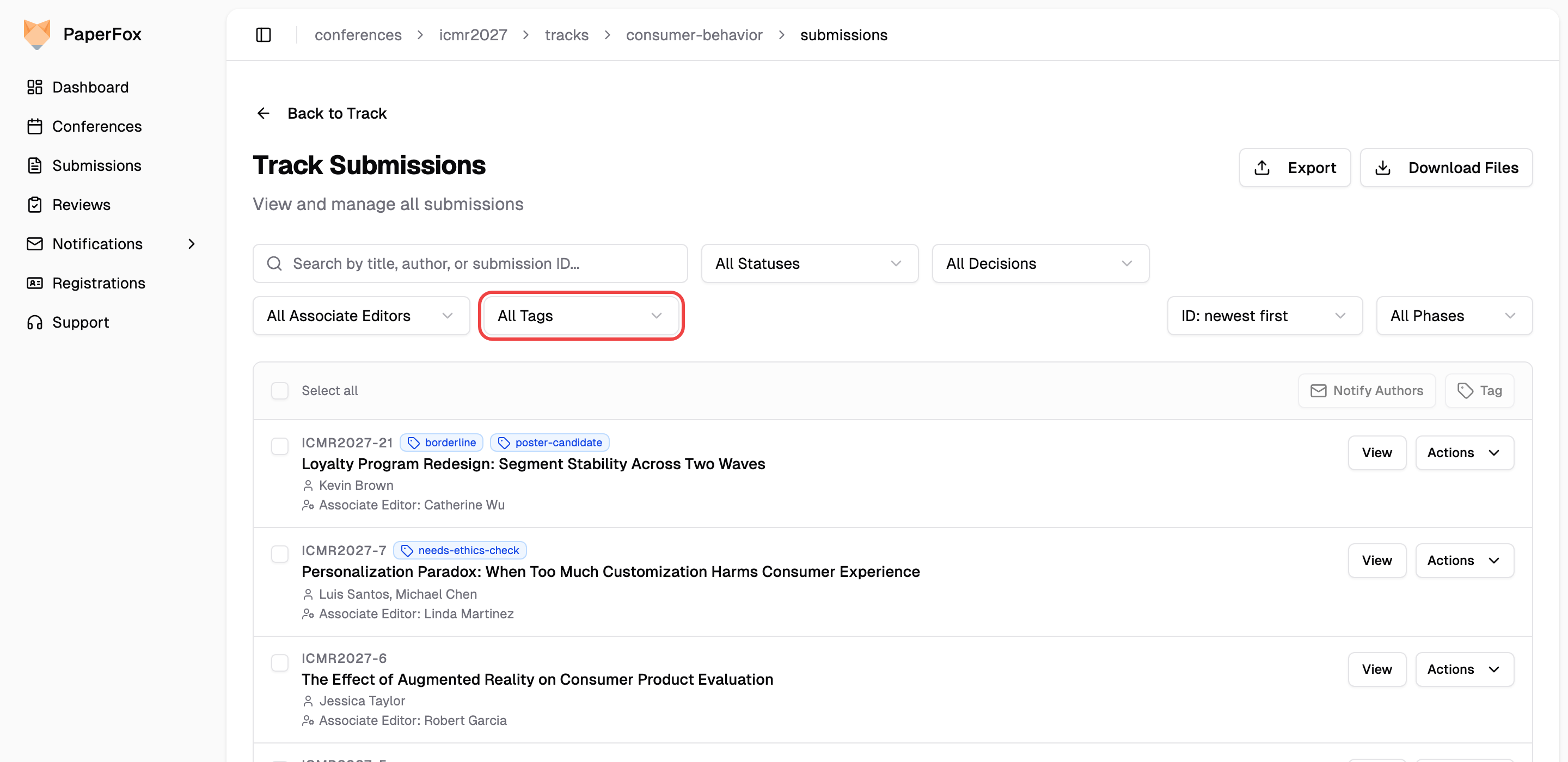
Filter by Tag
Once a track has at least one tag, an All Tags dropdown appears inside the "Filters" panel. Pick a tag to see only the submissions carrying it — the count beside each tag is for the whole track. The applied tag shows as a chip beneath the bar, combines with the other filters, and the URL keeps it, so you can share a filtered view with a co-chair.
On the Assign Reviewers page, the submission search matches tags too: typing ethics finds needs-ethics-check.
Delete a Tag
A tag exists as long as at least one submission carries it. To retire one from the whole track:
- Select any submission and click "Tag"
- Click the trash icon beside the tag
- Confirm with "Delete Tag"
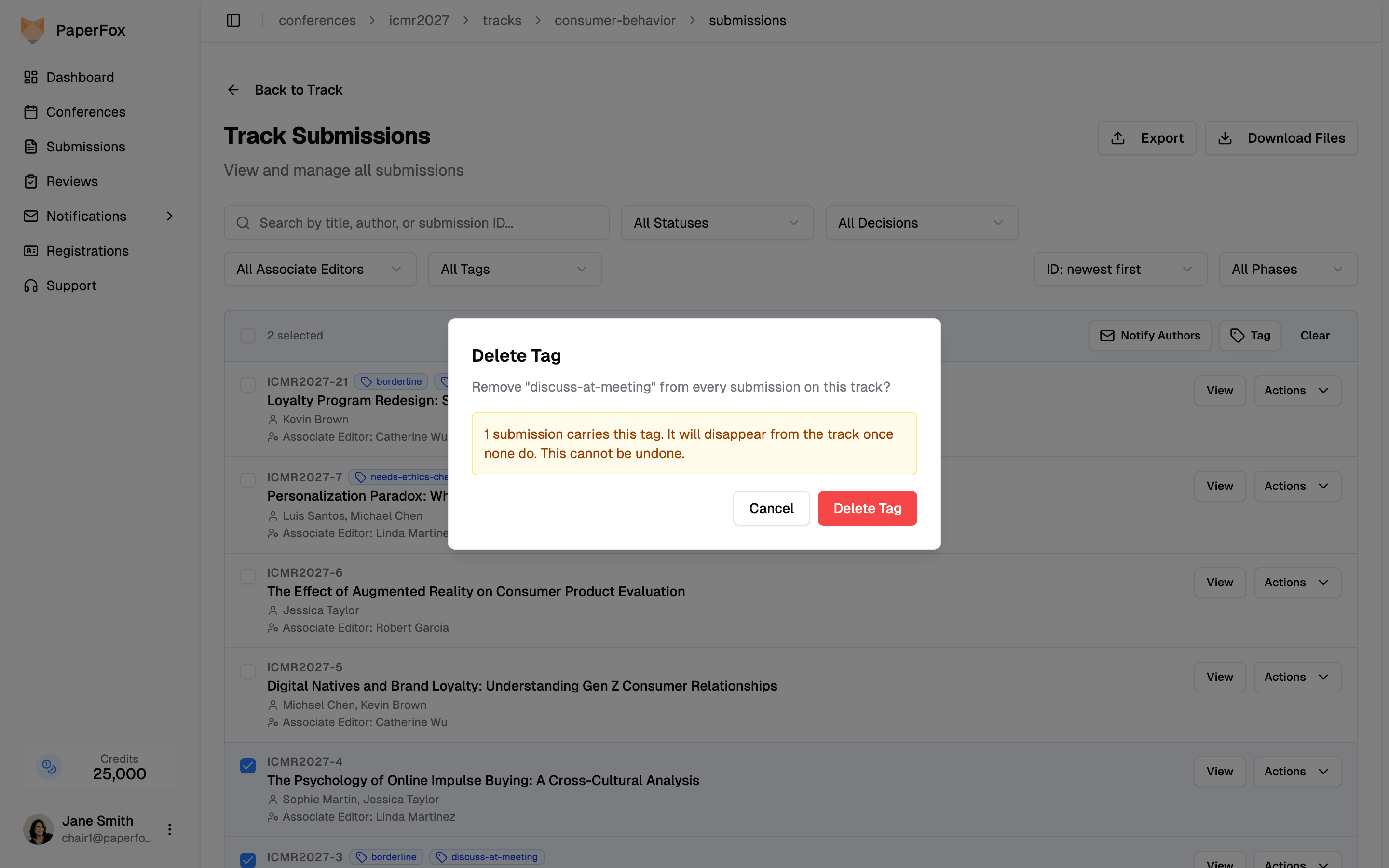
The tag is removed from every submission on the track and disappears from the list. This cannot be undone. To take a tag off just a few submissions instead, select those and click the tag's tick.
Tags are not assignments
To make a specific chair or editor responsible for a submission, use Associate Editor assignments — that gives them a personal console and an "Assigned to me" filter. Tags only describe a submission. See Assign Submissions to Associate Editors.
Tags are included as a Tags column when you export submissions.